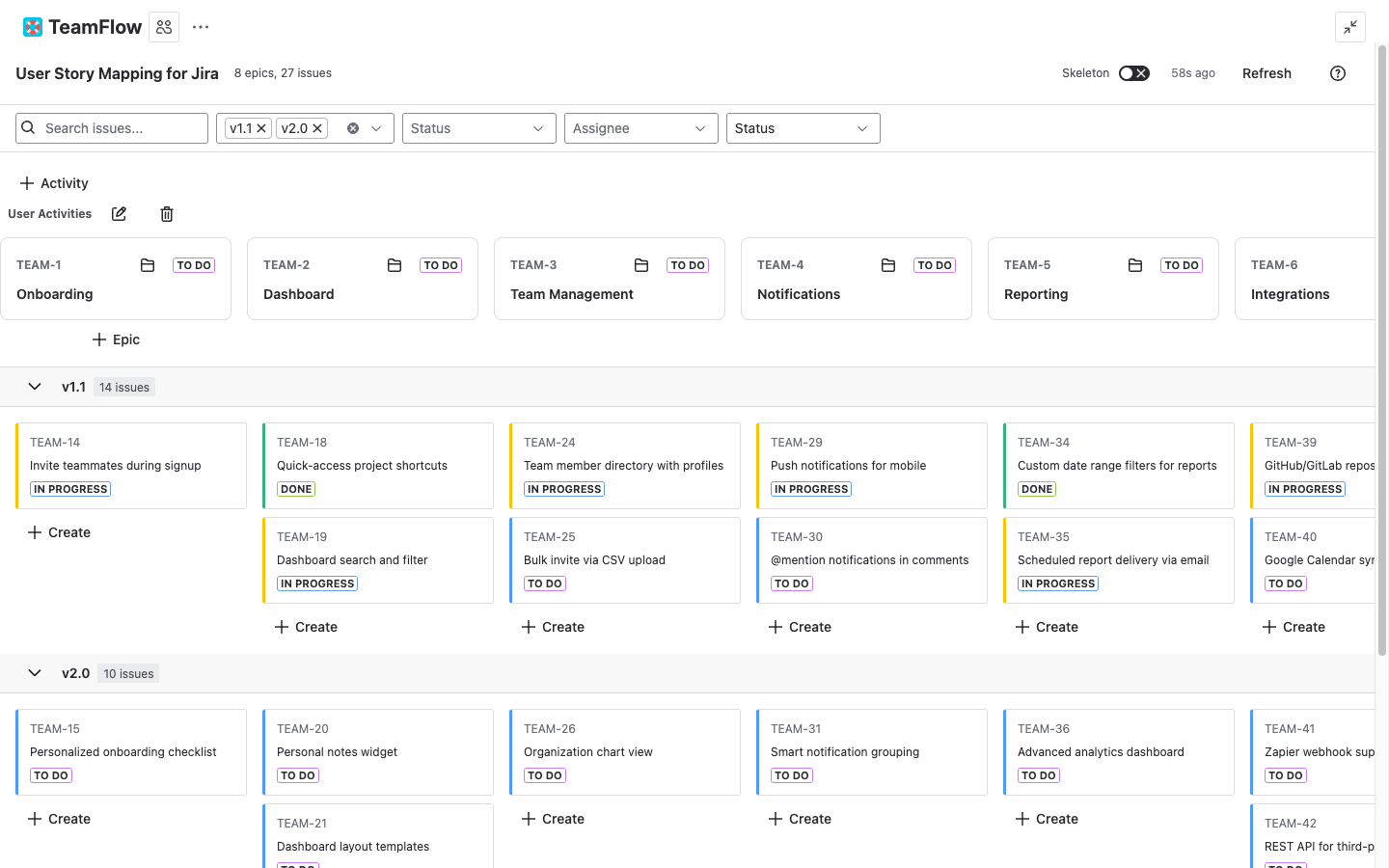
Optimizing Project Visibility: A Guide to Swimlanes in Jira
Swimlanes in Jira provide a powerful visual mechanism for organizing issues on a board by horizontal categories, allowing teams to partition work based on priority, assignee, sub-project, or issue type. By creating distinct rows across...
Swimlanes in Jira provide a powerful visual mechanism for organizing issues on a board by horizontal categories, allowing teams to partition work based on priority, assignee, sub-project, or issue type. By creating distinct rows across a Kanban or Scrum board, swimlanes help project managers and developers identify bottlenecks, group related tasks, and maintain a clear focus on specific workflows without cluttering the main task view.
Contents
Understanding the Role of Swimlanes
In project management, the concept of a swimlane originates from process mapping, where it is used to distinguish the responsibilities of different roles or departments within a single workflow. In the context of Jira—Atlassian’s enterprise-grade project tracking software—swimlanes function as horizontal dividers that slice your board into segments.
The primary utility of a swimlane is to introduce a second dimension of information to your board. While the columns represent the horizontal progression of a status (e.g., To Do, In Progress, Done), swimlanes provide vertical hierarchy. This dual-axis visualization is essential for teams managing large backlogs or complex workflows where simply looking at status is insufficient to determine the true state of a project.
Prerequisites for Configuring Swimlanes
To manage swimlanes in Jira, you must have the appropriate permission level. Specifically, you generally need to be a Board Administrator or a Jira administrator. If you do not see the "Board settings" option in the top-right corner of your board, you likely lack the necessary permissions to modify the layout.
Before enabling swimlanes, ensure your project is set up on a board that supports them. Most modern Jira projects using "Company-managed" or "Team-managed" boards allow this feature. However, note that swimlanes are specific to the board view; changing your swimlane configuration does not delete your tickets, but it does fundamentally alter how your team interacts with the data, so it is best to communicate these changes to stakeholders beforehand.
Configuring Swimlanes in Board Settings
To set up your swimlanes, follow these steps:
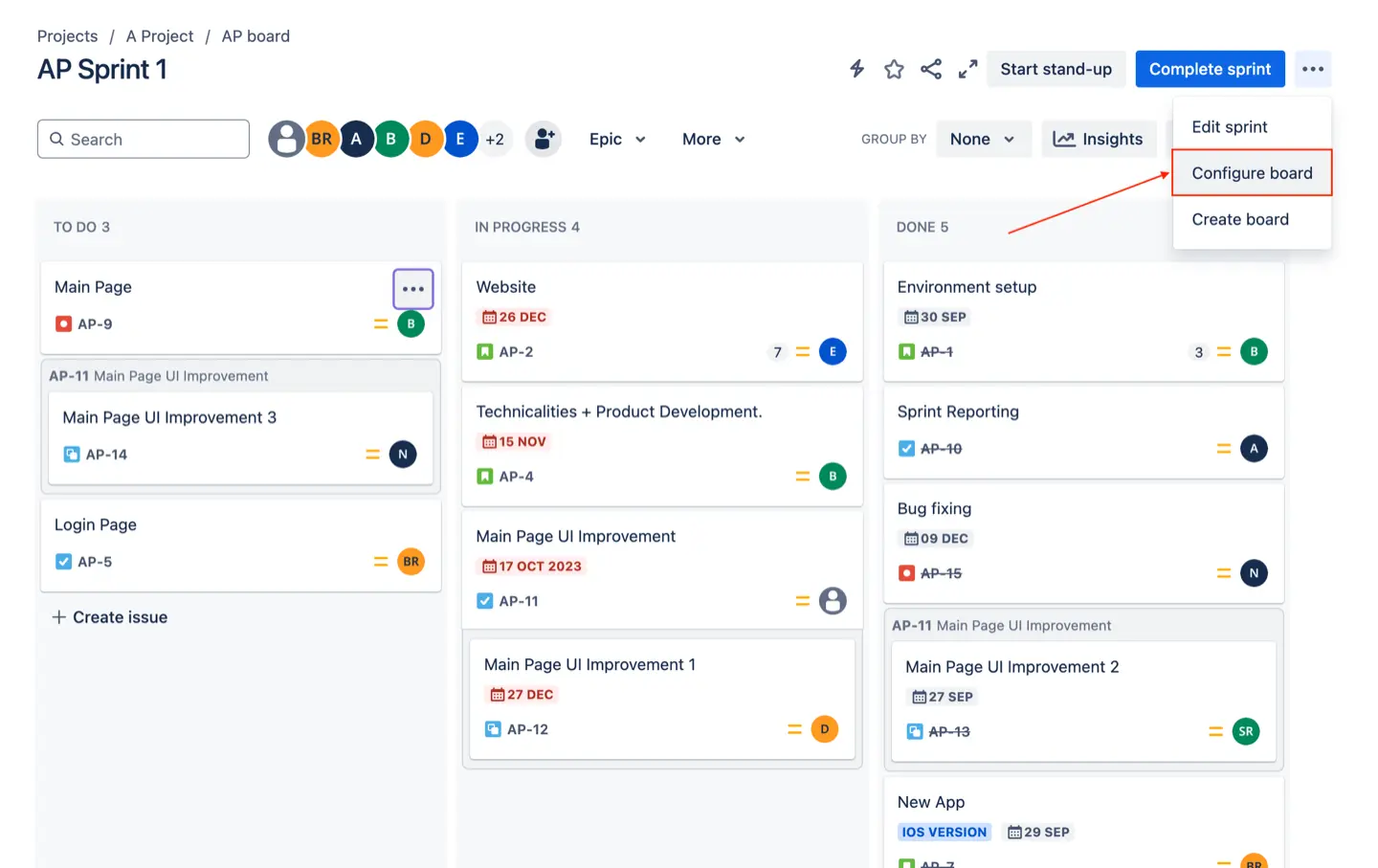
- Navigate to Board Settings: Open your Jira board and click the three dots (...) in the top-right corner, then select Board settings.
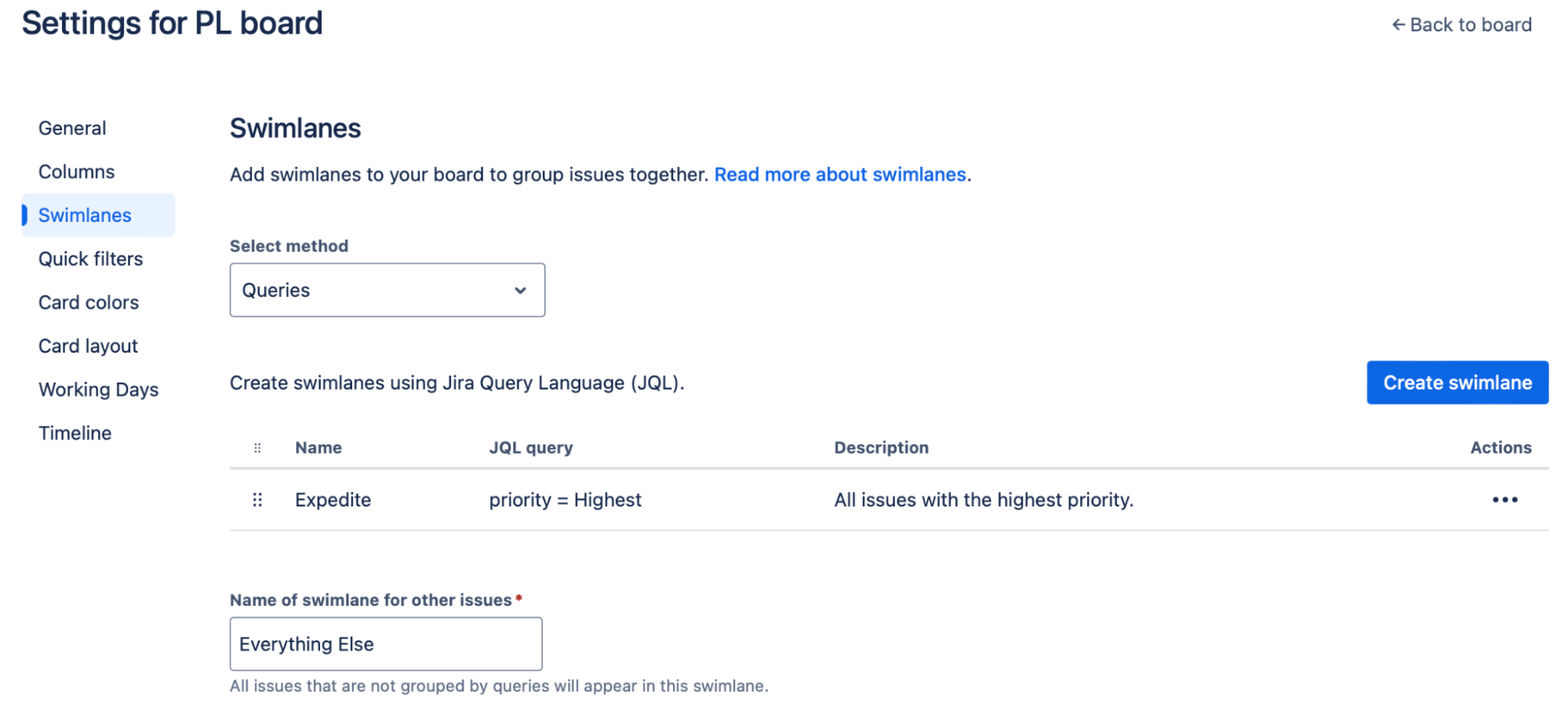
- Access Swimlanes: In the left sidebar, click on the Swimlanes tab.
- Choose a Base: Jira provides several default options for your swimlanes. Select the one that best suits your project management methodology:
- Queries: Create custom swimlanes based on JQL (Jira Query Language). This is the most flexible option.
- Assignees: Each assignee becomes a horizontal row. Ideal for resource management.
- Stories: Each parent Story acts as a swimlane for its children. Perfect for keeping track of progress within a specific feature.
- Epics: Each Epic becomes a swimlane. Useful for high-level progress tracking.
- None: Disables swimlanes entirely.
Comparing Swimlane Strategies
Choosing the right swimlane strategy depends on your team's size and the nature of your project. Below is a comparison to assist in your decision-making process:
| Strategy | Best Used For | Primary Benefit |
|---|---|---|
| Assignee | Small teams or individual workload tracking | Identifies personal bottlenecks quickly. |
| Epic | Multi-week projects or complex features | Provides high-level visibility on progress toward milestones. |
| Story | Sprint-focused development teams | Keeps related sub-tasks grouped visually. |
| Query (JQL) | Teams with complex, non-standard workflows | Allows complete customization for specific criteria. |
Advanced Usage: The Power of JQL Swimlanes
The "Queries" option is the most powerful tool for advanced users. It allows you to define horizontal rows based on specific logic. For example, if you want to ensure urgent bugs are never missed, you could create a swimlane with the JQL: priority = Critical.
To implement this, navigate to the Swimlanes settings and select Queries. You can then define the name of the swimlane (e.g., "Critical Blockers") and enter the corresponding JQL. Jira will then scan all tickets on the board and move any that match the query into that specific row, separating them from the general flow. You can also include a "Everything else" swimlane to catch tickets that do not match any of your custom queries.
Common Challenges and Troubleshooting
While swimlanes are intuitive, they can sometimes cause confusion if over-utilized. Here are the most frequent issues:
- Excessive Vertical Scrolling: If you have too many swimlanes (e.g., one per assignee in a team of 20), your board will become difficult to navigate. If this happens, consider switching to "Epics" or a custom Query that limits the number of rows.
- Empty Swimlanes: If a swimlane is empty, it may still appear on your board. Check your board settings to see if there is an option to "Hide empty swimlanes," which keeps the interface clean.
- Misplaced Tickets: If a ticket is appearing in the wrong swimlane, check your JQL. Often, a ticket might satisfy the criteria for two different custom swimlanes; in such cases, the ticket will typically appear in the first swimlane for which it meets the criteria.
Impact on Team Productivity
Integrating swimlanes into your daily stand-ups or weekly planning sessions can significantly improve transparency. When a team uses swimlanes, they are no longer just looking at a pile of tasks; they are looking at a structured system of work. For instance, if an "Epic" swimlane shows that half of the tasks are "In Progress" while the "Done" column remains empty, the team can immediately identify a bottleneck in the development or review phase.
Furthermore, swimlanes help protect against "cherry-picking" behaviors, where team members only pick the easiest tasks. By grouping tasks by priority or Epic, leaders can better guide the team toward finishing high-value items first.
Frequently Asked Questions
Can I have multiple types of swimlanes at once? No, a board can only use one base configuration for swimlanes at a time. If you select "Assignee," you cannot simultaneously have "Epic" swimlanes. You must choose the one that provides the most value for your current phase of work.
Do swimlanes affect the issue data? No. Swimlanes are purely for visual representation. Changing your swimlane configuration from "Assignee" to "Epic" will not change the assignee or the epic of any ticket; it only changes how they are arranged on the board.
Are swimlanes available in all Jira plans? Yes, swimlanes are a standard feature in both Jira Software Cloud and Jira Software Data Center. They are part of the core board functionality.
Can I reorder my swimlanes? Yes. You can drag and drop swimlanes to reorder them on the board if you are using specific configurations. However, if you are using automated configurations like "Assignee," the order is determined by the system settings (usually alphabetical or by active status).
How can I see all tickets regardless of their swimlane? You cannot "turn off" the segmentation while keeping the swimlane view enabled. If you need a flat list view, you must either switch the swimlane setting to "None" or use the "Issues" search tab to perform a query across your project.
Recommendations for Success
If you are just starting with swimlanes, begin by enabling them based on "Epics." This is usually the most impactful starting point for teams, as it directly connects day-to-day tickets to broader business goals. Once your team becomes comfortable with that level of visibility, you may transition to custom JQL queries to manage specific operational issues, such as surfacing "Blocked" or "High Priority" items into their own dedicated rows.
Monitor your board usage over a two-week period. If the team finds themselves scrolling constantly, or if certain swimlanes rarely contain tasks, adjust your configuration. The goal of using swimlanes in Jira is to increase clarity, not to add administrative overhead. Use them as a diagnostic tool to facilitate better conversation and faster delivery.
Image Gallery