How to Edit the Global Git Config Safely: A Comprehensive Guide for 2026
To edit your global Git configuration safely, the most reliable method is using the command git config --global --edit. This command opens your system's default text editor, providing a structured environment for modifications. Alterna...
To edit your global Git configuration safely, the most reliable method is using the command git config --global --edit. This command opens your system's default text editor, providing a structured environment for modifications. Alternatively, you can use git config --global to update specific variables directly through the command line interface, which minimizes the risk of syntax errors in the underlying configuration file.
Contents
Git is the backbone of modern version control, and as of 2026, it remains the standard for developers worldwide. The global configuration file is a critical component of your development environment because it stores settings that apply to every repository you work on. Whether you are updating your commit signature, setting up aliases to speed up your workflow, or configuring security protocols like SSH signing, knowing how to manipulate these settings without breaking your environment is a foundational skill.
Understanding the Git Configuration Hierarchy
Before making changes, it is essential to understand where the global configuration sits within the Git ecosystem. Git uses a tiered system for settings, where more specific configurations override broader ones.
- System Level: These settings apply to every user on the entire machine. They are stored in a file typically located in the installation directory of Git itself. Modifications here require administrative or root privileges.
- Global Level: This is the most common area for customization. These settings apply to the current user across all their projects. The file is usually located in the user's home directory.
- Local Level: These settings are specific to a single repository. They are stored in the .git/config file within a project folder and override both global and system settings for that specific project.
- Worktree Level: In advanced setups where multiple worktrees are used, Git can even have settings specific to a single worktree.
By targeting the global configuration, you are ensuring that your identity (name and email) and your preferred tools (editors and diff tools) remain consistent regardless of which project you are currently developing.
Primary Method: Using the Command Line Interface
The safest way to interact with your global configuration is through the Git command line interface (CLI). The CLI acts as a protective layer, ensuring that the commands you issue are formatted correctly before they are written to the physical file.
Setting Individual Values
If you only need to change one or two settings, using the direct key-value approach is ideal. For example, to set your username and email—the two most important pieces of global configuration—you would run:
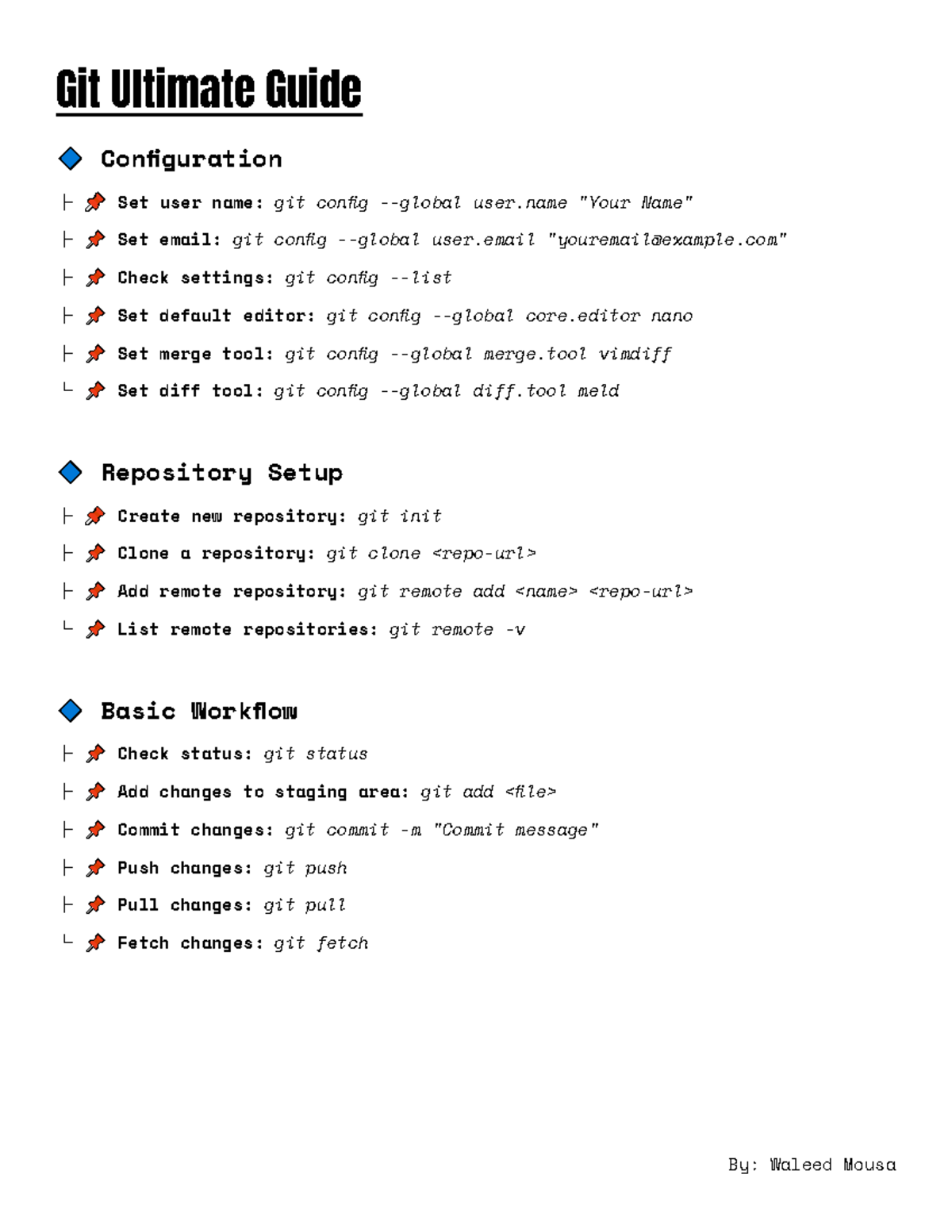
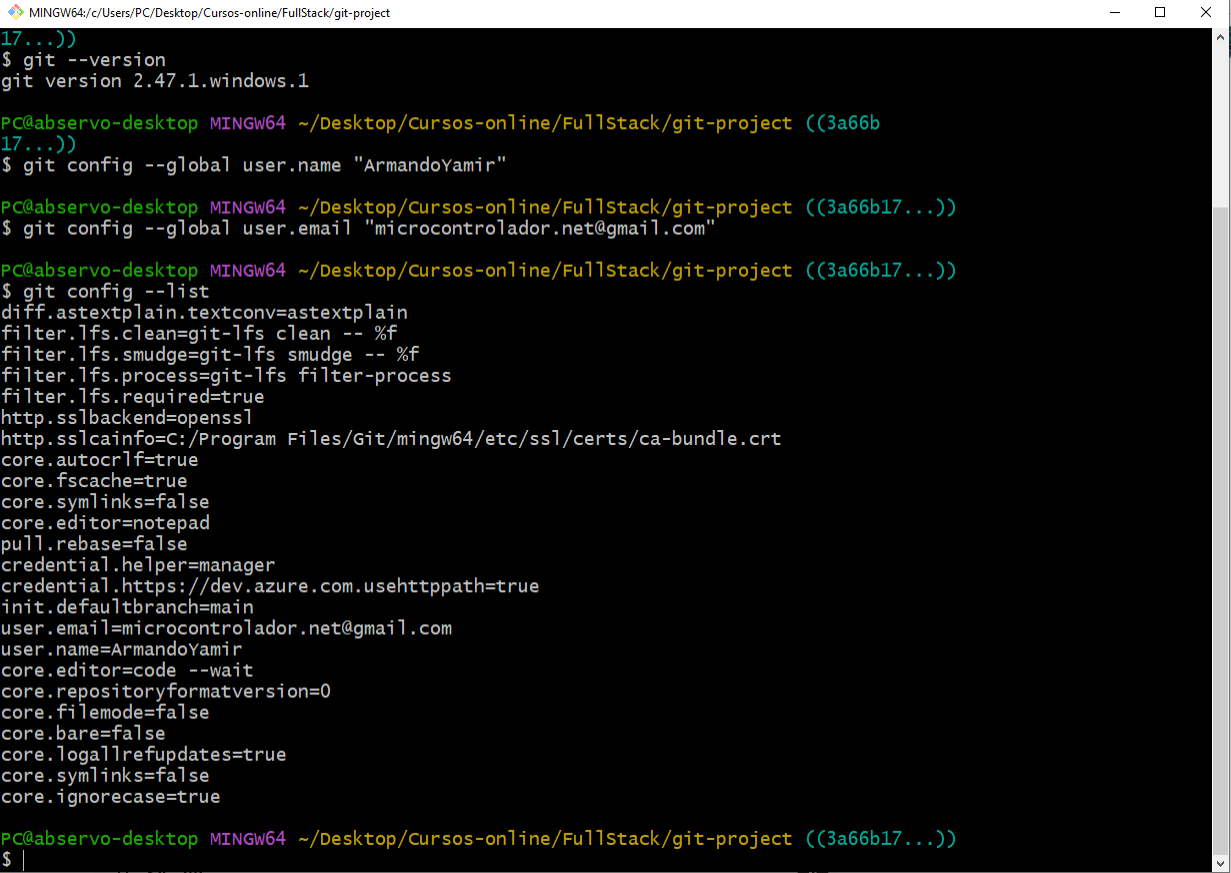
git config --global user.name "Your Name" git config --global user.email "your.email@example.com"
Using these commands is safe because Git handles the file opening, writing, and closing processes. It prevents the risk of accidentally deleting existing lines or introducing invisible characters that might corrupt the file.
Removing or Unsetting Values
If you have a setting that is no longer needed or was entered incorrectly, you should not simply try to overwrite it with a blank space. Instead, use the unset flag:
git config --global --unset user.signingkey
This command precisely removes the specified key and its associated value from the configuration file, maintaining the integrity of the file structure.
Secondary Method: Editing the Config in a Text Editor
Sometimes, you need to perform bulk updates or reorganize your configuration sections. In these cases, opening the entire file in a text editor is more efficient.
Configuring Your Preferred Editor
By default, Git might use Vim or another terminal-based editor. If you are not comfortable with terminal editors, you should first tell Git which editor you prefer. To set Visual Studio Code as your default Git editor in 2026, use:
git config --global core.editor "code --wait"
The --wait flag is crucial; it tells Git to wait for you to close the editor window before it considers the configuration change complete. You can substitute "code" with other editors like "nano", "notepad", or "subl" depending on your preference and operating system.
Executing the Edit Command
Once your editor is configured, run:
git config --global --edit
This command launches your editor and loads the .gitconfig file. Inside, you will see a structured format with sections in square brackets, such as [user] or [core]. When you save and close the file, Git performs a basic check to ensure the file remains readable.
Manual File Editing: Locations and Precautions
While using Git commands is recommended, you can also open the configuration file directly through your operating system's file explorer or a standalone editor. This requires a higher degree of caution.
Platform-Specific Paths
The location of the global .gitconfig file depends on your operating system:
- macOS and Linux: The file is usually located at ~/.gitconfig. You can find it by navigating to your home directory. Note that files starting with a dot are hidden by default in most file managers.
- Windows: The file is typically found at C:\Users\YourUsername.gitconfig.
In 2026, some systems also support the XDG Base Directory Specification, which might place the config at ~/.config/git/config. If the file does not exist in the home directory, check this path.
Manual Syntax Rules
If you choose to edit the file manually, you must adhere to the INI-style syntax:
- Sections: Titles must be enclosed in square brackets, like [core].
- Keys and Values: Keys should be indented with tabs or spaces, followed by an equals sign and the value. For example: autocrlf = true.
- Comments: Use a semicolon (;) or a pound sign (#) at the beginning of a line to add comments or temporarily disable a setting.
A single missing bracket or a typo in a section header can cause Git to ignore your settings or throw errors during commit operations.
Safety Protocols and Error Prevention
Even experienced developers can make mistakes when tweaking their environment. Implementing a few safety protocols can prevent significant downtime.
Creating Backups
Before performing any major reorganization of your global config, create a manual backup. This is as simple as copying the file to a new name. In a terminal, you would run:
cp ~/.gitconfig ~/.gitconfig.bak
On Windows, you can simply copy and paste the file within the same folder. If your changes lead to unexpected behavior, you can restore your settings by renaming the backup file back to .gitconfig.
Validating Changes
After making changes, always verify that Git perceives the settings correctly. Do not assume that because the file saved, the settings are active. Run the following command to see all active settings and their origins:
git config --list --show-origin
This command is particularly useful because it shows you exactly which file each setting is coming from. If you find that a setting you changed in the global config isn't taking effect, it might be because a local config in your current repository is overriding it.
Comparison of Editing Methods
| Method | Risk Level | Best Use Case | Requirements |
|---|---|---|---|
| CLI Key-Value | Very Low | Updating single settings (e.g., email) | Basic CLI knowledge |
| git config --edit | Low | Bulk updates or adding aliases | Configured core.editor |
| Manual File Edit | Moderate | Fast fixes when CLI is unavailable | Knowledge of file paths |
| GUI Tools | Low | Visual learners and beginners | Third-party software (e.g., GitKraken) |
Practical Examples for 2026
To provide context on how these edits look in practice, here are a few common configurations used in modern development workflows.
Setting Up Aliases
Aliases are shortcuts for longer commands. They are safest to add using the --edit method because they often involve complex strings.
[alias] st = status co = checkout br = branch hist = log --pretty=format:"%h %ad | %s%d [%an]" --graph --date=short
Handling Line Endings
Cross-platform development requires careful management of line endings (LF vs CRLF). To ensure safety across Windows and Unix-based systems:
git config --global core.autocrlf true (on Windows) git config --global core.autocrlf input (on macOS/Linux)
Security and Signing
In 2026, signing your commits is often a requirement for enterprise contributions. You can set your signing key globally:
git config --global user.signingkey ABC12345 git config --global commit.gpgsign true
Frequently Asked Questions
Where is the global Git config file located on Windows?
On Windows, the global configuration is almost always located in your user profile folder at C:\Users.gitconfig. If you have installed Git for Windows, you can also access it through the Git Bash terminal by typing cd ~ and then ls -a to see the hidden file.
What happens if I accidentally delete my .gitconfig file?
If you delete the global config, Git will fall back to system-wide defaults or local repository settings. Your commits will still work, but they may lack your name and email, or use the default system name. You can simply recreate the file by running the git config --global user.name and user.email commands again.
Can I have different global configs for work and personal use?
While there is only one "global" file per user, Git allows for "conditional includes." You can tell Git to load a specific configuration file if you are working inside a certain directory. For example, you can include a "work.config" file only if the repository path starts with "/Users/name/work/". This is the safest way to manage multiple identities without manually switching settings.
How do I reset a specific Git setting to its default?
To reset a setting, use the --unset flag: git config --global --unset . If you want to clear an entire section, such as all aliases, you can use git config --global --remove-section alias. This is safer than manually deleting lines as it ensures the file remains syntactically correct.
Is it safe to use a GUI to edit my Git config?
Yes, most modern Git GUIs like GitHub Desktop, GitKraken, or Tower provide a settings menu that modifies the global config for you. These tools are very safe because they provide a user interface that prevents syntax errors. However, they may not offer the full range of advanced configuration options available through the CLI.
Final Recommendation
For the highest level of safety and control, use the git config --global --edit command combined with a reliable text editor like VS Code or Vim. This method allows you to see the context of your changes while relying on Git to manage the underlying file operations. Always run git config --list after making changes to ensure your new settings are active and correct. Regularly backing up your configuration file is a small step that can save hours of troubleshooting if your environment ever becomes unstable.
Image Gallery