Running Your iPhone on a Desktop in 2026: The Complete Guide to iPhone Desktop Apps and Screen Mirroring
Bridging the gap between mobile operating systems and personal computers has reached a technical turning point in 2026. Users no longer have to compromise their workflow when switching between devices. If you are searching for an iPhon...
Bridging the gap between mobile operating systems and personal computers has reached a technical turning point in 2026. Users no longer have to compromise their workflow when switching between devices. If you are searching for an iPhone desktop app experience, you are looking for ways to run iOS software, mirror your phone screen, or manage mobile applications natively on macOS and Windows hardware. Apple's continuous ecosystem expansion and third-party development tools have transformed how desktop computers interact with mobile devices.
Contents
Technical Clarification Note: While Apple does not offer a standalone iOS simulator for consumer desktop use, native features like iPhone Mirroring in macOS Sequoia and advanced Windows-to-iOS bridging software allow users to interact with their iPhone directly from a desktop monitor, complete with keyboard and mouse input.
Understanding the Evolution of iOS-to-Desktop Integration
The demand for running iPhone applications on a desktop environment stems from productivity needs, multi-device workflows, and the desire to manage notifications without picking up a physical device. Historically, developers relied on Xcode simulators, while everyday users depended on third-party casting tools that often suffered from latency, audio sync issues, and security vulnerabilities.
By 2026, operating system architectures have matured significantly. Apple Silicon chips (M-series) share foundational architecture with the A-series and M-series chips powering iPhones and iPads. This hardware synergy allows for native app execution under specific developer parameters, while end-users benefit from high-speed wireless casting protocols that stream the entire iOS interface to a desktop display with negligible frame-drop rates.
Core Technologies Enabling Desktop iPhone Access
- Native Operating System Mirroring: Direct, hardware-accelerated casting that keeps your iPhone locked and secure while displaying its live interface on your computer screen.
- Apple Silicon App Execution: The ability to run iPadOS and selected iOS applications natively on macOS desktop environments, provided developers have opted in.
- Universal Clipboard and Continuity: Shared data streams allowing copy-pasting, file transfers, and notification mirroring between the iPhone and the desktop.
- Third-Party Streaming Protocols: Enterprise and consumer tools utilizing Wi-Fi and USB-C tethering to project iOS screens onto Windows desktops.
Methods to Access and Control Your iPhone from a Desktop
Depending on whether you use a Mac or a PC, your options for integrating your iPhone into your desktop environment vary significantly. The following comparison highlights the primary methods available in 2026, detailing compatibility, performance, and input capabilities.
| Integration Method | Primary Operating System | Latency / Performance | Audio Routing | Input Method Support |
|---|---|---|---|---|
| macOS iPhone Mirroring | macOS Sequoia and later | Ultra-low (< 15ms) | Full System Audio | Keyboard, Mouse, Trackpad |
| Windows Phone Link (iOS) | Windows 11 | Low to Moderate | Basic Call & Notification Audio | Mouse, Keyboard (Limited apps) |
| Third-Party Casting Apps | macOS & Windows 11 | Variable (Wi-Fi dependent) | Varies by software | Mouse click emulation |
| Xcode iOS Simulator | macOS (Developer Tool) | High (Emulated environment) | Simulated Audio | Keyboard, Mouse (Testing focused) |
Setting Up Native iPhone Mirroring on macOS
For Mac users, the native integration offers the most seamless experience. Your iPhone remains locked, meaning your data stays private even while you interact with apps on your large desktop monitor.
- Ensure both your Mac and iPhone are signed in with the same Apple Account and have two-factor authentication enabled.
- Verify that both devices have Bluetooth and Wi-Fi turned on and are near each other.
- Click the iPhone Mirroring icon in your Mac's Dock or launch it from the Applications folder.
- Unlock your iPhone once when prompted to establish the initial secure pairing connection.
- Use your Mac keyboard, trackpad, or mouse to navigate apps, type messages, and scroll through feeds seamlessly.
Integrating iPhone with Windows 11 Workstations
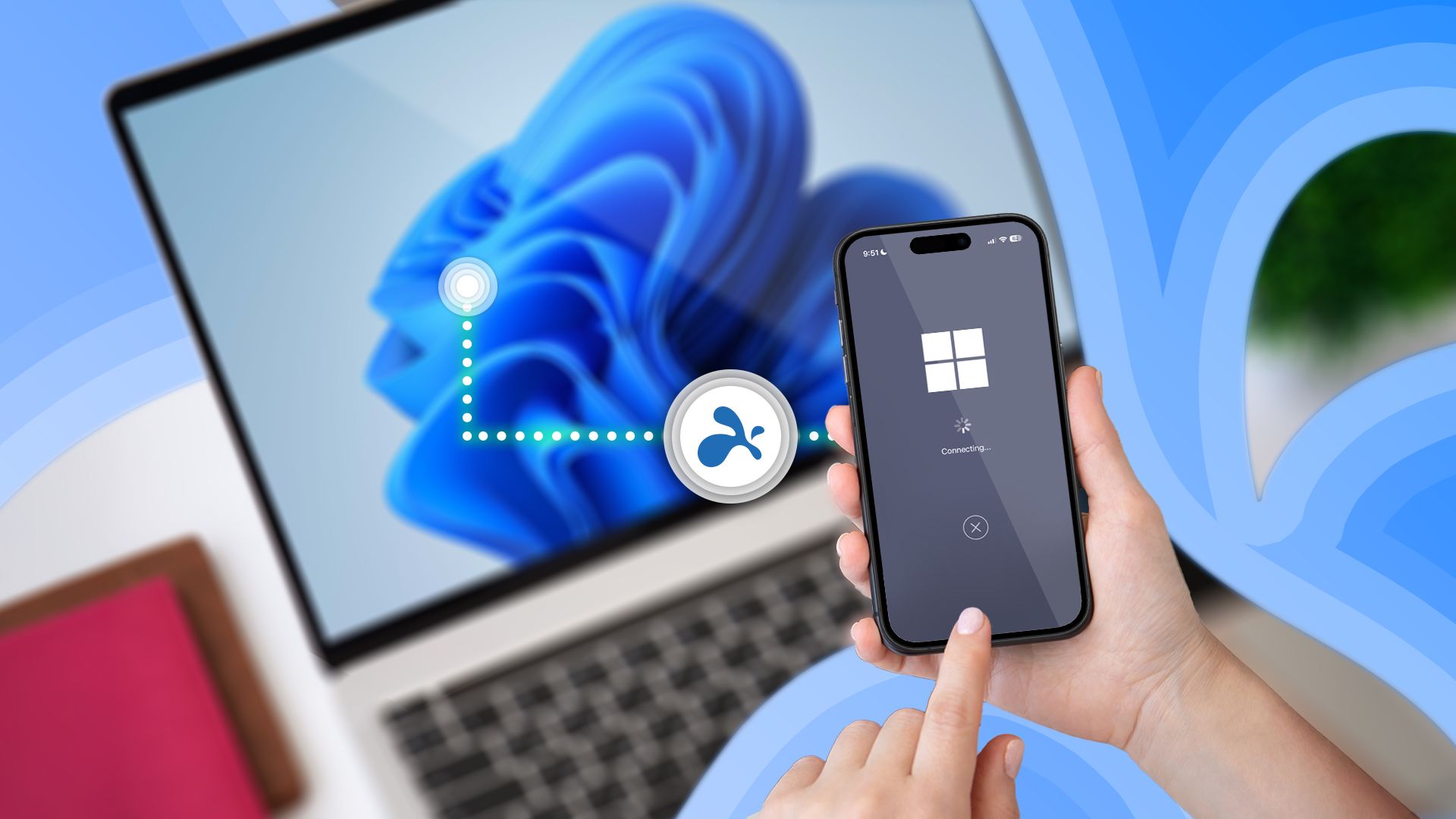
Windows users rely on Microsoft Phone Link and specialized companion applications to bring iOS functionality to their desktop monitors. While it does not mirror the entire iOS screen natively in the same fluid manner as macOS, it handles core communication tasks efficiently.
- Notifications: Receive real-time desktop pop-ups for incoming messages and app alerts.
- Messaging: Send and receive standard text messages directly from your Windows keyboard.
- Calls: Manage phone calls using your PC's connected microphone and speakers.
Advantages and Disadvantages of Desktop iPhone Integration
Integrating mobile workflows into a desktop setup yields substantial productivity gains, but it also introduces certain hardware and software limitations.
The Benefits
- Reduced Context Switching: Eliminates the physical distraction of constantly picking up your phone to check notifications or reply to messages.
- Enhanced Typing Speed: Leverage mechanical desktop keyboards to draft long emails, chat replies, and notes inside iOS applications.
- Streamlined Multi-Tasking: Monitor mobile-exclusive applications (such as specific banking apps, authenticators, or social feeds) directly on your primary workstation display.
- Security and Privacy: Native mirroring protocols keep the phone locked, preventing physical onlookers from viewing sensitive data on the phone screen while it is open on the desktop.
The Drawbacks
- Ecosystem Lock-In: Full, low-latency mirroring features remain exclusive to the Apple ecosystem (Mac paired with iPhone).
- Hardware Restrictions: Older Mac or PC hardware may lack the necessary Bluetooth and Wi-Fi module versions required for stable, low-latency streaming.
- App Compatibility Limits: Not all iOS apps scale fluidly to desktop display aspect ratios or support full keyboard navigation shortcuts.
- Battery Consumption: Continuous wireless streaming and maintaining active background sessions can increase thermal output and battery drain on the mobile device.
Troubleshooting Common Connection and Performance Issues
When attempting to run or mirror an iPhone on a desktop environment, users occasionally encounter connectivity bottlenecks or audio lag. Applying targeted technical fixes resolves most operational hurdles.
Expert Troubleshooting Tip: If your iPhone mirroring session drops unexpectedly or fails to connect, toggle Wi-Fi and Bluetooth off and on simultaneously on both devices to reset the handoff daemon. Ensure that neither device is connected to a segmented guest Wi-Fi network that blocks peer-to-peer device communication.
- High Latency or Stuttering: Move both devices closer to your Wi-Fi router, or switch from a congested 2.4 GHz wireless band to a high-speed 5 GHz or 6 GHz network channel.
- Audio Desync: Disconnect and reconnect your desktop Bluetooth audio output devices, and verify that your operating system audio drivers are fully updated.
- Authentication Loops: Sign out of your Apple Account or Microsoft account on both the desktop app and the mobile device, restart both systems, and sign back in to re-establish secure token exchanges.
Frequently Asked Questions
Can I run any iPhone app directly on my Windows desktop?
No. Windows does not natively support running iOS application binaries. You can mirror certain notifications and manage calls via Phone Link, but running standalone iOS apps requires specialized developer emulators or third-party screen projection tools.
Does iPhone Mirroring work while my phone is locked?
Yes. One of the primary security benefits of native macOS iPhone Mirroring is that your phone screen remains dark and locked while you interact with it securely from your Mac desktop.
Will running iPhone apps on my desktop drain my phone battery?
Yes, active mirroring or streaming sessions require continuous wireless data transmission and background processing, which will consume mobile battery power over extended periods.
Can I use my iPhone camera as a desktop webcam?
Yes. Apple's Continuity Camera feature allows you to use your iPhone's rear camera system as a high-resolution wireless webcam for your Mac or PC desktop without needing third-party driver installations.
Is it possible to play mobile games using a desktop keyboard and mouse?
While basic tap controls can be mapped via mouse clicks, complex games designed for touch input may lack precise responsiveness when controlled through desktop mirroring interfaces.
What are the minimum system requirements for native iPhone Mirroring?
You need a Mac with Apple Silicon or an Intel processor equipped with a T2 Security Chip, running macOS Sequoia or later, paired with an iPhone running iOS 18 or later.
Maximize your daily productivity by integrating your mobile device seamlessly into your workstation workflow. Evaluate your current hardware ecosystem, ensure your operating systems are updated to the latest 2026 releases, and set up your desktop mirroring environment today to eliminate device friction.
Image Gallery