How to View Certificates on Your Computer: A Complete Guide for Windows, macOS, and Linux
To view certificates on your computer, Windows users should type certmgr.msc in the Start menu to manage personal certificates or certlm.msc for local machine certificates. On macOS, use the Keychain Access application found in Utiliti...
To view certificates on your computer, Windows users should type certmgr.msc in the Start menu to manage personal certificates or certlm.msc for local machine certificates. On macOS, use the Keychain Access application found in Utilities. Linux users typically access certificate stores via the /etc/ssl/certs directory or using OpenSSL commands.
Contents
Digital certificates serve as the backbone of modern electronic security, acting as digital identity cards that verify the authenticity of websites, software developers, and encrypted communications. In 2026, as cybersecurity threats become increasingly sophisticated, understanding how to audit and manage the certificates stored on your local machine is an essential skill for troubleshooting connectivity issues, ensuring privacy, and maintaining system integrity.
Understanding the Role of Digital Certificates
Before navigating your system's folders, it is vital to understand what you are looking for. Digital certificates are files that bind a public key to an identity—be it a person, an organization, or a specific piece of hardware. They are issued by Certificate Authorities (CAs), which act as trusted third parties.
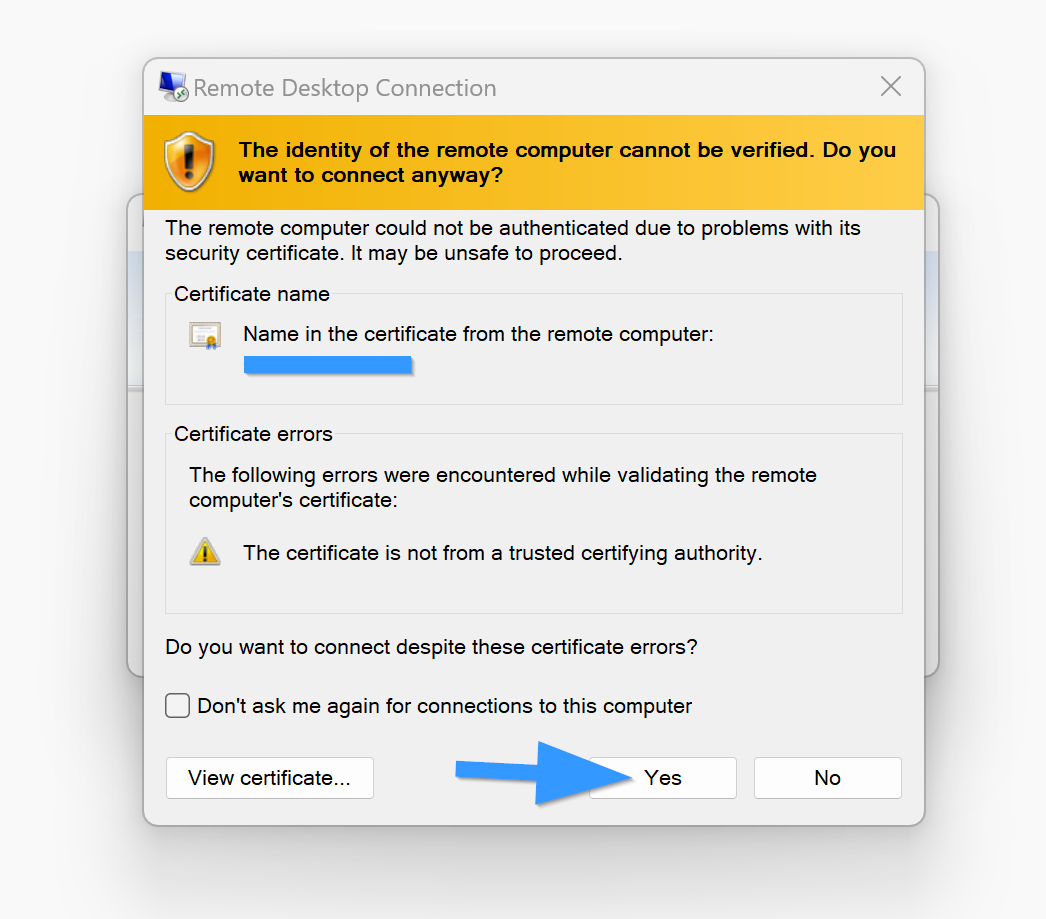
When you visit a secure website, your computer checks its local "Root Store" to see if the certificate presented by the website was issued by a trusted CA. If the certificate is missing, expired, or issued by an untrusted source, your operating system or browser will trigger a security warning. Viewing these certificates allows you to see which entities your computer trusts by default and which personal certificates you have installed for tasks like email encryption (S/MIME) or Virtual Private Network (VPN) authentication.
Types of Certificate Stores
Most operating systems categorize certificates into two primary buckets:
- User Store: Contains certificates specific to the logged-in user, such as personal identity certificates and specific web-trust overrides.
- Machine/System Store: Contains certificates that apply to all users on the device, including the critical Root Hints that allow the operating system to trust global entities like DigiCert, Let's Encrypt, or Sectigo.
How to View Certificates on Windows
Windows provides a dedicated interface called the Microsoft Management Console (MMC) to handle certificates. While the interface has remained visually consistent through Windows 10, Windows 11, and the current 2026 updates, the method of access depends on whether you need to view personal or system-wide data.
Accessing the User Certificate Manager
If you need to view certificates related to your specific Windows account—such as those used for encrypting files or identifying yourself to a corporate server—follow these steps:
- Press the Windows Key + R to open the Run dialog box.
- Type
certmgr.mscand press Enter. - The "Certificates - Current User" window will open.
- Navigate through the folders in the left pane. The Personal folder contains certificates issued to you, while Trusted Root Certification Authorities contains the CAs your user account trusts.
Accessing the Local Machine Certificate Manager
To view certificates that affect every user and the operating system's core functions (like system-wide VPNs or driver signing), you need administrative privileges:
- Click the Start button and type "Manage computer certificates."
- Alternatively, use the Run command (
Windows Key + R) and typecertlm.msc. - Confirm the User Account Control (UAC) prompt if it appears.
- The "Certificates - Local Computer" window provides a comprehensive view of all hardware-level and system-wide trust anchors.
Viewing Certificate Details
In either console, you can double-click any individual certificate to view its properties. The General tab shows the purpose of the certificate and its validity dates. The Details tab provides technical data, including the thumbprint, serial number, and the specific encryption algorithm used (such as RSA or ECC).
How to View Certificates on macOS
Apple handles certificate management through a centralized utility called Keychain Access. This tool manages passwords, keys, and certificates in a unified encrypted database.
Using Keychain Access
- Open Finder and navigate to Applications > Utilities.
- Launch Keychain Access.
- In the left sidebar, you will see different "Keychains" (Login, System, and System Roots).
- Select System Roots to see the certificates pre-installed by Apple that allow your Mac to trust major websites.
- Select Login and click the Certificates category at the top of the window to see your personal identity certificates.
Identifying Trusted vs. Untrusted Certificates
In macOS, certificates that are explicitly trusted or untrusted will often show a small icon—a green circle with a white checkmark for manual trust or a red "X" if the certificate has been manually blocked. Double-clicking a certificate opens a detailed view where you can expand the Trust section to modify how the operating system handles that specific certificate (e.g., "Always Trust" or "Never Trust").
How to View Certificates on Linux
Linux distributions do not typically use a graphical unified manager like Windows or macOS by default. Instead, certificates are stored as individual files within the filesystem, and management is performed via the terminal.
File System Locations
On most major distributions like Ubuntu, Debian, Fedora, and CentOS, the trusted root certificates are located in:
/etc/ssl/certs/usr/share/ca-certificates
To view the list of installed certificates, you can use the ls command:
ls /etc/ssl/certs
Using OpenSSL to Read Certificates
Because certificates are often stored in .pem or .crt formats which are not easily readable as plain text, you must use the OpenSSL toolkit to view their contents. To view the details of a specific certificate file, use the following command:
openssl x509 -in /etc/ssl/certs/example_cert.pem -text -noout
This command breaks down the certificate into human-readable sections, showing the Issuer, Validity period, and Subject Name.
Viewing Certificates within Web Browsers
Sometimes, viewing certificates at the operating system level is not enough. Most modern browsers (with the notable exception of Safari, which uses the macOS Keychain) maintain their own internal certificate stores or provide unique interfaces to view the certificates of the websites you are currently visiting.
Google Chrome and Microsoft Edge (Chromium-based)
- Open Settings.
- Navigate to Privacy and security > Security.
- Scroll down to Manage device certificates (this usually redirects to the OS-level manager) or Manage certificates to see the browser's specific trust list.
- To view a specific website's certificate, click the Lock icon (or the "tune" icon in newer versions) next to the URL in the address bar, then select Details > View Certificate.
Mozilla Firefox
Firefox is unique because it maintains its own independent certificate store rather than relying on the Windows or macOS system stores.
- Click the three horizontal lines (Menu) and select Settings.
- Go to Privacy & Security.
- Scroll to the bottom to find the Certificates section.
- Click View Certificates. Here, you can manage "Your Certificates," "Servers," and "Authorities" independently of your operating system settings.
Summary Table: Certificate Management Access
| Operating System / App | Primary Tool | Command / Path | User or System Level |
|---|---|---|---|
| Windows (Personal) | Certificate Manager | certmgr.msc |
User |
| Windows (System) | Local Machine Store | certlm.msc |
System (Admin required) |
| macOS | Keychain Access | /Applications/Utilities/ |
Both |
| Linux (Ubuntu/Debian) | Terminal / OpenSSL | /etc/ssl/certs |
System |
| Mozilla Firefox | Firefox Settings | About:preferences#privacy |
Application Specific |
| Google Chrome | Chrome Settings | chrome://settings/security |
Browser/OS Hybrid |
Common Troubleshooting and Security Risks
Viewing your certificates is often the first step in resolving "Your connection is not private" errors. If you find a certificate that is expired or marked with a red warning, it may need to be deleted or updated.
Handling Expired Certificates
Certificates have a strictly defined lifespan. As of 2026, most SSL/TLS certificates for websites are valid for 90 to 397 days. If you encounter an expired certificate in your Personal store, you likely need to renew your credentials with your IT department or service provider. Do not manually delete root certificates unless you are certain they are malicious, as this can break your ability to browse the internet safely.
The Danger of Rogue Root Certificates
One of the most significant security risks involves the unauthorized installation of a Root Certificate Authority. If a malicious actor (or a piece of adware) installs a rogue root certificate on your computer, they can intercept and decrypt your "secure" traffic without triggering any browser warnings. Periodically auditing your Trusted Root Certification Authorities folder for names you do not recognize is a proactive security measure.
Frequently Asked Questions
Can I delete certificates I don't recognize?
You should be extremely cautious. Deleting a certificate from the "Trusted Root" folder can prevent your computer from connecting to legitimate websites or running signed software. Only delete certificates if you have confirmed they are associated with malware or if an administrator has instructed you to do so.
Why does Firefox show a certificate error when Chrome does not?
Firefox uses its own internal certificate store, while Chrome usually uses the operating system's store. If a new Root CA was added to your Windows or macOS system but not to Firefox, Firefox will not trust the associated websites until the certificate is manually imported into the browser's settings.
What is the difference between .CER, .CRT, and .PEM files?
These are different file extensions for certificate formats. .PEM is common in Linux and is Base64 encoded. .CER and .CRT are common in Windows and can be either binary (DER) or Base64 encoded. Most modern certificate managers can open all three formats.
How do I view a certificate's "Thumbprint"?
Double-click the certificate in your manager, go to the Details tab, and scroll to the bottom. The thumbprint (or fingerprint) is a unique cryptographic hash of the certificate. This is the most accurate way to verify that a certificate is exactly what it claims to be.
Do I need to restart my computer after importing a certificate?
In most cases, no. Most applications, including web browsers and VPN clients, will recognize a newly installed certificate immediately. However, some legacy Windows services may require a restart to refresh their trust cache.
Practical Recommendation
For most users, the most efficient way to maintain a healthy certificate environment is to keep your operating system and browsers updated. These updates include "Root Store" refreshes that automatically add new trusted CAs and revoke those that have been compromised. If you are a developer or IT professional, familiarize yourself with the OpenSSL command line, as it remains the most powerful and platform-agnostic tool for certificate inspection and debugging through 2026 and beyond.
Image Gallery