How to Enter a New Line in Google Forms: A Complete Guide for 2026
To enter a new line in Google Forms, simply press the Enter key while typing in the Form Description or Question Description fields. For respondents providing answers, you must select the Paragraph question type to allow them to use th...
To enter a new line in Google Forms, simply press the Enter key while typing in the Form Description or Question Description fields. For respondents providing answers, you must select the Paragraph question type to allow them to use the Enter key for line breaks. Question titles do not natively support new lines.
Contents
Google Forms remains one of the most efficient tools for data collection and survey management in 2026. While its interface is designed for simplicity, many users find themselves frustrated by the apparent lack of formatting options, particularly the ability to insert line breaks or new paragraphs. Because Google Forms prioritizes a clean, programmatic structure for data export (like Google Sheets), it imposes specific restrictions on where and how you can manipulate text layout.
Understanding the distinction between "Display Text" and "Input Fields" is crucial for mastering form design. This guide provides a comprehensive breakdown of how to achieve the layout you want, whether you are the form creator or a respondent trying to submit a clean, readable answer.
Understanding Google Forms Field Architecture
Before attempting to force a line break, it is helpful to understand the three primary areas where text is handled in a Google Form. Each area behaves differently regarding the Enter key and white space preservation.
1. Form and Question Descriptions
These fields are designed for context. Whether it is the main description at the top of the form or the smaller "Description" toggleable under an individual question, these areas are the most flexible. They are intended for instructions, and Google allows standard carriage returns (new lines) here without any special workarounds.
2. Question Titles and Section Headers
These are the primary labels for your data points. To keep the UI consistent and ensure that headers don't break the layout of the form, Google restricts these to single-line inputs in the editor. Even if you copy and paste text with line breaks into a Question Title, the system will often strip the breaks or convert them into spaces.
3. Respondent Input Fields (Short Answer vs. Paragraph)
This is where the most common user error occurs. If a form creator selects "Short Answer," the respondent’s browser treats the input as a single-line text string. Pressing the Enter key in a short answer field often triggers the "Submit" action or moves the cursor to the next element. Only the "Paragraph" question type allows for multi-line responses.
How to Insert New Lines in Descriptions
If you are building a form and need to provide detailed instructions with bullet points or separated paragraphs, the Description fields are your best tool.
Steps for the Main Form Description:
- Open your form in the Google Forms editor.
- Click on the Form Description field directly under the main Title.
- Type your first line of text.
- Press the Enter key on your keyboard.
- Notice that the cursor moves to a new line, creating a clear visual break.
Steps for Question Descriptions:
Sometimes a question is complex and requires its own set of instructions.
- Click on the specific question you wish to edit.
- Click the three vertical dots (More options) in the bottom right corner of the question block.
- Select Description.
- A new text field appears below the question title. You can use the Enter key here freely to create lists or spacing.
By 2026, Google has improved the rendering of these fields to ensure that the spacing you see in the editor accurately reflects what the respondent sees on their screen, regardless of whether they are using a desktop or a mobile device.
Creating Line Breaks in Question Titles (The Workaround)
Because Google Forms does not natively support the Enter key in the "Question Title" field, you must use a "soft break" or a Unicode character if you absolutely require a vertical layout. While not officially supported, the most reliable method involves using specific Unicode separators that browsers interpret as a line break without the form's code stripping them away.
Using the Unicode "Line Separator"
- Use a Unicode character tool or a site that provides invisible formatting characters.
- Copy the Line Separator (U+2028) or Paragraph Separator (U+2029).
- Paste this character into the Question Title field where you want the break to occur.
- In many modern browsers, this will force the text following the character onto a new line during the live preview.
Caution: Use this method sparingly. Excessive formatting in titles can make the resulting data headers in Google Sheets or CSV exports difficult to read, as the line breaks will often appear as strange symbols or create multi-line headers in your spreadsheet.
Allowing Respondents to Use New Lines
If you are a form creator and you want your users to be able to submit organized, multi-paragraph answers, you must configure the question correctly.
Switching to Paragraph Mode
- Select the question in your editor.
- In the dropdown menu on the right (which usually defaults to "Multiple choice" or "Short answer"), select Paragraph.
- Once set to Paragraph, the respondent's view changes. The input line is replaced with a larger text area.
- When the respondent types their answer, they can press Enter (or Return on macOS/iOS) to start a new paragraph.
If you leave the question as a "Short Answer," the respondent is technically blocked from entering a new line. On mobile devices, the "Return" key on the virtual keyboard may even be replaced by a "Done" or "Go" button, making it physically impossible for the user to insert a break.
Technical Comparison of Field Capabilities
The following table summarizes which fields support line breaks and how they behave in the 2026 version of Google Forms.
| Field Type | Supports Enter Key? | Best Use Case | Impact on Data Export |
|---|---|---|---|
| Form Title | No | Brief, catchy name for the form. | Becomes the File Name. |
| Form Description | Yes | Detailed instructions, contact info. | Not included in responses. |
| Section Header | No | Dividing the form into parts. | Not included in responses. |
| Question Title | No (Workaround only) | Clear, concise questions. | Becomes Column Header in Sheets. |
| Question Description | Yes | Clarifying complex questions. | Not included in responses. |
| Short Answer (Input) | No | Names, emails, single-word data. | Single string per cell. |
| Paragraph (Input) | Yes | Feedback, essays, descriptions. | Multi-line text within one cell. |
Troubleshooting New Line Issues
Even with the correct settings, you might encounter issues where line breaks disappear or do not function as expected.
1. The "Submit on Enter" Problem
In some browsers, pressing Enter while in a text field might attempt to submit the form prematurely. This usually happens if the question is set to "Short Answer" or if the cursor is not actively focused within a multi-line text area. To prevent this, ensure your question is set to Paragraph.
2. Line Breaks Not Appearing in Google Sheets
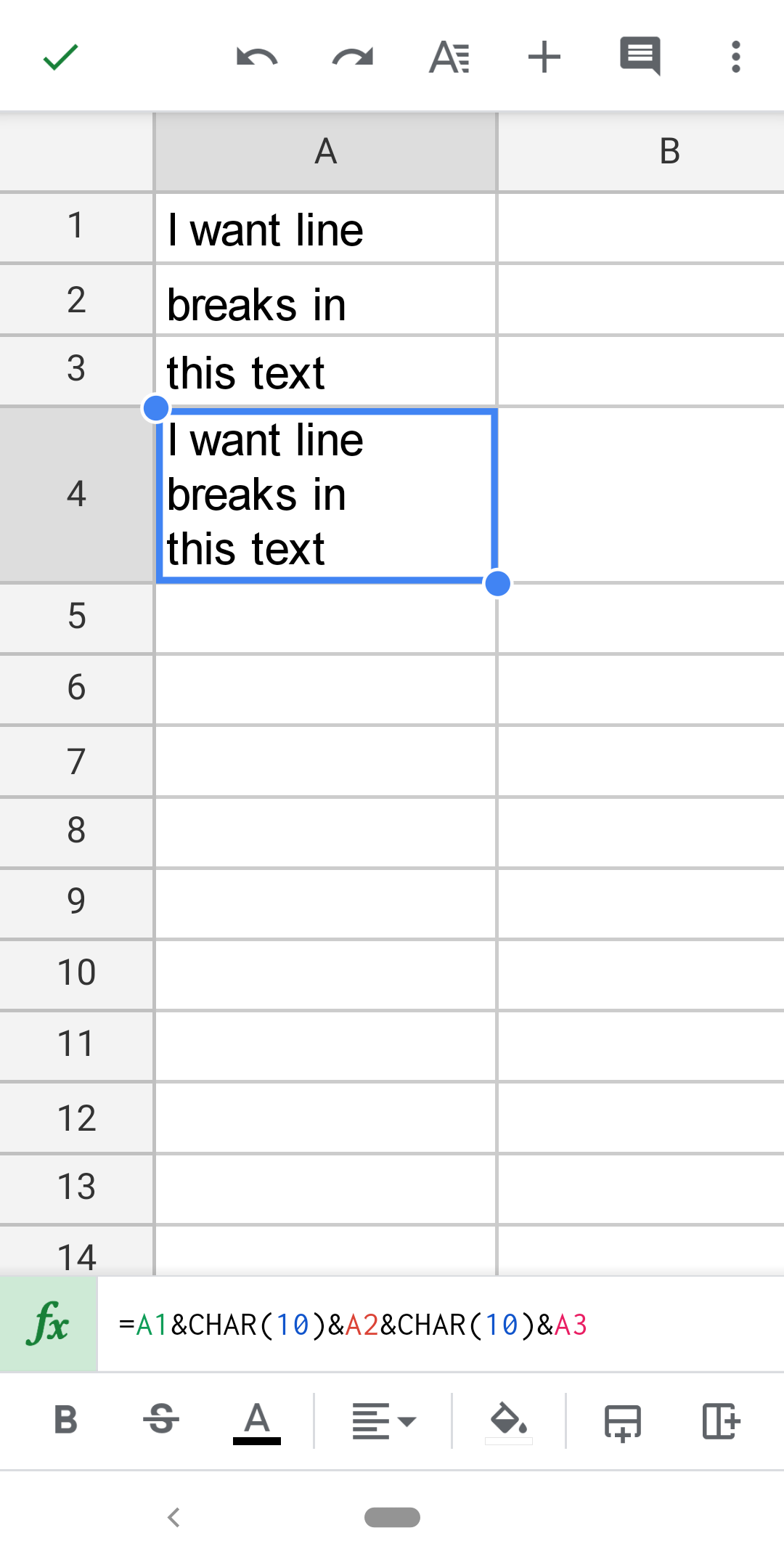
When you view your responses in the linked Google Sheet, the text might look like one long continuous string. This is usually a display setting in Google Sheets, not a loss of data.
- The Fix: Select the column in Google Sheets, click the Text Wrapping icon in the toolbar, and select Wrap. The line breaks will suddenly become visible.
3. Copy-Paste Formatting Stripping
If you copy text from a Word document or a website into a Google Form description, the formatting might become messy.
- The Fix: It is often better to paste the text using Ctrl + Shift + V (Paste without formatting) and then manually press Enter at the desired break points to ensure the form's internal code recognizes the line breaks correctly.
Best Practices for Form Layout in 2026
Effective form design is not just about where you can put a new line, but where you should. Over-formatting a form can lead to "form fatigue," where the respondent feels overwhelmed by the amount of text.
- Use Sections Instead of Long Descriptions: If your form description requires five or six paragraphs, consider breaking the form into multiple sections using the Add Section tool. This paces the user's experience.
- Keep Titles Short: Let the Question Title be the "data key" (e.g., "Home Address"). Use the Question Description for the details (e.g., "Please include your apartment number and gate code if applicable").
- Mobile-First Design: Remember that more than 70% of forms are filled out on mobile devices. Long blocks of text that look fine on a desktop can become "walls of text" on a smartphone. Use new lines to create white space and improve legibility.
Expert Recommendation
For the best user experience, always prioritize the Question Description for any text that requires formatting or multiple lines. If you are collecting qualitative data, never use the "Short Answer" field; the "Paragraph" field is the only way to guarantee your respondents can use the Enter key to organize their thoughts. If you find yourself needing advanced layout features like bolding, italics, or complex bulleted lists within titles, you may need to look into third-party Form builders or Google Workspace add-ons that "skin" the form, as the native Google Forms engine remains intentionally limited to preserve simplicity and cross-platform performance.
FAQ
Can I use HTML tags like to create a new line in Google Forms?
No, Google Forms does not support HTML rendering in any of its fields. Typing will simply result in the literal text "" being displayed to the respondent. You must use the Enter key in supported fields or Unicode workarounds in titles.
Does Shift + Enter work differently than Enter in Google Forms?
In the Form Editor, Shift + Enter generally behaves the same as Enter within description fields. However, in some browser environments, Shift + Enter can help prevent the accidental submission of a form if the cursor is in a field that normally doesn't support line breaks, though it still won't create a visual break in those restricted fields.
Why did my line breaks disappear when I exported my responses to a CSV file? CSV files are "Comma Separated Values" and are essentially plain text. Some basic text editors do not render the carriage return characters used by Google Forms. Opening the CSV in a professional spreadsheet program like Microsoft Excel or Google Sheets and enabling "Text Wrap" will usually reveal that the line breaks are still there.
Is there a character limit for Paragraph responses? While there is no strictly defined "line limit," Google Forms allows for approximately 32,000 characters in a Paragraph response. This provides ample space for many new lines and paragraphs.
Can I use Markdown for new lines and bolding? As of 2026, Google Forms has limited support for bold, italic, and underline in descriptions through a hovering formatting bar. However, it does not support full Markdown syntax. New lines must still be created using the Enter key manually.
Image Gallery