How to Fix Windows 10 Password Not Working
When your Windows 10 password is not working, you can regain access by verifying your keyboard layout, utilizing a PIN or alternative sign-in option, booting into Safe Mode to manage local user accounts, or resetting your Microsoft acc...
When your Windows 10 password is not working, you can regain access by verifying your keyboard layout, utilizing a PIN or alternative sign-in option, booting into Safe Mode to manage local user accounts, or resetting your Microsoft account credentials online if you use a cloud-connected profile.
Contents
Encountering a locked computer screen because your password is not working can be an immensely frustrating experience. Whether you recently changed your credentials, encountered an unexpected operating system glitch, or simply typed the characters incorrectly, being locked out halts your workflow entirely. Windows 10 offers several built-in mechanisms and recovery pathways to help you bypass this obstacle safely, ranging from simple peripheral checks to advanced command-line interventions. Understanding the exact nature of your account type—whether it is a cloud-linked Microsoft account or an offline local account—dictates the precise troubleshooting trajectory required to restore access to your machine.
Understanding Account Types: Microsoft vs. Local Accounts
Before attempting any technical fixes, you must identify whether your Windows 10 user profile relies on a Microsoft account or a traditional local account. This distinction determines how your credentials are authenticated and dictates the appropriate reset vector.
A Microsoft account uses an email address (such as an Outlook, Hotmail, or Live address) and a single password that synchronizes across various Microsoft services and devices. If your password is not working because you updated it on your smartphone or a web browser, your computer might still be attempting to authenticate against old cached credentials. Conversely, a local account exists solely on that specific machine, meaning its credentials never synchronize with cloud servers. Resetting a local account requires either an administrator-level override or specific password reset questions established during the initial setup of that particular profile.
Immediate Hardware and Input Verification Checks
Many instances of password failure stem from minor physical errors rather than corrupted system databases or forgotten phrases. Before executing complex software workarounds, eliminate basic environmental variables.
Verify your keyboard layout and language settings, which are typically displayed in the bottom-right corner of the Windows 10 sign-in screen. If your physical keyboard uses a United States (US) layout while Windows expects a United Kingdom (UK) or another regional layout, keys like quotation marks, shift symbols, and the "At" (@) sign will register incorrectly.
Next, inspect your physical hardware:
- Ensure that the Caps Lock key is not accidentally engaged.
- If you use an external keyboard, verify that the USB cable is fully inserted or that the wireless receiver and batteries are functioning correctly.
- Try typing your password into the password visibility box (by clicking the eye icon next to the input field, if available) to ensure you are not missing characters or misinterpreting ambiguous symbols.
- If your keyboard has a numeric keypad, verify that the Num Lock key is enabled before typing a password that contains numbers.
Utilizing Alternative Sign-In Options
Windows 10 features multiple biometric and alternative authentication methods designed to bypass standard alphanumeric passwords. If your primary password fails, check the sign-in options links directly beneath the password entry field.
| Sign-In Option | Primary Requirement & Fallback Behavior |
|---|---|
| Windows Hello PIN | Requires a configured 4+ digit numeric or alphanumeric code |
| Fingerprint Reader | Requires registered biometric data and functioning driver |
| Facial Recognition (IR) | Requires compatible Intel RealSense or specialized camera |
| Picture Password | Uses predefined gestures (circles, taps) on a static image |
If you previously set up a PIN, click the icon shaped like a keypad to switch from your password to your PIN. Similarly, if your device supports Windows Hello biometric authentication, try scanning your fingerprint or allowing the infrared camera to recognize your face. Successfully logging in via an alternative method grants you immediate access to the desktop, where you can navigate to Settings, select Accounts, and safely modify or reset your primary password without needing external recovery media.
Resetting a Microsoft Account Password Remotely
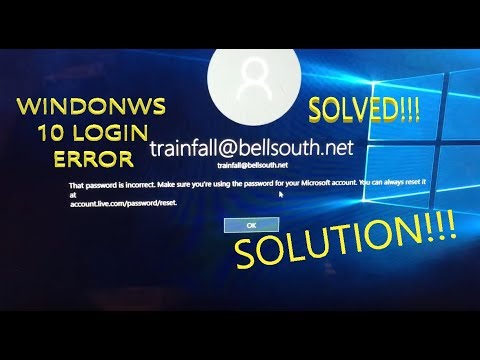
If your Windows 10 machine is linked to a Microsoft account and your password continues to fail, the issue likely resides in a desynchronization between your local machine cache and Microsoft's cloud authentication servers.
To resolve this, you must use a separate, functioning device—such as a smartphone, tablet, or another computer—to reset your credentials:
- Open a web browser and navigate to the official Microsoft Account Password Reset Page.
- Enter the email address, phone number, or Skype name associated with your locked Windows 10 account.
- Complete the security verification challenge by receiving a one-time code via a secondary email address or an SMS text message sent to your mobile phone.
- Input the verification code into the web interface when prompted.
- Create a new, secure password that meets Microsoft's complexity requirements.
- Return to your locked Windows 10 computer. Ensure that the machine is actively connected to the internet via an Ethernet cable or by selecting a Wi-Fi network from the lock screen network icon.
- Type your newly created password carefully. The operating system will query Microsoft's servers over the internet and grant you access.
Recovering Access to a Local Account
If your computer utilizes a local user account rather than a Microsoft account, the password reset process is entirely internal. When you set up a local account on Windows 10, the operating system historically required three security questions to facilitate self-service recovery.
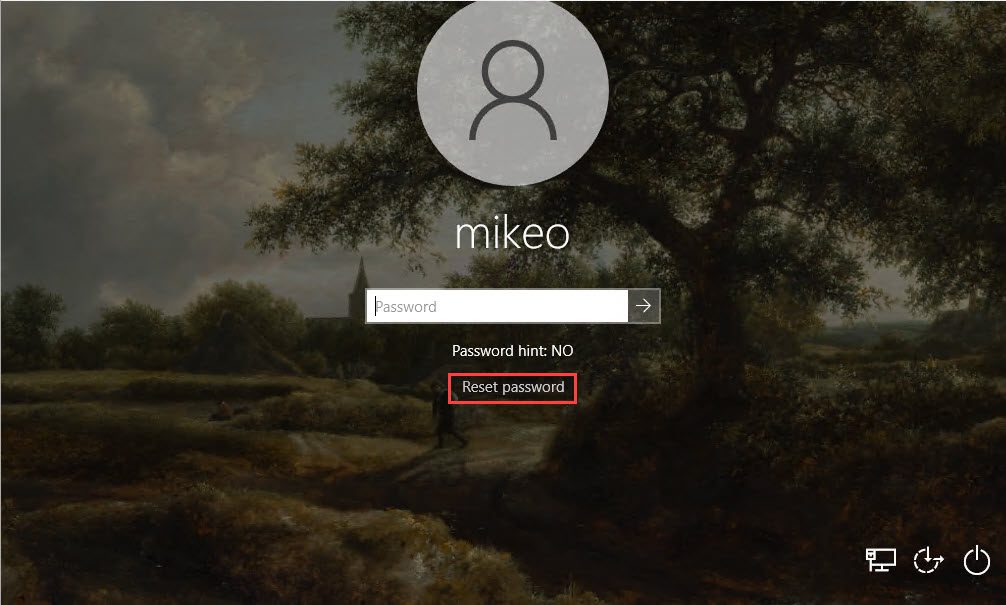
If you type an incorrect password on a local account, Windows displays a "Reset password" link beneath the input box once the initial error message clears. Click this link and answer the security questions you established during the account's creation. Providing the correct answers allows you to input a new password immediately.
If you did not configure security questions and lack an administrative backup account, standard user-level recovery becomes significantly restricted. In such scenarios, advanced troubleshooting steps involving installation media or command-line utilities are required to regain administrative control.
Advanced Troubleshooting: Using Safe Mode and Command Prompt
When standard recovery pathways fail, advanced users can leverage Windows Recovery Environment (WinRE) to modify local account credentials. This method requires access to an elevated Command Prompt.
To enter the Windows Recovery Environment when you are locked out of the sign-in screen:
- Hold down the Shift key on your keyboard while clicking the Power icon in the bottom-right corner of the screen.
- While continuing to hold Shift, select Restart.
- Your computer will reboot into a blue selection menu. Navigate to Troubleshoot > Advanced options > Startup Settings, and click Restart.
- Upon rebooting, press 4 or F4 to enable Safe Mode.
Once in Safe Mode, you can use built-in management tools if you retain administrator privileges. Alternatively, technicians often utilize bootable installation media to swap utility binaries (such as the Ease of Access button) with the Command Prompt (cmd.exe), allowing them to issue user modification commands like net user [username] [newpassword] from the lock screen. However, performing such modifications requires strict adherence to system file integrity and carries potential security risks if executed incorrectly.
Preventing Future Lockouts
Mitigating future access issues involves proactive security management and credential hygiene. Implementing redundancy prevents a single forgotten string of characters from turning into a major operational block.
- Create a Password Reset Disk: If you use a local account, navigate to Control Panel, search for "Create a password reset disk," and follow the wizard using an empty USB flash drive. This physical key allows you to reset a local account password at any time without internet access.
- Maintain Secondary Authentication: Always link a verified secondary email address and phone number to your Microsoft account. This ensures you can receive instant verification codes if you need to reset cloud credentials on an alternate device.
- Use a Password Manager: Store your complex Windows credentials in a reputable, cross-platform password manager so you can easily reference them if you sign in with a newly generated sequence.
- Establish an Emergency Administrator Account: Create a secondary administrator profile on your machine with a known, secure password. If your primary account experiences profile corruption or credential failure, the secondary administrator can log in and repair the affected user profile.
Frequently Asked Questions
Why does my Windows 10 password work on the web but not on my computer?
This discrepancy usually occurs when your computer is offline and cannot communicate with Microsoft's authentication servers, meaning it must rely on an older cached password stored locally. Ensure your computer is connected to the internet via Wi-Fi or Ethernet from the lock screen before attempting to log in with your updated credentials.
Can I reset my Windows 10 password without losing my files?
Yes. Standard password reset procedures—whether through the Microsoft account recovery webpage or security questions for local accounts—only modify your authentication credentials and do not affect your personal documents, applications, or system settings.
What should I do if my fingerprint reader or PIN stops working after an update?
System updates can occasionally disrupt biometric drivers or Windows Hello data stores. Click the sign-in options link below the login box to switch back to your traditional Microsoft or local account password. Once logged in, go to Settings > Accounts > Sign-in options to reconfigure or remove and re-add your PIN or biometric credentials.
Is it possible to bypass a Windows 10 password using third-party software?
While numerous third-party utilities claim to instantly crack or bypass Windows passwords, many are unreliable, violate system security parameters, or contain malware. It is always safer to use official Microsoft recovery pathways, security questions, or authorized administrator tools.
How many times can I enter an incorrect password before Windows locks me out?
Windows 10 does not typically enforce a permanent lockout of the entire machine based purely on incorrect password attempts at the consumer level, though specific organizational Group Policies enforced by corporate network administrators may implement temporary lockout timers after a defined number of failed tries.
Image Gallery