What Is My Gateway Address and How to Find It
Your gateway address, commonly referred to as the default gateway, is the IP address of the networking device—usually a router—that allows your computer or mobile device to communicate with networks outside of your local home or office...
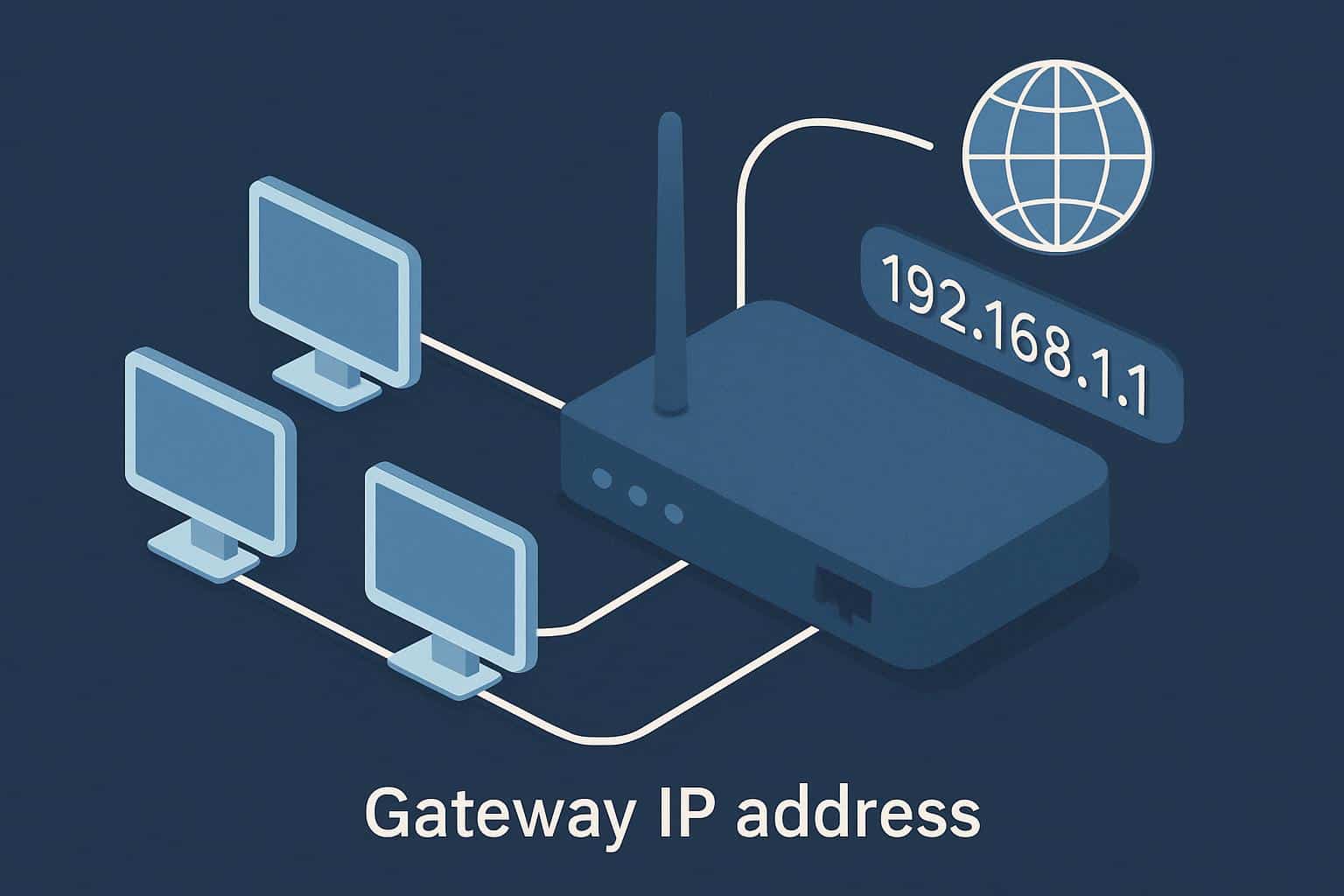
Your gateway address, commonly referred to as the default gateway, is the IP address of the networking device—usually a router—that allows your computer or mobile device to communicate with networks outside of your local home or office environment. It serves as the exit point for your internet traffic, directing data packets from your private network to the wider internet and back again.
Contents
Understanding the Role of a Gateway Address
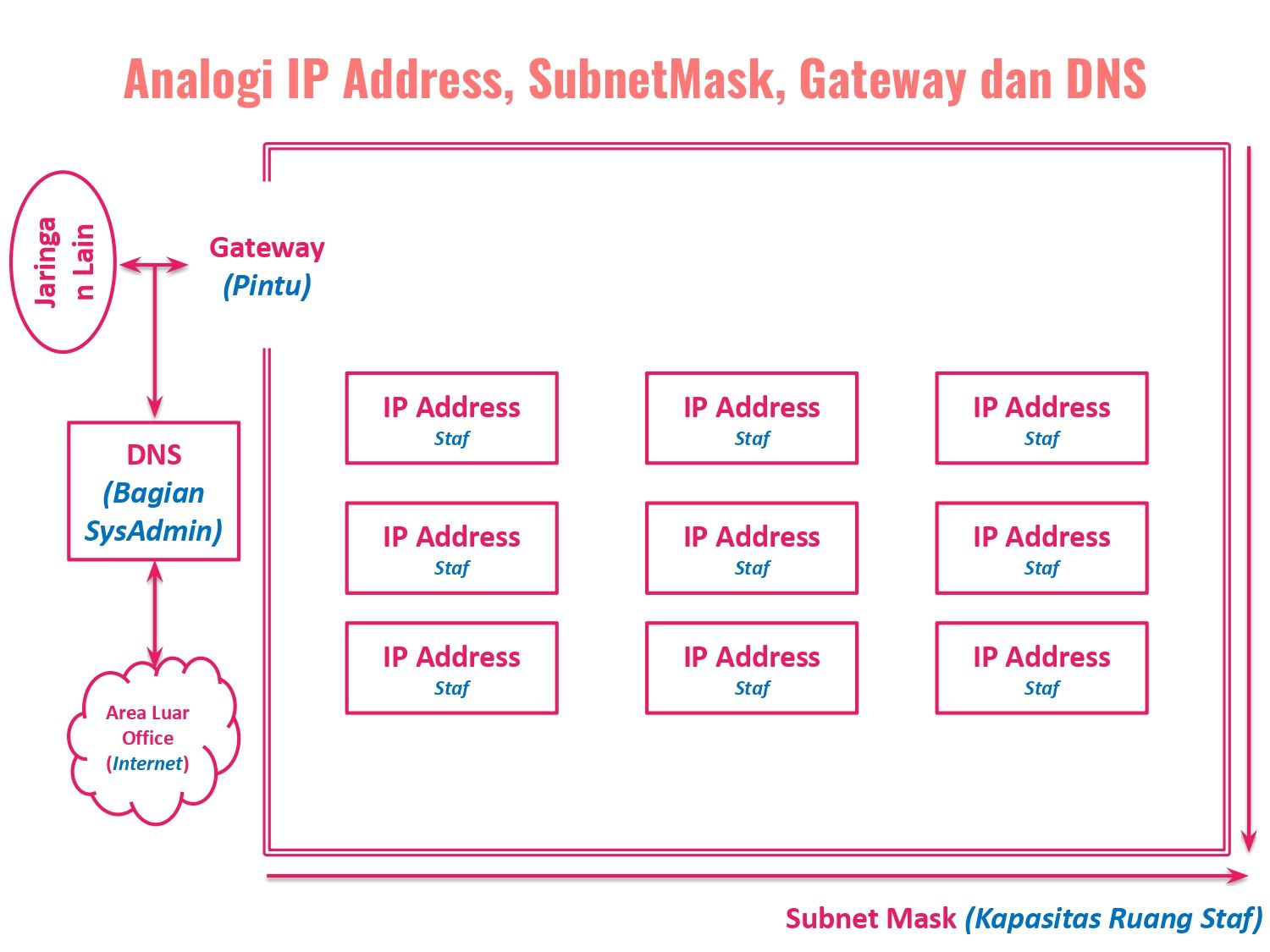
In networking terminology, a gateway is a node that acts as an entrance to another network. For most home users, the "Default Gateway" is the local interface of your internet service provider’s (ISP) router. When you type a website address into your browser, your device sends a request to this gateway. The gateway then forwards that request out to the internet, receives the data, and routes it back to your specific device.
Without a properly configured gateway, your device would be trapped within its local network, unable to communicate with servers beyond your immediate router or switch. In professional networking, this might be a complex multi-layer switch or a firewall, but for the vast majority of consumer applications, it is the IP address assigned to your router’s LAN interface.
Identifying Your Gateway on Windows 10 and 11
Windows provides a straightforward way to identify your gateway address using the Command Prompt. This method is reliable across current versions of Windows as of 2026.
- Press the Windows Key + R to open the Run dialog.
- Type
cmdand press Enter to open the Command Prompt. - In the black window, type
ipconfigand press Enter. - Look for your active network connection, labeled either "Wireless LAN adapter Wi-Fi" or "Ethernet adapter."
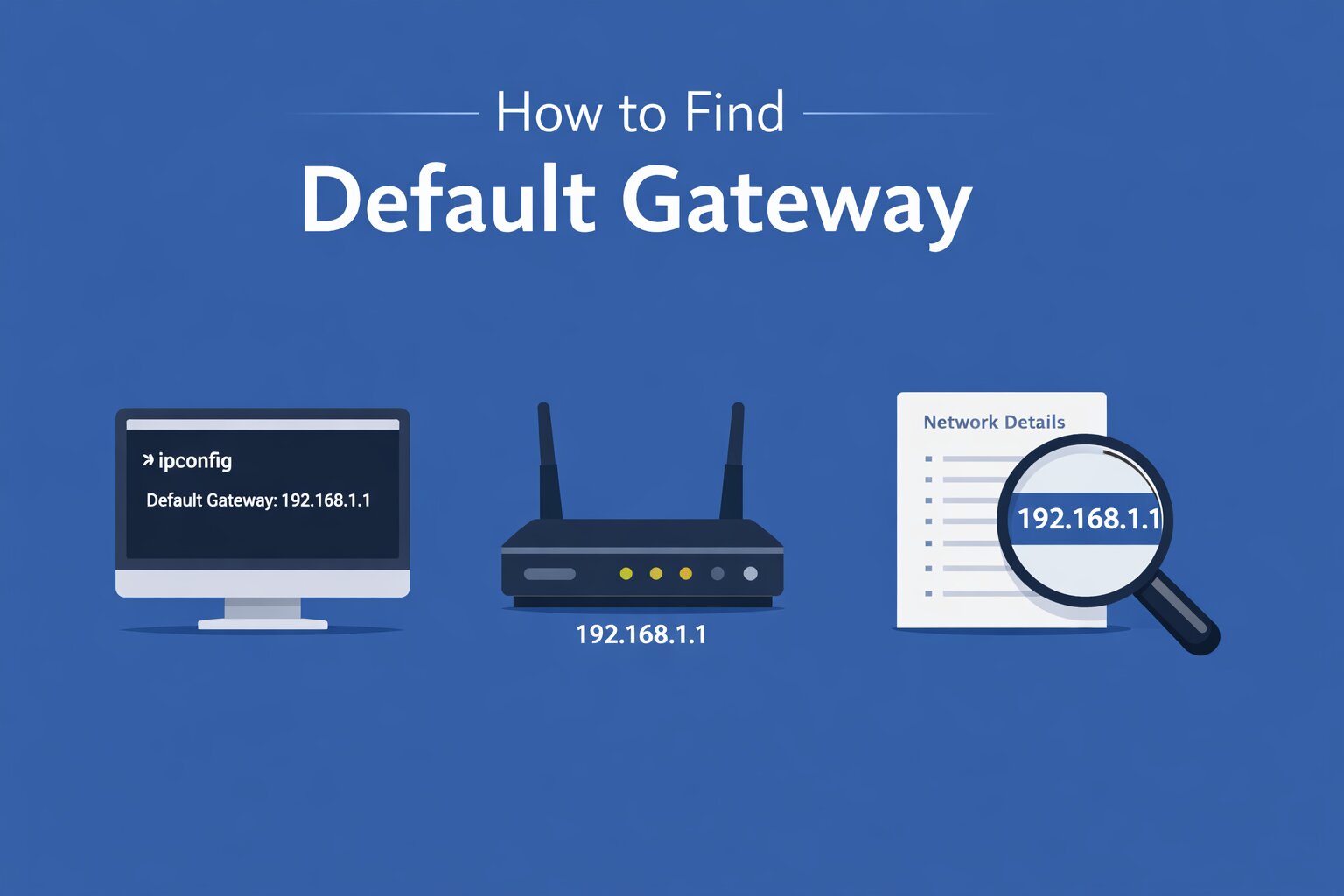
- Locate the line labeled Default Gateway. The numerical sequence following it (e.g., 192.168.1.1) is your gateway address.
Finding the Gateway on macOS
Apple’s macOS makes this information easily accessible through the System Settings menu without requiring the use of terminal commands.
- Click the Apple Menu in the top-left corner and select System Settings.
- Navigate to Network in the sidebar.
- Select your active connection (Wi-Fi or Ethernet) and click Details.
- Click the TCP/IP tab on the left sidebar.
- Your gateway address will be displayed next to the Router field.
Locating the Gateway on Mobile Devices
Mobile operating systems have simplified the process of viewing network details, though the paths vary slightly between major platforms.
- Android: Navigate to Settings > Network & Internet > Internet. Tap the gear icon next to your current Wi-Fi network and select Network Details. The gateway is usually listed as the Gateway or Router address.
- iOS (iPhone/iPad): Navigate to Settings > Wi-Fi. Tap the blue "i" icon next to the network you are currently connected to. Scroll down to the IPv4 Address section; the gateway address is listed as Router.
Comparative View of Network Tools
The following table provides a quick reference for common methods used to retrieve your gateway address across various platforms.
| Operating System | Primary Method | Technical Tool | Ease of Access |
|---|---|---|---|
| Windows | Command Prompt | ipconfig |
High |
| macOS | System Settings | GUI Network Pane | Very High |
| Android | Wi-Fi Settings | Network Details | High |
| iOS | Wi-Fi Settings | Network Info (i) | Very High |
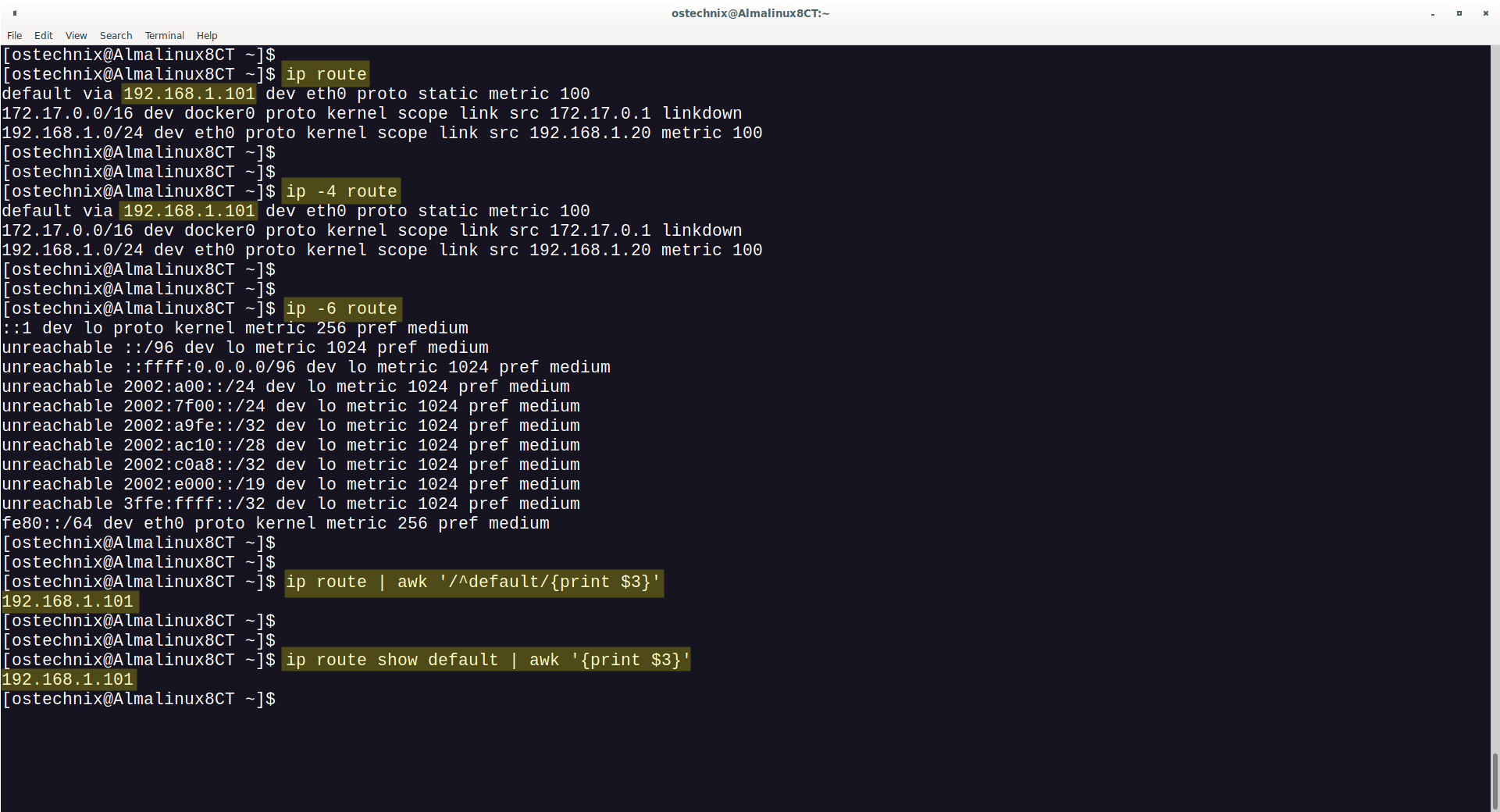
| Linux | Terminal | ip route |
Moderate |
Troubleshooting Gateway Issues
If your device displays a gateway address of "0.0.0.0" or you cannot reach the internet, it often indicates a failure in the communication between your device and the router.
- Check Physical Connections: Ensure the Ethernet cables are firmly seated or that your Wi-Fi signal is strong.
- Restart the Router: Power-cycling your router by unplugging it for 30 seconds can often resolve internal routing table errors that prevent your device from identifying the gateway.
- DHCP Conflicts: If your device is set to a static IP address, ensure the gateway field is populated correctly. Most home networks rely on DHCP (Dynamic Host Configuration Protocol) to automatically assign the gateway address to your device; if this service fails, consider setting your connection settings to "Automatic."
- IP Conflicts: If two devices on your network have been assigned the same static IP address, the gateway may not know where to route the traffic, causing intermittent connectivity.
Frequently Asked Questions
Why does my gateway address usually start with 192.168? These addresses belong to the "Private IP" range defined by the Internet Engineering Task Force (IETF) for use in local networks. They are not routable on the public internet, which allows millions of homes to use the exact same internal addresses without conflict.
Can I change my gateway address? Yes, you can change the LAN IP address of your router through its administrative web interface. However, doing so will require you to update the network settings on every connected device in your home.
Is my gateway address the same as my public IP address? No. Your gateway address is private and only works inside your home. Your public IP address is assigned by your ISP and is the address the rest of the internet uses to identify your household connection.
Does a VPN change my gateway address? When you use a VPN, the gateway address on your local device remains the same (pointing to your router), but the VPN client reroutes all your outgoing internet traffic through an encrypted "tunnel" to a remote server, effectively changing your public IP address.
What should I do if I can't find my gateway address?
If you are connected to a network but cannot find the gateway address, try resetting your network adapter settings. On Windows, you can use the command ipconfig /renew in the Command Prompt to force your computer to request new network information from the router.
Next Steps for Network Management
Once you have identified your gateway address, you can use it to manage your network. By typing that address into your web browser's address bar, you are generally taken to your router's administrative dashboard. From there, you can update your Wi-Fi password, configure parental controls, or update your router's firmware to ensure your network remains secure in 2026. If you are unable to access this page, consult your router’s manual or the label on the bottom of the device for the default admin credentials, which are distinct from your Wi-Fi password.
Image Gallery