How to Find Your Last Google Searches
Finding your last Google searches requires navigating your Google Account's My Activity page, where all search history, web browsing, and interactions with Google products are systematically stored and organized for easy review and man...
Finding your last Google searches requires navigating your Google Account's My Activity page, where all search history, web browsing, and interactions with Google products are systematically stored and organized for easy review and management.
Contents
Understanding how to find your last Google searches is an essential skill for managing your digital footprint, recovering past research, or simply auditing the data that Google collects about your daily online behavior. Whether you are using a personal desktop computer, an Android smartphone, or an iOS device, Google centralizes your query history within a secure dashboard called My Activity. However, finding this information can sometimes feel confusing due to frequent interface updates, privacy settings, and the distinction between local browser history and account-level activity. This guide details the exact steps, prerequisites, and technical considerations required to locate, review, and manage your recent Google searches across different devices and platforms.
Understanding Where Google Stores Your Search History
Before attempting to locate your queries, it is important to understand the fundamental difference between browser history and Google Account search history. While your web browser (such as Chrome, Safari, or Firefox) records every URL and webpage you visit locally on your device, your Google search history is tied directly to your Google Account.
When you are signed into your Google Account and perform a search on Google.com, the Google app, or the search bar on an Android device, that query is sent to Google's servers. Google stores this information under your account settings if you have Web & App Activity turned on. This means you can often find searches performed months ago on a mobile phone even if you are currently looking at a desktop computer, provided you are signed into the same account.
Conversely, if you browse in "Incognito Mode" or "Private Browsing," or if you have disabled Web & App Activity, Google will not save your searches to your account dashboard. Recognizing this distinction ensures you know whether to check your local browser logs or your centralized Google Account settings.
Prerequisites for Accessing Your Search History
To successfully view your last Google searches through your account dashboard, you must meet a few basic requirements:
- An Active Google Account: You must remember the email address and password associated with the account you were using when the searches took place.
- Internet Connection: Because account-level history is stored in the cloud, you need an active internet connection to load the live My Activity dashboard.
- Appropriate Permissions: If you are using a managed account—such as a Google Workspace account provided by an employer or a school—your system administrator may have restricted access to activity controls or configured automatic deletion policies that purge your search logs sooner than standard consumer accounts.
Step-by-Step Instructions: How to Find Your Last Searches on Desktop
If you are sitting at a Windows PC, Mac, or Chromebook, you can view your recent Google searches quickly using any standard web browser.
- Open a Web Browser: Launch your preferred browser and navigate to Google.
- Verify Your Sign-In Status: Look at the top-right corner of the page. Ensure you are signed into the correct Google Account. If you see a "Sign in" button, click it and enter your credentials.
- Access the My Activity Page: Type
myactivity.google.comdirectly into your browser's address bar and press Enter, or click your profile icon and select Manage your Google Account, then navigate to the Data & privacy tab and look for My Activity. - Review Your Timeline: Once the My Activity page loads, you will see a chronological feed of your interactions with Google services. Scroll down to view your searches. Google groups these entries by date and exact time.
- Use the Search Filter: To narrow down your results without scrolling through months of data, use the Filter by date and product search bar at the top of the activity feed. Click Filter by product, check the box for Search (or Google Assistant and Maps if applicable), and click Apply.
| Feature / Setting | Description | Default Status |
|---|---|---|
| Web & App Activity | Core setting that records searches and browser activity to your account. | Enabled by default for new accounts |
| Auto-Delete | Automatically purges activity older than 3, 18, or 36 months. | Set to 18 months by default (as of recent guidelines) |
| Incognito Mode | Local browsing session that prevents searches from saving to device history. | Manual activation required per session |
| My Activity Dashboard | Central web portal to view, search, and delete individual query logs. | Always accessible via signed-in account |
Finding Your Searches on Mobile Devices (Android and iOS)
Mobile devices handle search history slightly differently depending on whether you use the native Google app, a mobile web browser, or device-specific settings.
On Android Devices
Android users are deeply integrated into the Google ecosystem. To find your recent searches on an Android phone or tablet:
- Open the Google app or open Chrome and go to
myactivity.google.com. - Alternatively, open your device's Settings, scroll down to Google (or Google Services), tap Manage your Google Account, and select the Data & privacy tab to find My Activity.
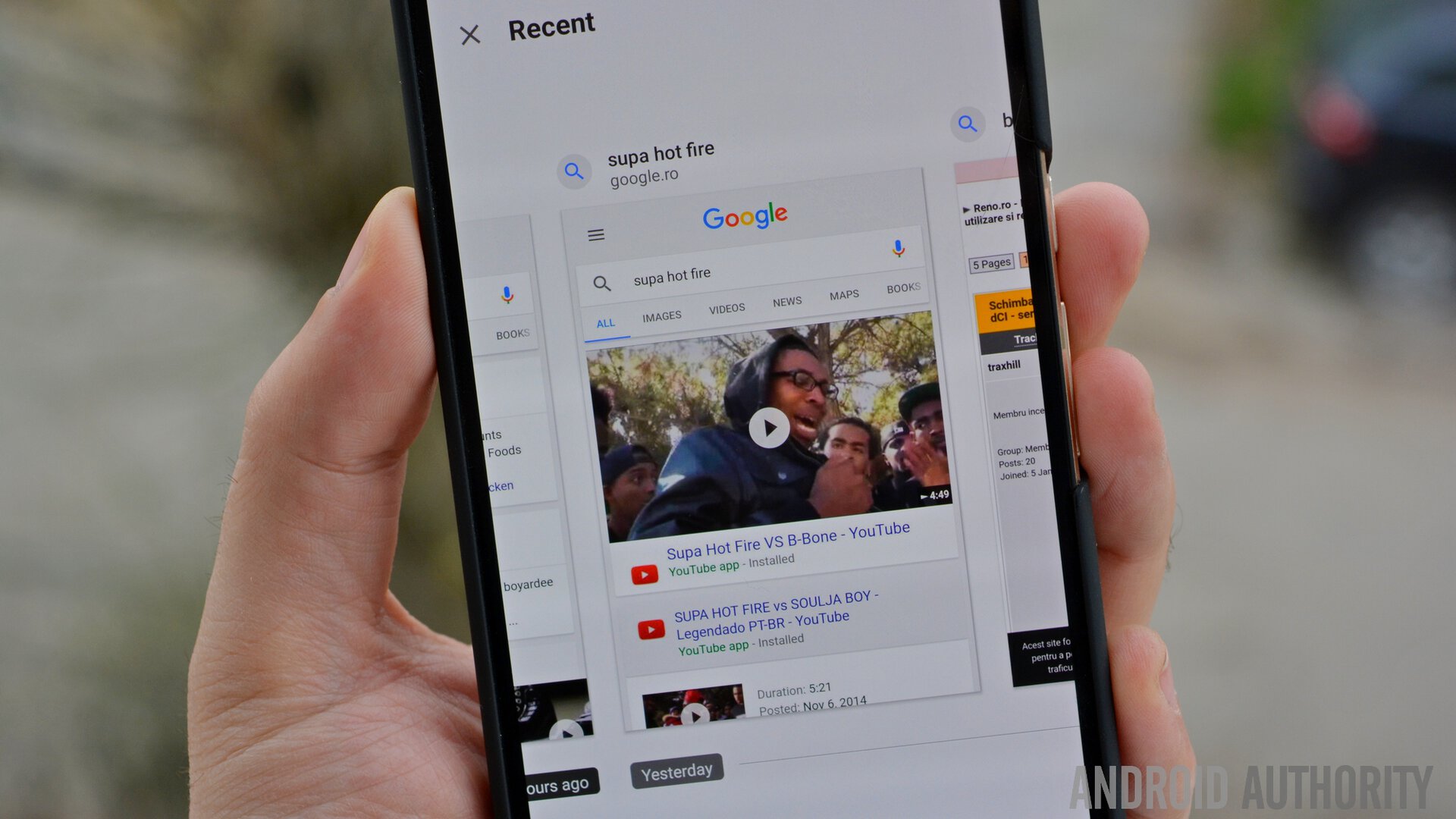
- If you are using the Google app specifically, tap your profile picture in the top right corner, select Search history, and the app will display your query logs directly within a mobile-optimized interface.
On iOS Devices (iPhone and iPad)
Apple users can access their Google search history similarly, though Safari acts as the default browser rather than Chrome:
- Open Safari, Chrome, or any browser and go to
myactivity.google.com. - Sign in with your Google Account if prompted.
- Use the built-in filters to view your recent queries. If you use the standalone Google Search app on iOS, tap your profile icon at the top right and select Search history to view and manage past entries.
Managing, Filtering, and Deleting Your Search History
Once you successfully locate your last Google searches, you have complete control over how long that data is kept and how it is displayed. Managing your history protects your privacy and keeps your activity feed organized.
Deleting Specific Searches
If you want to remove a single search query or a specific batch of searches without wiping your entire history:
- Locate the specific search entry on the My Activity page.
- Click or tap the X or the three vertical dots (menu icon) next to that specific item.
- Select Delete. The entry will be permanently removed from Google's servers immediately.
Deleting History by Date Range
If you want to clear your searches from a specific timeframe, such as the past hour, past day, or a custom range:
- Click the Delete dropdown menu located just above your activity feed.
- Choose from options including Last hour, Last day, All time, or Custom range.
- Confirm your selection when prompted. Note that deleting data is irreversible once confirmed.
Setting Up Auto-Deletion
To prevent Google from storing your search history indefinitely, you can configure an automated retention policy:
- On the My Activity page, click on the Web & App Activity card.
- Scroll down to find the Auto-delete section (which may show "On (18 months)" or a similar timeframe).
- Click on it and choose whether to automatically delete activity older than 3 months, 18 months, or 36 months.
- Click Next to save your preference. Any data older than your chosen threshold will be wiped automatically on a rolling basis.
Troubleshooting Common Issues
If you follow the steps above and cannot find your expected search history, consider the following common causes and solutions:
- Multiple Google Accounts: You may have performed the searches while signed into a secondary personal account, a work account, or a family account instead of your primary profile. Check the top-right profile avatar to verify which account is currently active.
- Activity Tracking Disabled: If the Web & App Activity toggle is turned off in your account settings, Google stops recording new searches entirely. Navigate to your activity controls and turn the setting back on if you want future searches to be saved.
- Browser-Level vs. Account-Level Confusion: If you are looking for pages you visited rather than exact search queries, check your browser's local history (
Ctrl + Hon Windows orCmd + Yon Mac in Chrome) rather than the My Activity dashboard. - Cached Data Errors: Sometimes web interfaces fail to load recent updates due to browser cache issues. Try refreshing the page, clearing your browser cache, or opening the My Activity link in an ordinary window.
Frequently Asked Questions
Can other people see my Google search history?
No, your Google search history is private and tied strictly to your password-protected Google Account. Anyone who knows your password or gains physical access to an unlocked device where you are signed in could potentially view your history, which is why securing your account with two-factor authentication (2FA) and signing out on shared computers is critical.
Does Google save searches made in Incognito or private mode?
No. When you perform a search in an Incognito window or Private Browsing mode, Google does not save those queries to your Google Account, and your browser does not save them to your local history once you close the window.
How far back does my Google search history go?
Your search history remains accessible as long as your account is active and you have not manually deleted the entries or enabled an auto-deletion schedule. If auto-delete is turned off, Google may retain your search records for years until you choose to purge them.
Can I download a copy of my entire Google search history?
Yes. You can export a copy of your data, including search history, by visiting Google Takeout (takeout.google.com). From there, you can select specific Google services (such as "My Activity" or "Search") and download your data in a portable archive format like ZIP or TGZ.
What should I do if my search history disappears unexpectedly?
If your history vanishes without your input, check to ensure you are signed into the correct account. If the account is correct, it is possible that an automated deletion schedule was previously configured or a device with access to your account triggered a bulk deletion command.
Conclusion
Finding your last Google searches is a straightforward process once you know how to navigate the My Activity dashboard. By understanding where your data lives, how to use date filters, and how to configure auto-deletion settings, you retain full oversight over your digital footprint. Regularly reviewing and managing your search history ensures you can easily retrieve past research while maintaining control over your personal privacy online.
Image Gallery