Finding Your ISP Provider: Complete Guide to Identifying Your Internet Service
To find your current Internet Service Provider (ISP), connect to your local Wi-Fi or Ethernet network and check your public IP address using an online network verification tool or IP lookup database. These tools instantly analyze your...
To find your current Internet Service Provider (ISP), connect to your local Wi-Fi or Ethernet network and check your public IP address using an online network verification tool or IP lookup database. These tools instantly analyze your public IP allocation to reveal the registered carrier, organization name, and autonomous system number servicing your connection.
Contents
Whether moving into a new residence, auditing home office networking gear, or troubleshooting persistent connection dropouts, identifying which company delivers your broadband is an essential first step. While the phrase "ISP provider" is technically redundant—standing for Internet Service Provider—locating the specific entity responsible for your line requires navigating public IP records, local hardware, or national telecommunications coverage maps.
Understanding who routes your traffic determines your service tier, diagnostic protocols, customer service routing, and data privacy rights. The following guide covers both core dimensions of the search: determining who provides your existing internet connection and locating which providers deliver high-speed infrastructure to your physical address.
Quick Methods to Identify Your Current ISP Online
The fastest way to determine your current provider is to analyze the digital footprint of your outbound traffic while connected to the local network.
1. Using Public IP Lookup Platforms
Every network connection on the internet communicates using a public IP address (either IPv4, IPv6, or both) assigned by an ISP. Internet registries allocate large blocks of these addresses to specific carriers. When you query a reputable IP lookup tool, the service matches your current address against regional registry databases.
To use this method:
- Ensure your device connects to the internet connection in question (via Wi-Fi or an Ethernet cable). Turn off any commercial Virtual Private Networks (VPNs) or proxy software, as these route your traffic through third-party servers and will display the hosting company rather than your local residential or commercial ISP.
- Navigate to an established IP information resource, such as the American Registry for Internet Numbers (ARIN) whois database, or standard diagnostic sites like
icanhazip.comoripinfo.io. - The platform displays your public numeric IP along with fields labeled ISP, Organization, or Autonomous System (AS). The company listed is the provider operating your connection.
2. Inspecting Speed Test Diagnostics
Major broadband performance testing platforms automatically resolve your provider's identity to select the closest geographic server. Platforms like Ookla’s Speedtest or Measurement Lab (M-Lab) query your network origin upon page load. When the test interface loads, look below the start button; the interface routinely displays your public IP address alongside the operating carrier's registered corporate name.
Operating System Methods: Command-Line and Network Settings
If you prefer to verify your ISP without using third-party diagnostic websites, you can trace your connection route or examine local network interfaces directly through your operating system.
Tracing Network Hops on Windows
Windows includes built-in command-line tools that expose the path data packets travel from your device to the broader internet.
- Press
Windows Key + R, typecmd, and press Enter to open the Command Prompt. - Enter the command
tracert 8.8.8.8(which traces the route to Google’s public DNS resolver) and press Enter. - The system lists each "hop" between your router and the destination.
- The first hop represents your local default gateway (typically
192.168.1.1or10.0.0.1). - The second or third hop shows your provider’s local routing hardware. In many cases, the domain name of these hops contains the ISP's brand name (such as
*.comcast.net,*.att.net, or*.charter.com).
Using Network Diagnostics on macOS
macOS users can query connection records using either Terminal or the Network settings panel:
- Open Terminal via Spotlight Search (
Command + Space, typeTerminal). - Run
traceroute 1.1.1.1and press Return. - Similar to the Windows trace, inspect hops two through four. These intermediary gateway nodes usually resolve with reverse-DNS names pointing directly to your regional provider.
- Alternatively, open System Settings, select Network, click your active connection, and choose Details. While macOS hides the ISP name here to protect privacy, noting the Router IP and running a reverse lookup via
whoisin Terminal against your public gateway identifies the parent organization.
Physical Hardware Inspection: Modems, Routers, and ONTs
When software tools provide ambiguous results—such as when an internet connection is managed by a master leaseholder or condominium association—physical hardware provides concrete answers.
Modem and Gateway Branding
Most residential internet setups rely on carrier-supplied customer premises equipment (CPE). Examine the exterior labels, faceplates, and regulatory stickers on the primary communication hardware:
- Cable Internet: Look for coaxial lines screwed into a standalone modem or hybrid gateway. Equipment provided directly by companies such as Spectrum, Comcast Xfinity, or Cox prominently features corporate logos on the plastic chassis.
- Fiber Optics: In fiber installations, look for an Optical Network Terminal (ONT). This is a small plastic box mounted on an interior wall or garage junction where a thin glass fiber line terminates. The ONT typically displays the carrier's name (such as AT&T, Verizon Fios, Frontier, or Lumen/CenturyLink). The separate Wi-Fi router plugged into the ONT might be third-party hardware, but the ONT always belongs to or identifies the underlying network provider.
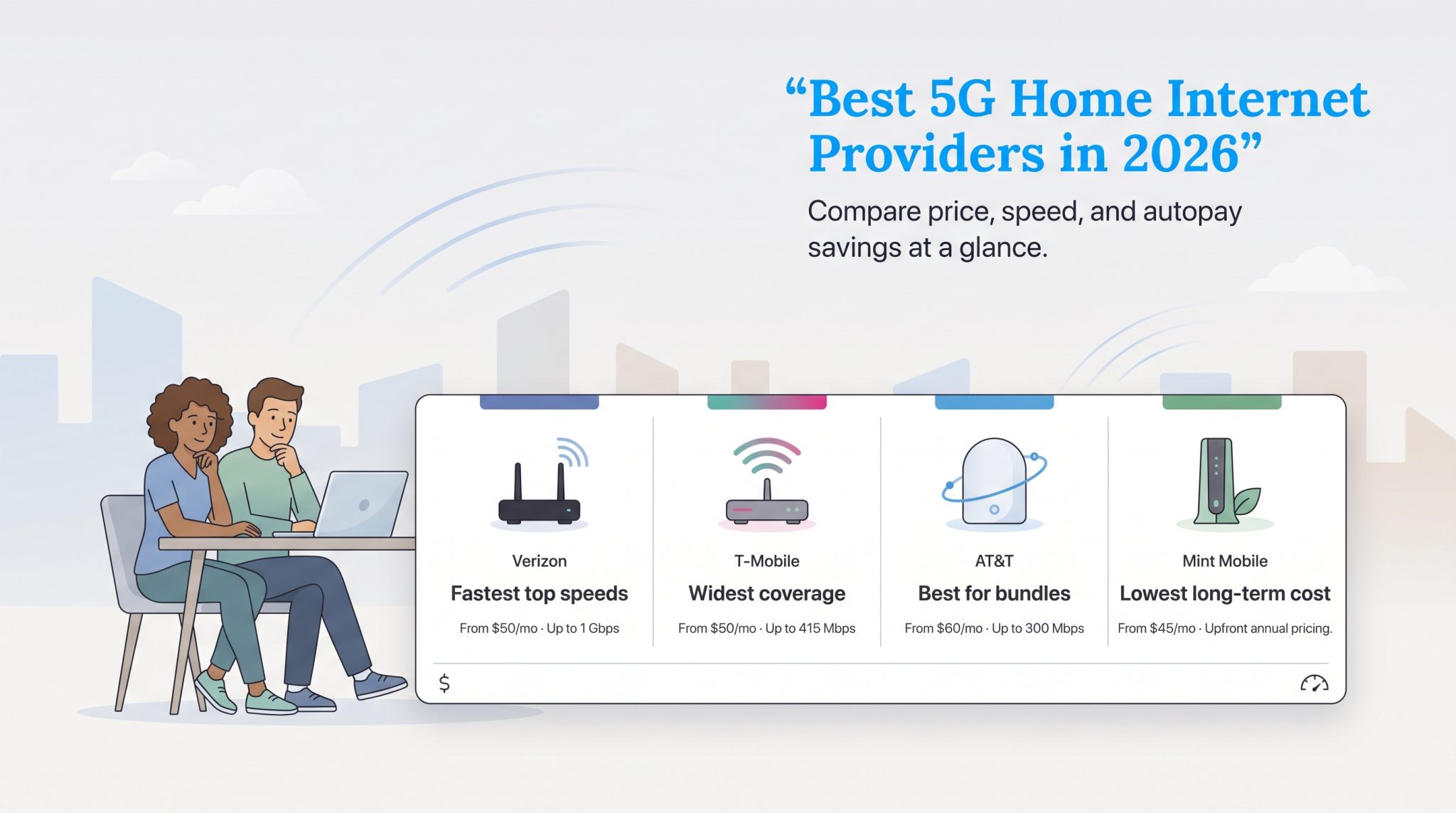
- Fixed Wireless and 5G Home Internet: If your connection relies on cellular frequencies, the central unit is a small tower-like gateway with an internal SIM or eSIM. Brands like T-Mobile Home Internet, Verizon 5G, or Starlink have unmistakable hardware branding.
MAC Address and Manufacturer Lookups
If a modem or router lacks exterior corporate branding, locate the printed label on the bottom or back of the unit. Write down the 12-character MAC Address (Media Access Control) or the specific model number. Entering the model number into a search engine reveals whether the unit is an ISP-exclusive device (such as an Xfinity xFi Gateway or an AT&T BGW320), directly answering who deployed the hardware.
Reviewing Financial and Administrative Records
When managing properties, estates, or enterprise branch offices, checking digital interfaces might not reveal whether an account remains active, contracted, or delinquent. Administrative records confirm not only the identity of the provider but also account numbers and billing arrangements.
Utility Billing and Bank Records
- Bank Statements: Search electronic bank or credit card statements for recurring telecommunications entries. Common billing descriptors include variations like "VZW FIOS," "TWC/SPECTRUM," "CENTURYLINK," "COX CABLE," or "FRONTIER COMM."
- Consolidated Utility Statements: In master-metered developments or multi-dwelling units (MDUs), internet service might be billed through a municipal utility authority or a commercial property management firm under a bulk-service agreement.
- Lease Agreements: Rental and commercial lease contracts typically stipulate authorized telecommunications access in the "Utilities and Services" clause, identifying the default carrier permitted to run lines into the suite.
Finding Available ISP Providers at Your Specific Address
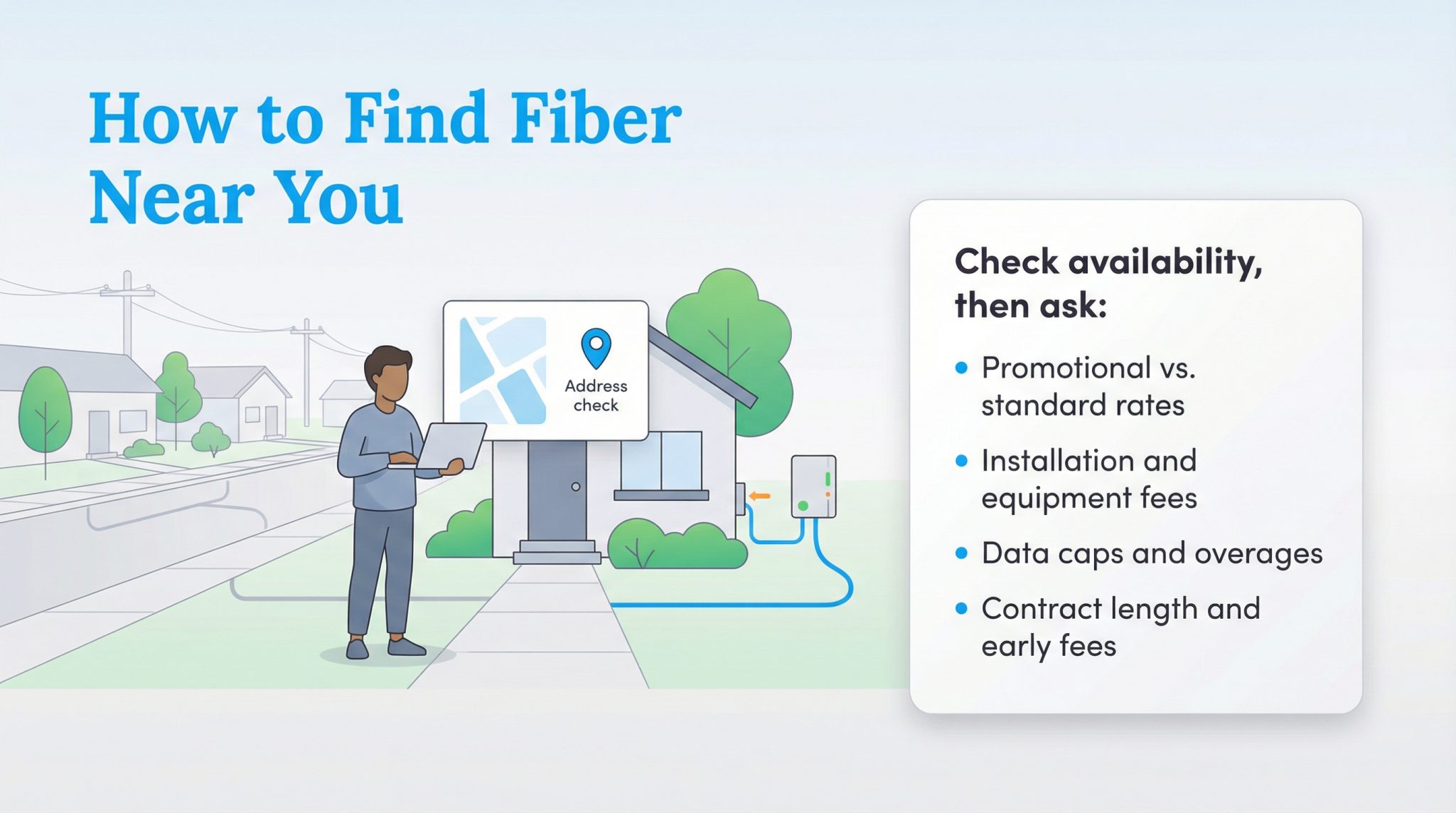
If your goal is not identifying an existing live link, but rather finding which internet service providers service your geographic location to establish new service, public databases and regulatory maps offer the most reliable data.
The FCC National Broadband Map
In the United States, the Federal Communications Commission (FCC) maintains the National Broadband Map. This database tracks broadband availability at the individual structure level across all 50 states and territories.
- Navigate to the official FCC Broadband Map portal (
broadbandmap.fcc.gov). - Enter your full street address, including unit or apartment number, and select the verified address pin.
- The dashboard populates a list of all verified Fixed Broadband providers delivering service to that exact location.
- Filter results by transmission technology:
- Fiber to the Home (FTTH): Offers symmetrical upload and download speeds, lowest latency, and the highest long-term reliability.
- Cable (DOCSIS): Delivers fast download speeds using existing coaxial cable plant, though upload rates are usually asymmetrical.
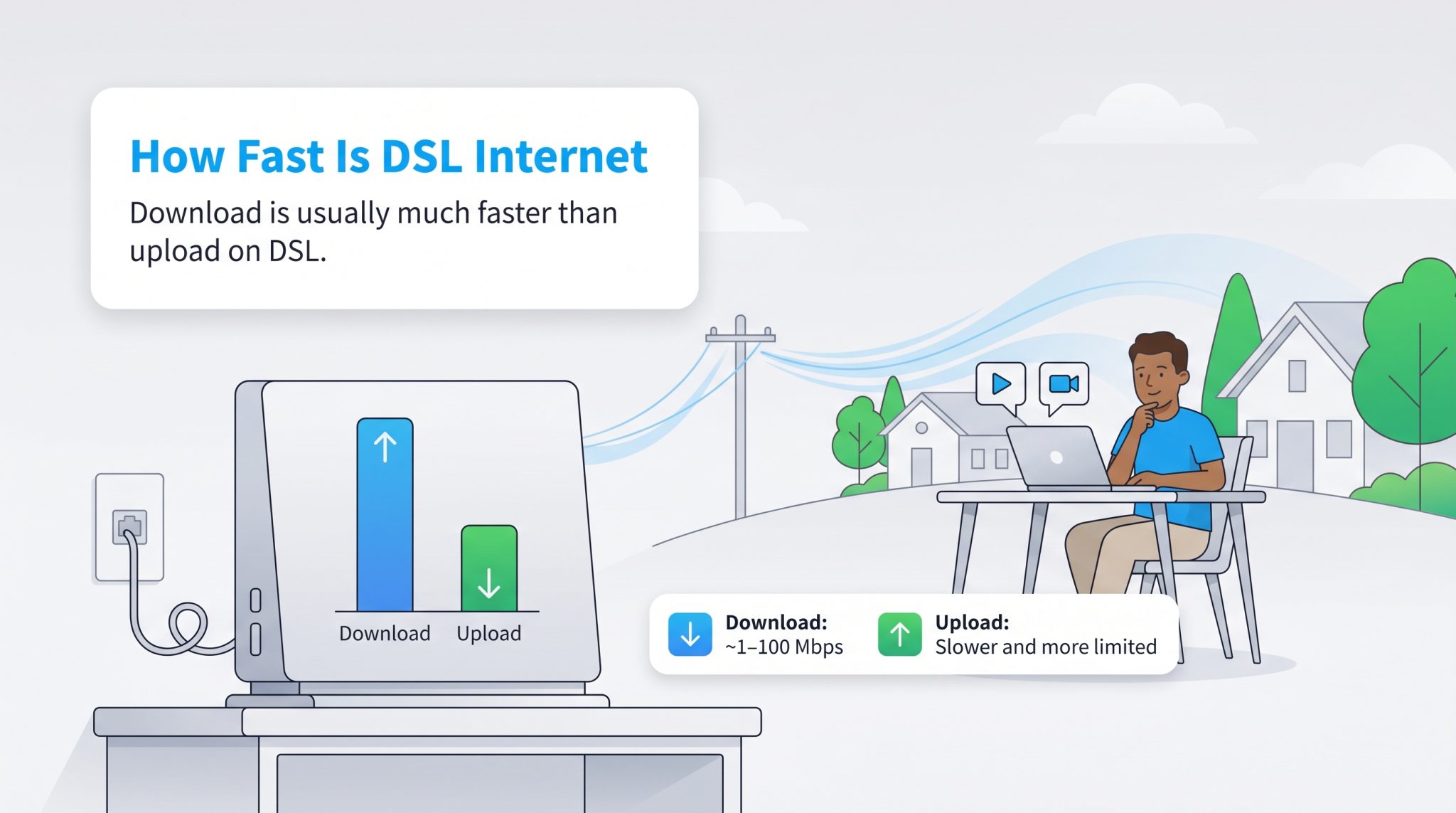
- Copper/DSL: Relies on legacy telephone lines; generally slower and increasingly decommissioned across rural and suburban regions.
- Licensed Fixed Wireless: Radio-based broadband operating from terrestrial towers, common in rural outposts.
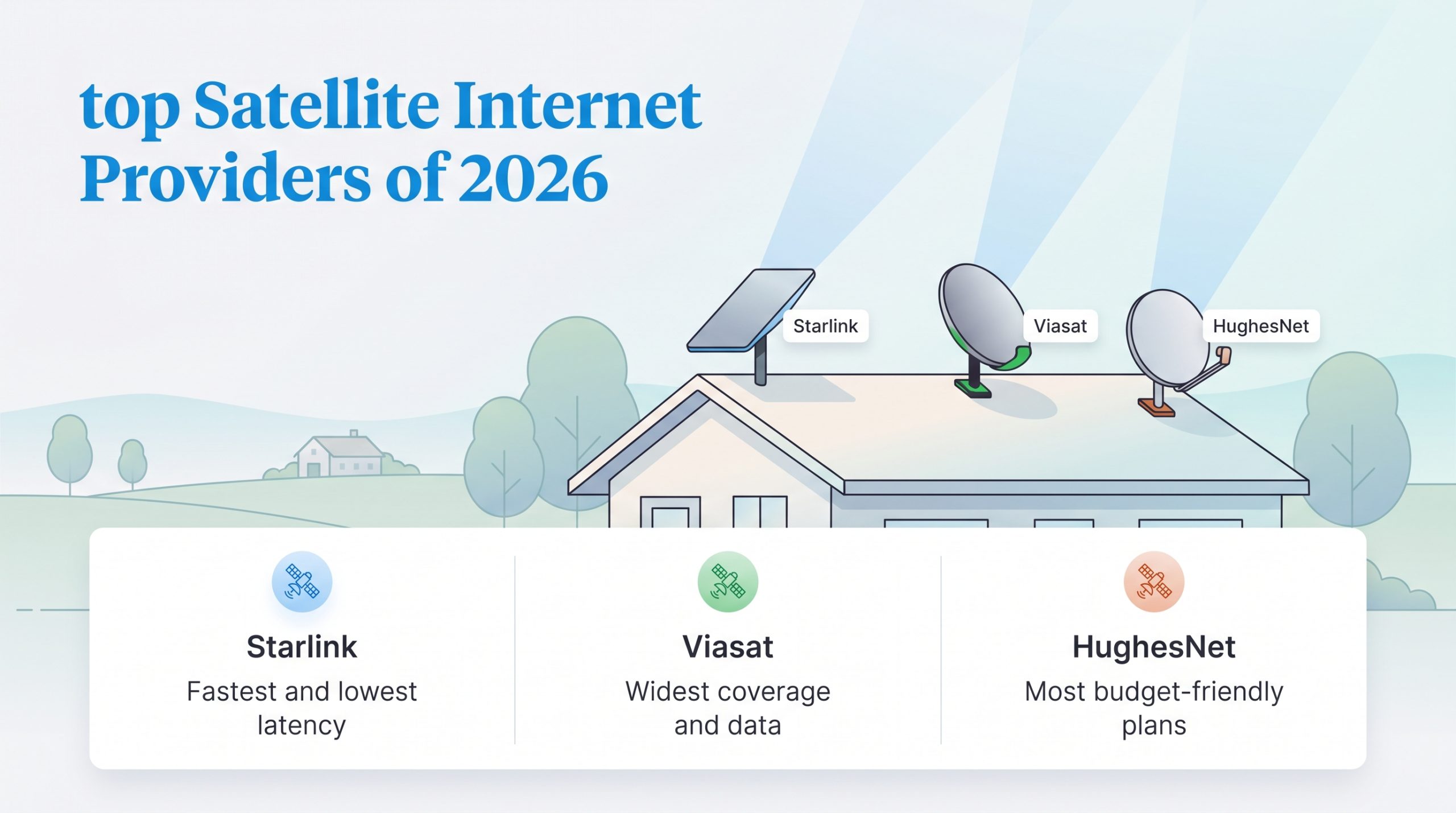
- Satellite: Low-Earth Orbit (LEO) networks like Starlink or geostationary providers like HughesNet and Viasat, available nearly everywhere with an unobstructed view of the sky.
Local Municipal and Utility Portals
Private broadband aggregators often prioritize commercial affiliate arrangements over accurate infrastructure tracking. For an objective view, consult your local county or municipal government’s broadband initiative website. Many local governments maintain public maps detailing active franchise agreements and municipal fiber deployments that commercial search engines overlook.
Comparison of Methods for Locating and Verifying Your ISP
| Method | Primary Purpose | Best Suited For | Accuracy Level | Equipment / Access Needed |
|---|---|---|---|---|
| Public IP / WHOIS Lookup | Identify active provider | Instant identification of live network connection | High (unless masked by VPN) | Web browser and active connection |
| Traceroute (CLI) | Identify underlying routing network | Technical users; identifying wholesale network providers | Very High | Terminal / Command Prompt |
| Hardware Label Inspection | Identify service/equipment owner | New home moves, rental units, tenant turnovers | High | Physical access to modem/ONT |
| FCC National Broadband Map | Discover available providers | Relocations, switching carriers, infrastructure audits | High (verified per address) | Web browser and street address |
| Billing / Bank Audit | Confirm account ownership | Financial audits, resolving billing ownership | Absolute | Financial records, email receipts |
Troubleshooting Common Identification Roadblocks
Several network configurations obscure your true internet provider, leading diagnostic tools to display incorrect company names.
1. Active VPNs and Corporate Proxies
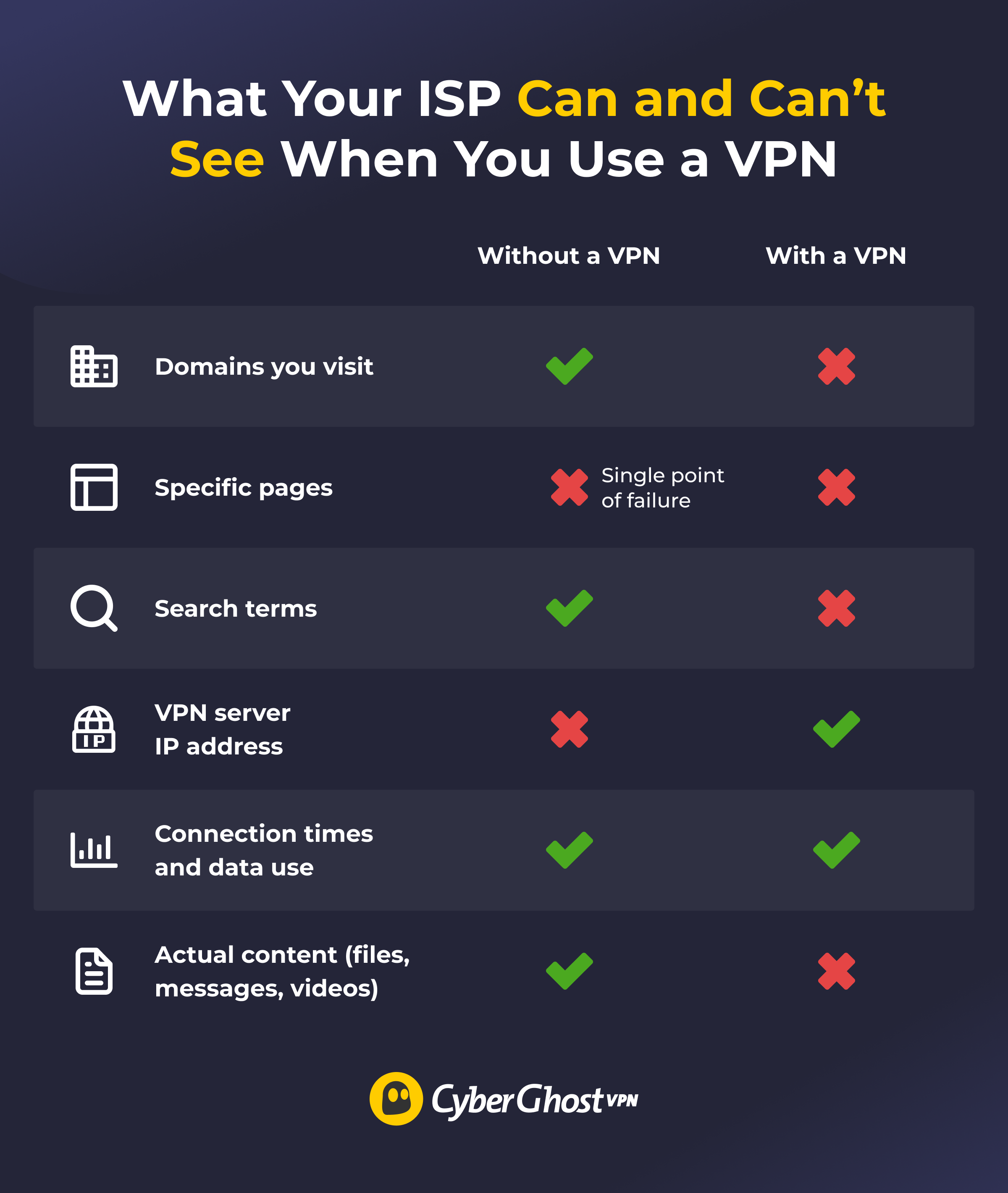
Virtual Private Networks encapsulate your traffic and route it through a secure tunnel to an external data center. If your computer runs an enterprise VPN or a commercial privacy service, IP lookup tools will identify the data center operator (such as Amazon Web Services, DigitalOcean, Cloudflare, or M247) instead of your local residential ISP. Always terminate the VPN client and refresh your IP lookup tool to reveal your baseline ISP.
2. Apple iCloud Private Relay
On modern Apple devices (macOS, iOS, iPadOS), iCloud Private Relay masks outbound Safari web traffic through a dual-hop architecture involving Apple and third-party content delivery networks (CDNs). If Private Relay is enabled, your ISP will appear as Cloudflare, Fastly, or Akamai. To bypass this, go to Settings > Apple Account > iCloud > Private Relay and temporarily disable it while identifying your network carrier.
3. Carrier-Grade NAT (CGNAT)
Fixed wireless networks, 5G home internet, and smaller rural fiber providers frequently utilize Carrier-Grade Network Address Translation (CGNAT). Instead of providing a unique public IP to your modem, the carrier shares a single public IP among dozens of residential customers. In these cases, an IP lookup might display the name of an upstream transit provider (such as Hurricane Electric, Level 3, or Cogent Communications) rather than the local regional brand that bills you. Checking the hardware or reviewing your traceroute hops resolves this discrepancy.
4. Bulk Internet in Multi-Family Housing
In modern apartment buildings and condominium associations, broadband is increasingly provisioned as a bulk amenity. The landlord or HOA contracts with a wholesale integrator, and residents connect via pre-installed managed Wi-Fi access points. Diagnostic tools in these environments often report specialized multi-tenant providers (such as WhiteSky, Single Digits, or Boingo) rather than traditional consumer carriers. If this occurs, contact your building leasing office or property management team for direct account and support details.
Frequently Asked Questions
Can an IP address show who provides my neighbor's internet?
No. An IP lookup tool only evaluates the network connection currently transmitting your request. Because different residences on the same street often contract with entirely different broadband companies—or connect to distinct fiber splitters and coaxial taps—you cannot determine a neighboring home's provider via your personal connection. To discover which carriers service a neighboring structure, search their specific address on the FCC National Broadband Map.
Why does my IP lookup show a different city or state?
Public IP addresses are rarely geolocated to your exact street address. ISPs assign pools of dynamic IP addresses across wide metropolitan routing centers. If your lookup displays a city 50 to 100 miles away, your connection is simply terminating at your carrier's regional routing hub or Point of Presence (PoP). This does not affect your internet speed or indicate an incorrect ISP identification.
What is the difference between an ISP and a network carrier?
In common usage, the terms are interchangeable. However, an ISP (Internet Service Provider) is the consumer-facing entity that sells you internet access, manages billing, and delivers customer support. A network carrier (or wholesale transport provider) owns the underlying physical fiber lines, transatlantic cables, and backbone routers. In smaller regional setups, your local retail ISP may lease network capacity directly from a major Tier-1 carrier.
What should I do if the hardware in my home has no markings?
If an ONT or modem has zero commercial logos, locate the serial number plate on the rear or underside. Search the FCC ID or the exact model number in a public database like the FCC Equipment Authorization system. The registered applicant on the filing will reveal the manufacturer or the original telecommunications company that commissioned the design.
Does changing my DNS server change my ISP?
No. Changing your Domain Name System (DNS) resolver to a public service—such as Google Public DNS (8.8.8.8) or Cloudflare (1.1.1.1)—only alters which service translates domain names into numerical IP addresses. Your physical data packets, bandwidth allocation, and network routing remain entirely under the control of your primary ISP.
Next Steps: Securing and Managing Your Connection
Once you determine the identity of your ISP, take concrete steps to verify your service parameters:
- Conduct a Baseline Speed Test: Connect a computer directly to your gateway using an Ethernet cable, turn off non-essential applications, and record your symmetrical or asymmetrical speeds. Compare these numbers against your original service contract to confirm you receive the throughput for which you pay.
- Access Your Gateway Management Panel: Open a web browser and navigate to your router's default gateway address (commonly
192.168.0.1or192.168.1.1). Log in using the administrative credentials printed on the hardware sticker. Inspect the firmware status, update default passwords, and verify whether IPv6 routing is fully operational on your local network. - Audit Market Competition: If your ISP search revealed an older legacy connection (such as DSL or slow copper-based cable), run your address through local broadband registries to verify if high-speed fiber or modernized 5G home alternatives have recently expanded into your neighborhood.
Image Gallery