The Comprehensive Guide to Signing Documents on iPad
Signing documents on an iPad has become a standard professional workflow, allowing users to execute agreements, approve invoices, and finalize contracts remotely without printing a single page. By leveraging iPadOS native tools or spec...
Signing documents on an iPad has become a standard professional workflow, allowing users to execute agreements, approve invoices, and finalize contracts remotely without printing a single page. By leveraging iPadOS native tools or specialized third-party applications, you can create legally binding digital signatures that retain professional quality while maintaining document integrity.
Contents
Determining the Right Method for Your Workflow
The process of signing a document on an iPad generally falls into two distinct categories: native annotation or platform-specific e-signature services. Choosing the correct approach depends on whether you require simple visual placement of a signature or a legally compliant audit trail.
For casual documents such as permission slips or simple internal forms, the built-in Markup tool is sufficient. However, for legally binding contracts, commercial agreements, or documents requiring identity verification, utilize established e-signature platforms that track timestamps, IP addresses, and document history.
Using Native iPadOS Markup for Simple Signatures
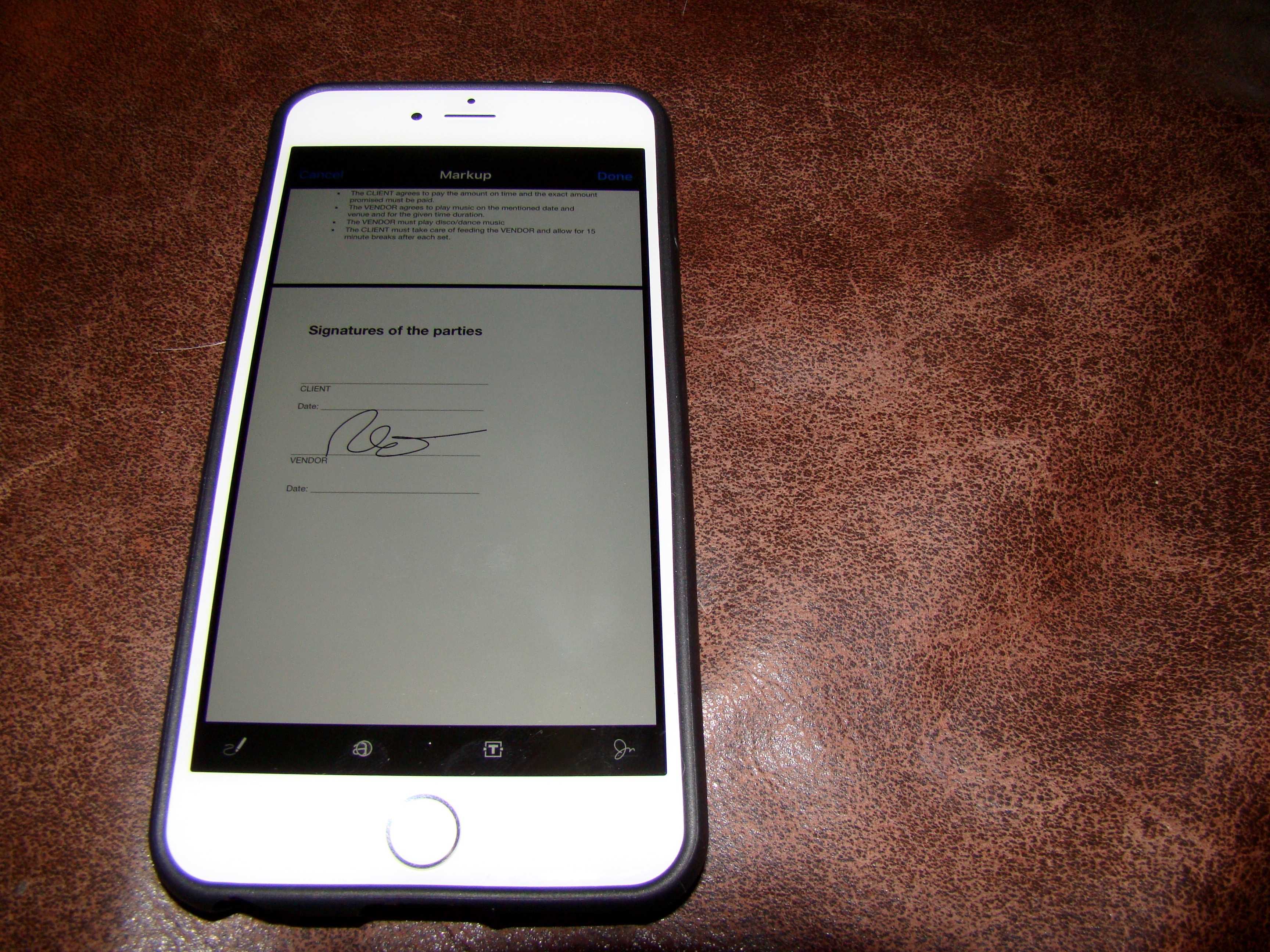
The Markup feature is built directly into iPadOS, accessible via the Files app, Mail app, or within the Photos app. This tool is ideal for quick, non-sensitive document completion.
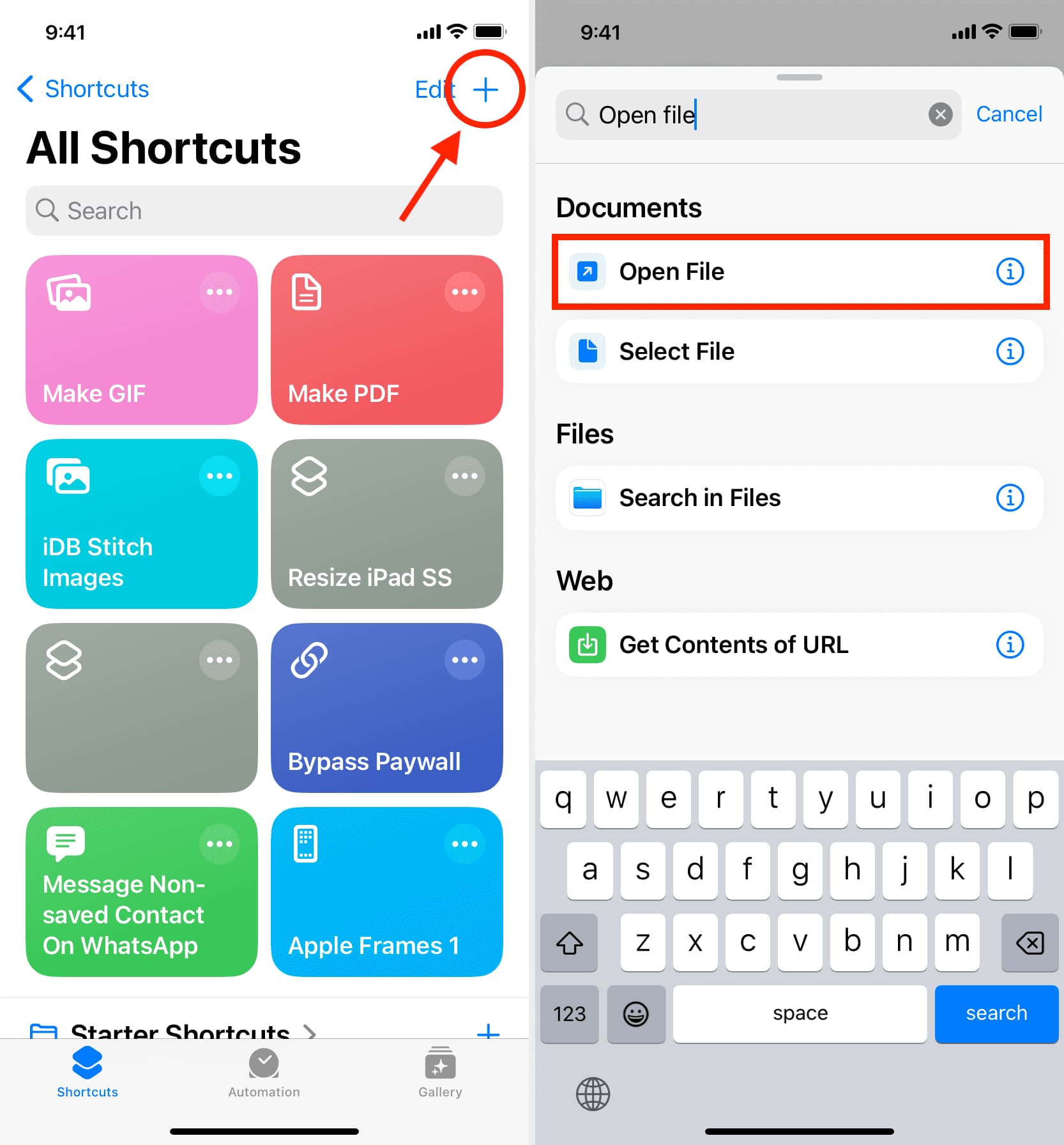
- Open the File: Navigate to the document in your Files app.
- Access Markup: Tap the share icon or the pencil icon to open the annotation interface.
- Add Signature: Tap the plus (+) button in the toolbar and select "Signature." If you have not created one previously, select "Add or Remove Signature."
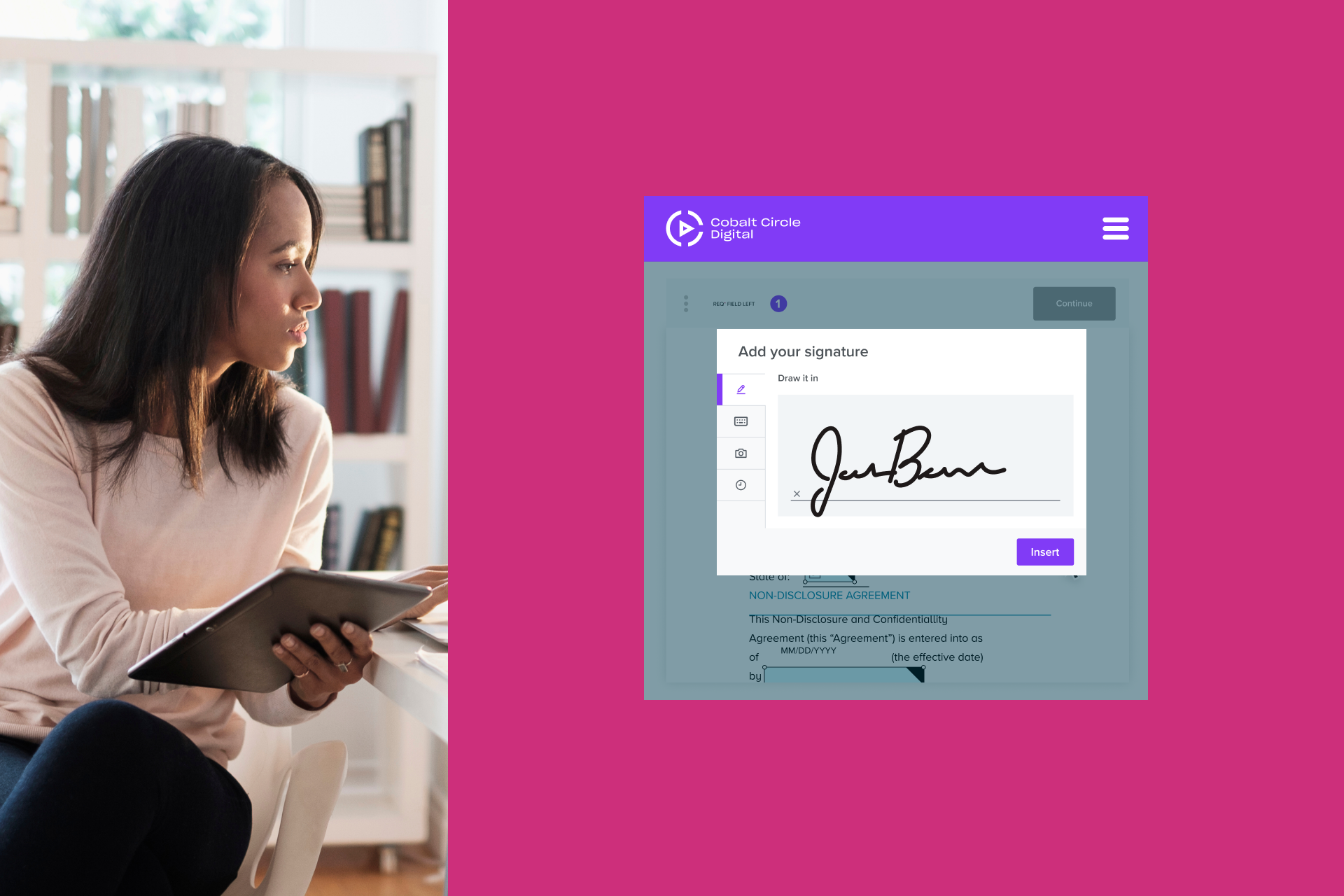
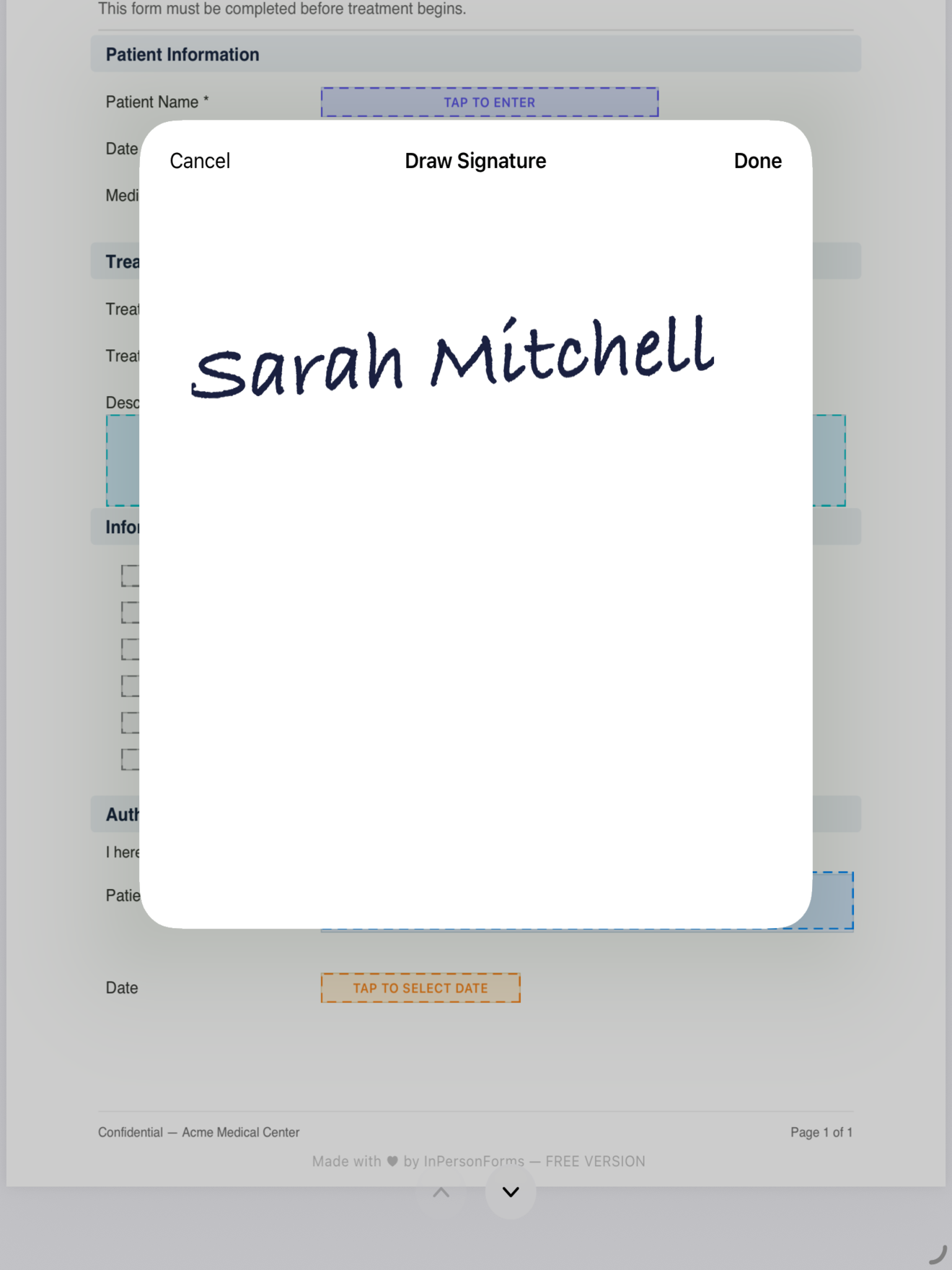
- Create Signature: Use your finger or an Apple Pencil to write your signature on the screen. The interface allows you to clear and retry until the result is satisfactory.
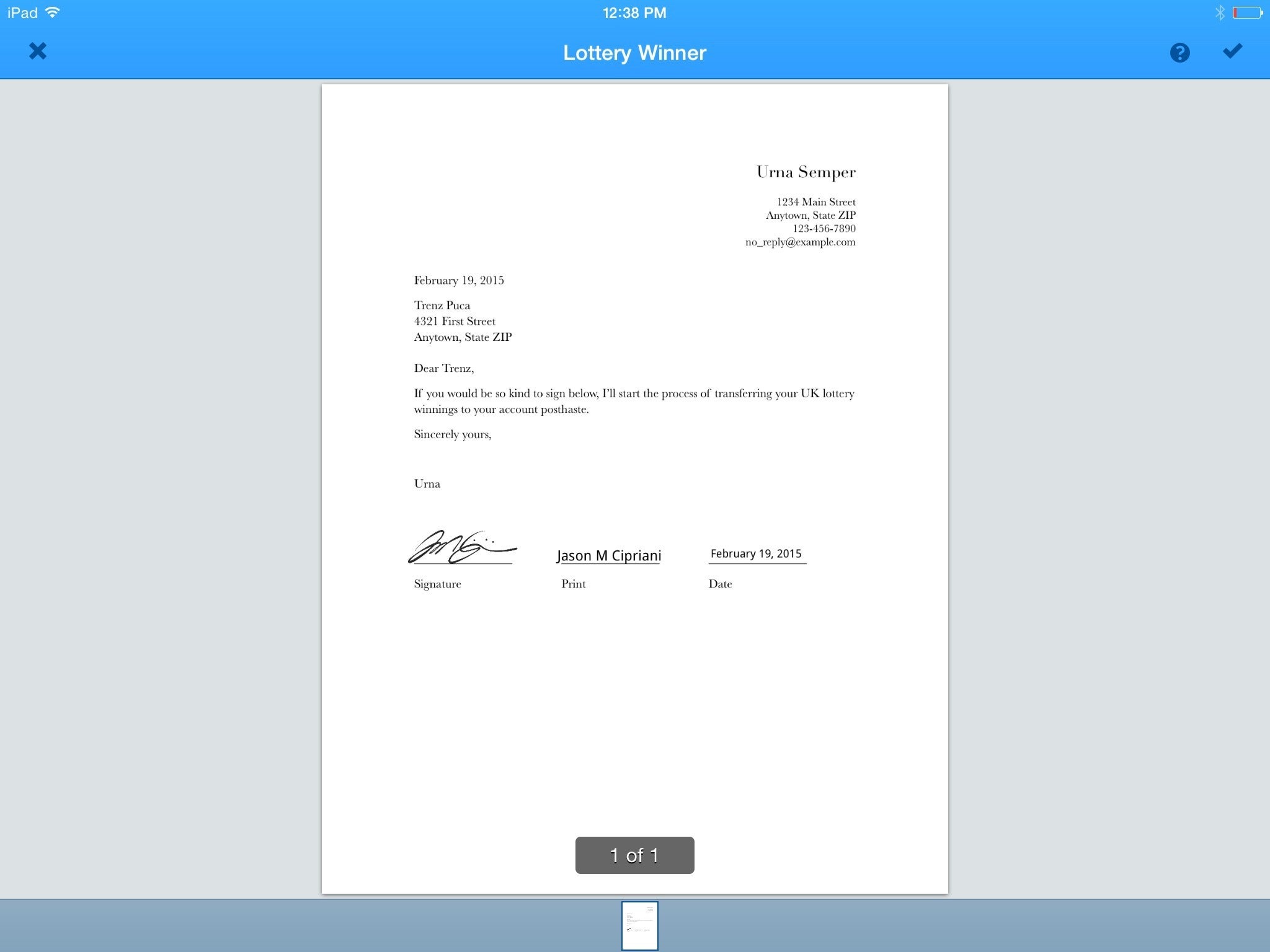
- Placement: Once saved, your signature appears as an image overlay that can be resized and dragged to the appropriate signature line.
When using this method, ensure that you save the document back to a secure location, such as iCloud Drive, to prevent accidental loss of your changes.
Professional E-Signature Platforms
For business and legal contexts, using dedicated e-signature software is industry standard. Services like Adobe Acrobat Sign, DocuSign, and HelloSign provide more than just a graphic of your name; they embed metadata that confirms the document has not been altered after the signature was applied.
Comparison of E-Signature Approaches
| Method | Best Use Case | Audit Trail | Complexity |
|---|---|---|---|
| iPadOS Markup | Informal documents | None | Low |
| Adobe Acrobat | Business PDF workflows | High | Medium |
| DocuSign/HelloSign | Contracts & Legal | High | Medium |
| Third-Party PDF Editors | General document editing | Minimal | Low-Medium |
These platforms typically offer a dedicated app in the App Store for iPad. The primary advantage of these apps is the inclusion of "Signer Workflow" features, which guide you through the document to ensure no fields are missed, and the ability to request signatures from other parties seamlessly.
Technical Prerequisites and Hardware Considerations
To ensure a professional and legible result, your interaction with the iPad interface matters. While a finger is functional, using an Apple Pencil offers significantly higher precision.
If you are signing high-resolution documents, ensure your iPadOS is updated to the latest available version (as of 2026, keeping parity with current security protocols is essential). If the document fails to save or the signature appears blurry, verify the file format. PDF is the standard for document signing; attempting to sign image files often leads to alignment issues or quality degradation.
Managing Security and Legal Compliance
Digital signatures are legally recognized in many jurisdictions, including the United States under the ESIGN Act and the UETA. However, "legal validity" depends on the intent and the ability to prove that the signature is linked to the document in a way that prevents unauthorized modification.
- Identity Verification: Many commercial services offer multi-factor authentication, requiring the signer to verify their identity via email or SMS before accessing the document.
- Audit Logs: Always download the "Audit Report" or "Certificate of Completion" provided by professional services. This document contains the timestamps and unique identifiers that constitute the evidence of a valid electronic execution.
- Data Privacy: If you are handling sensitive personal or financial information, ensure your chosen app provider is GDPR or HIPAA compliant, depending on the nature of the data.
Troubleshooting Common Issues
- Signature Not Saving: If you find that your signature disappears after closing a document, verify that you are not simply viewing a preview. Always "Save" or "Export" the document to a local or cloud-synced folder before closing the app.
- Alignment Problems: If your signature lands in the wrong spot, tap the signature once to reveal the bounding box. Use the corners to resize or the center to reposition. Do not attempt to re-sign; simply move the existing object.
- Document Permissions: Some PDFs have security settings enabled that prevent editing or annotation. If the "Markup" or "Signature" options are greyed out, check the file properties to see if "Content Copying" or "Adding Annotations" is restricted. You may need the originator to provide a document without password-protected restrictions.
Frequently Asked Questions
Is a signature on an iPad legally binding? Yes, in most jurisdictions, an electronic signature is legally equivalent to a handwritten signature. However, for high-stakes legal contracts, using a reputable e-signature provider that includes an audit trail is recommended over a simple graphic overlay.
Do I need an Apple Pencil to sign documents? An Apple Pencil provides superior precision, which is helpful for complex signatures, but it is not mandatory. You can use your finger to create a signature within both native iPadOS apps and third-party tools.
How do I send the signed document to someone else? After signing, use the "Share" button within your application. Most apps provide a direct option to "Mail," "Message," or upload the document to a cloud storage provider. Avoid taking screenshots of your signature, as this is neither secure nor professional.
Can I save multiple signature versions? Yes, most signature apps allow you to save multiple signatures. This is useful if you have different versions for internal notes versus formal business contracts. Access these through the signature menu in your chosen app.
What happens if I make a mistake while signing? If you are using the native Markup tool, use the "Undo" arrow at the top of the screen immediately. If you are using a third-party app, you can usually delete the signature object, clear the signature field, and re-sign without needing to restart the entire document process.
Final Recommendation
For daily tasks, the built-in Markup feature is efficient and sufficient. However, for professional or legal purposes, move your workflow to a dedicated e-signature platform. Ensure you store your signed documents in a secure, encrypted cloud location, and always retain the audit trail document if the signature platform generates one. By combining the portability of the iPad with the integrity of modern e-signature standards, you can maintain a fully digital, compliant paper trail.
Image Gallery