How to Pull Up Passwords on iPhone Step by Step
Finding and managing your saved credentials on an Apple device is straightforward once you know where to look, allowing you to access accounts, review security recommendations, and share information securely. Understanding the Apple Ec...
Finding and managing your saved credentials on an Apple device is straightforward once you know where to look, allowing you to access accounts, review security recommendations, and share information securely.
Contents
Understanding the Apple Ecosystem and Password Management
The iOS operating system features a built-in credential manager designed to securely store and autofill usernames, passkeys, and authentication codes across supported applications and web browsers. Historically known as iCloud Keychain, this storage utility is fully integrated into the operating system's security architecture. It protects sensitive user data using hardware-encrypted storage backed by your device passcode, Touch ID, or Face ID.
As digital security standards evolve, modern credential management has expanded beyond basic text strings. Today, the system manages complex cryptographic passkeys, generates strong randomized sequences, and monitors for compromised or weak credentials that might expose you to security risks. Whether you are attempting to log into a banking portal, a social media network, or a corporate workspace tool, knowing how to locate these items directly on your mobile device eliminates the friction of resetting forgotten credentials.
Prerequisites and Security Requirements
Before you can pull up saved credentials on your mobile device, specific security and software prerequisites must be met. Apple prioritizes data privacy, meaning unauthorized users cannot view stored authentication details without clearing strict biometric or passcode challenges.
- Operating System Updates: Ensure your mobile device is running a supported version of iOS. While the general location of the credential menu remains consistent across recent software generations, specific sub-menus and search functionalities are optimized in newer updates.
- Biometric Authentication or Passcode: You must have an active device passcode, Face ID, or Touch ID configured. The system requires physical verification to unlock the credential vault, preventing casual onlookers from viewing sensitive information.
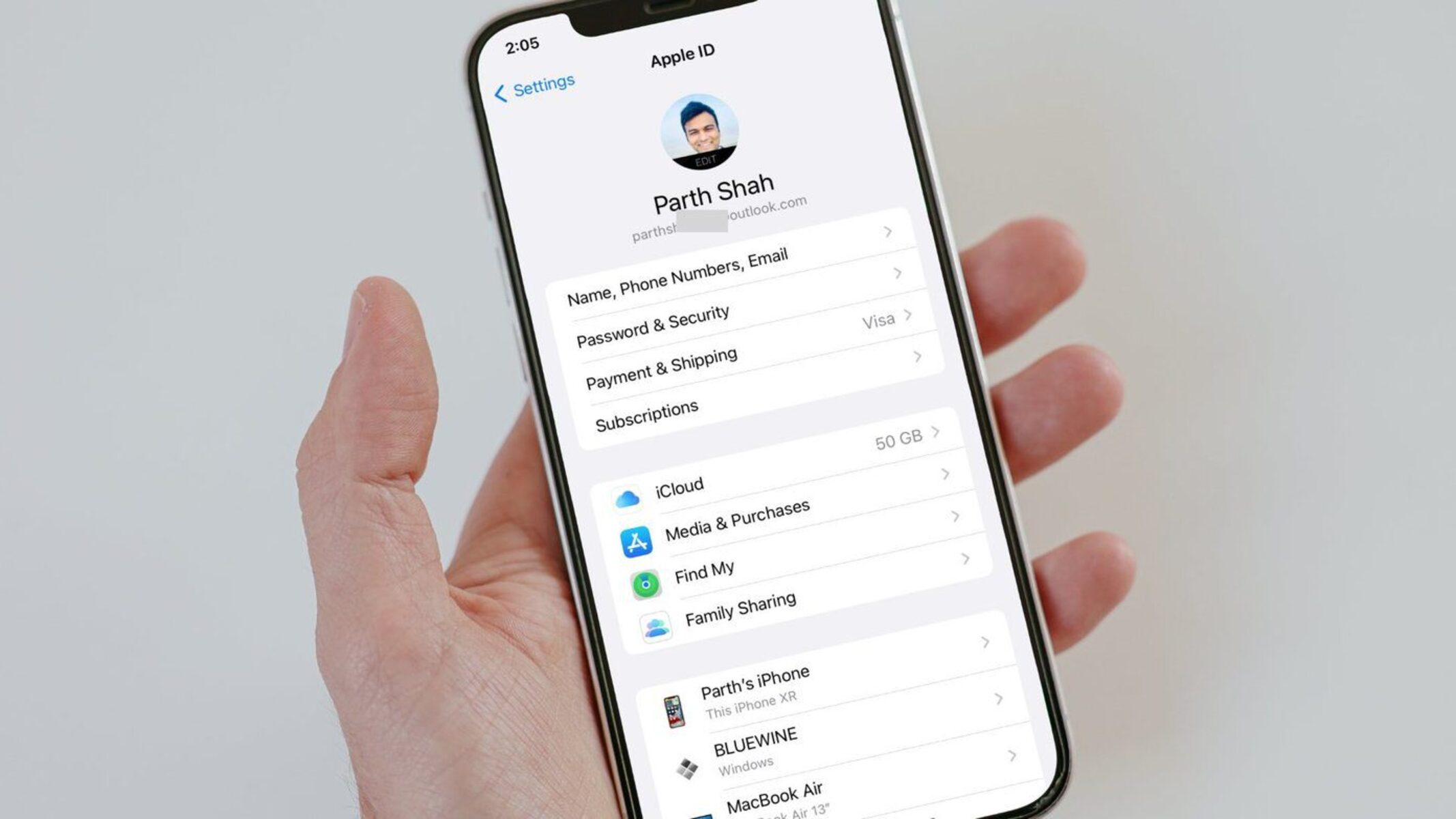
- iCloud Account Synchronization: To view credentials stored across your other Apple hardware (such as a Mac or iPad), you must be signed in with the same Apple Account and have iCloud Keychain enabled within your system settings.
Step-by-Step Guide to Accessing Stored Credentials
The primary method to view, copy, or manage your saved authentication data involves navigating through the native Settings application. Follow these sequential steps to locate your stored information:
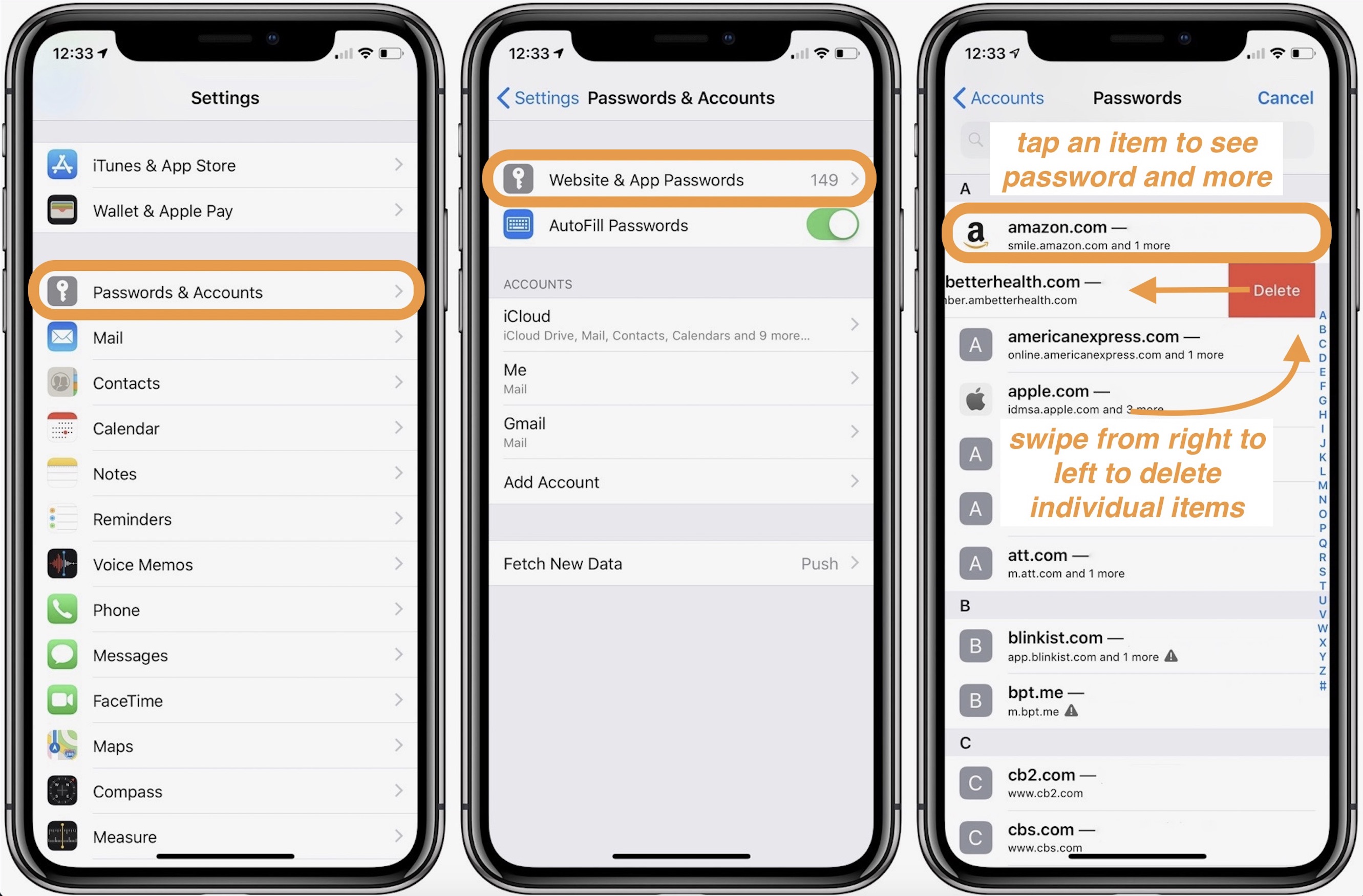
- Open the Settings Application: Unlock your device and locate the grey gear icon labeled Settings on your home screen or App Library.
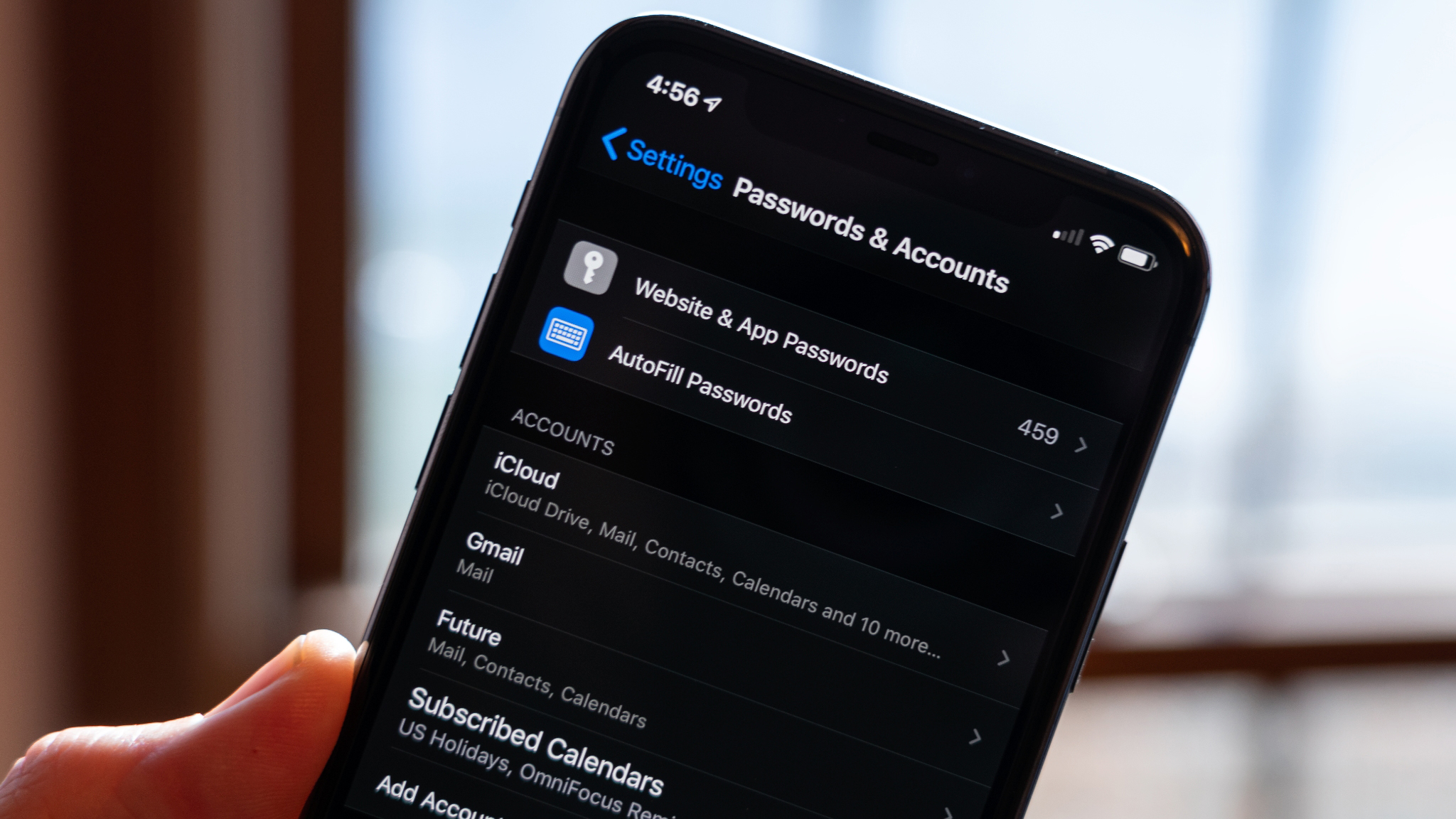
- Scroll and Select Passwords: Scroll down the main settings menu until you find the Passwords option, represented by a key icon. Tap on this menu item.
- Verify Your Identity: The system will prompt you to authenticate your identity using Face ID, Touch ID, or by entering your device passcode. Once verified, you will enter the secure password management interface.
- Locate the Target Account: Use the search bar at the top of the screen to type the name of the website or application, or scroll manually through the alphabetical list of saved entries.
- View Details: Tap on a specific entry to view the associated username and obscured password characters. Tap the obscured password field to reveal the plain-text characters.
| Action | Description | Security Requirement |
|---|---|---|
| View Password | Unmasks hidden characters for a specific site or app. | Face ID, Touch ID, or Device Passcode |
| Add New Entry | Manually creates a new credential record within the vault. | Biometric or Passcode Verification |
| Security Recommendations | Flags reused, weak, or compromised passwords. | Device Unlocked via Settings Menu |
| Share Passwords | Securely transfers credentials to trusted contacts via AirDrop. | End-to-End Encryption & Proximity |
Utilizing Siri for Quick Access
If you prefer a hands-free approach or need to retrieve a piece of information rapidly while navigating another application, you can utilize the digital assistant. By invoking the assistant with a phrase such as "Hey Siri, show my passwords," the operating system will prompt you to authenticate your identity before navigating directly to the secure credential menu within your settings.
This shortcut bypasses the need to manually scroll through multiple system menus, though it still strictly enforces the biometric security check to ensure that unauthorized individuals cannot command the assistant to display sensitive data.
Identifying and Resolving Security Recommendations
The built-in credential manager does more than just store data; it actively audits your security posture. Within the main menu, a dedicated section flags potential vulnerabilities.
- Weak Passwords: Identifies short or easily guessable text strings that could be cracked via brute-force methods.
- Reused Passwords: Alerts you if the exact same credential combination is used across multiple distinct online services, reducing the blast radius if one platform experiences a data breach.
- Compromised Passwords: Cross-references your stored items against public databases of leaked credentials to determine if your information has been exposed in a third-party security incident.
Tapping on any flagged item provides an immediate pathway to update the credential on the service provider's website, helping maintain robust personal cybersecurity hygiene.
Troubleshooting Common Access Issues
Users occasionally encounter roadblocks when attempting to retrieve their stored data. Understanding the root causes of these hurdles helps restore access quickly.
- Missing Entries: If a specific website or application is missing from the list, ensure that you previously selected "Save Password" when first logging into that service. If autofill was dismissed, the data will not populate automatically.
- Sync Delays: When credentials added on a computer do not appear on the mobile device, verify that both devices are connected to the internet and signed into the same iCloud account with Keychain toggled on in iCloud settings.
- Forgotten Passcode: If you cannot remember your device passcode and biometric sensors fail, you cannot bypass the security vault, as Apple's architecture utilizes zero-knowledge encryption designed to protect user data from external extraction.
Frequently Asked Questions
Can I export my saved credentials to a third-party manager?
Yes, you can export your data from a Mac computer signed into the same account by navigating to the credential settings, selecting the menu options, and choosing to export your data into a structured file format for migration purposes.
What happens to my stored credentials if I lose my device?
Your data remains heavily encrypted and protected behind your device passcode and biometrics. As long as your device is locked, unauthorized individuals cannot access your credentials. You can also remotely lock or wipe your hardware using tracking services if necessary.
Are my credentials visible to Apple?
No, the system utilizes end-to-end encryption with zero-knowledge architecture. This technical design ensures that authentication data is encrypted on your local hardware, meaning Apple cannot read, decrypt, or access your stored credentials.
How do I share a login with a family member?
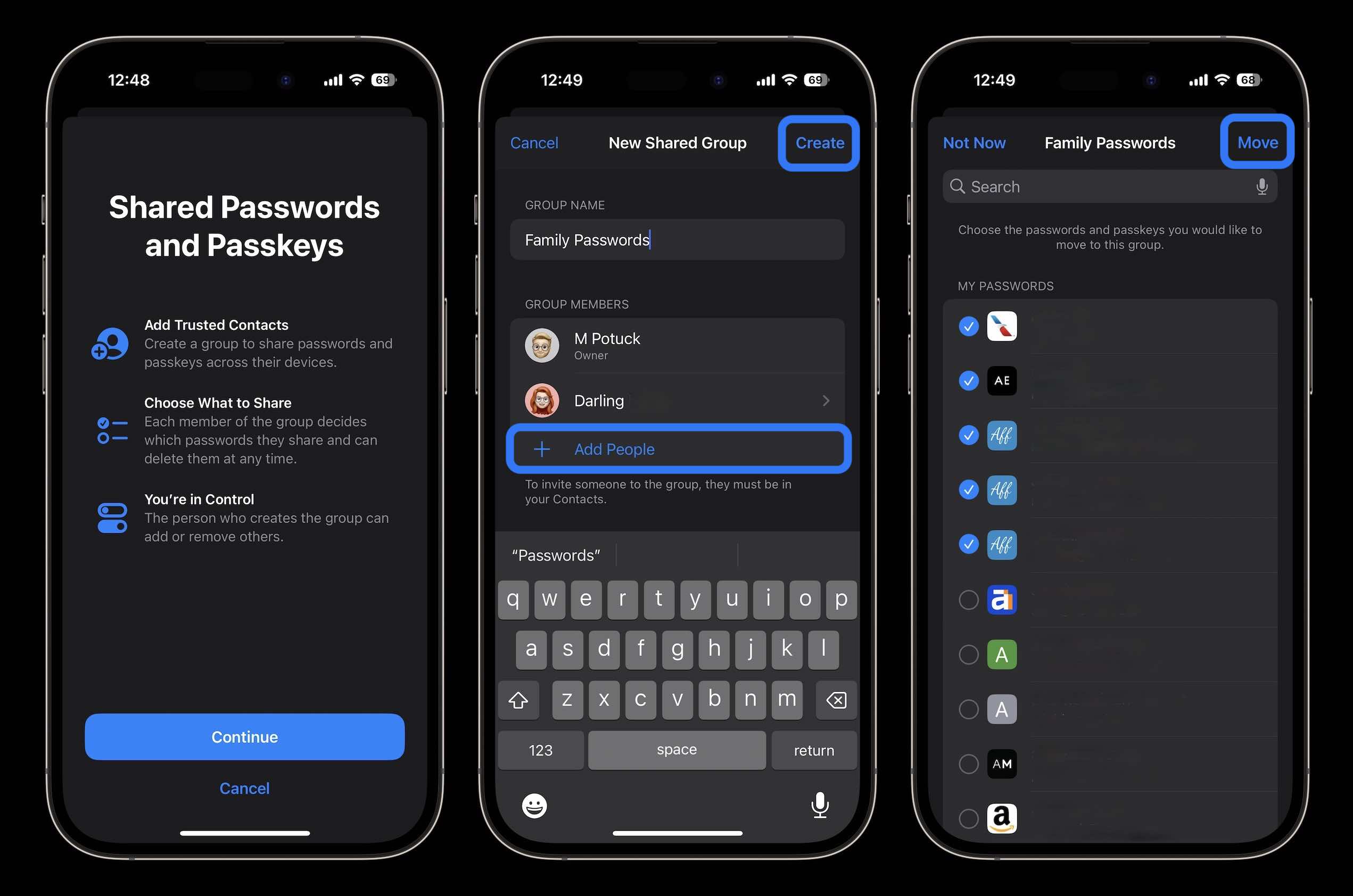
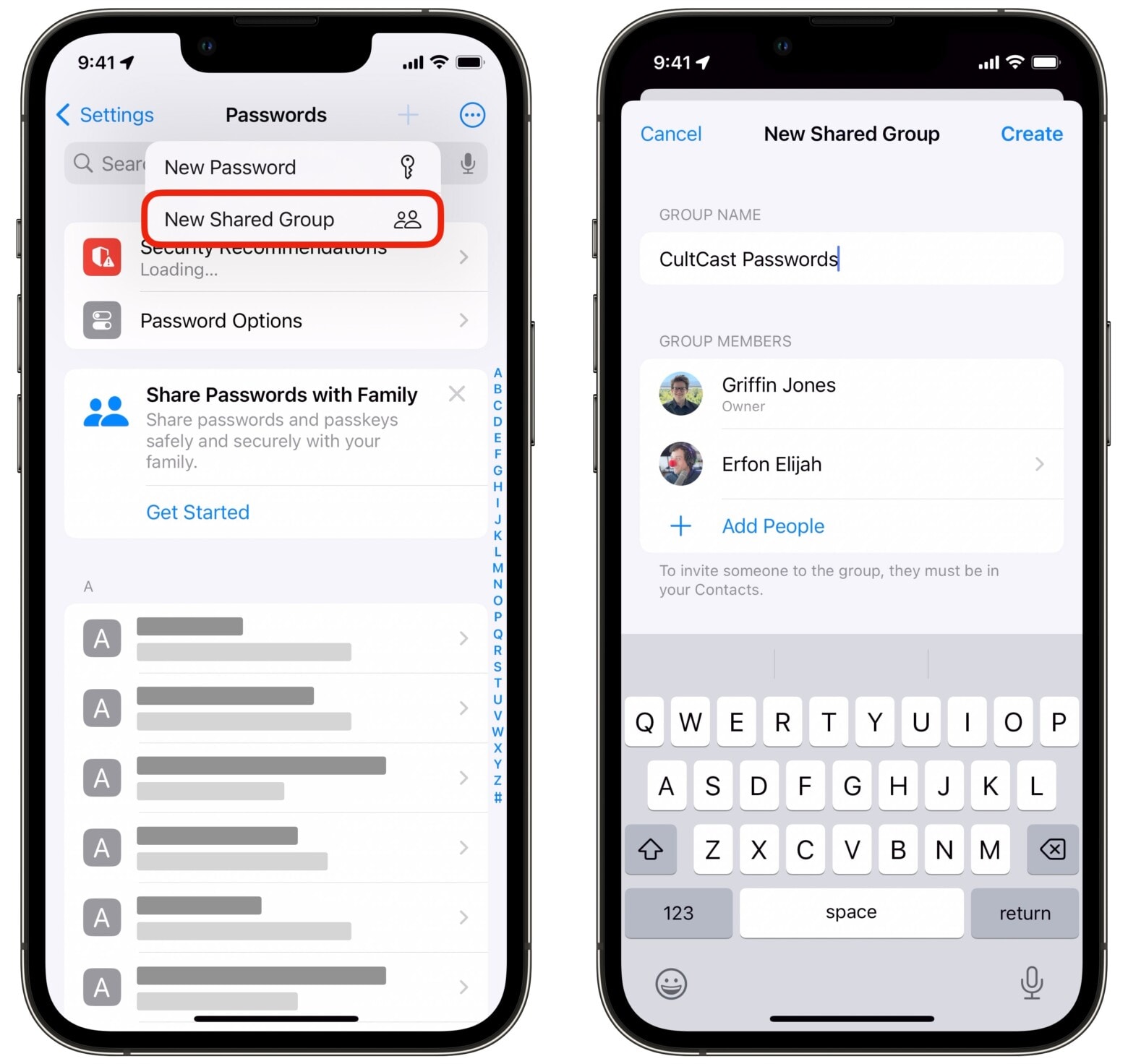
You can securely share specific credentials with trusted contacts using built-in sharing groups. This feature encrypts the transferred data end-to-end and ensures that any updates made by one group member sync automatically for everyone else in the group.
Is it safe to store financial and sensitive data in this system?
The manager uses industry-standard encryption protocols and hardware-isolated secure enclaves to protect sensitive records, making it secure for everyday personal use, provided your device passcode is kept confidential.
Next Actions and Best Practices
To maintain optimal digital security after retrieving your credentials, conduct a regular audit of your flagged security recommendations. Replace any weak or reused sequences with complex, system-generated alternatives, and ensure your system software remains updated to benefit from the latest security patches and feature enhancements.
Image Gallery