How to Get Old Contacts Back on Your iPhone (2026 Guide)
To get old contacts back on your iPhone, the most effective method is using the iCloud.com Data Recovery feature, which allows you to restore a snapshot of your contact list from an earlier date. Alternatively, you can toggle Contacts...
To get old contacts back on your iPhone, the most effective method is using the iCloud.com Data Recovery feature, which allows you to restore a snapshot of your contact list from an earlier date. Alternatively, you can toggle Contacts off and on in your iCloud settings or re-sync third-party accounts like Gmail or Outlook where contacts may be stored.
Contents
Losing access to your contact list can feel like losing a digital lifeline. Whether you accidentally deleted a group of names, experienced a sync error during an iOS update, or simply need to find a number you haven't used in years, your iPhone offers several layers of redundancy to retrieve this data. As of 2026, Apple’s ecosystem provides both cloud-based and local recovery options that cater to different scenarios of data loss.
Understanding Where iPhone Contacts Are Stored
Before attempting a recovery, it is crucial to understand that an iPhone rarely stores contacts "only" on the device’s internal memory. Instead, the iPhone acts as a portal that displays contacts synced from various sources. If contacts disappear, it is usually because a connection to one of these sources has been severed.
The most common repositories for iPhone contacts include:
- iCloud: The default Apple cloud service that keeps data in sync across Macs, iPads, and iPhones.
- Email Providers: Gmail, Outlook, Yahoo, and Microsoft Exchange often have their own "Contacts" sub-folders that sync to your phone.
- Local Backups: Encrypted files stored on a PC or Mac via Finder or iTunes.
- SIM Cards: While less common in 2026, some users still have legacy data stored on physical SIM cards from older devices.
Identifying which service originally held your "old" contacts will determine which recovery path is the most likely to succeed.
Method 1: Toggling iCloud Contacts (The Soft Reset)
Sometimes, contacts aren't actually gone; the sync engine has simply stalled. This is common after a software update or a period of poor internet connectivity. Toggling the sync setting can force the iPhone to re-index the database.
Steps to Re-sync:
- Open the Settings app on your iPhone.
- Tap your Apple ID name at the top of the screen.
- Select iCloud and then tap Show All under the "Apps Using iCloud" section.
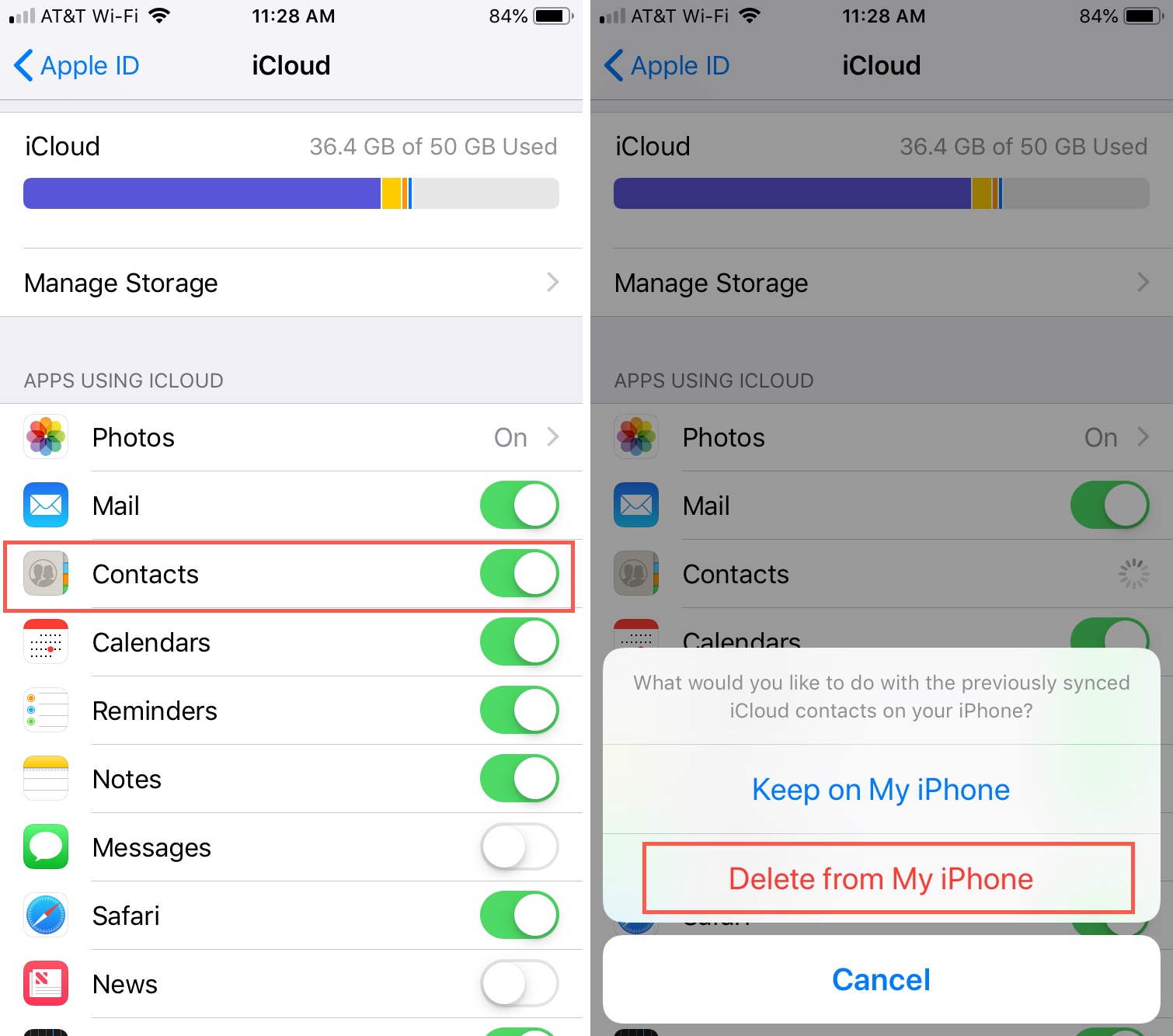
- Locate Contacts. If the switch is already green (on), toggle it Off.
- A prompt will appear asking what you would like to do with the existing contacts. Select Keep on My iPhone. This prevents further data loss during the reset.
- Wait approximately 60 seconds, then toggle Contacts back to On.
- When prompted, select Merge.
This process forces the device to compare its local database with the one stored on Apple's servers. Within a few minutes, any "missing" contacts that exist in the cloud should reappear in your Contacts app.
Method 2: Restoring from iCloud.com (The Official Rollback)
If you accidentally deleted a contact and that deletion has already synced across all your devices, the "Soft Reset" mentioned above will not work. In this case, you need to use Apple’s web-based recovery tool. Apple maintains "snapshots" of your contact list from the past 30 days.
How to Use the iCloud Recovery Tool:
- Using a desktop browser (Safari, Chrome, or Firefox), log in to iCloud.com.
- Navigate to the Data Recovery section. In the 2026 interface, this is typically found by clicking the grid icon in the top right and selecting Data Recovery or scrolling to the bottom of the homepage.
- Click on Restore Contacts.
- A list of available archives will appear, sorted by date and time. Look for a date prior to when the contacts were lost.
- Click Restore next to the desired date.
- Confirm the restoration.
Important Note: Restoring an archive will replace the contacts currently on all your devices with the contacts from the archive. If you have added new contacts since that archive was created, those new contacts will be overwritten. It is often wise to take a screenshot or manual note of any brand-new numbers before performing this rollback.
Method 3: Checking Third-Party Account Syncing
Many users do not realize their contacts are actually managed by Google or Microsoft rather than Apple. If you recently removed an email account from your phone or changed an account password, your contacts may have vanished because the iPhone no longer has permission to access that specific database.
Verifying Account Settings:
- Go to Settings > Contacts > Accounts.
- Review each account listed (e.g., Gmail, Outlook, Work Exchange).
- Tap on each account and ensure the Contacts toggle is switched to On.
- If an account shows a "Re-enter Password" or "Account Not Authenticated" error, tap it and follow the prompts to log in again.
If you have deleted an email account entirely, re-adding it via Add Account will automatically pull the associated contact list back onto your iPhone.
Method 4: Importing from a SIM Card
In the transition between older devices or different carrier technologies, contacts are sometimes left behind on the physical SIM card. Modern iPhones do not store new contacts on SIM cards, but they can still read and import them.
To Import SIM Contacts:
- Ensure the SIM card containing the data is inserted into your iPhone.
- Go to Settings > Contacts.
- Tap Import SIM Contacts at the bottom of the menu.
- Choose the account where you want these contacts to be saved (usually iCloud).
This is a one-way transfer. Once imported, the contacts become part of your digital database and can be synced across all your devices.
Method 5: Restoring from a Local Computer Backup
If cloud methods fail, your last line of defense is a local backup stored on your Mac (via Finder) or Windows PC (via iTunes/Apple Devices app). This method is high-risk because it requires a "Full Restore," meaning your entire phone will be reverted to the state it was in when the backup was made.
The Restoration Process:
- Connect your iPhone to your computer using a certified USB cable.
- Open Finder (Mac) or the Apple Devices app (Windows).
- Select your iPhone from the sidebar.
- Under the General tab, look for the Backups section.
- Click Restore Backup...
- Select the most relevant backup from the dropdown menu.
- Wait for the process to complete and the iPhone to restart.
Warning: This will delete any photos, messages, and app data created after the backup date. Only use this method if the lost contacts are of critical importance and cannot be recovered via iCloud.
Comparison of Recovery Methods
| Method | Ease of Use | Data Loss Risk | Best For |
|---|---|---|---|
| iCloud Toggle | Very Easy | Very Low | Syncing glitches or lag. |
| iCloud.com Restore | Moderate | Low (Overwrites recent changes) | Accidental deletions within 30 days. |
| Email Account Sync | Easy | None | Contacts tied to Gmail/Outlook. |
| SIM Import | Easy | None | Recovering data from old physical cards. |
| Computer Backup | Difficult | High (Reverts entire phone) | Severe data loss with no cloud backup. |
Troubleshooting Common Issues
Even with the correct steps, you may encounter obstacles. Here is how to resolve the most frequent technical hurdles in 2026:
"Verification Failed" or Grayed Out Toggles
This usually indicates an issue with your Apple ID authentication or a server-side outage. Check the Apple System Status page to ensure "iCloud Contacts" is operational. If the servers are fine, try signing out of your Apple ID and signing back in, but ensure you have a fresh backup before doing so.
Contacts Appear as "No Name"
This often happens when the contact's metadata is corrupted. Try toggling the "Short Name" setting in Settings > Contacts > Short Name. If that fails, the iCloud.com restoration is the most effective fix for metadata corruption.
Duplicate Contacts After Recovery
Recovering from multiple sources can lead to duplicates. To fix this, open the Contacts app, tap All Contacts, and look for the notification at the top that says "Duplicates Found." Tap View Duplicates and select Merge All to clean up your list.
Preventing Future Contact Loss
To ensure you never have to repeat this process, consider the following best practices:
- Enable Two-Factor Authentication: This prevents unauthorized access that could lead to malicious data deletion.
- Regular Local Backups: Even if you use iCloud, a monthly encrypted backup to a physical computer provides a "fail-safe" that isn't dependent on Apple's servers.
- Export a vCard Archive: Periodically log into iCloud.com, select all contacts, click the gear icon (or "Share" icon in 2026), and select Export vCard. Store this file in a secure secondary location like a dedicated hard drive or a different cloud service.
FAQ
Can I recover contacts deleted more than 30 days ago? If the contacts were deleted from iCloud, they are generally purged from Apple's servers after 30 days. In this scenario, your only hope is an older local backup on a computer or checking an old email account that hasn't been synced recently.
Do I need a computer to get my contacts back? Not necessarily. Most users can recover data using Method 1 (Settings toggle) or Method 3 (Email sync) directly on the iPhone. However, the official iCloud.com restoration tool (Method 2) is much easier to navigate on a desktop browser.
Why did my contacts disappear after an iOS update? Updates sometimes reset system preferences or require you to re-accept iCloud Terms and Conditions. If these terms aren't accepted, syncing may pause. Simply going into Settings and re-authenticating your Apple ID usually resolves this.
Will restoring contacts delete my current text messages? Using the iCloud.com "Restore Contacts" method (Method 2) will only affect your contacts. It will not touch your messages, photos, or other data. However, Method 5 (Full Computer Restore) will revert your messages to the date of the backup.
How do I get contacts from an old Android phone to my iPhone? The best way is to use the "Move to iOS" app during initial setup. If the iPhone is already set up, sync your Android contacts to a Google Account, then add that Google Account to your iPhone under Settings > Contacts > Accounts.
Final Recommendation
If you have lost your contacts, start with the iCloud toggle in Settings. It is the fastest and safest method. If that fails, immediately go to iCloud.com on a computer to check for available archives before the 30-day window expires. Avoid using "Full System Restores" from a computer unless absolutely necessary, as the risk of losing recent photos and messages is significant. For long-term security, always keep at least one third-party email account synced as a secondary contact repository.
Image Gallery