How to Clear Cookies on Samsung Phone (2026 Guide)
To clear cookies on a Samsung phone, open your mobile browser—typically Samsung Internet or Google Chrome—and access the Settings menu. From there, navigate to the Privacy or Personal Browsing Data section, select Clear Browsing Data,...
To clear cookies on a Samsung phone, open your mobile browser—typically Samsung Internet or Google Chrome—and access the Settings menu. From there, navigate to the Privacy or Personal Browsing Data section, select Clear Browsing Data, check the box for Cookies and site data, and tap Delete or Clear Data.
Contents
Clearing cookies is a fundamental maintenance task for any Samsung Galaxy user. As we move through 2026, the integration of web services into our daily lives has made our mobile browsers more powerful, but also more cluttered. Cookies are small files created by websites you visit; they make your online experience easier by saving browsing information. However, they can also track your movements across the web, consume storage space, and occasionally cause technical glitches when they become corrupted.
This guide provides a comprehensive walkthrough for managing and clearing cookies across different browsers and system settings on your Samsung device, ensuring your Galaxy smartphone remains fast, private, and secure.
Understanding the Role of Cookies in 2026
In the current digital landscape of 2026, the distinction between different types of data is more important than ever. Cookies generally fall into two categories: first-party and third-party. First-party cookies are created by the site you are visiting and are often essential for maintaining login sessions or keeping items in a shopping cart. Third-party cookies are generated by other sites that own some of the content, like ads or images, you see on the page you are visiting.
Samsung’s One UI 8.0 and later versions have introduced more robust privacy dashboards that highlight how much data these cookies are collecting. While cookies are not inherently "malicious," they are the primary mechanism for cross-site tracking. By clearing them regularly, you reset your digital footprint on that specific device, which can prevent targeted advertising from becoming overly intrusive.
Why You Should Clear Cookies Regularly
- Privacy Protection: Cookies can store sensitive information about your habits. Clearing them prevents subsequent users of the device or trackers from accessing your browsing history.
- Troubleshooting: If a website refuses to load, displays outdated information, or throws an error during login, corrupted cookies are frequently the culprit.
- Storage Optimization: While individual cookies are tiny (measured in kilobytes), thousands of them accumulated over months can impact the cache and performance of the browser app.
- Security: If your device is compromised, stored cookies (especially session cookies) could theoretically be used by bad actors to hijack active accounts without needing a password.
How to Clear Cookies in Samsung Internet
Samsung Internet remains the optimized choice for Galaxy users due to its deep integration with the Knox security framework and One UI design language. As of 2026, the browser has become even more streamlined.
Step-by-Step Instructions:
- Launch Samsung Internet: Open the app from your home screen or app drawer.
- Access the Menu: Tap the three horizontal lines (the "hamburger" menu) located in the bottom-right corner of the screen.
- Open Settings: Tap the Settings (gear icon) in the pop-up menu.
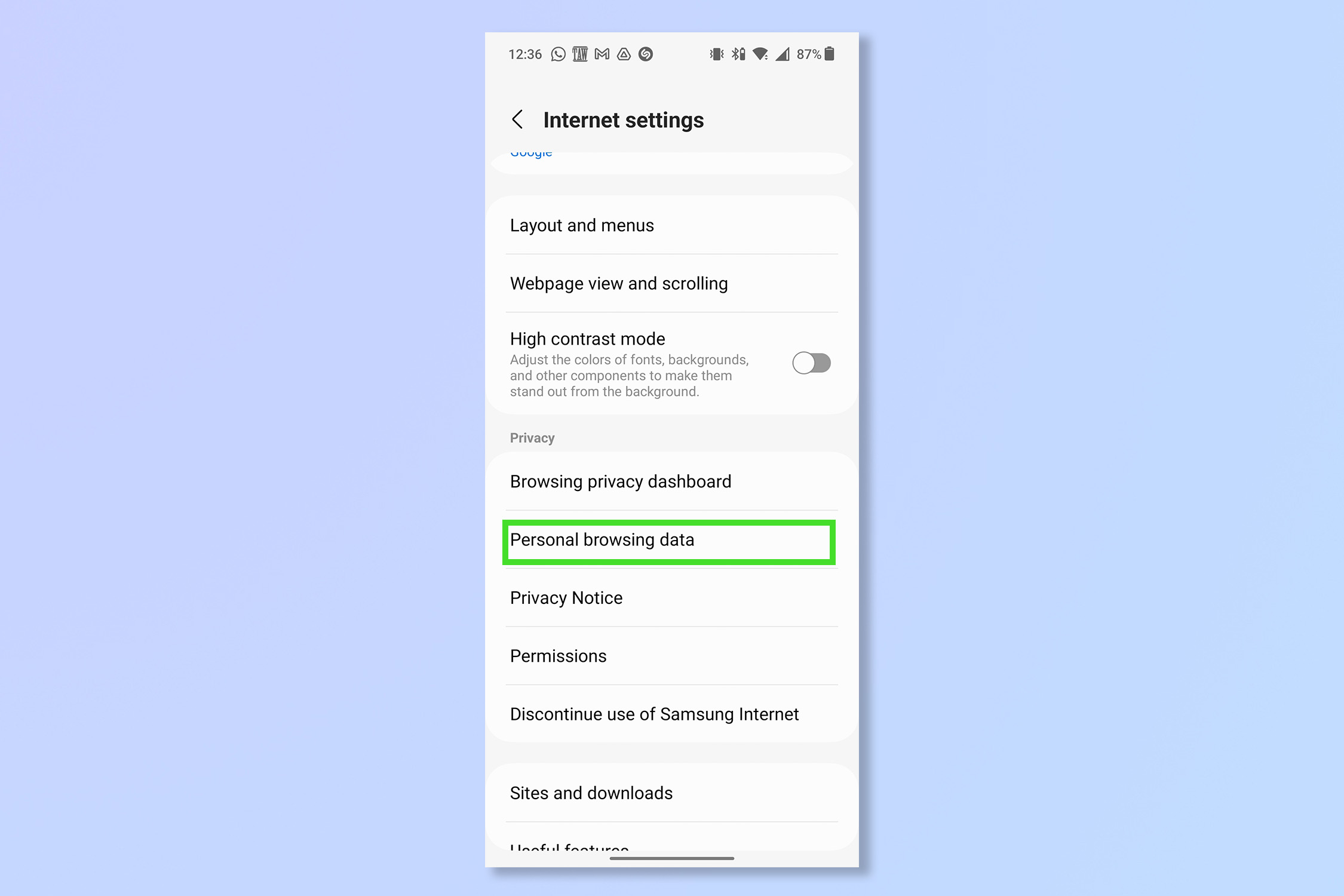
- Navigate to Personal Browsing Data: Scroll down to the "Privacy" section and select Personal browsing data.
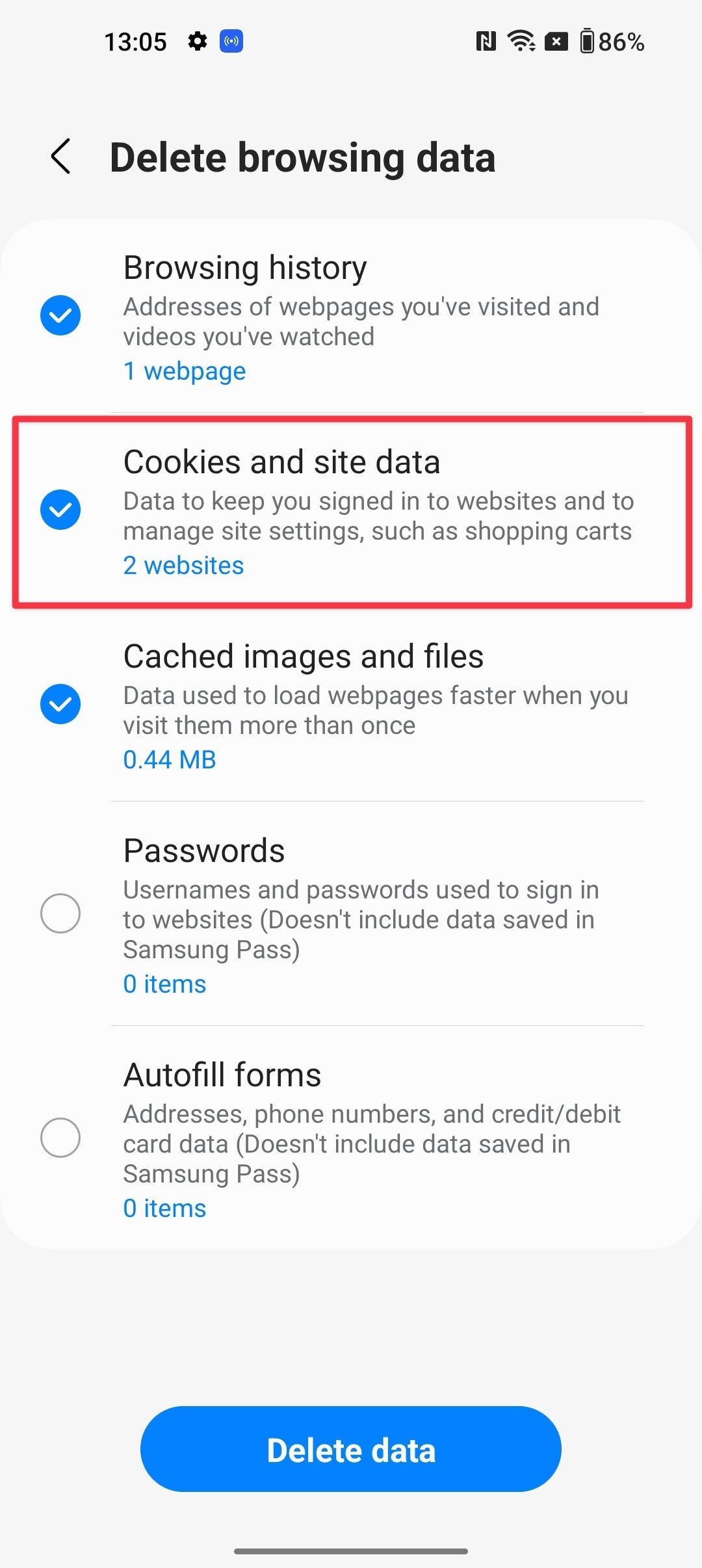
- Select Delete Browsing Data: This menu allows you to choose exactly what you want to remove.
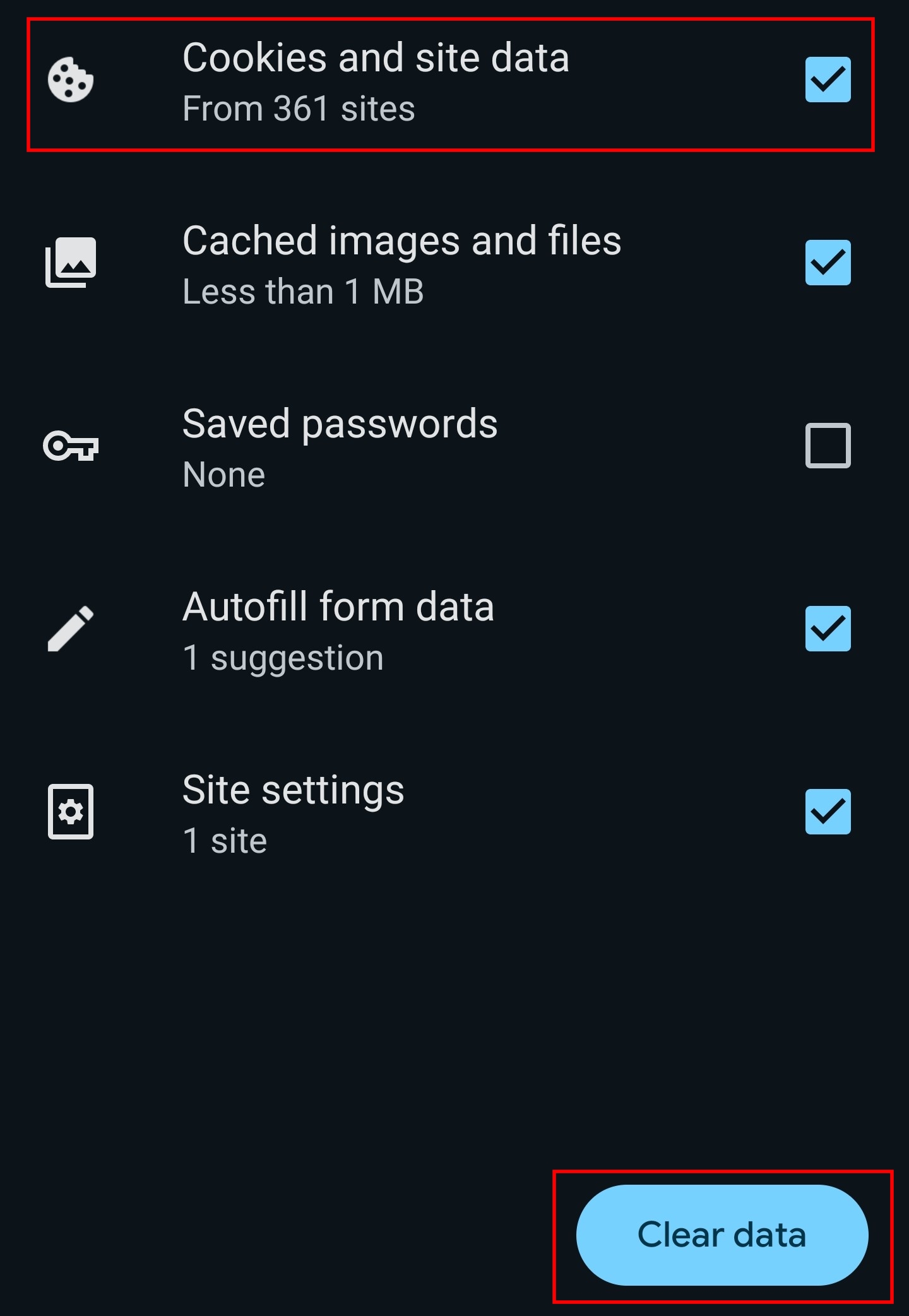
- Check Cookies and Site Data: Ensure that the box next to Cookies and site data is checked. You may also choose to clear your "Browsing history" or "Cached images and files" at this time.
- Confirm Deletion: Tap the Delete data button at the bottom. A confirmation prompt will appear; tap Delete again to finalize the process.
Pro Tip: In the 2026 version of Samsung Internet, you can enable "Auto-delete browsing data" within the Secret Mode settings to ensure that no cookies are saved once you close your private tabs.
How to Clear Cookies in Google Chrome for Android
Since most Samsung phones come pre-installed with Google Chrome, and many users prefer its cross-platform syncing capabilities, knowing how to manage data here is essential.
Step-by-Step Instructions:
- Open Google Chrome: Launch the browser on your Samsung phone.
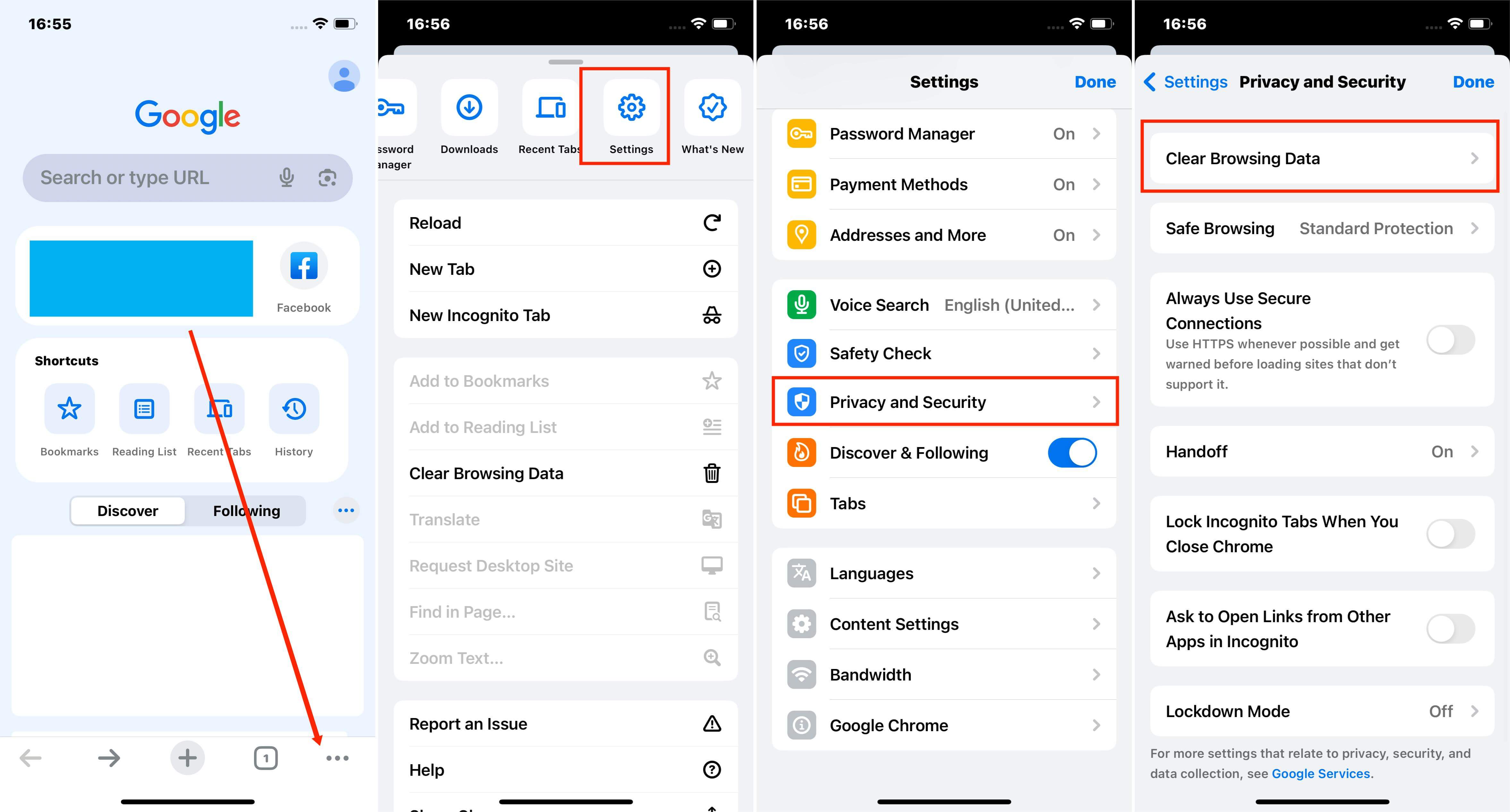
- Open the Menu: Tap the three vertical dots in the top-right corner.
- Go to Settings: Select Settings from the dropdown list.
- Privacy and Security: Tap on Privacy and security, which is usually found under the "Basics" or "Advanced" header depending on your view.
- Clear Browsing Data: Tap the Clear browsing data option.
- Choose Time Range: At the top, you can select a time range. To clear everything, select All time.
- Select Data Types: Check the box for Cookies and site data. Uncheck other items if you wish to keep your history or cache.
- Execute Clear: Tap Clear data in the bottom-right corner. Chrome may show a dialogue box listing specific sites that seem important to you; confirm by tapping Clear.
Chrome in 2026 also features "Privacy Sandbox" settings, which aim to replace third-party cookies with more anonymous tracking methods. You can find these settings in the same "Privacy and security" menu if you want to further limit how cookies are used in the first place.
Managing Cookies for Third-Party Browsers
If you use alternative browsers like Mozilla Firefox, Brave, or Microsoft Edge on your Samsung device, the process follows a similar logic but with slightly different menu labels.
Mozilla Firefox
Firefox emphasizes privacy, making it easy to wipe data.
- Tap the three dots (menu).
- Go to Settings.
- Select Delete browsing data.
- Toggle Cookies to on and tap Delete browsing data.
- Firefox also offers a "Delete browsing data on quit" toggle, which is highly recommended for privacy-conscious users.
Brave Browser
Brave is built on Chromium but has unique shields.
- Tap the three dots at the bottom.
- Select Settings.
- Navigate to Brave Shields & Privacy.
- Scroll down to Clear browsing data and select Cookies and site data.
Clearing Cookies via Samsung System Settings
Sometimes, a browser might become unresponsive, preventing you from accessing its internal settings. In such cases, you can clear the app’s entire data set through the Android system settings. Use this method with caution, as it will log you out of all sites and may reset browser preferences.
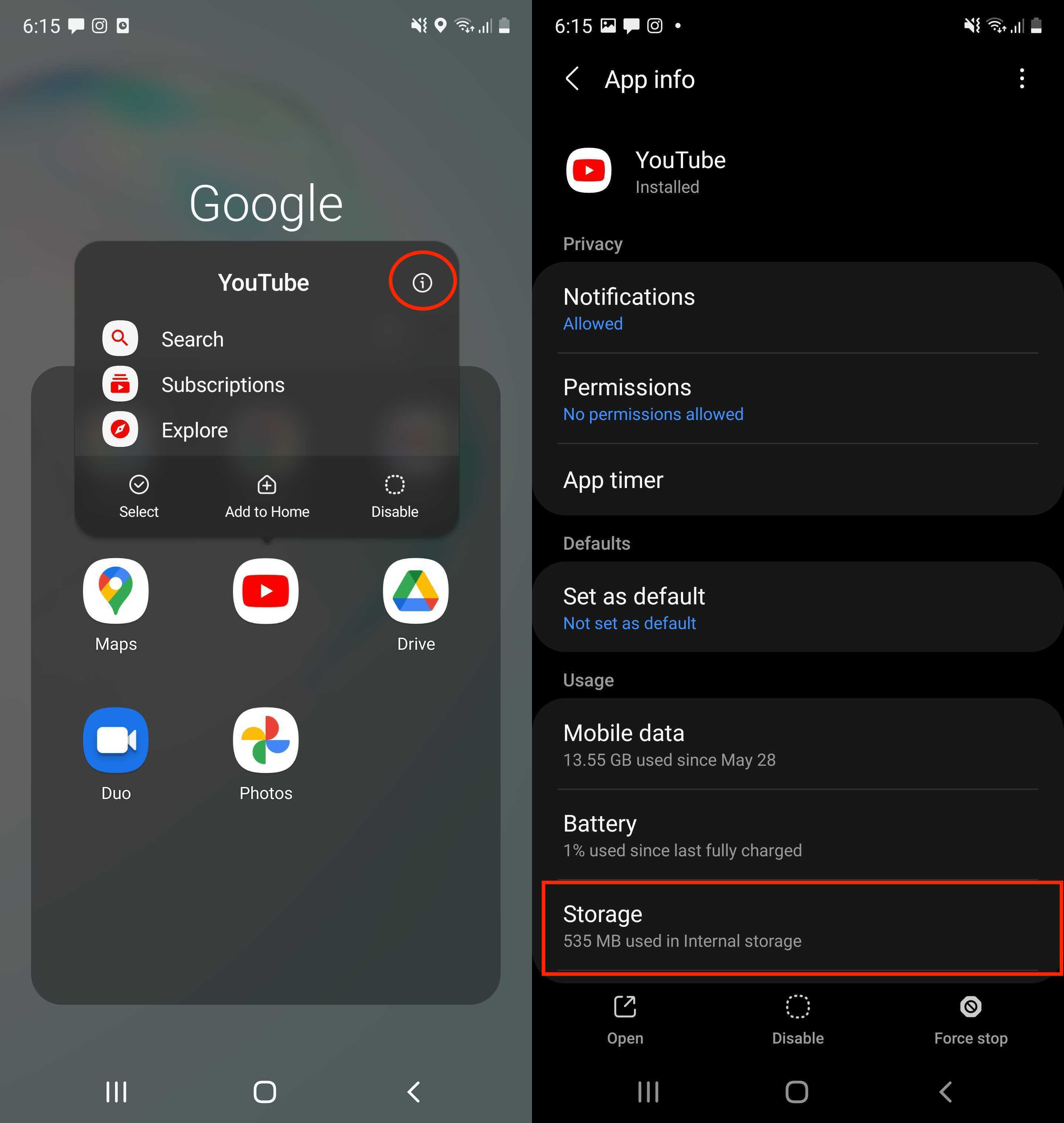
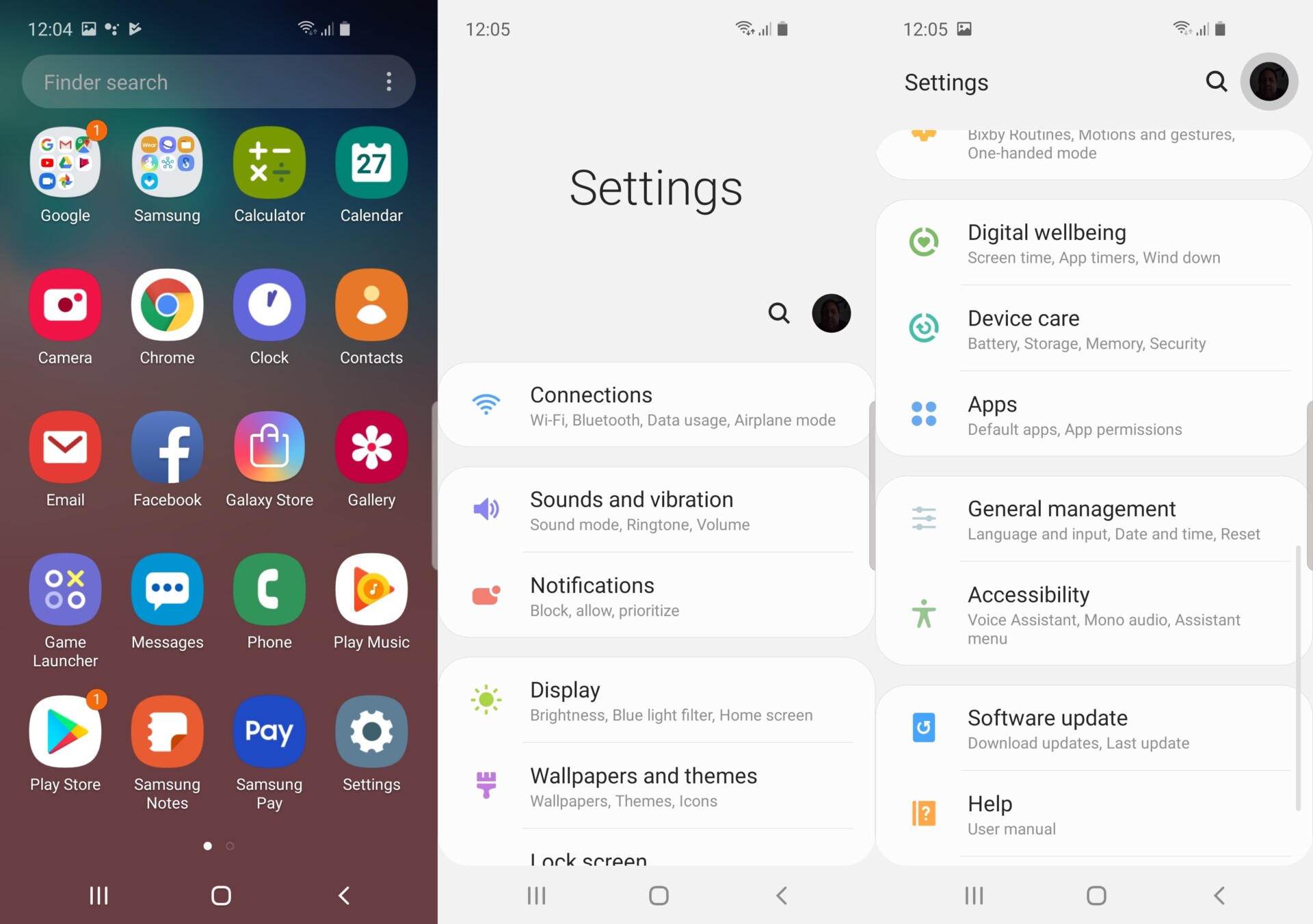
- Open the Settings app on your Samsung phone.
- Tap on Apps.
- Find the browser you want to clean (e.g., Chrome or Samsung Internet) and tap it.
- Select Storage.
- Tap Manage storage or Clear storage.
- From here, you can select Clear all data. This action effectively "factory resets" the browser app, removing all cookies, cache, and saved settings.
Browser Comparison for Cookie Management
The following table compares the primary browsers used on Samsung devices in 2026 based on their cookie management features.
| Feature | Samsung Internet | Google Chrome | Mozilla Firefox |
|---|---|---|---|
| Ease of Access | High (One UI Optimized) | High | Medium |
| Auto-Clear Option | Secret Mode only | No (Manual only) | Yes (On Quit) |
| Granular Control | High (Individual site deletion) | Medium | High |
| Privacy Dashboard | Integrated with Knox | Google Privacy Sandbox | Enhanced Tracking Protection |
| 2026 Tech Status | Version 25.x+ | Version 142.x+ | Version 135.x+ |
Troubleshooting Common Issues
Despite following the steps above, some users encounter persistent issues. Here is how to resolve them.
Cookies Keep Reappearing
If you clear your cookies but find you are still logged into websites, check if you have Sync enabled. Google Chrome and Samsung Cloud can sync browser data across devices. If you clear cookies on your phone but not on your tablet or PC, the cloud might "restore" your session data. Ensure you select "All devices" if prompted, or clear data on your other linked devices simultaneously.
"Clear Data" is Greyed Out
If the option to clear data is unavailable, it may be due to administrative restrictions. This is common on "Enterprise Edition" Samsung phones or devices managed by a company's MDM (Mobile Device Management) software. If this is a personal device, ensure you are not in a restricted "Kids Mode" or "Maintenance Mode" profile.
Websites Are Not Loading Correctly After Clearing
After clearing cookies, websites may load slightly slower the first time because the browser needs to re-download certain elements. This is normal. If a site still won't load, you may need to clear the Cache as well, as outdated cached scripts can conflict with new cookies.
Frequently Asked Questions
Does clearing cookies delete my saved passwords?
No, clearing cookies alone will not delete your saved passwords. On both Samsung Internet and Chrome, "Passwords" is a separate checkbox in the "Clear browsing data" menu. However, because cookies handle active sessions, you will be logged out of most websites and will need to enter your password again to log back in.
How often should I clear cookies on my Samsung phone?
For most users, clearing cookies once every one to three months is sufficient. However, if you frequently visit high-risk websites, notice a slowdown in browser performance, or are concerned about privacy after using a public Wi-Fi network, you may want to do it more frequently.
Can I clear cookies for just one specific website?
Yes. In Samsung Internet, go to Settings > Personal browsing data > Site storage. Here you can see a list of individual websites and delete data for a specific one without affecting others. In Chrome, go to Settings > Site Settings > All sites, select the specific URL, and choose Clear & reset.
What is the difference between "Cache" and "Cookies"?
Cookies are files used to identify you and your preferences (like your username). Cache consists of files like images, HTML, and CSS that the browser "remembers" so it doesn't have to download the entire page from scratch every time you visit. Clearing cookies logs you out; clearing cache refreshes the visual and structural elements of the site.
Will clearing cookies free up significant storage space?
Usually, no. Cookies are text-based and very small. If you are looking to free up gigabytes of space on your Samsung phone, you are better off clearing the Cache of apps like TikTok, YouTube, or Instagram, or using the "Storage Booster" feature in the Battery and Device Care menu.
Summary and Next Steps
Clearing cookies on your Samsung phone is a simple yet effective way to maintain your digital privacy and ensure your browser functions correctly in 2026. Whether you use the native Samsung Internet or the ubiquitous Google Chrome, the process takes less than a minute but offers lasting benefits for device performance and security.
For the best experience, consider reviewing your Tracking Prevention settings in your browser after clearing your cookies. Setting these to "High" or "Strict" can reduce the number of cookies websites are allowed to drop on your device in the future, keeping your Galaxy phone cleaner for longer.
Image Gallery