How to Recover Data from a Dead Phone: A Step-by-Step Guide
Recovering data from a completely unresponsive or "dead" phone requires a methodical approach that rules out minor power failures before attempting advanced hardware-level or cloud-based retrieval methods. By understanding the root cau...
Recovering data from a completely unresponsive or "dead" phone requires a methodical approach that rules out minor power failures before attempting advanced hardware-level or cloud-based retrieval methods. By understanding the root cause—whether it is a completely depleted battery, a corrupted operating system, a broken display, or catastrophic logic board failure—you can systematically isolate the issue, protect your files, and retrieve lost photos, messages, and documents.
Contents
Assessing the Symptom: Is the Phone Truly Dead?
Before attempting any complex data recovery procedures, you must determine whether the device is experiencing a minor power glitch or a permanent hardware failure. Many users panic when their phone screen remains completely dark and unresponsive, assuming the internal components are permanently fried, when the issue is often related to the charging subsystem.
Begin by inspecting the physical charging port. Pocket lint, dust, and debris frequently accumulate inside USB-C and Lightning ports, preventing the charging cable from making proper electrical contact with the internal pins. Use a wooden toothpick or a non-conductive plastic tool to gently clear out any foreign material from the port.
Next, test your charging accessories. A failing wall adapter or a frayed charging cable can supply insufficient voltage, leaving the battery too weak to boot the operating system or even illuminate the charging indicator light. Swap out both the cable and the wall brick with known working alternatives, and plug the device directly into a wall outlet rather than a computer USB port, which often provides lower electrical current.
Force Restart Combinations
If the battery has completely drained, the phone may enter a deep-discharge state where it takes 15 to 30 minutes of continuous connection to a power source before displaying any sign of life. Once the phone has charged for at least half an hour, attempt a forced reboot. Every major manufacturer utilizes a distinct hardware key sequence to bypass a frozen operating system:
- Apple iPhone: Press and quickly release the Volume Up button, press and quickly release the Volume Down button, then press and hold the Side (Power) button until the Apple logo appears.
- Samsung Galaxy: Press and hold the Volume Down and Power buttons simultaneously for 10 to 15 seconds until the device vibrates or displays the boot logo.
- Google Pixel: Press and hold the Power button for approximately 15 to 30 seconds until the phone restarts.
Cloud-Based Recovery: The Fastest Route for Backed-Up Data
If your phone remains completely dead, unresponsive, or physically damaged beyond repair, your most efficient path to data recovery does not involve the physical device at all. Both major mobile ecosystems rely heavily on automated cloud backups that synchronize your personal files, photographs, contacts, and application data in real-time.
Accessing Apple iCloud Data
For iOS users, Apple routinely backs up device data automatically whenever the phone is connected to Wi-Fi, locked, and plugged into a power source.
- Navigate to iCloud.com using a web browser on a computer or working tablet.
- Sign in using the Apple ID and password associated with the dead device. If two-factor authentication is enabled, you may need to approve the login via another trusted Apple device or receive an SMS code on a ported phone number.
- Once logged in, review the individual web apps—such as Photos, Contacts, Notes, and Drive—to download your synchronized files directly to your working computer.
Accessing Google Drive and Google Photos
For Android users operating devices manufactured by Samsung, Google, Motorola, and others, Google services handle core backups automatically.
- Open a web browser and visit Google Drive or Google Photos.
- Log in with the exact Google account credentials (email and password) used on the dead smartphone.
- Check the Google Drive Backup section in settings to confirm whether device settings, app data, and text messages were saved. Download your media libraries and documents straight from the web interface.
Local Backup Recovery via Computer Sync
If you do not utilize cloud storage services but regularly synchronized your smartphone to a personal computer using iTunes, Finder, or manufacturer desktop applications, your local hard drive likely holds a complete image or selective backup of your device.
| Recovery Method | Primary Prerequisite | Best For Retrieving |
|---|---|---|
| Cloud Sync Services | Active Apple ID / Google Account | Photos, Contacts, Notes, Documents |
| Local Computer Backup | Prior iTunes/Finder/Smart Switch Sync | Full Device State, App Data, Settings |
| Screen Replacement | Functioning Logic Board | Bypassing Security Locks Locally |
| Professional Lab | Cleanroom Environment & Micro-Solder | Severely Damaged / Water-Damaged Logic |
Restoring from iTunes or Finder (Mac and Windows)
If you previously connected your iPhone to a computer and trusted that computer, the desktop environment may retain a local backup.
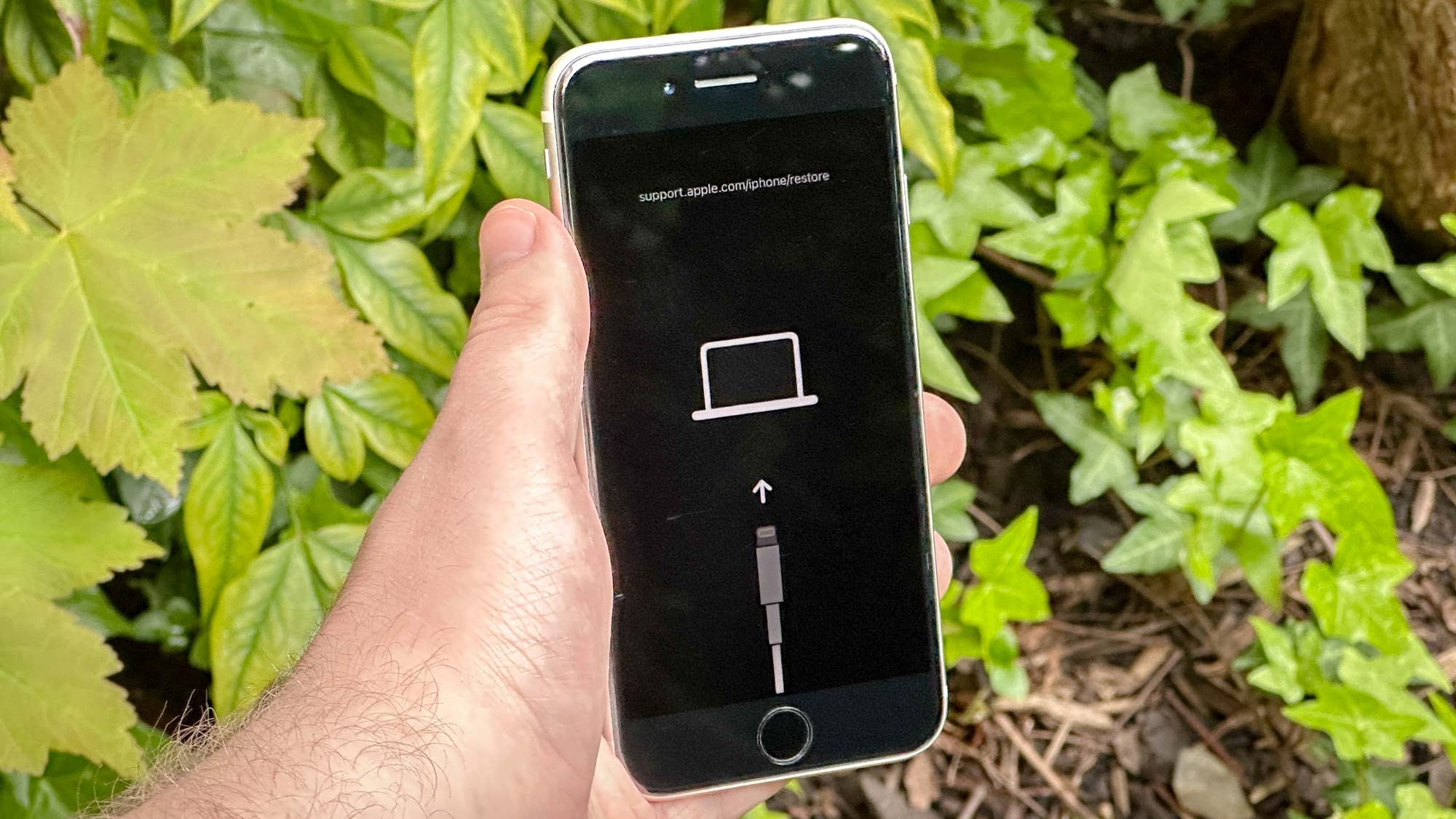
- Connect a working iPhone or simply open Finder (macOS Catalina and later) or iTunes (Windows and older macOS) with your computer. Note: Restoring a backup typically requires a functional destination device, but third-party data extraction tools can read local iTunes backup directories directly without overwriting a phone.
- Navigate to the device summary page and select Restore Backup, choosing the most recent date prior to the phone failure.
Restoring via Smart Switch (Samsung)
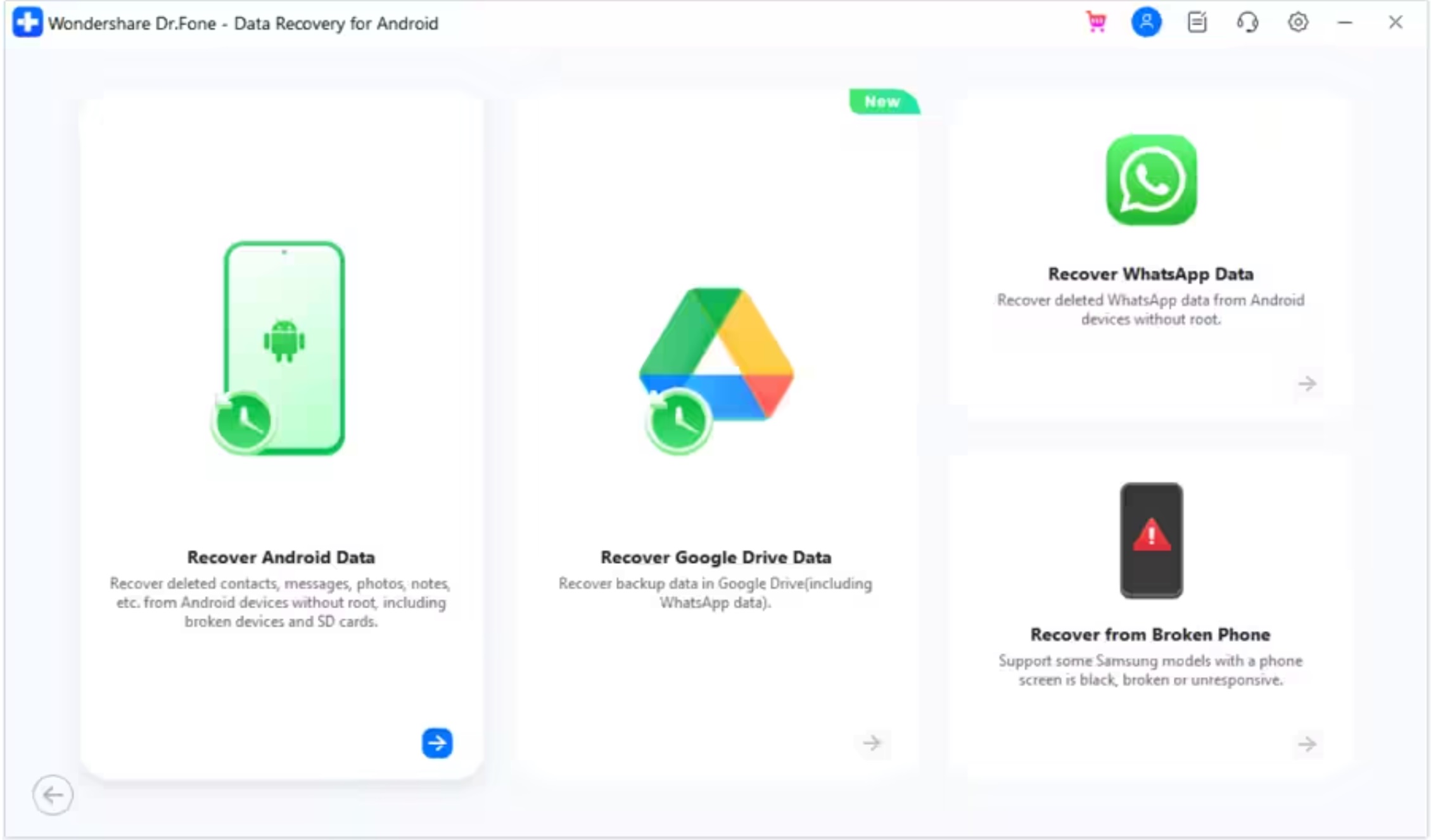
For Android users who utilized desktop software like Samsung Smart Switch, open the application on your PC or Mac while connected to the internet to check for historical device archives stored locally on your machine's hard drive.
Handling Physical Damage: Broken Screens and Water Intrusion
When a phone suffers catastrophic physical trauma—such as a shattered display where the touch digitizer is completely dead, or water immersion that corrodes internal circuits—software solutions become completely ineffective. The strategy must shift to hardware-level triage.
Dealing with a Completely Black or Unresponsive Screen
If your phone rings, vibrates, or chimes when receiving notifications, but the display remains entirely black, the internal OLED or LCD panel has likely failed while the underlying logic board and processor remain fully functional.
- USB Mouse Connection (Android): Many Android smartphones support USB Host mode (OTG). By connecting a standard USB mouse to the phone's charging port using an inexpensive USB-C to USB-A adapter, a cursor will appear on the screen. This allows you to input your lock screen PIN or pattern and navigate menus to back up files to cloud storage or a flash drive.
- External Monitor via HDMI: Devices that support video output over USB-C (such as Samsung Galaxy flagship models via Samsung DeX or Google Pixel devices with DisplayPort alternate mode) can be plugged directly into an external monitor or television using a multi-port USB-C hub. This mirrors your dead phone screen onto a large display, granting full visual access.
Recovering Water-Damaged Devices
If moisture caused your phone to die, attempting to power it on immediately can cause irreversible electrical short circuits across the logic board.
- Power Off Immediately: Do not plug the phone into a charger or attempt to turn it on.
- Remove Peripherals: Take out the SIM card tray and any external memory cards to allow trapped moisture to escape.
- Avoid Rice: Modern consensus among repair technicians warns against using uncooked rice, as starch dust and fine particles infiltrate ports and worsen corrosion. Instead, place the device in an open, dry environment with good airflow.
- Professional Ultrasonic Cleaning: Take the device to a professional repair shop for an ultrasonic bath treatment. Technicians submerge the logic board in specialized solvent solutions and clean away mineral deposits left by water, which can temporarily revive the board long enough to extract critical user data.
Professional Data Recovery Services: When All Else Fails
When home troubleshooting, cloud access, and local backups are exhausted, and the device contains irreplaceable data (such as legal documents, family media, or business records), specialized data recovery laboratories represent the final frontier.
Professional cleanroom facilities employ component-level micro-soldering and chip-off recovery techniques. In a chip-off recovery, technicians desolder the flash memory chip (NAND) directly from the dead phone's logic board, mount it onto specialized reading hardware, and bypass the device's operating system and security encryption controllers to dump the raw binary data.
Be advised that professional data recovery services are expensive, frequently ranging from several hundred to over a thousand dollars depending on the complexity of the encryption and physical damage. Furthermore, modern smartphones running current operating systems utilize hardware-based encryption (such as Apple's Secure Enclave or Android's File-Based Encryption) tied directly to unique physical CPU keys on the logic board. If the central processor or security chip is completely destroyed, even advanced laboratories may be unable to decrypt the extracted memory chip.
Frequently Asked Questions
Can I recover data from a phone that won't turn on at all?
Yes, provided the internal storage memory (NAND flash) remains physically intact. You can recover data via cloud backups if they were previously enabled, by repairing the broken display or charging port to restore temporary power, or by utilizing professional chip-off micro-soldering services in a specialized cleanroom laboratory.
Will replacing a broken screen erase my personal data?
No. Standard screen replacement repairs only change the display assembly, touch digitizer, and front glass panel. Your personal files, photos, and applications remain safely stored on the internal flash memory chip located on the logic board, provided the technician does not intentionally perform a factory reset.
Is it possible to pull data from a dead phone without a backup?
Yes, but your options are severely limited. If the phone's logic board is functional and the screen is simply broken, you can use a USB mouse, an external HDMI monitor, or manufacturer software to navigate the device. If the board is dead and no cloud backup exists, professional laboratory extraction is required.
How much do professional phone data recovery services cost?
Pricing varies widely based on the severity of the damage, the smartphone model, and the encryption complexity. Basic physical repairs or port replacements typically cost between $50 and $150, whereas advanced cleanroom micro-soldering and chip-off data extraction services generally range from $300 to over $1,500 with no guarantee of full recovery.
What should I do immediately to prevent future permanent data loss?
Enable automated cloud backups immediately on your replacement device. Configure iCloud Backup on iOS or Google One Backup on Android to run daily over Wi-Fi, and routinely export critical local files, high-resolution photographs, and financial documents to an external hard drive or secondary cloud storage provider.
Next Actions
If your initial troubleshooting steps—such as cleaning the charging port and attempting a force restart—fail to revive your device, check your web browser to verify whether your cloud accounts hold recent copies of your files. For physically damaged devices, consult a certified local repair technician to evaluate whether a temporary screen or battery replacement can restore functionality long enough to complete a final manual data transfer.
Image Gallery