How to Use the Rogers.com Email Service: A Comprehensive Guide
Accessing and managing your Rogers.com email service requires navigating the MyRogers portal, which acts as the central hub for all Rogers Internet and communication services. Whether you are a residential subscriber setting up your pr...
Accessing and managing your Rogers.com email service requires navigating the MyRogers portal, which acts as the central hub for all Rogers Internet and communication services. Whether you are a residential subscriber setting up your primary account for the first time or managing secondary email addresses linked to your household, the process involves verifying your credentials through the secure Rogers sign-in interface, configuring your mail client settings for mobile or desktop use, and maintaining account security through the Rogers account management dashboard.
Contents
Understanding the Rogers Email Ecosystem
Rogers provides email services as a bundled component of its residential high-speed internet packages. Unlike standalone email providers like Gmail or Outlook.com, which exist primarily as independent software-as-a-service (SaaS) platforms, Rogers email is tethered to your status as an active Rogers internet customer. This means your access to the service—and the existence of the mailbox itself—is contingent upon maintaining an active internet subscription with Rogers.
The service is managed through the MyRogers portal. This web-based interface allows users to perform account-level tasks, such as changing passwords, updating contact information, and creating or deleting additional email addresses. It is important to distinguish between the MyRogers sign-in portal and the webmail interface; while you use your Rogers credentials to sign into both, they serve different functions: MyRogers is for account administration, while the webmail interface is the environment where you compose, read, and manage your electronic correspondence.
Setting Up and Accessing Your Account
To begin using the service, you must first ensure your MyRogers profile is active. If you have recently signed up for Rogers internet, you will have received instructions to create a MyRogers profile.
Prerequisites for Access
- Active Account: You must have a current Rogers internet subscription. If your service is suspended or canceled, access to the email server may be restricted.
- Unique Credentials: Your Rogers email address serves as your username. Ensure you have your primary password ready.
- Two-Step Verification: Rogers employs mandatory security protocols. Have your registered recovery mobile number or secondary email address accessible to receive verification codes during your initial sign-in.
Steps to Access Webmail
- Navigate to the official Rogers webmail login page (typically accessible through the main Rogers.com navigation or directly via the Yahoo-powered mail interface used by Rogers).
- Enter your full Rogers email address (e.g., username@rogers.com) and your password.
- If this is your first time logging in from a new device, complete the multi-factor authentication (MFA) challenge.
- Once authenticated, you will be redirected to your inbox.
Configuring Email Clients (IMAP and POP3)
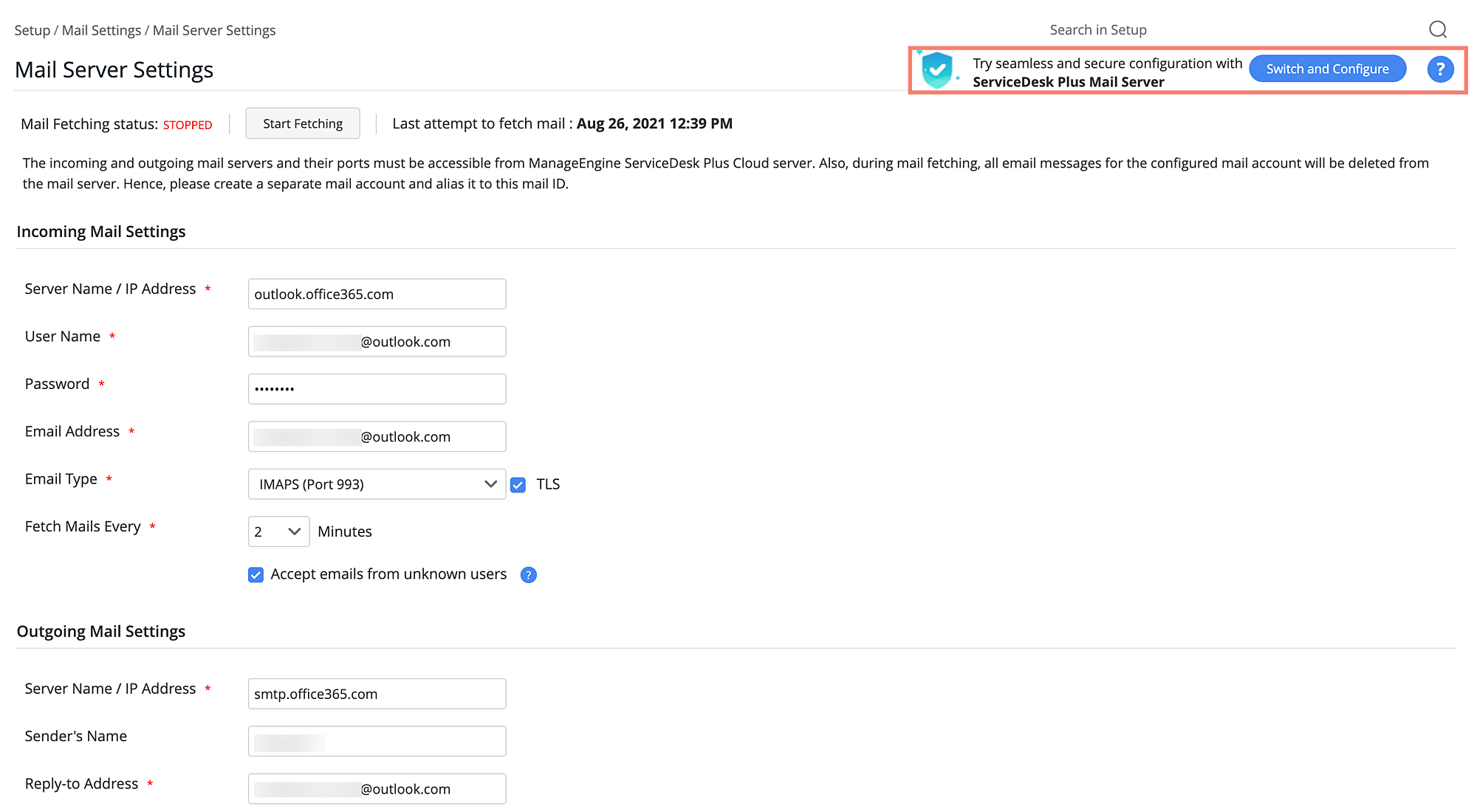
Many users prefer to manage their Rogers email through third-party desktop applications like Microsoft Outlook, Apple Mail, or mobile mail clients. To do this, you must configure your client using specific incoming and outgoing server settings.
When setting up your account in a third-party application, prioritize the IMAP (Internet Message Access Protocol) setting. Unlike POP3 (Post Office Protocol), which downloads emails to a single device and often deletes them from the server, IMAP synchronizes your inbox across all devices. If you read an email on your phone, it will appear as "read" on your desktop application as well.
Standard Configuration Settings
| Setting Type | Configuration Detail |
|---|---|
| Incoming Mail Server (IMAP) | imap.mail.yahoo.com |
| Incoming Port | 993 (requires SSL/TLS) |
| Outgoing Mail Server (SMTP) | smtp.mail.yahoo.com |
| Outgoing Port | 465 or 587 (requires SSL/TLS) |
| Authentication | Required (use your Rogers email password) |
Note: Rogers utilizes Yahoo’s mail infrastructure for its email hosting. Consequently, when configuring external applications, you may notice references to Yahoo servers. This is expected behavior and does not indicate a security breach.
Managing Secondary Addresses and Account Security
One of the significant advantages of the Rogers email service is the ability to create secondary email addresses for family members. These are managed entirely through the MyRogers portal.
Creating Secondary Addresses
- Log in to the MyRogers account dashboard.
- Navigate to the "Internet" section of your dashboard.
- Look for the "Manage Email" or "Email Settings" tab.
- Select "Create new email address." You will be prompted to choose a unique username.
- Once created, follow the on-screen prompts to set an initial password for the new user.
Security Best Practices
Because your Rogers email is linked to your billing and service account, securing it is paramount. Avoid using the same password for your email that you use for other banking or social media accounts. Enable two-step verification through the security settings in your profile to prevent unauthorized access. If you suspect your account has been compromised, navigate to the MyRogers dashboard immediately to reset your credentials and review recent sign-in activity logs.
Troubleshooting Common Issues
Technical issues are often caused by outdated settings or synchronization errors. Before contacting technical support, perform the following troubleshooting steps:
- Login Failures: If you are unable to log in, clear your browser cache and cookies. If the problem persists, visit the MyRogers portal to verify if your account status is "Active." Forgotten passwords should be reset using the "Forgot Password" link on the login screen.
- Authentication Errors in Clients: If your mail app is constantly prompting for a password, check that your server settings match the table provided above. Ensure that your password does not contain characters that are incompatible with your email client's security settings.
- Mail Not Syncing: If you are using mobile data, ensure your device has a stable internet connection. If you have recently changed your password, you must update it in the settings of every device (phone, tablet, and desktop) where the account is configured.
Frequently Asked Questions
Can I keep my Rogers email if I cancel my internet service?
No. Rogers email addresses are provided as a value-added service for active internet customers. If you cancel your Rogers internet subscription, you will typically lose access to your @rogers.com email account. It is highly recommended that you migrate your important contacts and historical data to a provider that is not tied to your ISP before finalizing a cancellation.
Why does my Rogers email login page redirect to Yahoo?
Rogers partners with Yahoo to provide its email platform infrastructure. The interface, servers, and backend processing are managed through the Yahoo mail system. This is standard for Rogers subscribers and does not require you to create a separate Yahoo account.
How many secondary email addresses can I have?
The number of secondary email addresses allowed depends on your specific internet service plan. Most residential plans allow for up to 10 email addresses total, including your primary account. Check your MyRogers portal to see the specific limit assigned to your service level.
Can I forward my Rogers email to another address?
Yes. Within the webmail interface settings, look for the "Forwarding" or "Settings" menu. You can configure the server to automatically forward incoming mail to an external address (such as Gmail or Outlook). This is a useful feature if you are transitioning to a new primary email provider.
Is there a storage limit for my inbox?
Yes, Rogers email accounts have a finite storage capacity. If you reach your storage limit, you will stop receiving new emails. Regularly delete large attachments and empty your "Trash" and "Spam" folders to reclaim space within your mailbox.
Conclusion and Next Actions
To effectively use the Rogers.com email service, ensure you are utilizing the MyRogers portal for administrative tasks and the IMAP configuration for your third-party mail applications. If you are experiencing persistent difficulty, verify your account status in MyRogers first, as this is the most common resolution point for service-related access issues. If you plan to move away from Rogers as your internet service provider in the future, prioritize backing up your essential correspondence to a neutral, third-party email provider to ensure a seamless transition.
Image Gallery