How Many Emails Can Gmail Send at Once?
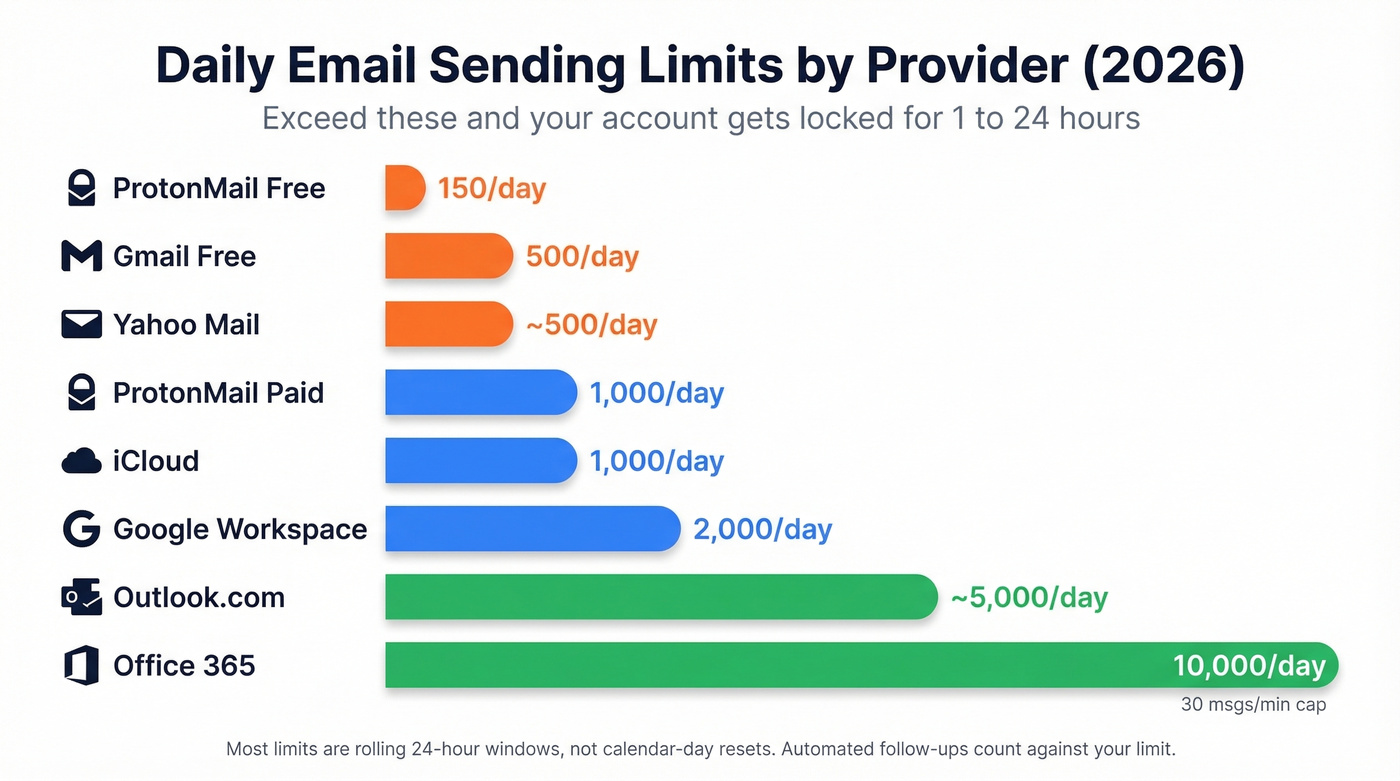
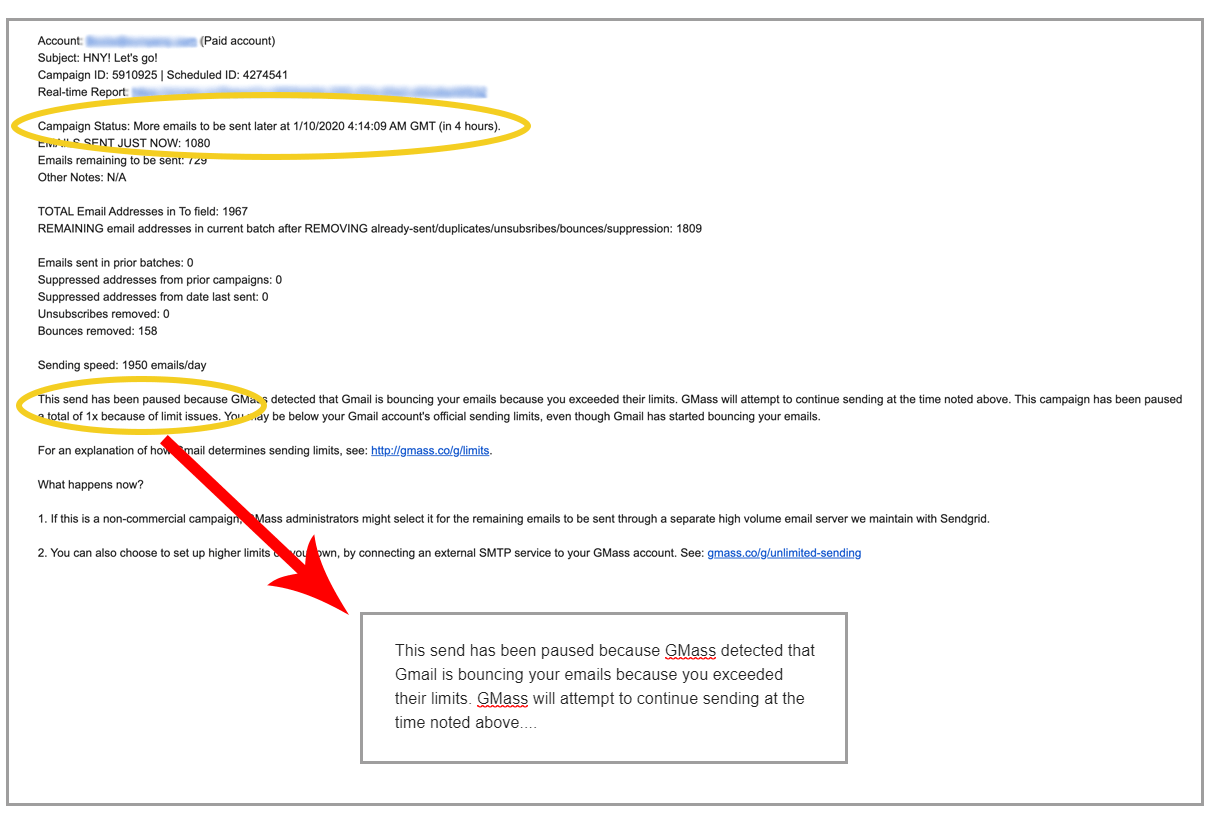
A standard consumer Gmail account limits outgoing messages to 500 emails per rolling 24-hour period, while Google Workspace accounts allow up to 2,000 emails. When sending in batches or through external mail clients, individual message...
A standard consumer Gmail account limits outgoing messages to 500 emails per rolling 24-hour period, while Google Workspace accounts allow up to 2,000 emails. When sending in batches or through external mail clients, individual message recipients—including To, Cc, and Bcc fields—are capped at 500 per email for consumer accounts and 2,000 for Workspace users.
Contents
Managing mass email distribution requires a clear understanding of Google’s delivery restrictions, technical architecture, and messaging quotas. Whether you are running a small business outreach campaign, managing internal company updates, or coordinating large-scale notifications, running afoul of Gmail sending limits can result in temporary account lockouts, delayed message queues, and damaged sender reputations.
Navigating these restrictions involves understanding the precise rules enforced by Google, recognizing the differences between consumer and business tiers, and learning how to scale your communication without triggering automated security protocols.
Understanding Gmail Sending Limits and Quotas
Google enforces strict limits on outgoing mail to prevent spam, protect server infrastructure, and maintain high deliverability rates across its global network. These limits are not arbitrary; they are hard-coded thresholds tied to your specific account type.
When users ask how many emails Gmail can send at once, they are typically conflating two distinct metrics: the total number of emails permitted within a 24-hour cycle and the maximum number of individual recipients allowed on a single outgoing message.
For standard, free Gmail accounts ending in @gmail.com, the system permits a maximum of 500 emails per rolling 24-hour period. If you pay for a business-grade Google Workspace subscription, that daily ceiling expands to 2,000 emails per 24-hour period. However, reaching these numbers does not mean you can drop thousands of addresses into the "To" field simultaneously. Google restricts the total number of distinct recipient addresses per single email to match your daily limit tier—500 for personal accounts and 2,000 for Workspace accounts. Exceeding these figures triggers an immediate delivery failure and can flag your account for suspicious activity.
Consumer Gmail vs. Google Workspace Limits
The operational parameters differ significantly depending on whether you rely on a personal Google account or a managed business domain. The architectural distinction dictates not only your daily volume but also how external tools interact with your inbox via Simple Mail Transfer Protocol (SMTP) and Internet Message Access Protocol (IMAP).
| Account Type | Daily Sending Limit (24 Hours) | Max Recipients Per Message | External SMTP Relay Limit |
|---|---|---|---|
| Personal Gmail (@gmail.com) | 500 emails | 500 recipients | 100 emails per connection |
| Google Workspace (Paid Tier) | 2,000 emails | 2,000 recipients | 500 emails per connection |
| Google Workspace (Trial/New) | Variable (Often lower) | 500 recipients | 100 emails per connection |
New Google Workspace accounts often face temporary, unannounced ramp-up limits designed to deter automated sign-ups used by malicious actors. Brand-new organizational domains may find their daily quotas restricted until the account establishes a trusted sending history, meaning you cannot always rely on the nominal 2,000-email maximum on day one.
The Mechanics of Sending Bulk Emails Through Gmail
Sending a message to a large group of people using the native Gmail interface requires navigating interface limitations and address-field protocols. When you compose a message in the web app or mobile client, the way you categorize recipients dictates how the mail server processes the delivery batch.
To, Cc, and Bcc Best Practices
Placing hundreds of addresses in the "To" or "Cc" fields exposes every recipient's email address to all other parties, presenting a significant privacy violation and cluttering the message header. More importantly, it pools all those addresses into a single transaction, making it easier to hit per-message recipient caps.
Using the "Bcc" (Blind Carbon Copy) field hides recipient addresses from one another, but the underlying server mechanics remain the same. If you place 450 addresses in the Bcc field of a single consumer Gmail message, you are utilizing 450 of your 500 daily allotted emails in one click. If any single address on that list bounces, fails, or triggers a spam filter, the entire transmission can be delayed or rejected, complicating your outreach efforts.
Using Mail Merge and Extension Tools
Many professionals attempt to bypass manual copying and pasting by utilizing Google Sheets mail merge add-ons, Chrome extensions, or third-party marketing tools that integrate directly with Gmail via Application Programming Interfaces (APIs). While these tools automate personalization—inserting individual names and custom fields into separate outgoing emails—they still route through Google's SMTP servers.
Consequently, even if a mail merge tool sends emails individually rather than in one mass blast, the 500 or 2,000 daily email cap still applies. Sending 501 personalized emails through a mail merge tool on a standard Gmail account will result in a hard bounce error for the final message, halting the campaign mid-stream.
Consequences of Exceeding Gmail Sending Limits
Pushing past Google’s structural thresholds does not just result in a bounced message; it triggers automated security responses designed to protect the domain's IP reputation. Understanding these consequences helps prevent prolonged operational downtime.
Temporary Account Suspension and Lockouts
If you exceed your daily sending quota or trigger automated spam detection heuristics—such as sending too many identical messages in a short window—Google will temporarily lock your outgoing mail capabilities.
Typically, these temporary suspensions last anywhere from 24 to 48 hours. During this lockout window, you cannot send new messages, reply to existing threads, or use mail merge tools connected to the account. Incoming mail usually continues to arrive normally, but your ability to originate correspondence is completely frozen.
Permanent Account Termination Risks
Repeatedly violating Google’s Terms of Service and Acceptable Use Policy by using a consumer Gmail account for commercial bulk broadcasting, cold outreach, or automated marketing can lead to permanent account termination. Google’s algorithms monitor for high bounce rates, spam complaints marked by recipients, and rapid-fire sending patterns.
When an account is permanently disabled, you lose access to associated Google Drive files, Google Photos, calendar data, and historical correspondence, presenting a catastrophic risk for businesses that fail to use dedicated infrastructure.
How to Scale Email Outreach Safely
If your communication needs consistently exceed 500 or 2,000 emails per day, attempting to force Gmail to handle the load is counterproductive and risky. Organizations requiring high-volume distribution must adopt industry-standard alternatives.
Transitioning to Dedicated Email Service Providers (ESPs)
For marketing campaigns, newsletters, and large-scale customer notifications, the correct architectural approach involves integrating a dedicated Email Service Provider or transactional mail API. Platforms like SendGrid, Mailgun, Amazon SES, or Mailchimp are purpose-built to handle high-volume delivery, manage bounce feedback loops, process unsubscribe requests automatically, and maintain pristine IP reputation scores.
These services authenticate your domain using Sender Policy Framework (SPF), DomainKeys Identified Mail (DKIM), and Domain-based Message Authentication, Reporting, and Conformance (DMARC) protocols. This technical setup ensures that your messages reach the primary inbox rather than landing in spam folders—a common issue when attempting to blast commercial mail from a standard consumer inbox.
Warming Up Sending Infrastructure
Transitioning to a new domain or a dedicated ESP requires a process known as an "IP warm-up." Mail servers view sudden spikes in volume from a new or dormant source with suspicion. To avoid automated filtering, senders must gradually increase their daily volume over several weeks, starting with a small batch of highly engaged recipients and scaling upward incrementally.
Frequently Asked Questions
Can I increase my Gmail sending limit by paying for Google Workspace?
Yes. Upgrading from a free consumer Gmail account to a paid Google Workspace subscription raises your daily sending limit from 500 emails to 2,000 emails per 24-hour period. However, Google Workspace does not offer an ad-hoc method to bypass this 2,000 ceiling for individual users, as the platform is not designed to function as an enterprise mass-marketing engine.
What happens if I hit the daily limit while sending an important email?
If you hit your quota mid-session, Gmail will block any subsequent outgoing messages and typically return a delivery failure notification stating that you have reached your daily sending limit. The messages will not automatically queue to send the following day; you will need to manually resend them once your rolling 24-hour window resets.
Does receiving emails count against my Gmail sending limit?
No. Google’s daily limits apply strictly to outgoing mail generated from your account, including replies, forwarded messages, and automated drafts sent via connected applications. Incoming emails do not consume your daily sending quota, though they do count against your total Google Drive storage limit if you approach your storage capacity.
Why was my Gmail account suspended for spam when I only sent 50 emails?
Google's automated security algorithms analyze more than just raw volume. Factors such as a high rate of invalid recipient addresses, identical message content sent to multiple unrelated parties, rapid-fire transmission speeds, and recipients clicking the "Report Spam" button can trigger account blocks well before you reach the absolute numerical cap of 500 or 2,000 emails.
How can I check how many emails I have sent today?
Google does not provide a native real-time dashboard or counter displaying your exact remaining outgoing email quota for the day. To avoid hitting the limit unexpectedly, you must manually track your outbound volume, especially when utilizing external mail merge tools, CRM extensions, or automated outreach scripts.
Summary and Next Actions
Attempting to push mass email volume through Gmail invites account locks, delivery failures, and compliance risks. If your daily communication volume remains low, respect the 500-email consumer limit or the 2,000-email Workspace threshold by spacing out your outreach and avoiding suspicious batch patterns.
For organizations scaling beyond these numbers, stop using personal inboxes for broadcast functions. Audit your current communication requirements, migrate marketing and bulk outreach campaigns to a dedicated Email Service Provider, and configure proper domain authentication to protect your sender reputation and ensure reliable delivery.
Image Gallery