How to Reset a Windows Password from the Command Line
Resetting a Windows password from the command line is a technical procedure primarily used for local accounts when a user has been locked out of their system. This process involves accessing the Command Prompt environment, typically th...
Resetting a Windows password from the command line is a technical procedure primarily used for local accounts when a user has been locked out of their system. This process involves accessing the Command Prompt environment, typically through Windows Recovery Environment (WinRE) or installation media, to modify user account credentials directly. It is important to note that this method is intended for local user accounts only and does not function for Microsoft Accounts synchronized with online identity services, which require recovery through official Microsoft account portals.
Contents
Prerequisites and Limitations
Before attempting to reset a password via the command line, it is essential to understand the scope and limitations of the operation. This process requires administrative-level access to the system’s boot files or recovery environment. If your device is encrypted with BitLocker, you will need the BitLocker recovery key to unlock the drive before you can access the files necessary to perform the reset.
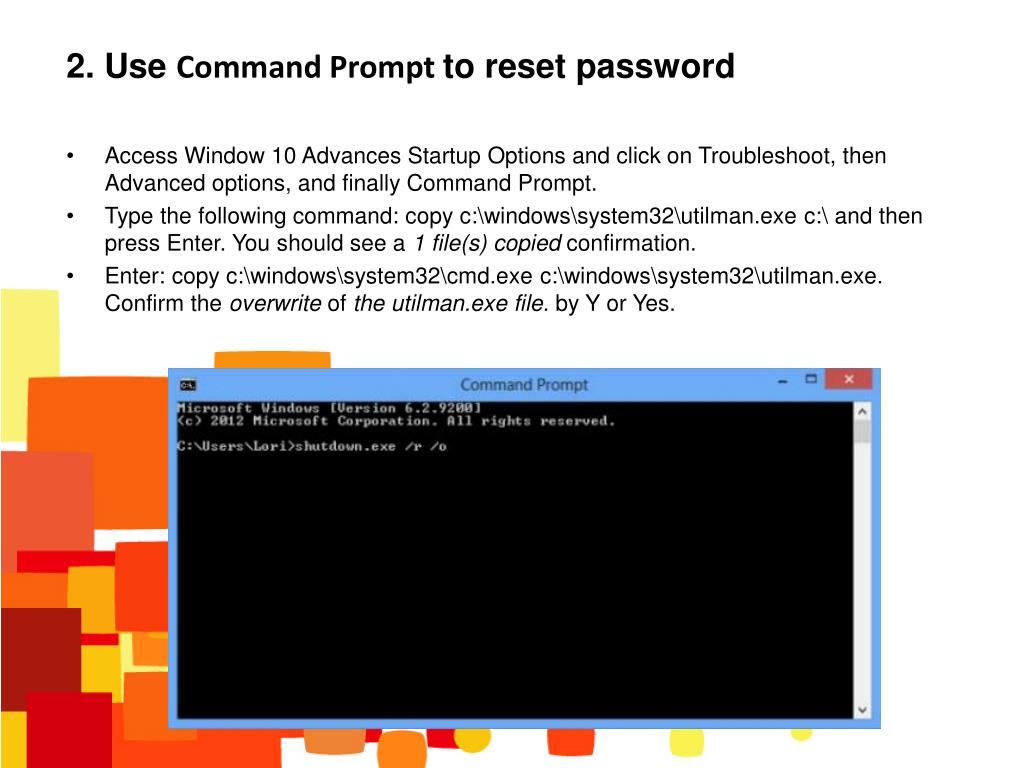
The "Utilman" (Utility Manager) trick is the most common manual approach. This involves replacing the accessibility tools icon on the Windows sign-in screen with a Command Prompt interface. By swapping the utilman.exe file with cmd.exe, you can bypass authentication screens to gain system-level command access.
Requirements for success:
- Windows installation media (USB or DVD) or access to the Advanced Startup Options.
- Physical or administrative access to the machine.
- The system must use local user accounts; Microsoft Accounts (linked to an email address) require online identity recovery.
- Any disk encryption, such as BitLocker, must be suspended or unlocked.
Preparing the Recovery Environment
To modify system files while Windows is locked, you must boot from external media or interrupt the boot process three times to trigger the Windows Recovery Environment (WinRE).
- Insert your Windows installation USB drive and boot the computer from it.
- At the initial setup screen, press Shift + F10 to open the Command Prompt.
- Identify the drive letter where your Windows installation resides. This is often the C: drive, but in the recovery environment, it may be designated as D: or E:. Use the command
dir C:to verify you see the "Windows" folder. - Navigate to the System32 directory by typing
cd \windows\system32.
Executing the Password Reset Procedure
The core of the process involves renaming the Utility Manager executable so that the system launches the Command Prompt instead when the accessibility button is clicked at the login screen.
- Backup the original file: Rename the original
utilman.exeto a backup name:ren utilman.exe utilman.exe.bak - Replace with Command Prompt: Create a copy of the Command Prompt executable named
utilman.exe:copy cmd.exe utilman.exe - Restart the system: Close the command window, remove the installation media, and restart the computer normally.
- Access the Command Prompt: Once at the login screen, click the Accessibility icon (usually located in the bottom right corner). Instead of accessibility tools, a Command Prompt window with system privileges will open.
- Reset the password: Use the net user command to change the password:
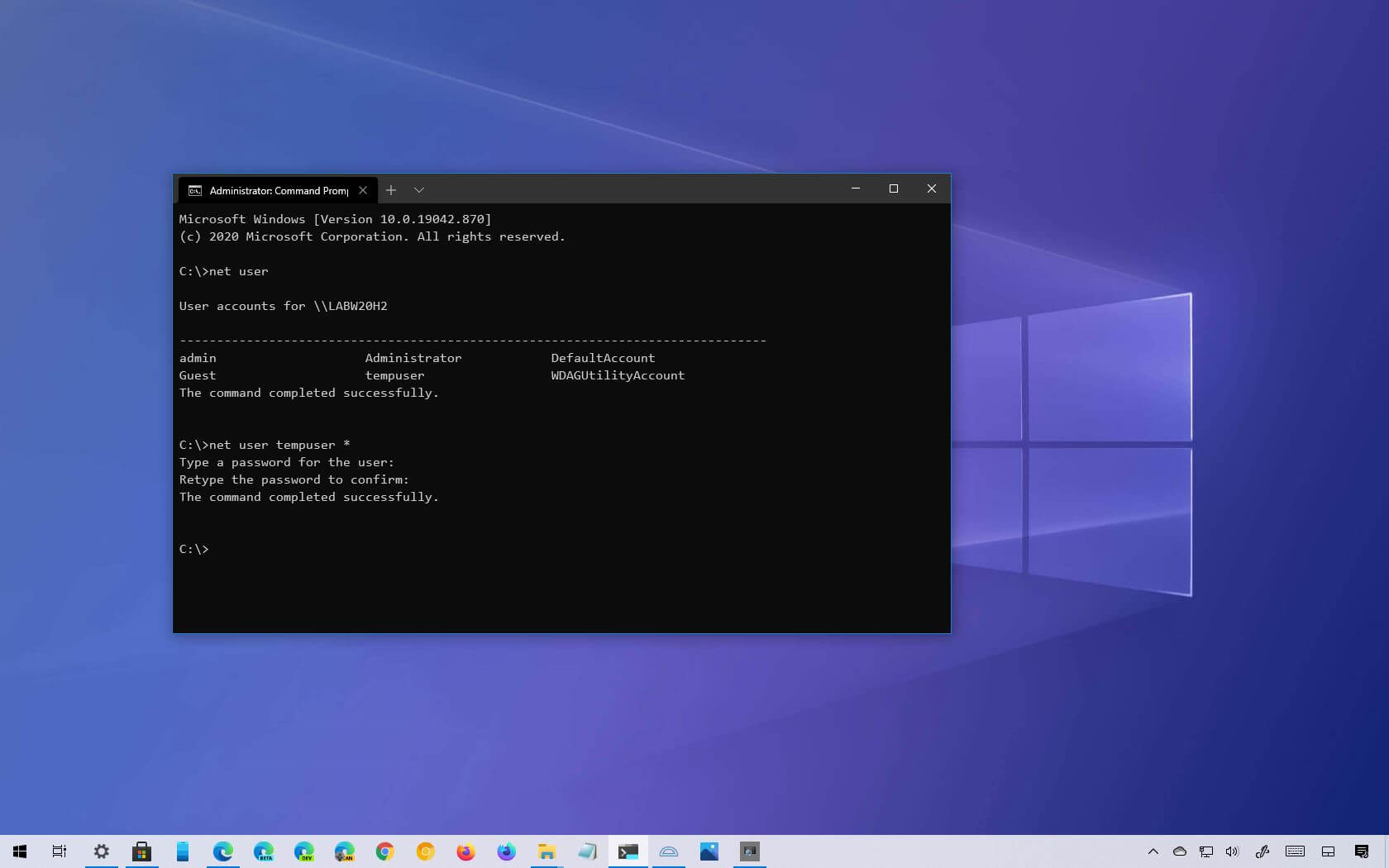
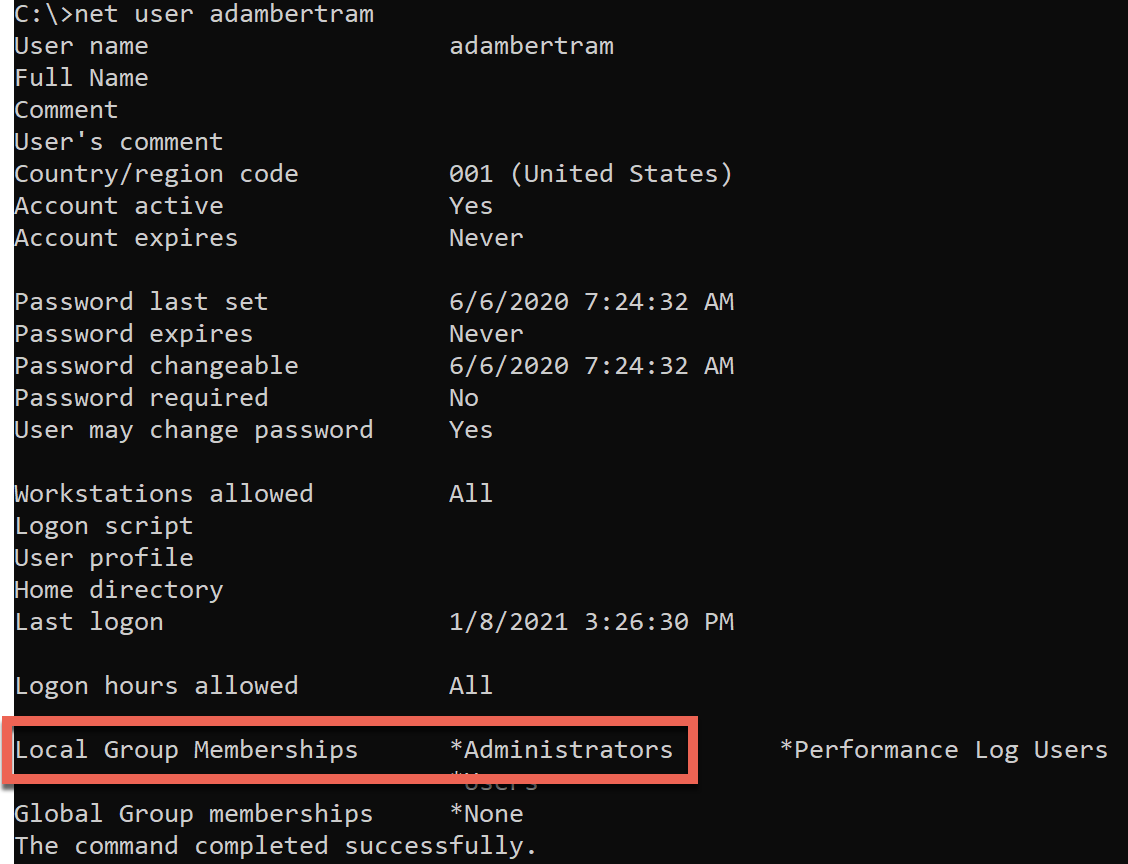
net user [username] [new_password]If you do not know the exact username, typenet userto list all accounts on the machine.
Verification and Post-Recovery Steps
After changing the password, ensure that the system is returned to its original state to maintain security. Leaving the Command Prompt accessible from the login screen poses a significant security risk, as any physical user could gain administrative access to your files.
- Sign in to your account with the new password to ensure access is restored.
- Re-enter the Windows Recovery Environment or use a Linux-based bootable rescue disk to access your drive files.
- Navigate back to
C:\Windows\System32. - Delete the copied
utilman.exeand renameutilman.exe.bakback to its original name:ren utilman.exe.bak utilman.exe.
Comparison of Password Recovery Methods
| Method | Target | Difficulty | Security Risk |
|---|---|---|---|
| Microsoft Account Online | Online Account | Low | Minimal |
| Net User Command | Local Account | High | High (if not reverted) |
| Password Reset Disk | Local Account | Low | Minimal |
| Third-Party Tools | Local Account | Medium | High |
Troubleshooting Common Issues
- Access Denied: Ensure you are running the command from a high-privilege shell. If you receive an "Access Denied" error during the file rename process, you may need to ensure that the partition is mounted correctly and not set to read-only.
- Username Not Found: The
net usercommand is case-insensitive, but ensure that any spaces in usernames are handled by enclosing the name in quotes, for example:net user "John Doe" NewPassword123. - BitLocker Prompts: If you cannot access the hard drive due to BitLocker, you must enter the 48-digit recovery key. This key is typically stored in your Microsoft account, a printed document, or an Azure Active Directory instance if the computer is part of a corporate domain.
Frequently Asked Questions
Will this reset my Microsoft Account password? No. This procedure only modifies local user account databases stored on the physical drive. If you use a Microsoft Account (email address) to sign in, you must use the official password recovery service provided by Microsoft on a different device to reset the account credentials.
Is this process legal? Performing this action on a device you own or have explicit authorization to manage is standard administrative practice. However, using these steps to access devices or accounts without authorization is unauthorized access and is illegal under various computer fraud and abuse laws.
What happens to my encrypted files? If you have used EFS (Encrypting File System) to protect specific files, resetting your password via the command line may cause you to lose access to those files. EFS encryption is tied to the user's password; forcing a reset can break the key derivation, rendering encrypted documents unreadable.
Can I use this on Windows 11? Yes, the technical mechanics of the Windows kernel and local account database remain consistent across modern iterations of the operating system, including Windows 10 and Windows 11.
What if I don't have a Windows installation USB? You can create one using the Media Creation Tool on any working computer with an internet connection. Ensure you use an empty USB drive with at least 8GB of storage space, as the creation process will format the drive.
Recommendation
If you are locked out of your computer, first attempt to utilize the official "Forgot Password" link on the login screen if you are using a Microsoft Account. If you are using a local account, verify if you previously created a password reset disk or have a secondary administrator account that can be used to reset the primary user's credentials via the Computer Management console. Only proceed with the command line method if these standard recovery avenues have been exhausted. Always remember to restore the original file system configuration immediately after regaining access to preserve the security integrity of your machine.
Image Gallery