How to Update Your Browser on a Laptop: Step-by-Step Guide for All Major Browsers
Updating the web browser on your laptop requires opening your browser's settings menu and navigating to the "About" section. For browsers like Google Chrome, Mozilla Firefox, Microsoft Edge, Brave, and Opera, this action triggers an au...
Updating the web browser on your laptop requires opening your browser's settings menu and navigating to the "About" section. For browsers like Google Chrome, Mozilla Firefox, Microsoft Edge, Brave, and Opera, this action triggers an automatic check for updates, downloads available patches, and prompts a quick restart. On macOS, Apple Safari updates are managed directly through system software settings.
Contents
Why Updating Your Laptop Web Browser Is Essential
Maintaining an up-to-date web browser is one of the most effective ways to secure your computer and ensure smooth online browsing. Browsers serve as the primary gateway to the internet, processing code from millions of external websites daily. Because web applications continuously evolve, browser developers regularly release software patches to keep pace with modern technology.
Updating your browser delivers three core benefits:
- Security Vulnerability Patching: Cybersecurity researchers and developers frequently discover vulnerabilities in browser engine code (such as Chromium’s V8 JavaScript engine or Mozilla’s Gecko). If unpatched, malicious websites can exploit these flaws through zero-day vulnerabilities, executing unauthorized code or stealing local session data.
- Performance Optimization and Battery Efficiency: Laptop users rely heavily on power efficiency and system resources. Browser updates regularly include memory management improvements, such as tab freezing and discarded background process algorithms, which reduce RAM consumption and extend laptop battery longevity.
- Web Standard Compatibility: Web design frameworks and media protocols update over time. Outdated browsers may fail to load modern web pages correctly, breaking interactive elements, video playback, or encryption standards like TLS 1.3.
Most modern laptop browsers perform background update checks automatically when connected to the internet. However, updates frequently sit pending if you keep your browser open for days or weeks without fully restarting it. Manually checking your browser version forces the download and applies critical security patches immediately.
How to Update Google Chrome on Windows, macOS, and Linux
Google Chrome remains the most widely used web browser across Windows laptops, MacBooks, and Linux devices. Chrome automatically downloads updates in the background, but applying them requires a browser restart. If Chrome has not been closed recently, an update indicator will appear near the top-right corner of the window.
Step-by-Step Manual Update Process for Chrome
- Launch Google Chrome on your laptop.
- Look at the top-right corner of the window and click the three vertical dots (Customize and control Google Chrome).
- Hover your cursor over Help near the bottom of the drop-down menu.
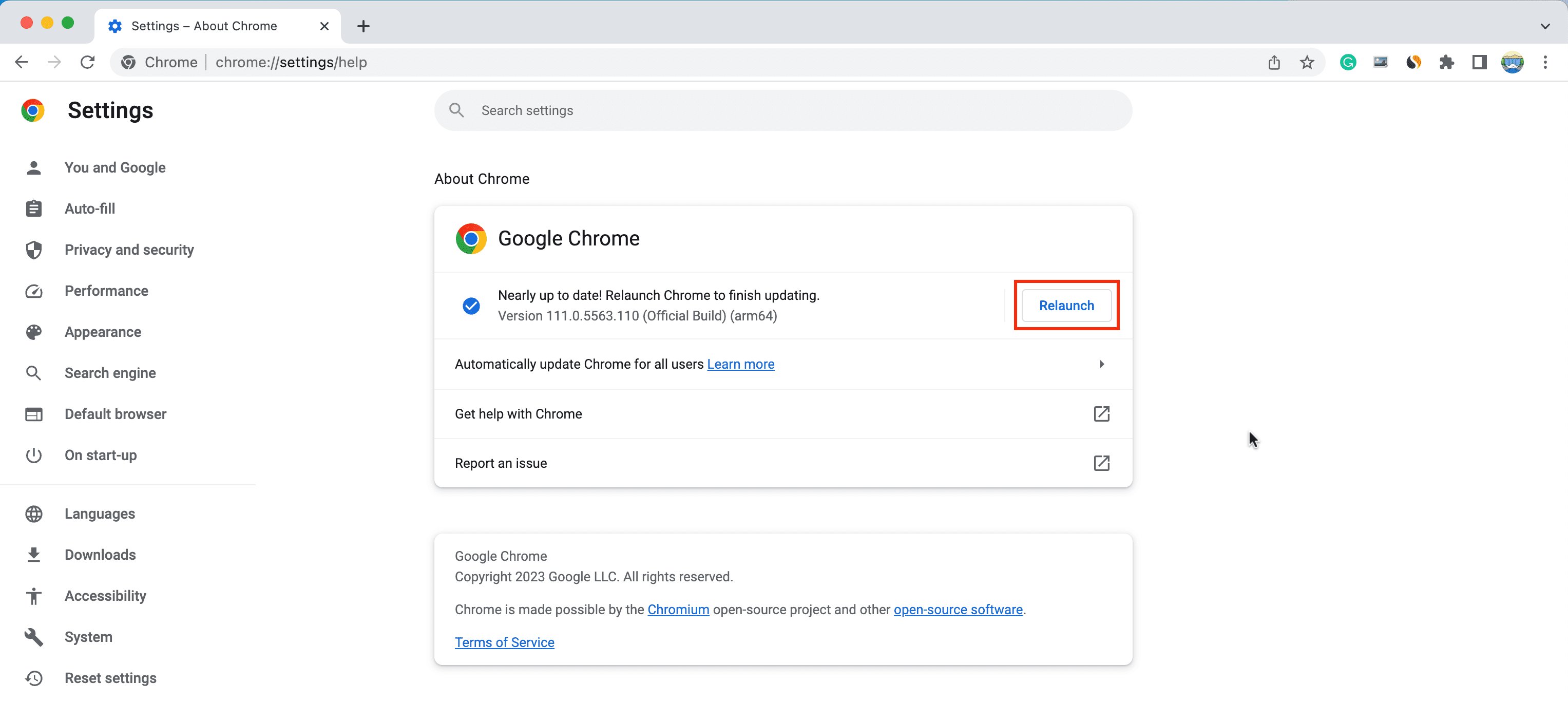
- Select About Google Chrome from the sub-menu.
- Chrome will automatically open a settings tab (
chrome://settings/help), verify your current version, and begin downloading any available update immediately. - Once the update download reaches 100%, click the Relaunch button that appears.
Click 3 Dots Menu ➔ Help ➔ About Google Chrome ➔ Download Updates ➔ Relaunch
Note on Saved Session Data: Clicking Relaunch reopens your open tabs and windows automatically, except for incognito tabs. However, saving active work in online forms or document editors before restarting is always recommended to prevent data loss.
If Chrome displays a colored icon (Green, Yellow, or Red) in place of the three dots, an update has already been downloaded and is waiting to be applied. Green indicates an update was released less than two days ago, yellow means four days ago, and red indicates an update has been pending for a week or longer.
How to Update Mozilla Firefox
Mozilla Firefox uses its proprietary Gecko engine and handles updates independently of operating system update tools. Firefox checks for updates periodically, but manual updates allow users to bypass scheduled download delays.
Step-by-Step Manual Update Process for Firefox
- Open Mozilla Firefox on your laptop.
- Click the Application Menu button (represented by three horizontal lines) in the upper-right corner.
- Click Help at the bottom of the panel.
- Select About Firefox from the list.
- An "About Mozilla Firefox" pop-up window will appear. Firefox will immediately scan Mozilla servers for the newest release build.
- If an update is available, Firefox will download it automatically. Once complete, click Restart to update Firefox.
Click 3 Lines Menu ➔ Help ➔ About Firefox ➔ Automatic Download ➔ Restart to Update
Firefox updates maintain your open tabs and active windows upon restarting. If you are running Firefox on a Linux laptop managed via a distribution package manager (such as apt, dnf, or pacman), updates may be delivered through your system’s software updater rather than inside the browser itself.
How to Update Microsoft Edge
Microsoft Edge is built on the Chromium open-source project and comes pre-installed on Windows laptops, while also being available for macOS and Linux. Edge updates manage browser security and integrate closely with Microsoft account features.
Step-by-Step Manual Update Process for Edge
- Open Microsoft Edge.
- Click the three horizontal dots (Settings and more) in the top-right corner of the browser window.
- Scroll down the menu, hover over Help and feedback, and click About Microsoft Edge.
- Edge will navigate to its settings page (
edge://settings/help). The browser will query Microsoft servers for available updates. - If an update is ready, Edge will download it in the background.
- Click the Restart button to apply the update and restore your browsing session.
Click 3 Dots Menu ➔ Help and Feedback ➔ About Microsoft Edge ➔ Download ➔ Restart
On Windows laptops, Edge may occasionally update alongside standard Windows cumulative updates via Microsoft Update Services. However, triggering the manual update inside the browser ensures you receive software builds faster than system update rollouts.
How to Update Apple Safari on a MacBook
Unlike Chrome, Firefox, or Edge, Apple Safari does not feature an internal update menu. Safari is deeply integrated into macOS, meaning security patches, engine updates, and feature upgrades are delivered exclusively through Apple’s system-level software update engine.
How to Update Safari on macOS Sonoma, Sequoia, and Later
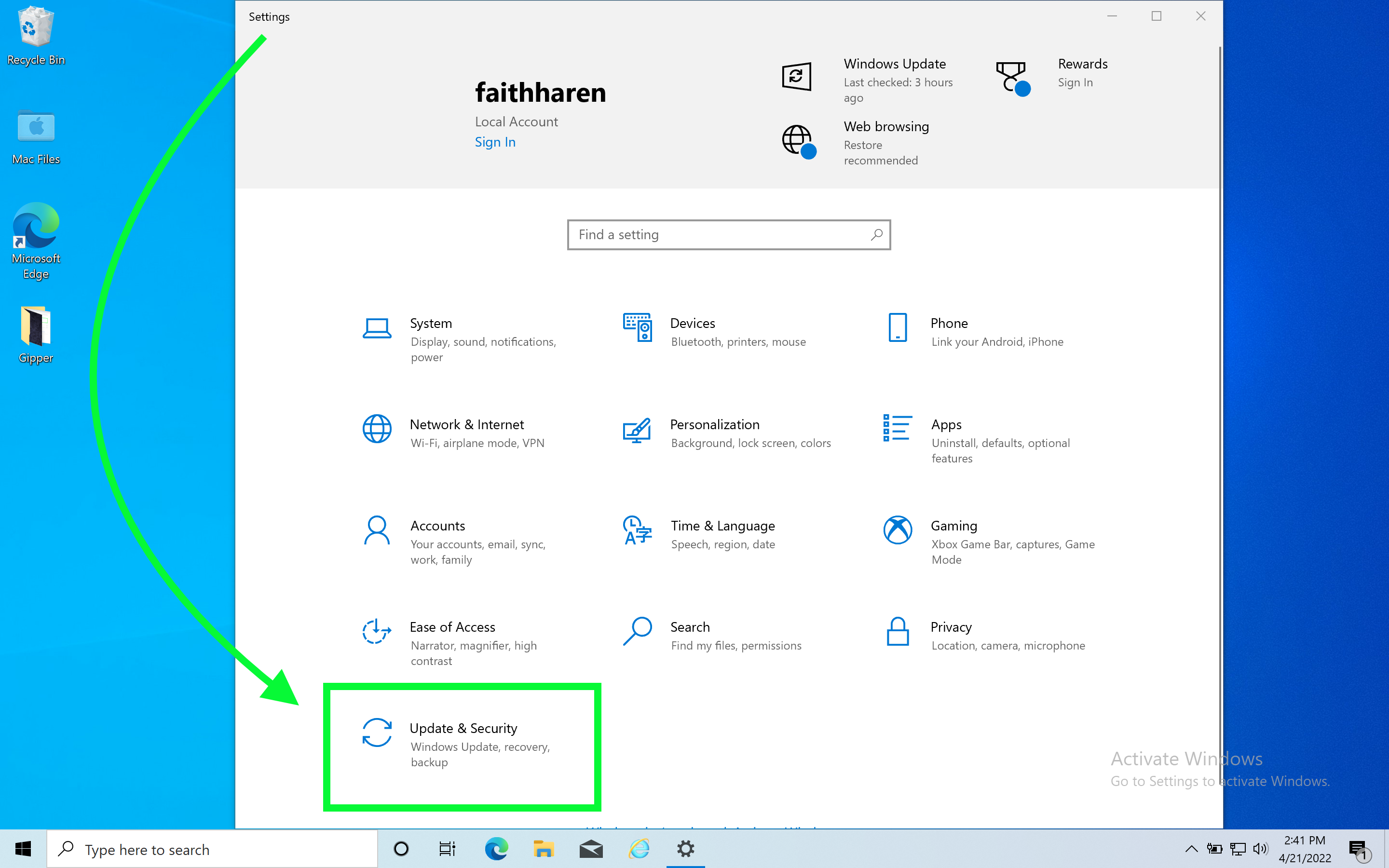
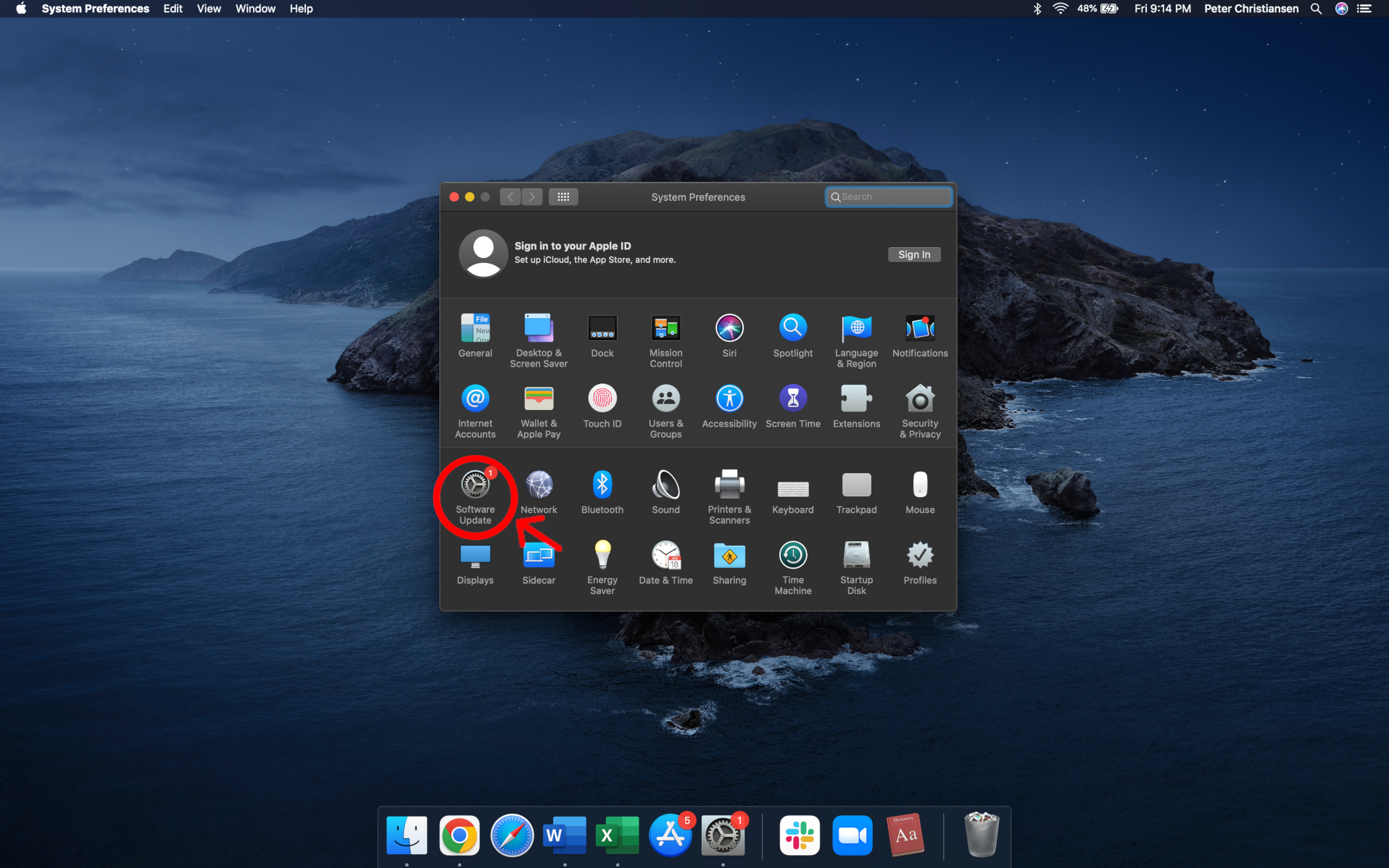
- Click the Apple menu () in the upper-left corner of your MacBook screen.
- Select System Settings.
- In the left sidebar, click General, then select Software Update on the right side.
- macOS will automatically check Apple servers for system and component updates.
- If a Safari update or a broader macOS software update (such as a security response patch) is available, click Update Now or Upgrade Now.
- Follow the on-screen prompts to download and install the update.
Apple Menu () ➔ System Settings ➔ General ➔ Software Update ➔ Update Now
If you prefer automatic Safari updates without installing major operating system upgrades, check the box next to Automatic Updates inside the Software Update window and verify that "Install macOS updates" and "Install system files and security updates" are enabled.
How to Update Alternative Browsers: Brave and Opera
Many laptop users prefer privacy-focused or feature-dense alternatives like Brave or Opera. Both browsers run on the Chromium framework and use update steps similar to Chrome and Edge.
Updating Brave Browser
- Launch Brave.
- Click the main menu icon (three horizontal lines) in the top-right corner.
- Select About Brave near the bottom of the list.
- Brave opens
brave://settings/helpand scans for the latest security release. - Click Relaunch once the download completes.
Updating Opera Browser
- Open Opera.
- Click the Opera icon ("O") in the top-left corner on Windows/Linux, or click Opera in the macOS menu bar.
- Select Update & Recovery... (or navigate to Help ➔ About Opera).
- Opera will run an update check and display the installation progress.
- Click Relaunch now once the file installation finishes.
Web Browser Update Methods & Specifications Comparison
The table below summarizes how each major browser handles updates across operating systems, default settings, and manual update paths.
| Browser Name | Supported Operating Systems | Default Update Behavior | Manual Update Menu Path | Requires OS Restart? |
|---|---|---|---|---|
| Google Chrome | Windows, macOS, Linux, ChromeOS | Automatic background download | Menu (3 Dots) ➔ Help ➔ About Google Chrome | No (Browser relaunch only) |
| Mozilla Firefox | Windows, macOS, Linux | Automatic background download | Menu (3 Lines) ➔ Help ➔ About Firefox | No (Browser restart only) |
| Microsoft Edge | Windows, macOS, Linux | Automatic background download | Menu (3 Dots) ➔ Help & Feedback ➔ About Microsoft Edge | No (Browser restart only) |
| Apple Safari | macOS | Integrated into macOS System Updates | Apple Menu () ➔ System Settings ➔ General ➔ Software Update | Occasionally (If tied to macOS update) |
| Brave Browser | Windows, macOS, Linux | Automatic background download | Menu (3 Lines) ➔ About Brave | No (Browser relaunch only) |
| Opera | Windows, macOS, Linux | Automatic background download | Opera Icon ("O") ➔ Update & Recovery | No (Browser relaunch only) |
Troubleshooting Browser Update Failures on Laptops
While browser updates are usually seamless, technical glitches can occasionally prevent them from completing. Below are common browser update errors and verified fixes.
1. Update Server Unavailable or Network Blocking
Errors such as "Update failed (Error: 3)" or "Server check failed" typically point to network interference.
- Resolution: Verify your laptop has an active internet connection. Disable active VPN connections or aggressive third-party firewall software temporarily, as these services may block access to update servers (such as
tools.google.comormozilla.org).
2. Missing Administrative Privileges
If your laptop is managed by an enterprise network, employer, or school, browser update settings may be locked by group policy or administrative controls.
- Resolution: On personal laptops, ensure your Windows or macOS user account holds Administrator rights. On corporate machines, contact your network administrator, as browser updates are usually pushed remotely through central management tools.
3. Corrupted Installation Files
If a browser repeatedly attempts to download an update but fails during extraction or installation, local installation binaries may be corrupted.
- Resolution: Do not attempt to uninstall your browser first if you want to preserve history and bookmarks. Instead, visit the official download page using another web browser (e.g., using Microsoft Edge to download Chrome from Google's official site), download the installer, and run it directly. Modern installers will overwrite corrupted core files while preserving your personal profile data.
Frequently Asked Questions
Do browser updates delete my saved bookmarks or passwords?
No. Updating your browser replaces executable program files while leaving your user profile folder intact. Your saved bookmarks, browsing history, stored passwords, autofill data, and installed extensions remain saved on your storage drive.
How often should I check for browser updates on my laptop?
Browsers automatically check for updates every few days. However, performing a manual check once every two to three weeks—or immediately following major cybersecurity announcements regarding zero-day exploits—is a good maintenance habit.
Why can't I update Safari separately from macOS?
Apple bundles Safari directly into the macOS operating system architecture to optimize power usage, system rendering, and security on Mac hardware. As a result, Safari patches are distributed via Apple's centralized Software Update mechanism rather than within the browser application itself.
Can an outdated browser make my laptop run slower?
Yes. Outdated web browsers lack modern RAM management features, such as tab discarding and active memory compressors. Older browser versions can consume excessive memory over time, leading to system lag, loud laptop cooling fans, and faster battery drain.
What should I do if my browser freezes while updating?
Force close the application. On Windows, press Ctrl + Shift + Esc to open Task Manager, select the browser, and click End Task. On a Mac, press Option + Command + Esc to open the Force Quit window, select the browser, and click Force Quit. Afterward, relaunch the browser and attempt the update process again.
Summary and Recommended Next Steps
Keeping your laptop's web browser updated is a critical step for maintaining computer security, web compatibility, and system speed. For Chromium-based browsers (Chrome, Edge, Brave, Opera) and Mozilla Firefox, checking for updates requires visiting the Help ➔ About page inside the browser settings menu. MacBook users should regularly check System Settings ➔ Software Update to keep Safari patched.
To ensure your laptop remains secure:
- Open your primary web browser right now and navigate to its About menu to trigger an update check.
- Save open online projects and click Relaunch or Restart to apply pending updates.
- Configure your operating system settings to allow automatic updates so your laptop downloads critical security patches in the background.
Image Gallery