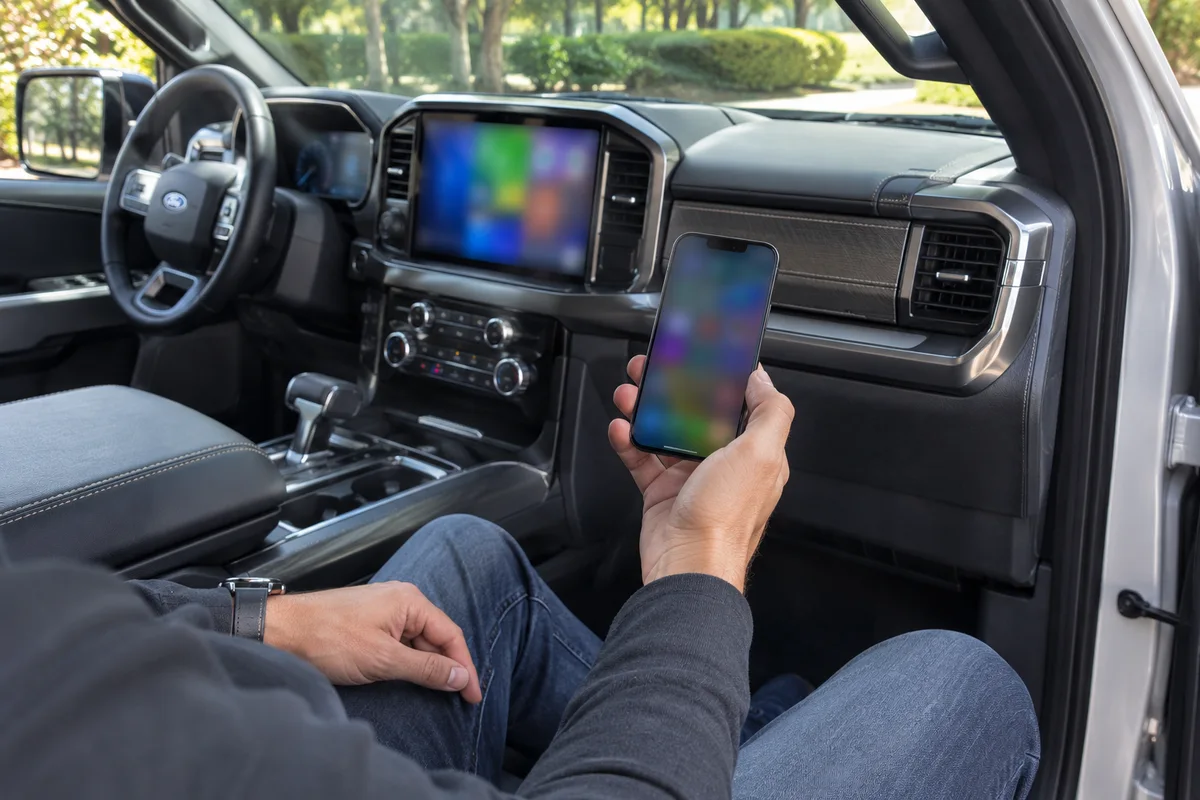
How to Pair a Phone with Ford SYNC: A Complete Step-by-Step Guide
To pair your phone with Ford SYNC, enable Bluetooth on your device and navigate to the "Add Phone" option on your vehicle’s touchscreen. Select your vehicle from the phone’s Bluetooth menu, confirm the six-digit PIN matches on both scr...
To pair your phone with Ford SYNC, enable Bluetooth on your device and navigate to the "Add Phone" option on your vehicle’s touchscreen. Select your vehicle from the phone’s Bluetooth menu, confirm the six-digit PIN matches on both screens, and allow contact syncing to complete the connection process.
Contents
Since its introduction, the Ford SYNC infotainment system has revolutionized how drivers interact with their vehicles. By 2026, the technology has matured through four major generations, evolving from a simple voice-activated tool into a sophisticated hub for navigation, entertainment, and vehicle management. Whether you are driving a brand-new Ford F-150 with SYNC 4 or a well-loved Explorer with SYNC 3, establishing a stable Bluetooth connection is the foundational step to accessing hands-free calling, music streaming, and mobile integration like Apple CarPlay or Android Auto.
Prerequisites for a Successful Connection
Before initiating the pairing process, specific conditions must be met to ensure the vehicle's computer and your smartphone can communicate without interference. Safety protocols built into the Ford software often prevent pairing while the vehicle is in motion to avoid driver distraction.
- Vehicle Status: Ensure the vehicle is in Park (P) and the ignition is on. You can perform this in "Accessory Mode," but having the engine running ensures the battery does not drain during longer setup processes or firmware updates.
- Smartphone Readiness: Navigate to your phone’s settings and turn on Bluetooth. Stay on the Bluetooth settings screen so your device remains "discoverable" to the vehicle.
- Remove Old Connections: If you have previously paired this phone or a different one that is no longer in use, it is often helpful to delete the old profiles from the SYNC system to prevent signal confusion.
- Software Updates: For the most stable experience in 2026, ensure your smartphone is running the latest operating system (iOS or Android) and that your Ford SYNC system has been updated via Wi-Fi or USB.
Pairing with Ford SYNC 4 and 4A (2021–2026 Models)
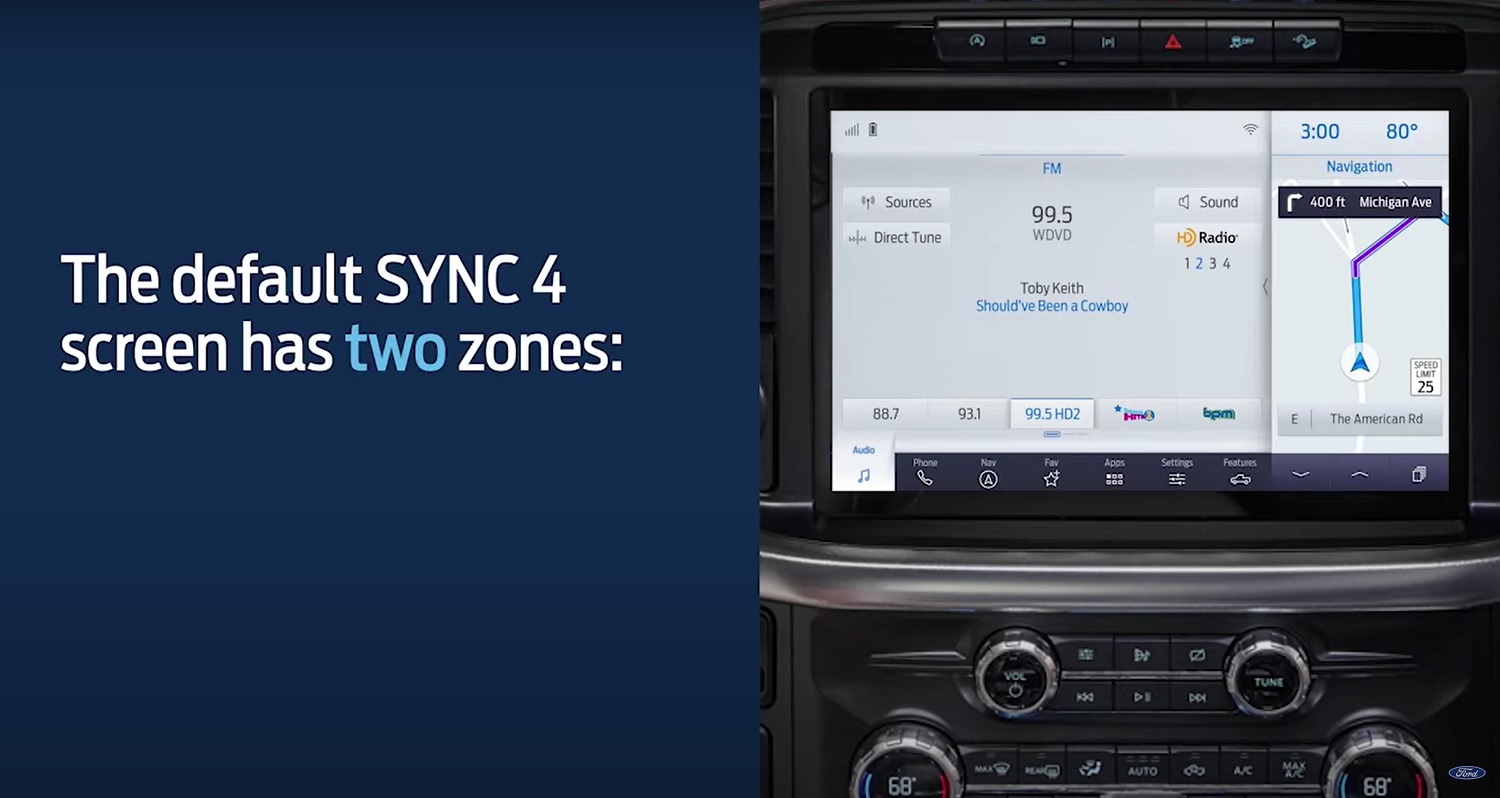
SYNC 4 and the vertical-screen SYNC 4A represent the pinnacle of Ford's current connectivity. These systems are designed for wireless integration, meaning you can often use Apple CarPlay or Android Auto without ever plugging in a USB cable.
Step 1: Access the Phone Menu
On your large center touchscreen, locate the Settings or Phone icon. If no phone is currently connected, a large "Add Phone" or "Pair Phone" button typically appears prominently on the home screen.
Step 2: Initiate Discovery
Tap Add Phone. The system will display a prompt telling you to search for your vehicle on your phone. It may appear as "Ford F-150," "Mustang Mach-E," or simply "SYC."
Step 3: Match the PIN
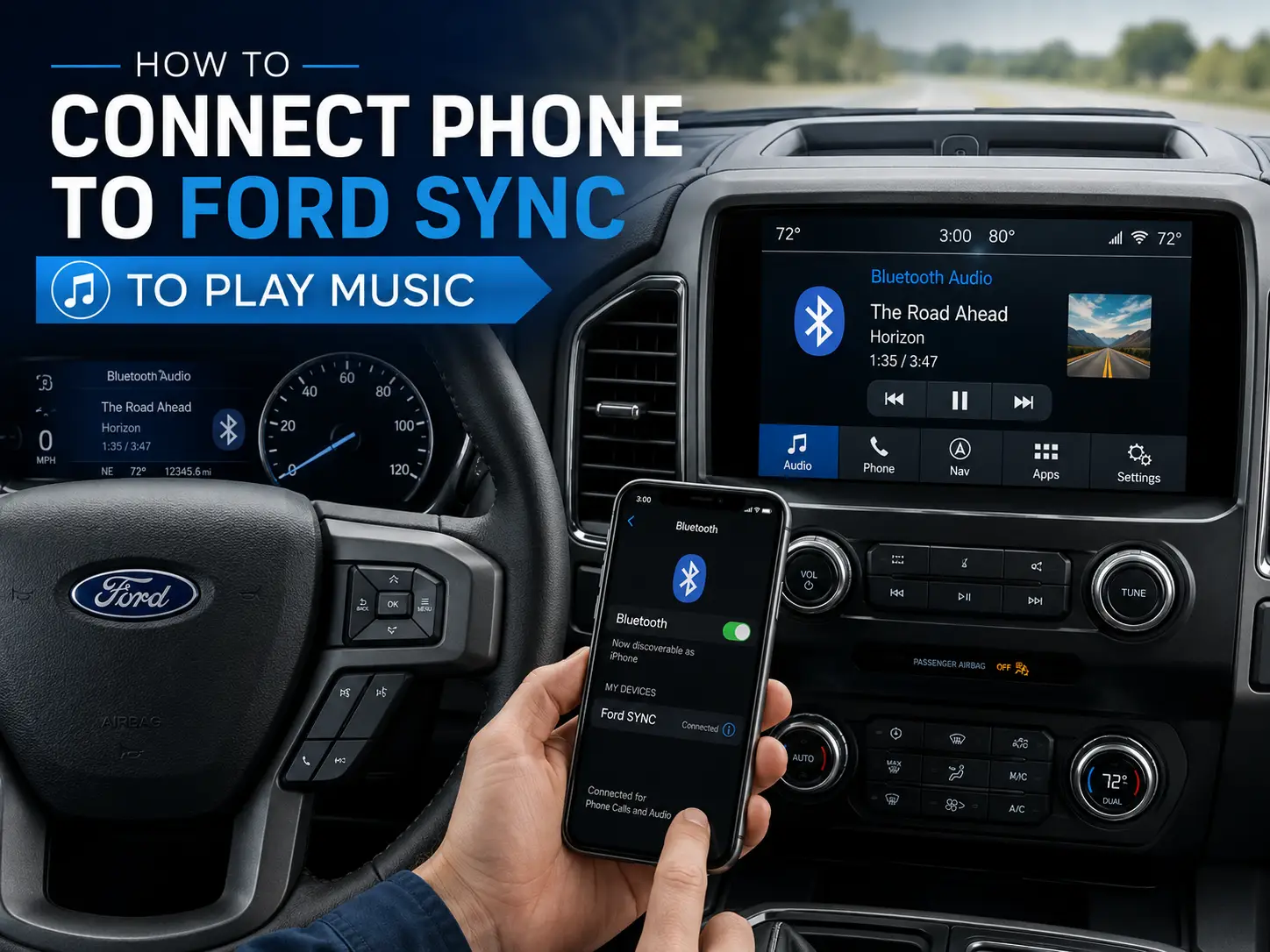
On your smartphone, select the vehicle name when it appears in the Bluetooth list. A six-digit PIN will appear on both the vehicle's touchscreen and your phone. Verify that the numbers match exactly. If they do, tap Pair on your phone and Yes or Confirm on the vehicle screen.
Step 4: Permissions and Integration
Once paired, SYNC 4 will ask for permission to download your contacts and call history. Granting this allows you to use voice commands like "Call Home." Furthermore, the system will ask if you want to enable Wireless Apple CarPlay or Android Auto. If you select yes, the phone will transition from a standard Bluetooth connection to a high-bandwidth Wi-Fi projection mode.
Pairing with Ford SYNC 3 (2016–2023 Models)
SYNC 3 is widely regarded for its clean, tablet-like interface and high reliability. While many SYNC 3 units require a wired connection for CarPlay/Android Auto, the Bluetooth pairing process remains vital for standard operations.
- Press the Phone Icon: From the feature bar at the bottom of the screen, tap Phone.
- Add Device: Select Add Phone. The system will remind you to keep Bluetooth active on your mobile device.
- Search on Mobile: Find "Ford SYNC" in your phone's Bluetooth settings and select it.
- Confirm the Code: Match the six-digit PIN shown on the dashboard with the one on your smartphone.
- Auto-Download Contacts: SYNC 3 will prompt you to "Auto-Download Contacts." Enabling this ensures that when you receive a text or call, the caller’s name—rather than just a phone number—appears on the screen.
- 911 Assist: Ford will likely ask you to enable 911 Assist. This is a safety feature that uses your paired phone to call emergency services automatically if an airbag deploys.
Pairing with Legacy Systems: SYNC with MyFord Touch and SYNC 1
For owners of older models, the interface is less about icons and more about text-based menus or a four-quadrant layout.
- SYNC with MyFord Touch (Gen 2): This system features four corners (Phone, Navigation, Entertainment, Climate). Tap the Add Phone button in the top-right yellow "Phone" quadrant. Follow the PIN verification steps as described above.
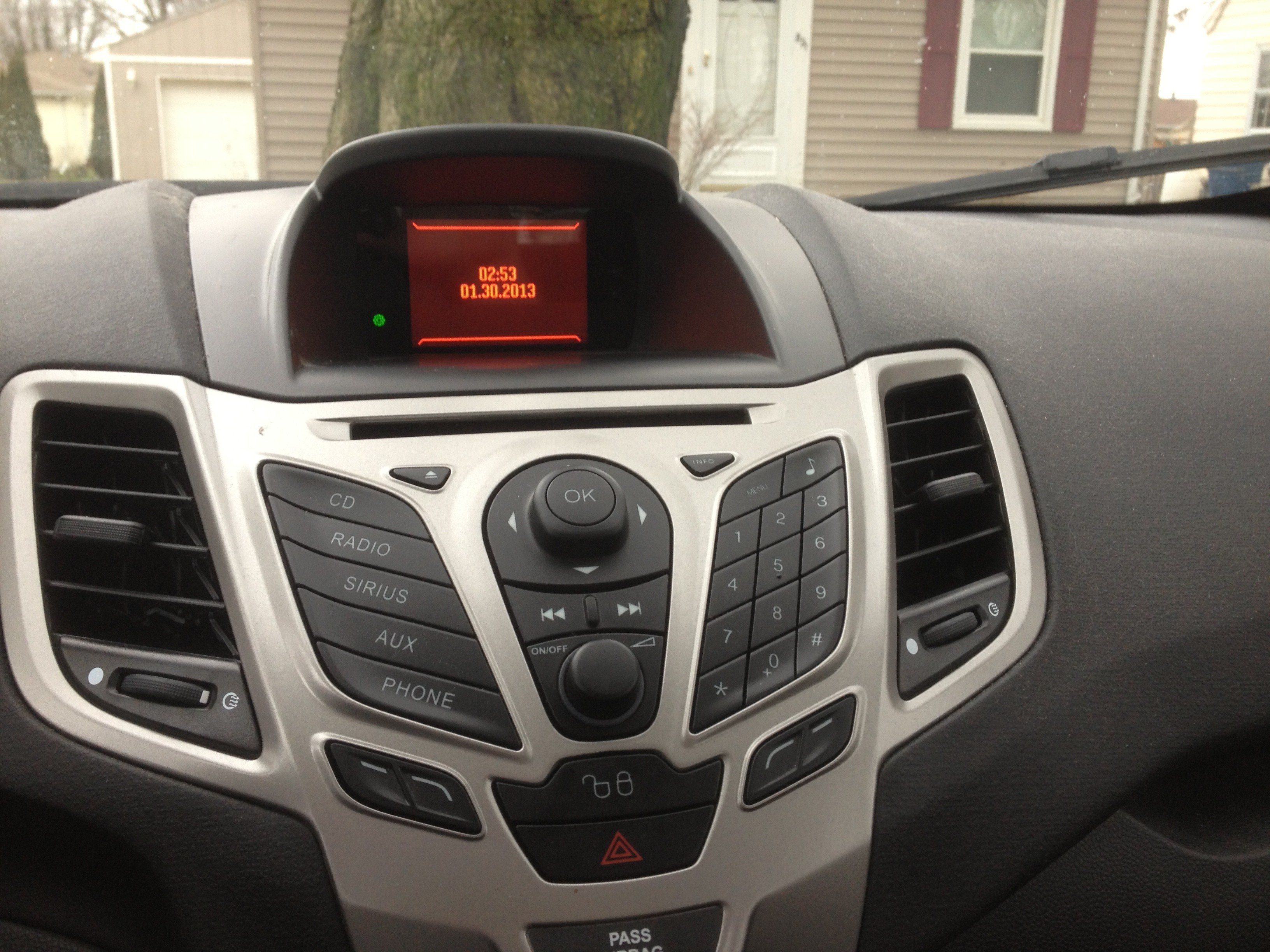
- Original SYNC (Gen 1): Often found in vehicles with a small 4-inch screen and physical buttons. Press the Phone button on the center console. Use the directional arrows to find System Settings, then Bluetooth Devices, and finally Add Device. You may need to enter a PIN manually into your phone that is displayed on the screen, rather than just confirming a pre-generated code.
Comparison of Ford SYNC Generations
| SYNC Version | Primary Vehicle Era | Connectivity Focus | Key Feature |
|---|---|---|---|
| SYNC 4/4A | 2021–2026 | Wireless Projection | Over-the-air updates & Wireless CarPlay |
| SYNC 3 | 2016–2023 | Capacitive Touch | Simplified UI & AppLink integration |
| MyFord Touch | 2011–2015 | Resistive Touch | 4-Quadrant color-coded interface |
| SYNC 1.0 | 2008–2014 | Voice Commands | Physical button-heavy, text-based |
Troubleshooting Common Pairing Issues
Even in 2026, Bluetooth technology can occasionally falter due to software "handshake" errors or signal interference. If your phone refuses to pair, follow these advanced troubleshooting steps:
Perform a Soft Reset
If the SYNC screen is frozen or unresponsive, a soft reset can clear the cache without deleting your data. On most Ford vehicles, hold the Volume Power button and the Seek Forward (Right Arrow) button simultaneously for about 10 seconds. The screen will go black and then restart.
"Forget" the Connection
If the phone was previously paired but is no longer connecting, you must delete the relationship on both sides.
- On the Phone: Go to Bluetooth settings, tap the "i" or gear icon next to the vehicle name, and select Forget This Device.
- On the Vehicle: Go to Phone Settings > View Devices > Select Phone > Delete.
- Restart both the phone and the vehicle, then attempt pairing from scratch.
The Master Reset
This should be a last resort, as it wipes all saved data, including navigation favorites and paired devices. You can find this under Settings > General > Master Reset. This restores the SYNC hardware to its original factory state, which often resolves deep-seated software glitches.
FAQ: Frequently Asked Questions
Can I pair more than one phone to Ford SYNC? Yes, you can pair multiple phones (usually up to 10), but only one can be the "Primary" or active device for making calls and playing music at any given time. In SYNC 4, you can quickly toggle between paired devices via the "Devices" menu.
Why won't my Android Auto connect wirelessly? Wireless Android Auto requires both a compatible vehicle (SYNC 4 or newer) and a smartphone running at least Android 11 with 5GHz Wi-Fi support. If your vehicle is older (SYNC 3), you must use a high-quality USB cable to initiate Android Auto.
Does pairing my phone use my mobile data? The act of pairing via Bluetooth does not use data. However, functions performed after pairing—such as using Google Maps, streaming Spotify, or receiving weather updates—will consume your phone's data plan unless the vehicle is connected to an external Wi-Fi hotspot.
How do I update the SYNC software in 2026? Most modern Ford vehicles use "Power-Up" over-the-air (OTA) updates. Ensure your vehicle is connected to your home Wi-Fi in the "Settings" menu. For older SYNC 3 models, you can visit the official Ford Support website, enter your VIN, and download the update files onto a USB drive.
My PIN isn't showing up on the screen. What should I do? This usually occurs due to a timeout. Cancel the pairing process on both the phone and the car. Turn the phone's Bluetooth off and back on, then restart the "Add Phone" process on the SYNC screen before searching on your phone.
Practical Recommendation for Optimal Use
To maintain a seamless connection in your Ford vehicle, it is highly recommended to enable Automatic Data Sharing and 911 Assist during the initial setup. Furthermore, if your vehicle supports it, use a physical USB-C cable for the first five minutes of your first drive. This often helps the SYNC system "index" your contacts and media library more efficiently than a wireless-only initial connection. Regularly checking for Ford Power-Up updates every six months will ensure your system remains compatible with the latest smartphone releases through 2026 and beyond.
For official support and to check for specific firmware compatibility, visit the Ford Owner Support Portal.
Image Gallery