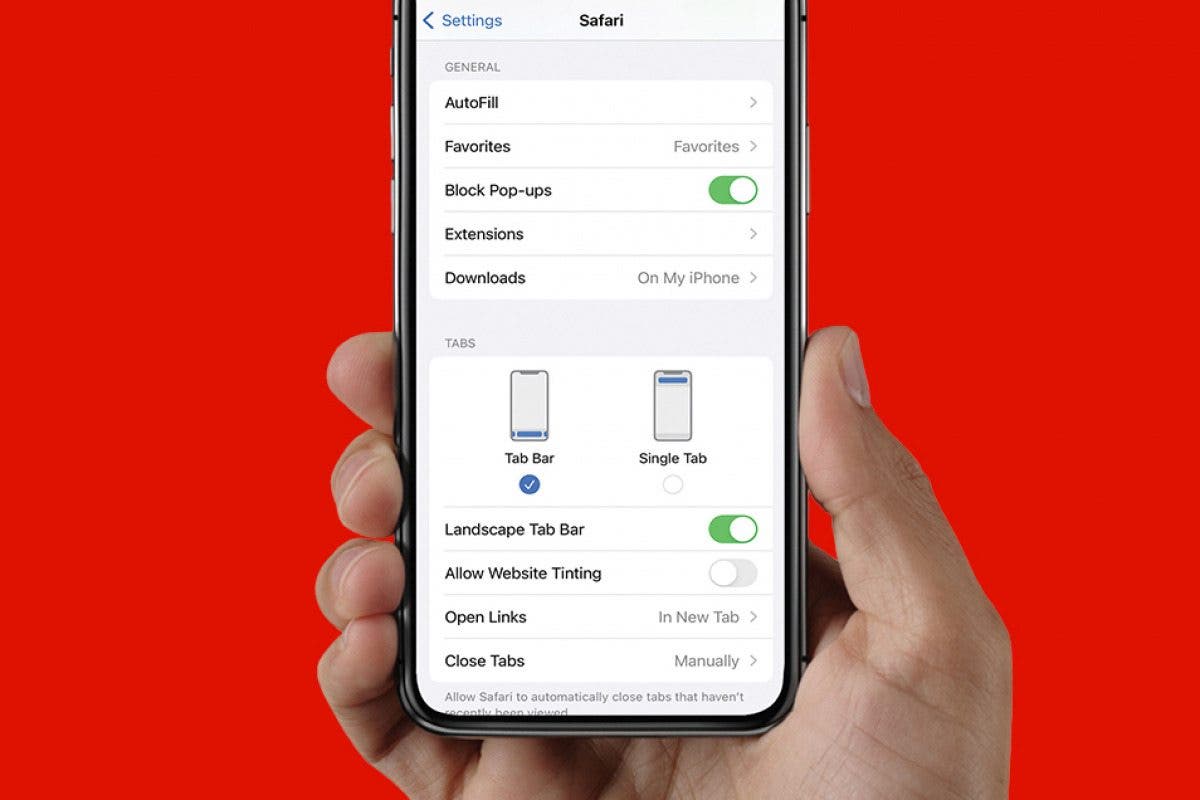
Mastering the Pop Up Blocker in Google Chrome on iPhone in 2026
Navigating the mobile web on iOS presents unique challenges, particularly when intrusive advertisements disrupt your browsing experience. Managing your pop up blocker settings for Google Chrome on an iPhone in 2026 requires understandi...
Navigating the mobile web on iOS presents unique challenges, particularly when intrusive advertisements disrupt your browsing experience. Managing your pop up blocker settings for Google Chrome on an iPhone in 2026 requires understanding both mobile browser configurations and iOS-level security integrations. This guide provides comprehensive, step-by-step instructions and technical analysis to help you regain control of your screen.
Contents
Understanding Mobile Ad Interception on iOS Chrome
Google Chrome on the iPhone operates differently than its desktop counterpart. While the desktop version relies heavily on native extensions, the iOS version must comply with Apple's WebKit rendering engine framework. Consequently, pop-up management is handled directly through core application settings and automated heuristics built into the browser engine.
Unwanted pop-ups typically manifest as new browser tabs opening automatically, unexpected redirects to third-party affiliate landing pages, or deceptive modal dialogs designed to mimic system notifications. Left unchecked, these elements consume cellular data, drain battery life, and expose devices to potential malware vectors or phishing schemes.
Core Architecture of Chrome's Content Filter
The content filtering system in Chrome for iOS utilizes a combination of client-side script evaluation and cloud-based threat intelligence. When you visit a webpage, the browser analyzes DOM (Document Object Model) events to detect unauthorized window creation or aggressive redirection attempts.
Important Security Advisory: Modern web threats have evolved beyond simple new-window generation. Malicious actors frequently utilize transparent overlay layers that intercept touch events anywhere on the screen, tricking users into interacting with invisible ad networks. Keeping your browser updated to the latest 2026 build ensures your defense mechanisms recognize these advanced obfuscation techniques.
Step-by-Step Guide to Enabling and Configuring the Pop Up Blocker
Optimizing your pop-up blocker settings takes less than a minute. Follow this structured procedure to ensure maximum protection against malicious redirects and annoying advertisements.
- Unlock your iPhone and locate the Google Chrome application icon on your home screen or App Library.
- Tap the icon to launch the browser and ensure you are running the most current version available in the App Store for 2026.
- Tap the Three Dots (More Menu) icon located in the bottom-right corner of the screen to open the primary navigation overlay.
- Select Settings from the vertical list of options to access the configuration dashboard.
- Scroll down to the Advanced section and tap on Content Settings.
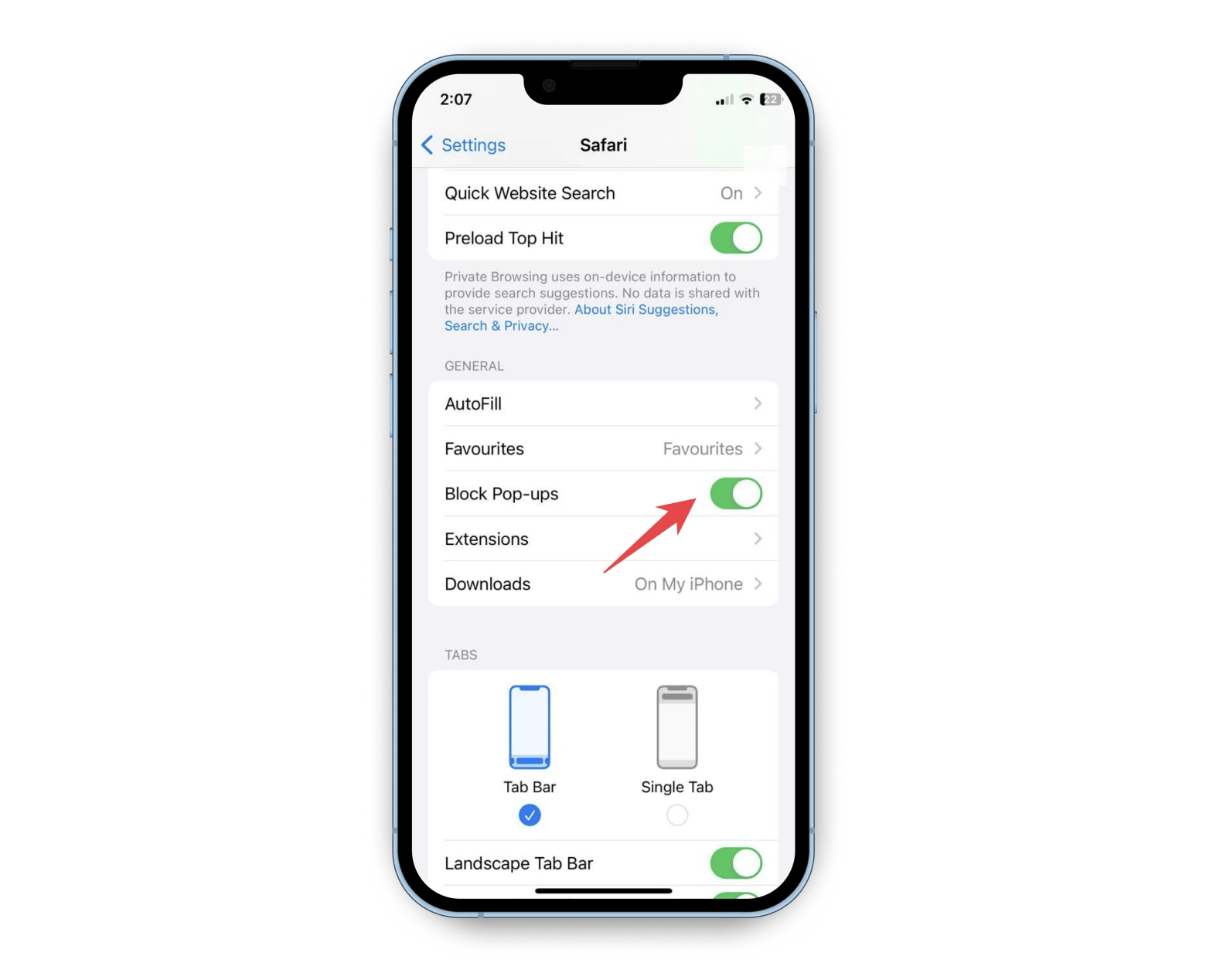
- Locate the toggle switch labeled Block Pop-ups and ensure it is switched to the On position (highlighted in blue).
- Return to the main Settings menu and navigate to Privacy and Security to clear cached browsing data, ensuring legacy ad scripts are purged from local storage.
Comparative Analysis of iOS Browsing Security Features
Choosing the right configuration involves balancing aggressive ad blocking with website functionality. Some sites require pop-ups for legitimate functions, such as single sign-on (SSO) authentication windows or secure banking document downloads.
| Feature / Setting | Google Chrome (iOS) | Apple Safari (iOS) | Third-Party Secure Browsers |
|---|---|---|---|
| Native Pop-Up Blocking | Enabled via Content Settings | Enabled via iOS Settings App | Built-in strict blocking lists |
| Extension Support | Limited mobile extension API | Full Safari Web Extension support | Varies by application |
| Cross-Device Syncing | Full Google Account synchronization | iCloud Keychain and Tab sync | Proprietary cloud ecosystems |
| Safe Browsing Integration | Real-time Google Threat Intelligence | Apple Fraudulent Website Warning | Third-party threat feeds |
Advanced Troubleshooting for Persistent Redirects
If unwanted windows continue to spawn despite having the native pop-up blocker enabled, deeper intervention is required. Persistent redirection usually indicates that a specific website has stored malicious instructions in your browser's local cache or that an adware profile has infected your iOS device settings.
Clearing Site-Specific Data and Cache
Corrupted cache files frequently bypass general blocking rules. To purge cached data for a specific domain:
- Navigate to Chrome Settings, then select Privacy.
- Tap Clear Browsing Data.
- Select a time range of All Time to ensure a complete reset.
- Ensure Cached Images and Files and Site Data are checked, then execute the deletion.
Reviewing iOS Configuration Profiles
In rare instances, malicious calendar subscriptions or unauthorized configuration profiles downloaded from deceptive websites can force Chrome to open ad pages automatically.
- Open the native Apple Settings application on your iPhone.
- Scroll to General, then tap VPN & Device Management.
- Inspect the list for any unfamiliar configuration profiles. If an unauthorized profile is present, tap it and select Remove Profile.
Pros and Cons of Strict Mobile Ad Management
Implementing strict content filtering yields distinct advantages alongside minor operational drawbacks. Evaluating these factors helps determine your ideal browsing posture.
Pros:
- Drastically reduces cellular data consumption by preventing media-heavy ad payloads from loading.
- Significantly improves page load speeds and overall responsiveness.
- Enhances privacy by blocking third-party tracking pixels and analytics scripts embedded in pop-up windows.
- Extends battery life by reducing CPU utilization during page rendering.
Cons:
- Can occasionally break legitimate interactive elements on web applications requiring pop-up windows.
- May trigger compatibility warnings on certain transactional portals that rely on pop-up confirmation dialogues.
- Requires manual exception handling for trusted sites that utilize auxiliary login windows.
Frequently Asked Questions
How do I turn on the pop-up blocker in Chrome on my iPhone?
Open Chrome, tap the three-dot menu in the bottom right, go to Settings, select Content Settings, and toggle the Block Pop-ups switch to the on position. This activates the browser's built-in script interception engine.
Why am I still seeing pop-ups even though the blocker is enabled?
Persistent pop-ups usually stem from corrupted site cache, malicious browser permissions granted to a specific website, or rogue calendar subscriptions installed on your iOS device. Clearing your browsing data and checking your iOS device management settings will resolve most residual issues.
Can I install ad-blocking extensions on Chrome for iOS?
Unlike the desktop version, Chrome for iOS does not support traditional browser extensions due to Apple's rendering engine restrictions. Ad blocking must be managed through Chrome's native content settings or by utilizing network-wide DNS filtering solutions.
Does blocking pop-ups save cellular data on my iPhone?
Yes, preventing pop-ups and their associated media payloads from loading stops unnecessary background data usage, helping you stay within your mobile carrier limits while browsing on the go.
Will turning on the pop-up blocker break normal website functions?
While it successfully blocks intrusive marketing windows, it may occasionally interfere with legitimate multi-factor authentication pop-ups or secure document viewers, requiring you to temporarily allow pop-ups for specific trusted domains.
Secure Your Mobile Web Experience Today
Maintaining an optimized browsing environment on your iPhone ensures a faster, safer, and distraction-free digital journey. Take a moment to verify your Chrome application settings, update your software to the latest 2026 specifications, and enjoy uninterrupted mobile navigation. If you encounter ongoing device vulnerabilities or complex redirect loops, consult official Apple and Google support channels for specialized remediation assistance.
Image Gallery