Mastering One.com IMAP Settings: A Comprehensive Setup Guide
Configuring email on your devices requires specific IMAP (Internet Message Access Protocol) settings to ensure your messages sync correctly across your computer, tablet, and smartphone. For One.com hosting customers, the process involv...
Configuring email on your devices requires specific IMAP (Internet Message Access Protocol) settings to ensure your messages sync correctly across your computer, tablet, and smartphone. For One.com hosting customers, the process involves using standardized server addresses, specific port numbers, and mandatory SSL/TLS encryption to maintain a secure and reliable connection to your mailbox.
Contents
Understanding IMAP vs. POP3
When setting up your email, you will often be asked to choose between IMAP and POP3. For the vast majority of modern users, IMAP is the superior choice. IMAP functions by keeping your emails on the server, allowing them to be synchronized across multiple devices simultaneously. If you read an email on your phone, it is marked as read on your laptop as well.
In contrast, POP3 (Post Office Protocol version 3) typically downloads emails from the server to a single device and then removes them from the server. This makes accessing your messages from multiple locations difficult and places your data at risk if the device holding the messages is lost or damaged. Unless you have a specific requirement to store messages locally and remove them from the cloud, you should always select IMAP during your email configuration.
Prerequisites Before Configuration
Before you begin entering your settings, you must have three critical pieces of information ready. If any of these are missing, your mail client will be unable to authenticate or reach the server:
- Your Full Email Address: This is the complete address you created within your One.com control panel.
- Your Email Password: This is the unique password associated with that specific email account. Note that this is often different from the password you use to log in to your main One.com control panel. If you have forgotten this, you must log in to the One.com control panel to reset it.
- A Stable Internet Connection: Ensure you are not behind a restrictive firewall or a VPN that might block standard email ports, as these can interfere with the initial verification process.
Standard IMAP Server Settings
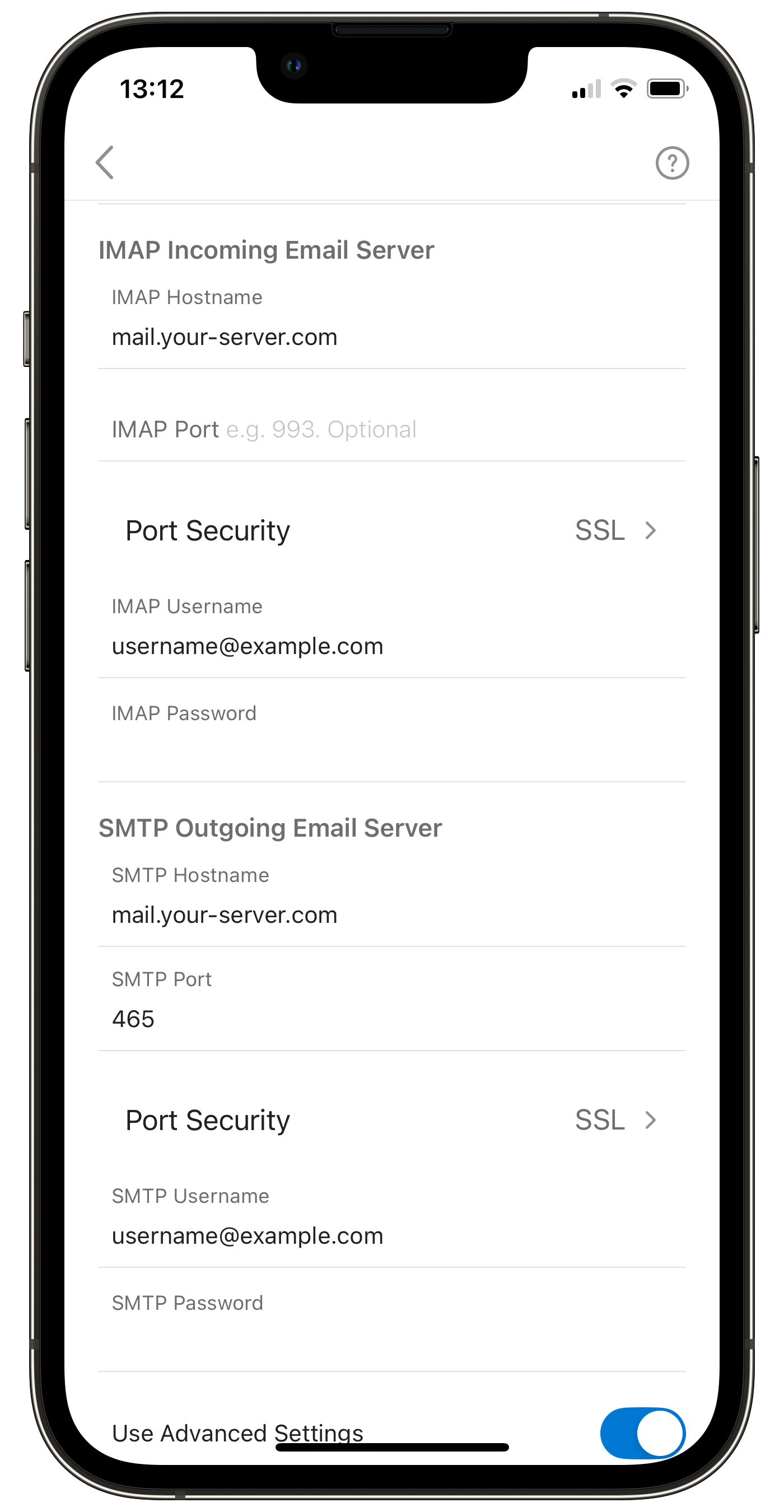
To ensure consistent performance, One.com requires specific server parameters. Regardless of which email application you use—such as Microsoft Outlook, Apple Mail, Mozilla Thunderbird, or mobile mail apps—the following technical details remain constant:
| Setting Type | Configuration Detail |
|---|---|
| Account Type | IMAP |
| Incoming Server (IMAP) | imap.one.com |
| Incoming Port | 993 |
| Incoming Security | SSL/TLS |
| Outgoing Server (SMTP) | send.one.com |
| Outgoing Port | 465 |
| Outgoing Security | SSL/TLS |
| Authentication | Password (Normal) |
Step-by-Step Configuration Strategy
While every email client looks different, the logic remains the same. Navigate to your application’s "Add Account" or "Settings" menu. When prompted for the type of account, choose "IMAP" or "Manual Setup."
- Incoming Mail Server: Enter
imap.one.com. The port must be set to993. It is imperative that you selectSSL/TLSfor security. If you select "None" or "STARTTLS" incorrectly, the connection may be rejected by the server for security reasons. - Outgoing Mail Server (SMTP): Enter
send.one.com. The port must be465. Like the incoming server, this requiresSSL/TLSencryption. - SMTP Authentication: A common point of failure for users is the SMTP server. Many modern clients attempt to configure this automatically. Ensure that you have manually enabled "My outgoing server (SMTP) requires authentication." Use the exact same email address and password as your incoming mail account to authenticate.
Troubleshooting Common Connection Failures
If you encounter errors during the setup process, they are usually related to authentication or blocked ports.
- Authentication Failed: This is the most common issue. Ensure there are no trailing spaces after your email address or password. Remember that if you have enabled two-factor authentication on your One.com account, ensure you are using an app-specific password if prompted, though for standard email hosting, your primary email account password is the standard requirement.
- Timeouts: If the application hangs on "Checking credentials," your internet connection may be blocking port 993 or 465. This often happens on public Wi-Fi networks (such as hotels or corporate offices). Attempting to set up the account while connected to a different network, such as a mobile hotspot, can help isolate whether the issue is local.
- Certificate Warnings: If you receive a warning about an "untrusted certificate," verify that the server name entered is exactly
imap.one.comand not a typo. Using an incorrect server name will trigger a security mismatch.
Optimizing Your Email Experience
Once the connection is established, the initial synchronization may take time if you have a large mailbox. To keep your experience smooth, consider the following best practices:
- Folder Mapping: Ensure that your "Sent" and "Trash" folders are correctly mapped to the server-side folders. In many mail clients, you may need to go into the folder settings and explicitly tell the client to "Store sent messages on the server" in the
Sentfolder. - Idle Connection: Many clients support "IMAP Idle," which allows the server to push new mail to your device instantly. Ensure this feature is enabled if you require real-time notifications.
- Quota Management: Since IMAP keeps your mail on the server, you are subject to the storage limit of your One.com hosting package. Regularly empty your "Trash" and "Spam" folders to avoid reaching your storage cap, which would prevent you from receiving new incoming emails.
Frequently Asked Questions
Why does my password work for the control panel but not for IMAP? The password for your email account is independent of the password you use to log into your general One.com hosting control panel. You can manage and reset your individual email passwords within the "Mail" administration section of your control panel.
Can I use POP3 if I prefer to keep my inbox empty?
Technically, yes, but it is not recommended. If you choose to use POP3, your incoming server should be pop.one.com with port 995 and SSL/TLS encryption. Be aware that this will make it impossible for your emails to appear on other devices once they have been downloaded.
What should I do if my outgoing mail is blocked?
If you can receive mail but not send it, the issue is almost always with the SMTP settings. Verify that "SMTP Authentication" is enabled. If your internet service provider (ISP) blocks port 465, try changing the SMTP port to 587 with STARTTLS encryption as an alternative.
How do I verify that my IMAP settings are secure? The use of port 993 and 465 with SSL/TLS ensures that your communication is encrypted between your device and the server. You can verify this by checking the connection details within your mail client’s account properties; it should clearly state that encryption is enabled.
Will my existing emails be deleted when I switch to IMAP? If you are transitioning from POP3 to IMAP, your emails currently stored locally on your device will stay there, but they will not be uploaded to the server. To move them, you must export them from your POP3 profile and import them into the new IMAP folder structure.
Final Recommendation
To maintain a stable and synchronized email environment, double-check your port settings and encryption methods. Using the provided server addresses—imap.one.com and send.one.com—is the most reliable way to avoid connection drops. For the best performance, ensure your mail client is updated to the latest version to maintain compatibility with current security standards. If you find yourself frequently traveling or switching between mobile and desktop environments, verify that your IMAP folders are properly synced after the initial setup to ensure no messages are missed.
Image Gallery