Comprehensive Guide to Using Hikvision SADP Software for Network Cameras in 2026
Hikvision SADP (Search Active Device Protocol) software is a specialized network utility used to discover, activate, and manage Hikvision IP cameras, NVRs, and DVRs on a local area network. By scanning the local subnet, it allows users...
Hikvision SADP (Search Active Device Protocol) software is a specialized network utility used to discover, activate, and manage Hikvision IP cameras, NVRs, and DVRs on a local area network. By scanning the local subnet, it allows users to modify network parameters, perform batch activations, and initiate password resets without needing the device's initial IP address.
Contents
Understanding the Role of SADP in Modern Surveillance
As we navigate the security landscape of 2026, the complexity of networked surveillance continues to grow. The Search Active Device Protocol (SADP) remains a cornerstone tool for technicians and DIY installers alike. Unlike a standard web browser that requires you to know the specific IP address of a camera to access it, SADP operates at the link layer (Layer 2) of the OSI model. This means it can "see" devices even if they are on a different subnet or have not yet been assigned a valid IP address for your specific network.
In professional installations, SADP is the first piece of software opened after hardware mounting. It serves as the bridge between physical installation and software configuration. Its primary utility lies in its ability to detect "Inactive" devices—a security status mandated by Hikvision to ensure that no camera operates with a factory-default password. This guide provides an exhaustive walkthrough of using SADP to streamline your network camera deployment.
Technical Prerequisites and Installation
Before launching SADP, ensure your workstation meets the necessary environment requirements to facilitate communication with the hardware.
Network Environment
For SADP to function, the computer running the software and the Hikvision cameras must be connected to the same physical switch or router. Because SADP relies on UDP broadcast packets, the discovery process generally does not work across different VLANs or through most VPN tunnels unless specific broadcast forwarding is configured. Ensure that your computer's firewall is not blocking the SADP executable, as this is the most common reason for a "Device Not Found" error.
Software Installation
As of 2026, Hikvision provides SADP as a standalone utility for both Windows and macOS. It is also frequently bundled within the broader iVMS-4200 suite.
- Download Source: Always obtain the software from the official Hikvision website or their regional portals (e.g., Hikvision UK, Hikvision USA). Avoid third-party software repositories to mitigate the risk of malware.
- Npcap/WinPcap: SADP requires a packet capture driver to monitor network traffic. Most modern versions of SADP include Npcap in the installation package. If prompted during installation, ensure this driver is installed with "Loopback" support enabled.
- Administrator Rights: On Windows 10, 11, and subsequent versions available in 2026, you must run SADP with administrative privileges to allow it to modify network interface settings.
Activating New Hikvision Network Cameras
When you first connect a Hikvision camera, it arrives in an "Inactive" state. This is a critical security measure designed to prevent unauthorized access via default credentials like "admin/12345," which were common in legacy systems.
Step-by-Step Activation
- Launch SADP: Once the software opens, it will automatically begin scanning the network.
- Identify the Device: Look for the status "Inactive" in the security column. Select the checkbox next to the device.
- Create a Strong Password: On the right-hand panel, you will be prompted to create a password. In 2026, security standards recommend a minimum of 12 characters, including uppercase letters, lowercase letters, numbers, and special symbols.
- Confirm Activation: Click the "Activate" button. If successful, the status will change to "Active."
At this stage, you may also be prompted to set up security questions or a reserved email for password recovery. It is highly recommended to complete these steps immediately, as they provide a self-service path for recovery if the password is forgotten in the future.
Modifying Network Parameters
Once a camera is active, it must be assigned an IP address that matches your local network's numbering scheme. For example, if your router is at 192.168.1.1, your cameras should typically live in the 192.168.1.x range.
Manual IP Assignment
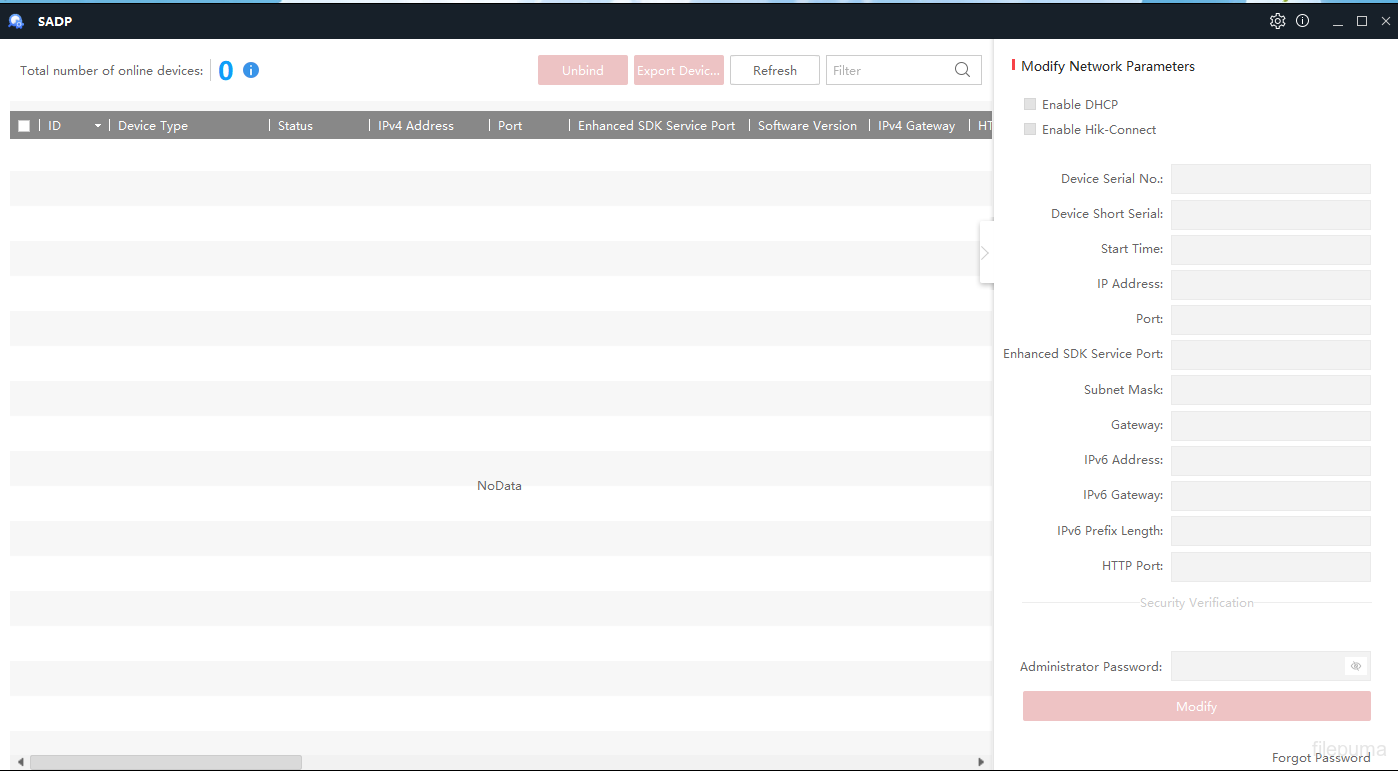
In the SADP interface, select the active camera. On the right-side modification panel, you can change the following:
- IP Address: Ensure it is unique to avoid IP conflicts.
- Port: The default is usually 8000 for the SDK port.
- Subnet Mask: Usually
255.255.255.0for home and small business networks. - Gateway: The IP address of your router.
After entering the new details, you must input the device password you created during activation to authorize the changes. Click "Modify."
Enabling DHCP
If you prefer the router to assign addresses automatically, check the "Enable DHCP" box in SADP. This is useful for quick setups, but for security systems, Static IPs are generally preferred to ensure the NVR (Network Video Recorder) does not "lose" the camera if the IP changes after a power cycle.
Advanced Features: Unbinding and Password Resets
SADP provides utility beyond simple IP changes, acting as a troubleshooting tool for account management and forgotten credentials.
Unbinding from Hik-Connect
A common issue occurs when a camera is "bound" to a previous owner's Hik-Connect cloud account. In 2026, SADP remains a primary method for "unbinding" these devices. If the camera and computer are on the same local network, you can select the device and click the "Unbind" button. You will be required to enter the admin password and a verification code (often found on the device label) to release the camera from the cloud, allowing it to be added to a new account.
The Password Reset Process
If a password is lost, SADP facilitates the "Challenge-Response" reset method:
- Export XML: Click on "Forgot Password" in the SADP panel. You will be prompted to export an XML file.
- Send to Support: Send this XML file to Hikvision technical support or your authorized distributor.
- Import Response: Support will provide a "Capability" file or a code. Import this file back into SADP and set your new password. Note: Do not reboot the camera between exporting the file and importing the response, as this will invalidate the security token.
SADP Feature Comparison Table
| Feature | SADP Utility | iVMS-4200 | Web Browser |
|---|---|---|---|
| Discovery | High (Layer 2 Broadcast) | Medium | Low (Requires known IP) |
| Activation | Batch & Single | Single | Single |
| IP Modification | Primary Function | Supported | Supported |
| Password Reset | XML Export/Import | Supported | Limited |
| Live View | Not Supported | High Performance | Browser Dependent |
| Batch Firmware | No | Yes | No |
Troubleshooting Common SADP Issues
Even with its streamlined design, SADP can encounter operational hurdles. Understanding these common failure points can save hours of diagnostic time.
"Device Not Found"
If the list is empty despite the camera being powered on:
- Physical Layer: Check if the camera's Link LED is blinking on the switch.
- Multiple NICs: If your computer has both Wi-Fi and Ethernet active, SADP may be scanning the wrong network interface. Disable the unused adapter.
- Antivirus/Firewall: Software like Windows Defender or third-party suites often flag UDP broadcasts as suspicious. Temporarily disable the firewall to test.
"Modification Failed"
If you receive an error when changing an IP:
- Password Error: Ensure you are using the device password, not your computer password.
- IP Conflict: The address you are trying to assign might already be in use by another device (like a printer or smartphone).
- Firmware Version: Very old firmware may have compatibility issues with 2026 versions of SADP. Consider using an older version of the tool if working with "legacy" 2015-era hardware.
Frequently Asked Questions
Can I use SADP to update camera firmware?
No, SADP is not designed for firmware updates. To update firmware, you should use the camera’s web interface, the iVMS-4200 client software, or the Hik-Connect app. SADP's primary role is limited to network configuration and device discovery.
Does SADP work with non-Hikvision cameras?
SADP is a proprietary protocol (Search Active Device Protocol) specifically developed for Hikvision and its OEM brands (such as Annke, LTS, or Nelly's Security). While some ONVIF discovery tools exist for multi-brand environments, SADP will generally only "see" Hikvision-manufactured hardware.
Why is my camera showing a 192.0.0.64 IP address?
The address 192.0.0.64 is the default "fail-safe" IP for almost all Hikvision equipment. If you see this in SADP, it means the device is active but has not yet been configured for your specific network. You should use SADP to change this to an address that fits your network's range (e.g., 192.168.1.200).
Is SADP required for Hik-Connect setup?
It is not strictly required, but it is highly recommended. While you can add a camera to Hik-Connect by scanning a QR code, using SADP to first set a static IP and a strong password ensures a more stable and secure connection than relying on pure plug-and-play defaults.
How do I find the MAC address of my camera using SADP?
Once SADP discovers the device, the MAC address is displayed in one of the columns in the main list. You may need to scroll to the right to see it. This is particularly useful for white-listing devices on restricted corporate networks or assigning DHCP reservations in a router.
Practical Recommendation for 2026 Deployments
When using Hikvision SADP software for network cameras, always adopt a "Security First" approach. In 2026, the prevalence of IoT-targeted botnets makes the activation phase the most critical step of your installation. Never use simple or repetitive passwords, even for internal-only systems. Once your network parameters are set and the cameras are reachable, immediately check for firmware updates via the web interface to ensure the latest security patches are applied. For large-scale projects, use the SADP "Batch Export" feature to keep a CSV record of all MAC addresses and assigned IPs for future maintenance.
Image Gallery