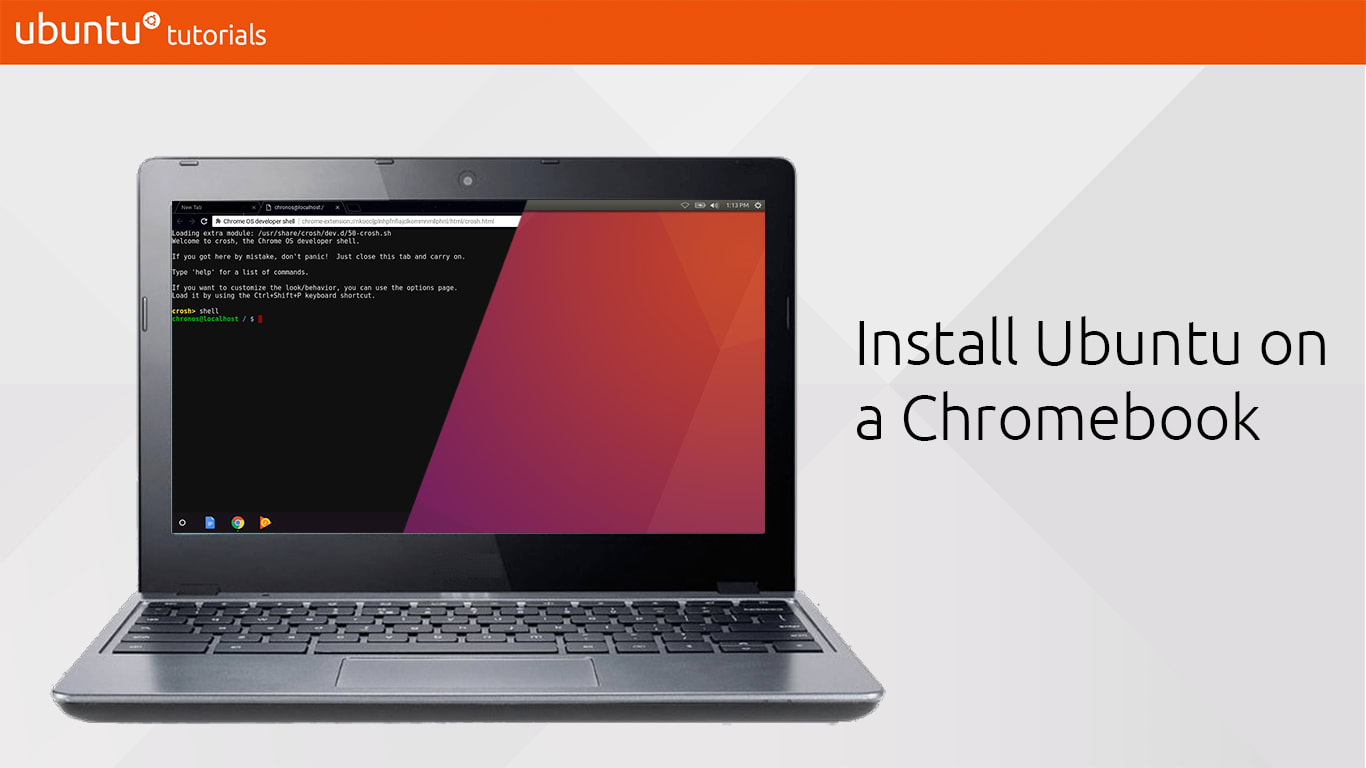
How to Install Steam on Linux Chromebook
Installing Steam on a Linux Chromebook allows users to run desktop PC games on ChromeOS by leveraging the built-in Debian-based Linux development environment, provided the hardware meets modern processor, RAM, and graphics architecture...
Installing Steam on a Linux Chromebook allows users to run desktop PC games on ChromeOS by leveraging the built-in Debian-based Linux development environment, provided the hardware meets modern processor, RAM, and graphics architecture requirements.
Contents
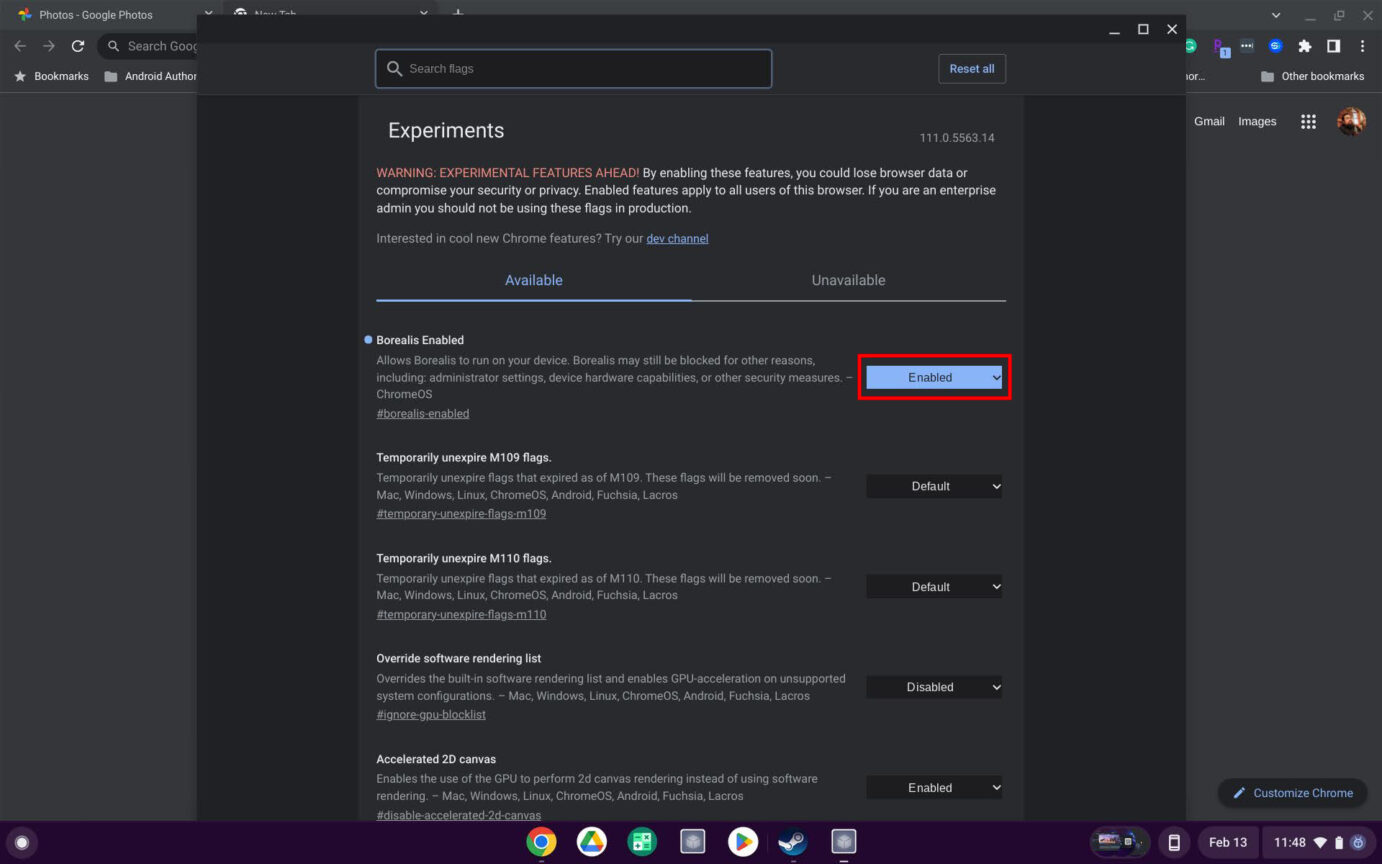
The process of bringing desktop PC gaming to ChromeOS devices has evolved significantly over the past few years. Historically, ChromeOS was strictly bound to web-based applications, Android apps via the Google Play Store, and progressive web apps. However, with the introduction of Project Borealis—Google's initiative to officially bring the Steam client to ChromeOS via a dedicated Linux container—compatibilities expanded dramatically. Users with modern Chromebooks powered by Intel or AMD processors can now access a massive library of Windows and Linux titles using Proton, Valve’s compatibility layer.
Before diving into the installation process, it is important to understand what your device can handle. ChromeOS runs Linux applications inside a virtualized container (Crostini). Because of this extra virtualization layer, hardware specifications dictate your success. While lightweight indie titles and classic games run exceptionally well, high-end 3D blockbusters require robust discrete graphics or high-end integrated graphics, ample RAM, and substantial internal storage.
Understanding System Requirements and Compatibility
Not every Chromebook can run Steam effectively. Google and Valve have established a curated list of supported devices, though users on newer hardware outside this official list can often enable the feature manually. Before attempting an installation, verify that your device meets the baseline hardware and software prerequisites.
Hardware Prerequisites
- Processor (CPU): 11th Generation Intel Core i3, i5, or i7 processors (or newer) with Intel Iris Xe graphics, or equivalent AMD Ryzen 3000 series processors (or newer). Older Celeron or Pentium processors lack the horsepower and instruction sets required for smooth gaming.
- Random Access Memory (RAM): 8GB of RAM is the practical minimum for running ChromeOS alongside the Linux container and modern games. 4GB devices will experience severe memory bottlenecks.
- Storage: At least 64GB of total storage, though 128GB or more (NVMe SSD preferred) is strongly recommended because modern game installations easily consume tens of gigabytes.
Software Prerequisites
- ChromeOS Version: Ensure your Chromebook is updated to ChromeOS 103 or later (Stable channel recommended).
- Linux Environment: The Linux development environment (Crostini) must be enabled in your ChromeOS settings.
Step 1: Enable the Linux Development Environment
Steam runs inside the ChromeOS Linux container. If you have not turned this feature on yet, you must configure it first.
- Click the status area in the bottom-right corner of your screen and open the Settings gear icon.
- In the left-hand menu, click on Advanced, then select Developers.
- Locate Linux development environment and click the Turn on button.
- Follow the on-screen setup wizard. You will be asked to choose a username and allocate disk space for your Linux environment.
- Tip: Allocate as much storage as you can spare. The default 10GB is rarely enough for more than one or two modern games. You can resize this later in settings if needed, but starting larger saves time.
- Wait for the terminal window to appear, indicating that the Debian Linux container has finished initializing.
Step 2: Update Your Linux System Packages
Before downloading and installing third-party software like Steam, update your Debian container's package lists to prevent dependency conflicts.
Open your terminal application from the ChromeOS app launcher and run the following commands sequentially, pressing Enter after each one:
sudo apt update && sudo apt upgrade -y
This process may take a few minutes depending on your internet connection and how recently your Linux environment was created. Once complete, your system is fully prepared to handle the Steam installation package.
Step 3: Enable 32-Bit Architecture Support
Steam and many of its legacy games rely on 32-bit (i386) libraries. Because modern 64-bit Linux environments do not include these libraries by default, you must explicitly enable multi-architecture support in Debian.
Type the following command into your terminal and press Enter:
sudo dpkg --add-architecture i386
Follow this immediately by refreshing your package lists again so the system recognizes the newly enabled 32-bit repositories:
sudo apt update
Failing to enable 32-bit architecture will result in missing dependency errors when you attempt to launch the Steam installer.
Step 4: Download and Install the Steam Client
With your system configured and updated, you can proceed to download the official Debian installation package (.deb) directly from Valve.
- In your terminal, download the official Steam package using
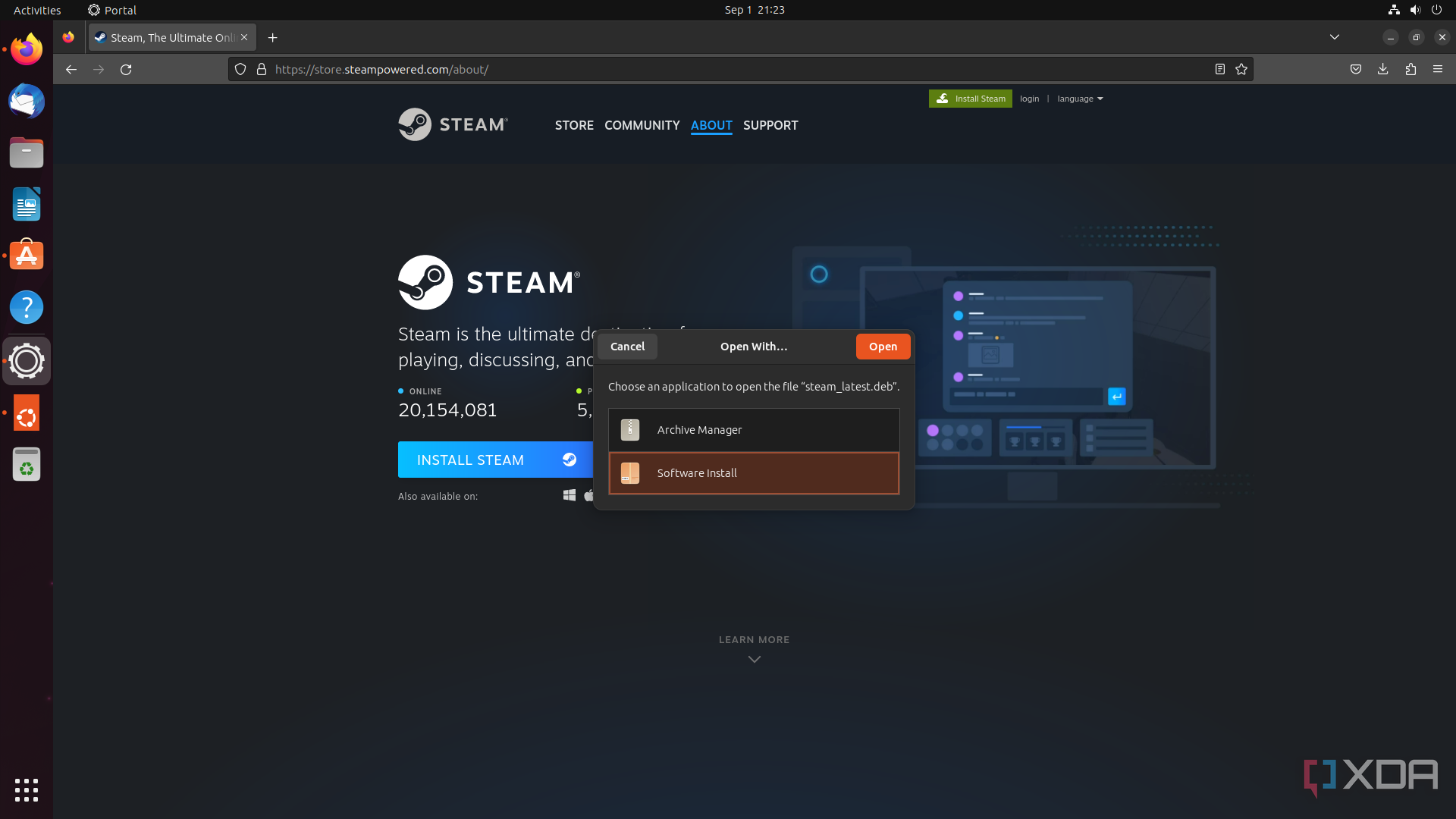
wget:wget https://repo.steampowered.com/steam/archive/stable/steam_latest.deb - Once the download finishes, install the package using the Advanced Packaging Tool (
apt), which automatically resolves and pulls in required dependencies:sudo apt install ./steam_latest.deb - Read through any prompts that appear on the screen and press
Y(Yes) to confirm the installation of required graphics drivers and dependency libraries.
Step 5: Launch Steam and Complete Setup
After the installation script finishes without errors, you can launch Steam just like any other Linux application on your Chromebook.
- Open your ChromeOS app drawer and look for a folder labeled Linux apps.
- Click on the Steam icon.
- The first launch will take longer than subsequent openings as Steam automatically downloads and installs self-updates and compatibility components.
- Once the graphical login window appears, log into your existing Steam account or create a new one.
Hardware Support and Performance Comparison
Different Chromebook configurations yield vastly different gaming experiences. Review the breakdown below to understand what performance tier to expect based on your machine's internal components.
| Component Tier | Processor (CPU) | Graphics (GPU) | RAM | Expected Performance & Suitable Games |
|---|---|---|---|---|
| Entry-Level | Intel Celeron / Pentium | Integrated Intel UHD | 4GB - 8GB | Casual 2D indie games, retro emulators, browser titles. Not recommended for 3D games. |
| Mid-Range | Intel Core i3 / i5 (11th Gen+) | Intel Iris Xe | 8GB | Moderate 3D games, older AAA titles (e.g., Portal 2, Skyrim), eSports titles at lower settings. |
| High-End | Intel Core i7 / AMD Ryzen 5+ | Iris Xe / Radeon Graphics | 16GB+ | Demanding indie titles, modern optimized games via Proton, solid 1080p performance at medium details. |
Optimizing Performance and Troubleshooting
Running games through a virtualized container introduces performance overhead. Implement these best practices to maximize frame rates and stability.
Enable GPU Hardware Acceleration
Ensure that your Linux container has access to your Chromebook's GPU.
- Open ChromeOS settings, navigate to Developers > Linux development environment.
- Ensure that Enable port forwarding and GPU acceleration settings are configured properly. (Note: Modern ChromeOS versions enable GPU acceleration by default for supported chipsets).
Utilize Proton for Windows Games
Many games in the Steam catalog were built exclusively for Windows. To play them on your Linux Chromebook:
- Open Steam and click on Steam in the top-left corner, then select Settings.
- Navigate to the Compatibility tab.
- Check the box for Enable Steam Play for all other titles.
- Select the latest stable version of Proton from the dropdown menu and click OK. Restart Steam when prompted.
Common Troubleshooting Steps
- Black Screen on Startup: If Steam opens to a blank black window, completely close the app, open your terminal, and launch it via command line (
steam) to view error logs. Often, updating your ChromeOS version resolves rendering bugs. - Out of Disk Space Errors: If game downloads fail mid-stream, check your Linux storage allocation in ChromeOS settings. You likely need to expand the Linux disk size to accommodate larger game files.
Frequently Asked Questions
Can I play every game on Steam using a Chromebook?
No. While Valve’s Proton compatibility layer bridges the gap for thousands of Windows games, titles that rely on aggressive kernel-level anti-cheat software (such as Valorant, Destiny 2, or Call of Duty) will not run on a Linux-based operating system. Check the ProtonDB website before purchasing games to verify how well specific titles run on Linux.
Will installing Steam slow down my Chromebook when I am not gaming?
No. The Linux container runs in an isolated virtual machine and only consumes system resources when active. When you close the Linux terminal and the Steam application, background resource consumption drops to zero, leaving your full RAM and CPU available for Chrome browser tasks.
Do I need a physical mouse and keyboard to play?
While trackpads and built-in keyboards work fine for desktop management and turn-based strategy games, most action, shooter, and role-playing games require a dedicated USB or Bluetooth mouse and a gaming controller for an optimal experience. Most standard Bluetooth controllers (such as Xbox or PlayStation controllers) pair natively with ChromeOS.
Can I install Steam games on an external SD card?
Directly installing Steam games onto an external MicroSD card formatted for ChromeOS can cause file permission errors within the Linux container. It is strongly recommended to install games directly onto the Chromebook's internal NVMe or eMMC storage, though you can manage file storage paths carefully inside the Linux environment if you format external drives correctly.
Next Actions
Now that Steam is installed and configured on your Linux Chromebook, browse your library, check compatibility for your favorite titles via ProtonDB, and start downloading lightweight indie games or optimized classics to test your system's capabilities. Ensure your device remains plugged into a power source during long gaming sessions to prevent thermal throttling and maximize performance.
Image Gallery