Can You Transfer Everything From iPhone to Samsung? A Complete Guide
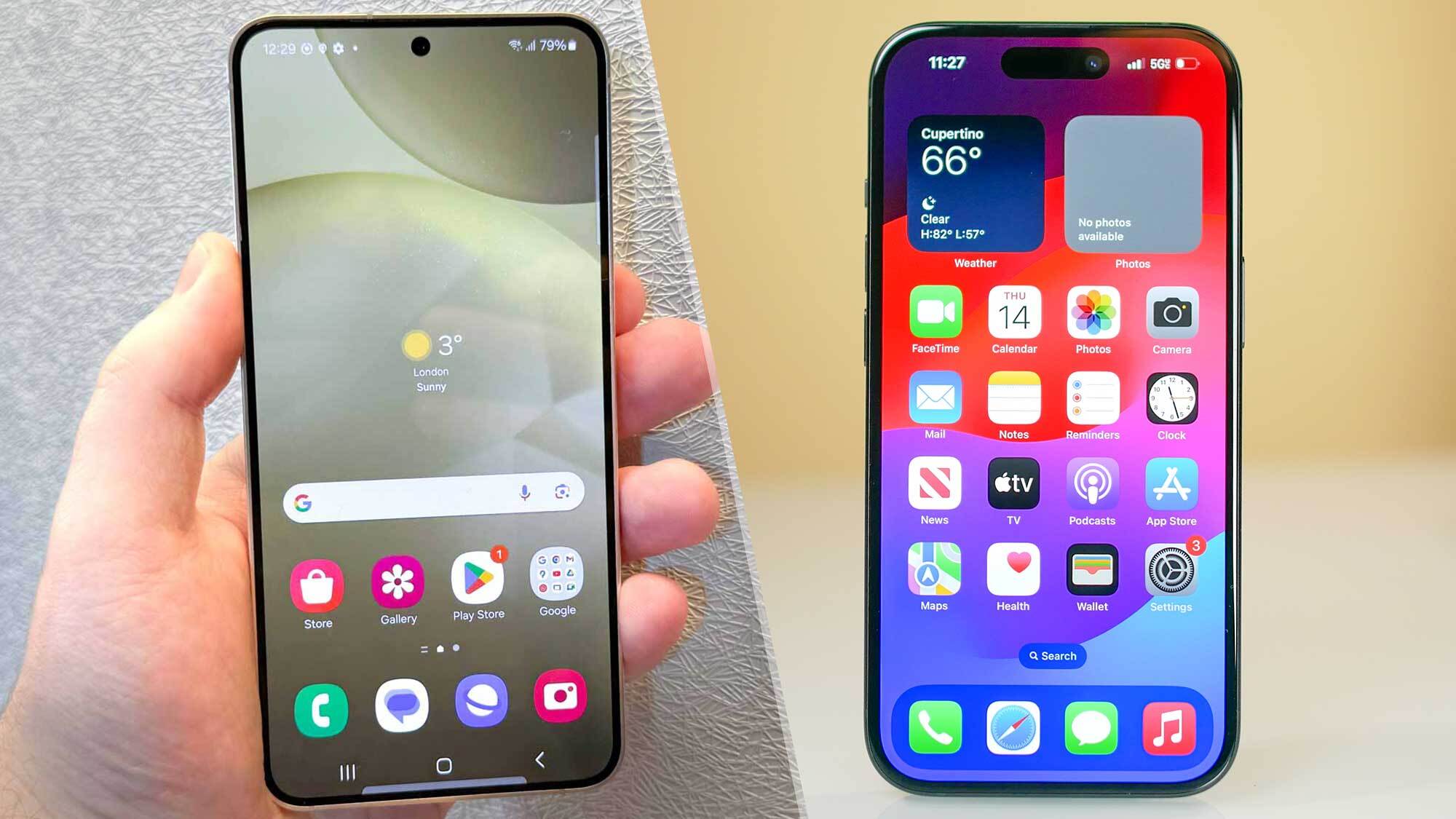
Yes, you can transfer the vast majority of your personal data from an iPhone to a Samsung device, though the degree of success depends on the type of data and your chosen transfer method. While most contacts, photos, videos, and messag...
Yes, you can transfer the vast majority of your personal data from an iPhone to a Samsung device, though the degree of success depends on the type of data and your chosen transfer method. While most contacts, photos, videos, and messages transition seamlessly, certain proprietary Apple data—such as iMessage history, paid app licenses, and specific iCloud-locked files—cannot be directly ported to the Android ecosystem.
Contents
Understanding the Transfer Ecosystem
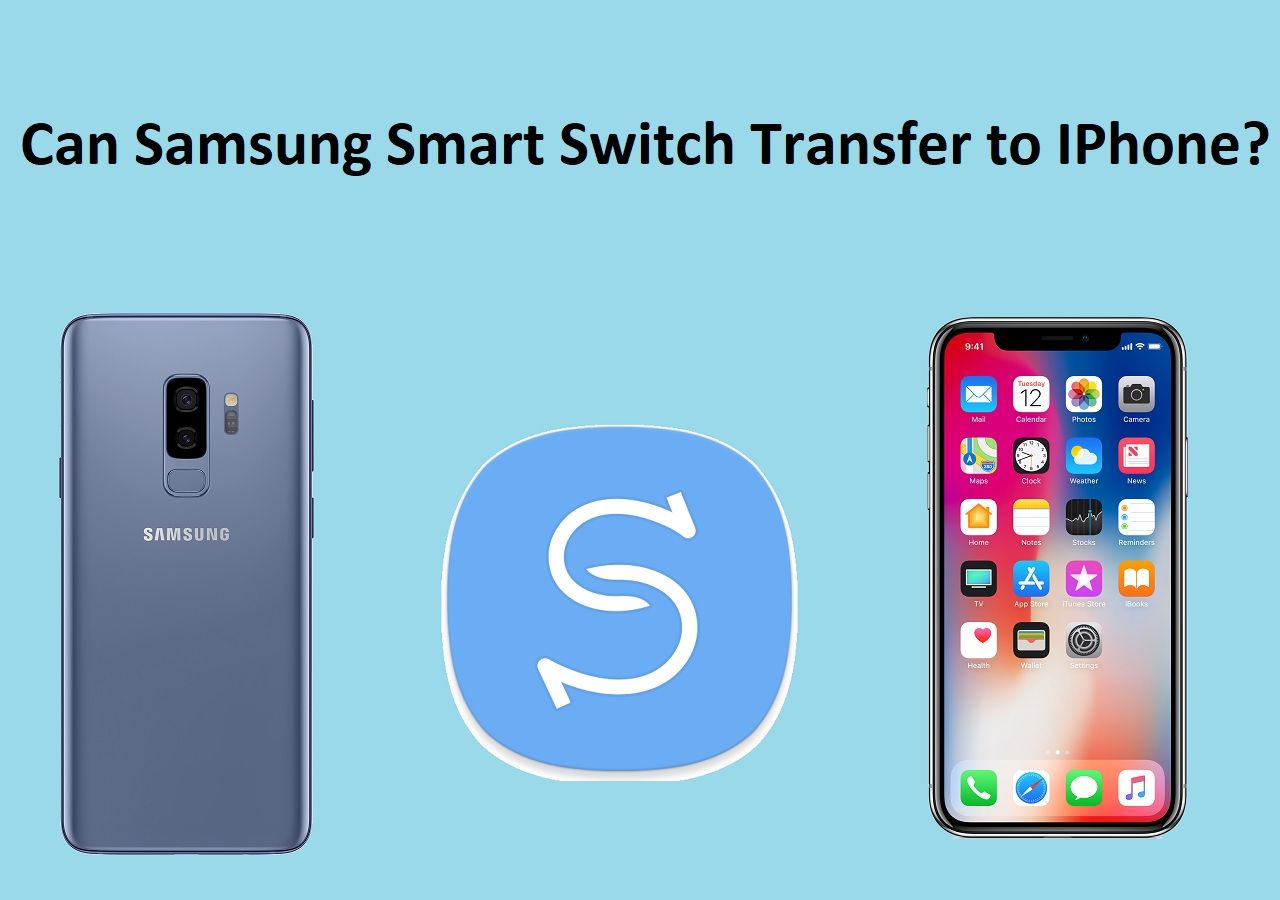
Switching operating systems from iOS to Android is a common transition, and Samsung has developed specialized tools to bridge the gap. The primary mechanism for this migration is Samsung Smart Switch. This software acts as a data bridge, designed to parse iOS file structures and reassemble them into formats compatible with the Android OS used by Samsung Galaxy devices.
However, it is essential to distinguish between "transferring everything" and "transferring your personal content." While your media and contact lists move easily, your "digital identity"—which includes purchases made through the Apple App Store, subscriptions managed via Apple, and locked Keychain passwords—remains tied to Apple’s proprietary servers. You cannot "transfer" an app; you must re-download the Android equivalent from the Google Play Store.
Prerequisites for a Successful Migration
Before initiating any transfer, ensure you have the necessary hardware and environment to prevent data corruption.
- Battery Life: Ensure both your iPhone and your new Samsung device are charged to at least 80%. Large data transfers, particularly those involving thousands of high-resolution photos, can take significant time and drain battery power rapidly.
- Storage Capacity: Verify that your new Samsung phone has enough internal storage to accommodate the data coming from your iPhone. If your iPhone is 256GB and near capacity, ensure your Samsung device has equal or greater storage.
- Cable or Cloud: You have two primary options: a wired USB-C to Lightning cable (or USB-C to USB-C depending on your iPhone model) or a wireless iCloud transfer. The wired method is generally faster and more reliable for large libraries of media.
- Security Settings: Disable "Find My iPhone" and temporary screen locks if possible to ensure the transfer tool has full read/write access to the device’s file system during the migration.
How to Use Samsung Smart Switch
Samsung Smart Switch is the gold standard for this process. It functions by creating a temporary sync point between the two devices.
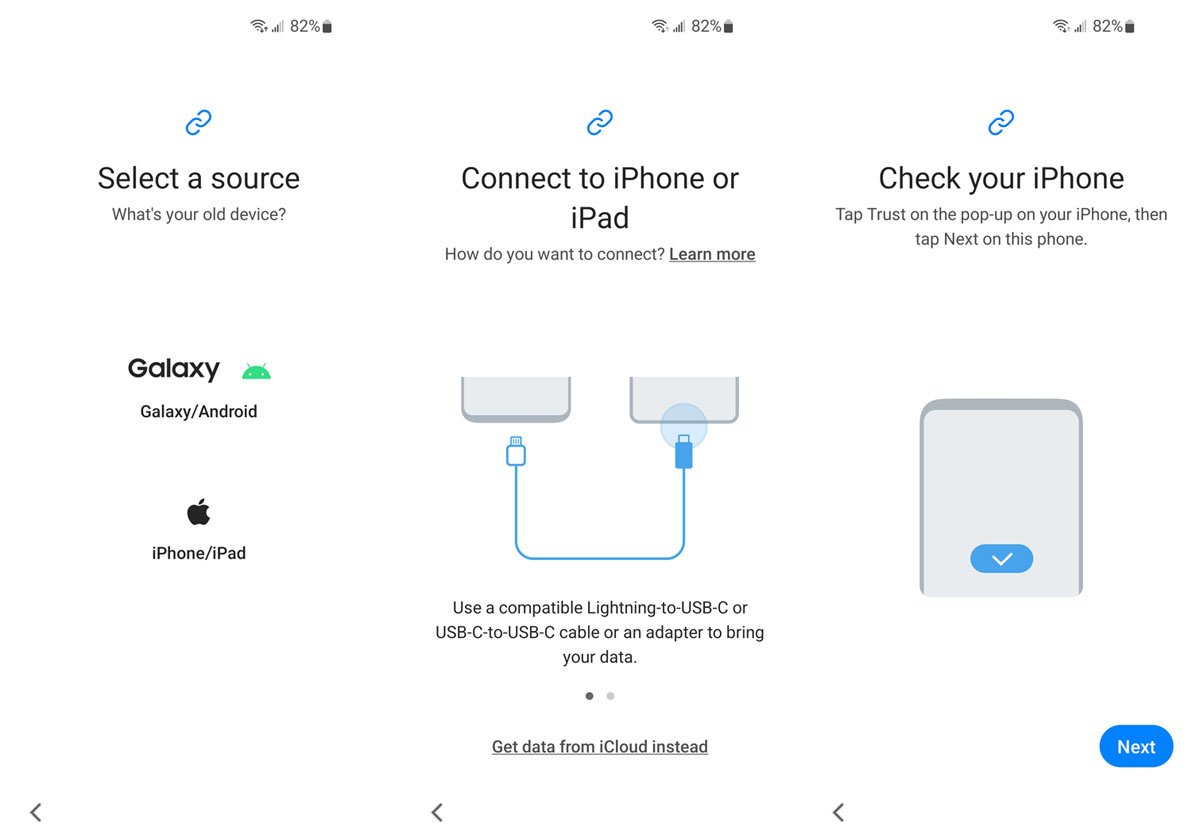
- Initiation: Turn on your Samsung device and follow the setup prompts until you reach the "Transfer data from an old device" screen.
- Connection: Select "iPhone/iPad" as the source device. If using a cable, connect the devices directly. If using the cloud, sign in with your Apple ID.
- Analysis: The Samsung device will scan the iPhone to determine which data types are available for transfer. This includes contacts, call logs, messages, images, and videos.
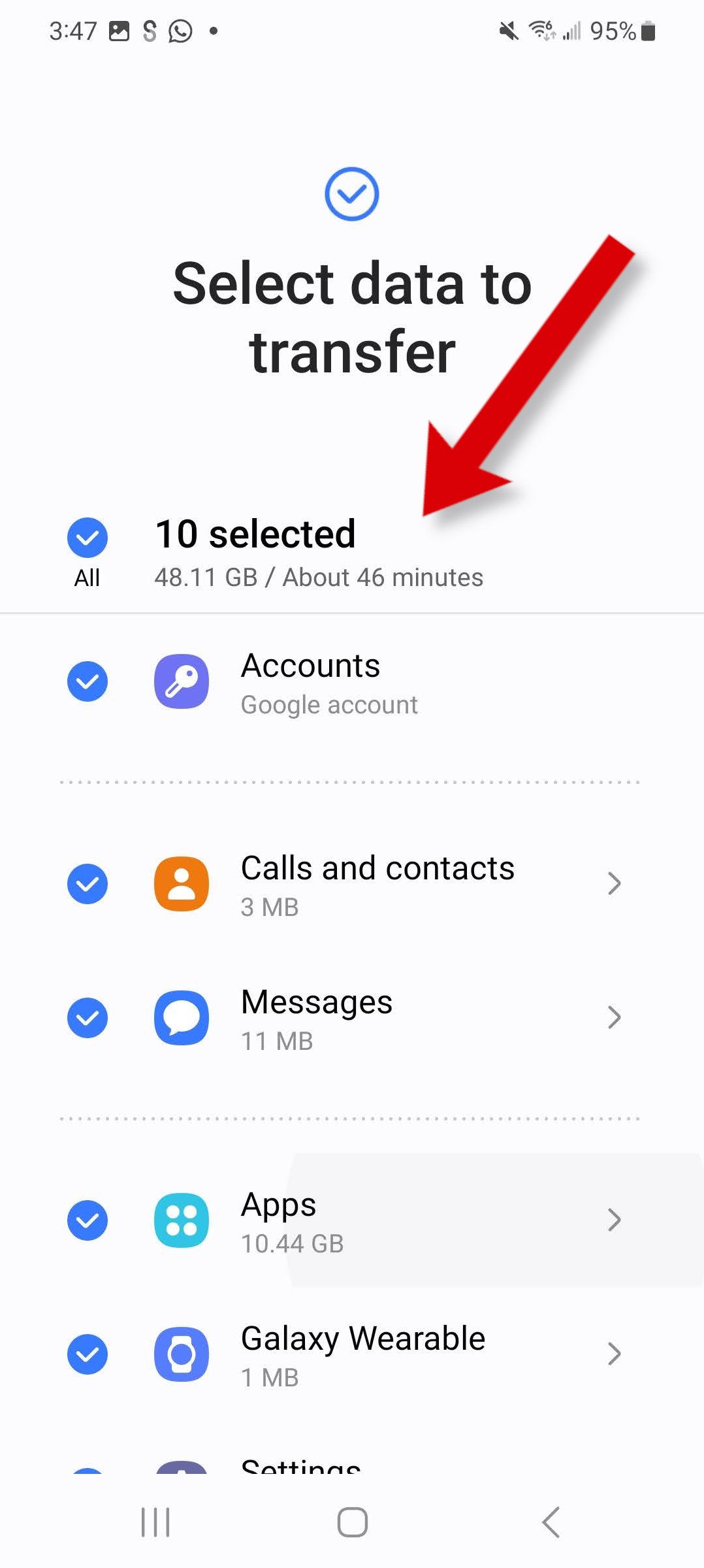
- Selection: You will be presented with a list of categories. Check each box corresponding to the data you wish to migrate. Note that the estimated time remaining will update as you select larger files.
- Execution: Start the transfer. Keep both devices unlocked and side-by-side. Do not disconnect the cable or exit the application until the progress bar reaches 100%.
Data Compatibility Comparison Table
| Data Type | Transferable to Samsung | Notes |
|---|---|---|
| Contacts | Yes | Automatically synced via cloud or cable. |
| Photos/Videos | Yes | Media is moved to the Gallery app. |
| Text Messages | Yes | SMS and MMS migrate; iMessages do not. |
| App Data | Partial | Free apps must be re-downloaded; paid apps are not transferable. |
| Music | Yes | DRM-free files transfer; Apple Music content requires the Android app. |
| Passwords | No | iCloud Keychain does not sync to Android. |
| Calendars | Yes | Usually requires syncing to a Google Account. |
Limitations and Troubleshooting
The most frequent point of frustration for users moving from iPhone to Samsung is the loss of iMessage. Because iMessage is an end-to-end encrypted service exclusive to Apple, those message "bubbles" cannot exist on Android. You will receive standard SMS or MMS texts instead. If you do not turn off iMessage on your old iPhone before moving your SIM card, you may find that incoming messages from other iPhone users are still being routed to your old device's iMessage server instead of your new phone. Always deregister your number from iMessage before finalizing the switch.
If a transfer fails halfway through, do not panic. The Samsung Smart Switch tool is designed to be resumable. Simply restart the application on both devices and reconnect. The software will compare the files already present on the Samsung device against those on the iPhone and skip existing files, picking up where the error occurred.
If you are dealing with encrypted files or hidden folders, be aware that some high-security apps—especially banking or specialized work apps—do not allow their data to be exported as a security precaution. You will need to re-authenticate these accounts manually on the new device.
FAQ: Moving Data to Samsung
Does my Apple Watch work with my new Samsung phone? No. Apple Watches are hardware-locked to the iOS ecosystem and cannot be paired with a Samsung device or any Android phone.
What happens to my paid apps from the App Store? You will lose your licenses for paid iOS apps. You must purchase the Android versions separately through the Google Play Store.
Will my photos lose quality during the transfer? If you use the wired method via Smart Switch, photos and videos are transferred in their original, full-resolution format.
Can I transfer my WhatsApp history? Yes. Modern versions of WhatsApp allow you to migrate chat history from iOS to Android during the initial setup of the WhatsApp application on your new phone, provided you use the same phone number.
How do I move my iCloud Drive files? Smart Switch does not automatically sync iCloud Drive files. You should manually download your files from iCloud.com to a computer or directly to your Samsung phone's "My Files" app to ensure you maintain access.
Final Recommendation
The most reliable method for migrating your data is to use the wired USB-C connection combined with the Samsung Smart Switch app. This method circumvents internet speed limitations and ensures that even large high-definition video files are transferred with original metadata intact. After the transfer is complete, spend an hour manually checking your essential applications—specifically banking, email, and password managers—to ensure your login credentials are synchronized. By verifying your accounts before factory-resetting your old iPhone, you ensure that you don't inadvertently lock yourself out of accounts that rely on two-factor authentication from your old hardware.
Image Gallery