How to Navigate the Metro Exodus Interactive Map for 100% Completion
Navigating the Metro Exodus interactive map requires selecting a specific game region, such as the Volga or the Caspian, and using the sidebar filters to isolate points of interest like suit upgrades, diary pages, and postcards. Most u...
Navigating the Metro Exodus interactive map requires selecting a specific game region, such as the Volga or the Caspian, and using the sidebar filters to isolate points of interest like suit upgrades, diary pages, and postcards. Most users utilize third-party platforms like MapGenie or IGN to track their exploration progress, toggle discovered markers, and view detailed screenshots of hidden item locations.
Contents
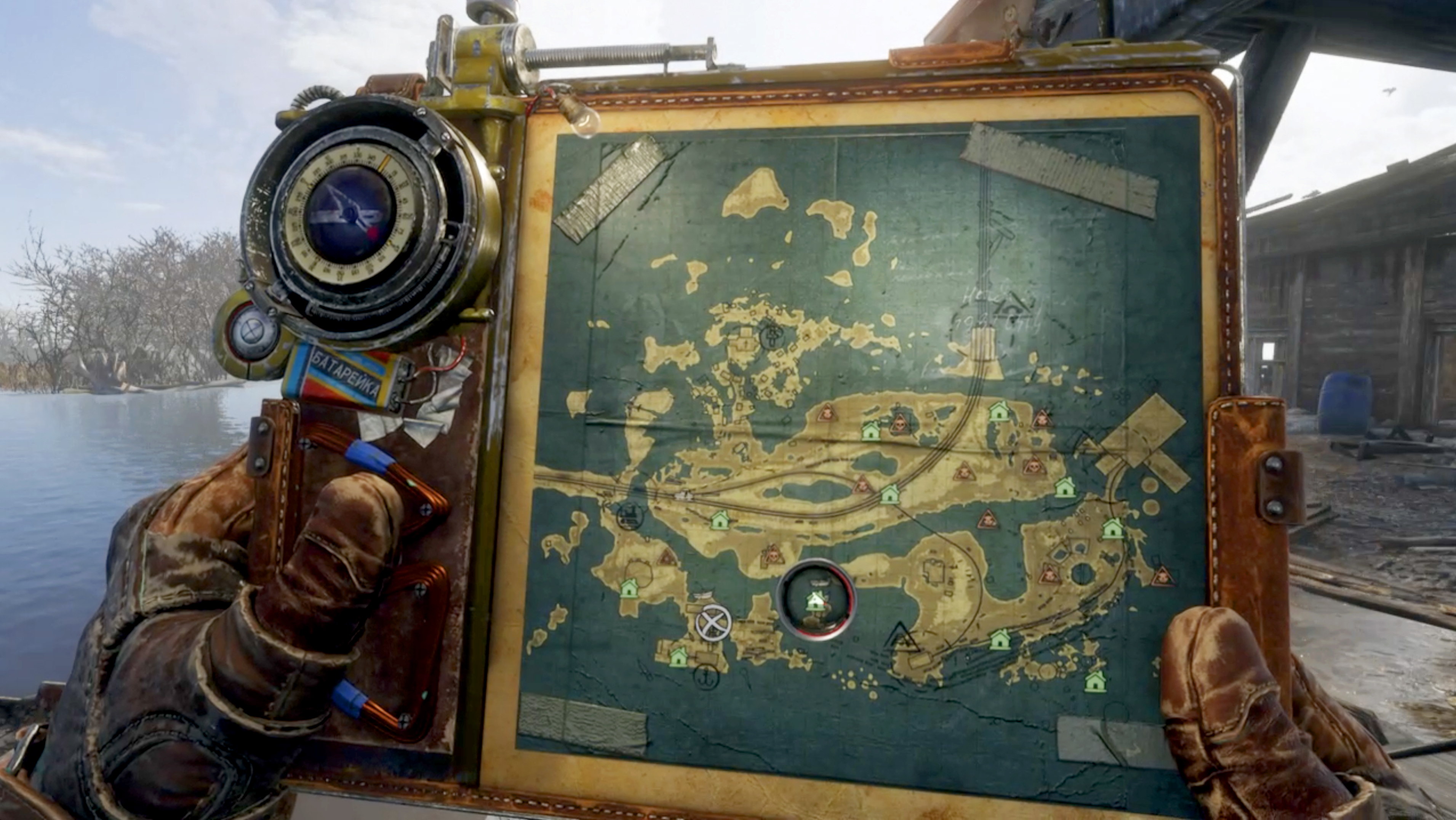
In the year 2026, Metro Exodus remains a benchmark for atmospheric, semi-open-world survival shooters. While the in-game map provided to the protagonist, Artyom, is immersive and tactile, it often lacks the granular detail required for a completionist run. Interactive web-based maps have become the primary tool for players looking to secure every upgrade and piece of lore without wandering aimlessly through irradiated wastes.
Choosing the Right Interactive Map Interface
Before you begin your journey across post-apocalyptic Russia, you must select an interactive map provider. As of 2026, several high-quality options exist, each with unique features designed to assist your navigation.
MapGenie: The Completionist’s Standard
MapGenie is widely regarded as the most robust tool for Metro Exodus. Its interface is highly granular, allowing you to filter for specific categories such as:
- Collectibles: Postcards and Diary Pages.
- Equipment: Gas mask upgrades, vest reinforcements, and motion scanners.
- Points of Interest: Safehouses, hidden caches, and mutant nests.
- Enemies: Locations of specific threats like Demons or Humanimals.
The primary advantage of MapGenie is the ability to create a free account to track your progress. When you find a diary entry in the game, you can "check it off" on the interactive map, and the marker will dim, helping you visualize exactly what remains in a given region.
IGN and Community Wikis
Alternative maps hosted by major gaming publications like IGN often provide a more streamlined, "guided" experience. These are ideal if you are looking for a quick reference for a single missing item rather than a comprehensive tracking system. They typically feature high-resolution screenshots and direct links to walkthrough videos for particularly tricky platforming sections or puzzles.
Fundamental Navigation Techniques
Using an interactive map effectively involves more than just looking at a screen. It requires a workflow that bridges the gap between your web browser and your gaming platform.
Utilizing Sidebar Filters
The most common mistake new users make is leaving every marker enabled simultaneously. This creates visual clutter that makes the map difficult to read. To navigate efficiently:
- Disable "All": Use the "Hide All" button to clear the map.
- Enable Goal-Specific Markers: If you are hunting for suit upgrades to survive the Caspian desert, enable only the "Suit Upgrades" filter.
- Cross-Reference Landmarks: Match large-scale landmarks on the interactive map (like the Crane in the Volga or the Lighthouse in the Caspian) with your in-game compass to orient yourself.
Scaling and Search Functions
Modern interactive maps utilize a tiling system similar to Google Maps. You can use your mouse wheel or touch gestures to zoom in for precise coordinates. If you are looking for a specific item mentioned in a guide, use the Search Bar (usually located at the top of the sidebar). Typing "Battery" will immediately highlight the locations of the Battery Charge Controller and other electrical upgrades.
Navigating Specific Regions of Metro Exodus
The semi-open worlds of Metro Exodus are divided into distinct chapters. Each region has different navigational challenges that the interactive map helps solve.
The Volga: Navigating Water and Ruin
The Volga is the first major open area, characterized by flooded terrain and dangerous anomalies.
- Water Routes: The interactive map displays boat locations. Use these to plan your path between the various islands.
- The Tsar-Fish Questline: The map highlights the specific locations of the terminal and the church, helping you avoid the deadliest pockets of radiation early in the game.
- Suit Upgrades: This is where you find the Compass and the Reinforced Gas Mask. Use the map to head directly to the Western wreckage where the Compass is located to make in-game navigation easier for the rest of the campaign.
The Caspian: Managing Verticality and the Bukhanka
The Caspian is a massive desert that introduces a vehicle, the Bukhanka (van).
- Vehicle Navigation: The map highlights main roads and fuel depots. While you can drive off-road, the interactive map shows where terrain is impassable.
- Verticality: Many items in the Caspian are located in multi-story structures like the Lighthouse or the Airfield. Interactive maps often include "floor" notes or specific descriptions to tell you if an item is in a basement or on a roof.
- The Sniper’s Nest: Finding the sniper early can grant you a powerful scope; use the map to find the high-ground approach to his position.
The Taiga: Stealth and Linear Exploration
Unlike the Volga or Caspian, the Taiga is more linear, but it is densely packed with hidden paths.
- Faction Territories: The map clearly delineates areas held by the "Pioneers" and "Pirates." This is crucial if you are aiming for a "Good Morale" run, as it helps you identify where to avoid lethal force.
- Hidden Tunnels: Many of the best items in the Taiga are hidden in caves or behind waterfalls. The interactive map provides the exact entrance coordinates that are easy to miss while running from wolves.
Technical Specifications and Map Features
| Feature | MapGenie | IGN / Wiki Maps | Official Game Map (In-Game) |
|---|---|---|---|
| Progress Tracking | Yes (Account required) | No | Automatic (Quest-based) |
| Screenshots | Most markers | Some markers | None |
| Filter Granularity | High (20+ categories) | Low (5-10 categories) | None (Static icons) |
| Search Function | Yes | No | No |
| Mobile Access | Dedicated App/Responsive Web | Web only | N/A |
| DLC Support | Included (Sam's Story, etc.) | Limited | Included |
Advanced Tracking: Synchronization and Custom Markers
For players in 2026, the integration between hardware and software has made map navigation even more seamless. If you are using a dual-monitor setup or a tablet alongside your console/PC, you can take advantage of User Notes.
Creating Custom Markers
On platforms like MapGenie, you can place your own markers. This is particularly useful for:
- Resource Management: Marking a safehouse where you left a specific weapon or a large cache of crafting materials you couldn't carry.
- Enemy Patrols: Marking the path of a particularly dangerous mutant or a sniper you haven't dealt with yet.
- Reminder Notes: Annotating a location that requires a specific tool (like a fuse or a key) that you haven't found yet.
Tracking the "Full Strength" Achievement
One of the hardest achievements in Metro Exodus involves keeping all crew members alive. This requires specific moral actions and finding specific items (like the Guitar or the Teddy Bear). Navigating the interactive map with the "Side Quest" or "Special Item" filter enabled ensures you never miss these critical narrative triggers.
Troubleshooting Common Map Issues
Sometimes the interactive map may not align perfectly with your game experience. Here is how to resolve common navigation discrepancies.
- Marker Not Appearing: Ensure you haven't accidentally toggled a filter group. If the map seems empty, click "Show All."
- Location Discrepancy: Some items in Metro Exodus only spawn after certain story triggers. If the map says an upgrade is in a specific room but the room is empty, check if you have progressed the main quest far enough.
- Browser Lag: Interactive maps are script-heavy. If the map is stuttering, disable "Hardware Acceleration" in your browser settings or clear your cache.
- Outdated Information: While Metro Exodus is an older title by 2026 standards, minor patches or "Enhanced Edition" changes can occasionally move items. Always check the "Comments" section under a marker on the interactive map; other players often leave updates if an item has been moved or is bugged.
FAQ
Can I use the Metro Exodus interactive map on my phone?
Yes, most interactive map providers have mobile-responsive websites. MapGenie also offers a dedicated app on iOS and Android that allows for smoother zooming and tracking than a standard mobile browser. This is the preferred method for players who don't have a second monitor.
Does the map show locations for the DLC?
Yes, high-quality interactive maps include separate tabs or toggleable regions for the "The Two Colonels" and "Sam's Story" expansions. Sam’s Story, in particular, benefits greatly from an interactive map due to its semi-open world design in Vladivostok.
Is progress tracking free to use?
Basic progress tracking (checking off a limited number of markers) is usually free on most platforms. However, some sites offer a "Pro" version that allows for unlimited tracking, ad-free viewing, and the ability to share custom maps with friends.
How do I find the "hidden" upgrades not shown on the in-game map?
The in-game map only shows major objectives and some points of interest discovered by Artyom using binoculars. Interactive maps use community-sourced data to display every "hidden" upgrade, such as the Motion Scanner or the Extended Filter, which do not appear on the in-game map even if you are standing near them.
Can I use these maps for the Metro Exodus Enhanced Edition?
Yes, the item locations and map layouts in the Enhanced Edition are identical to the original release. The interactive maps remain 100% accurate for both versions of the game.
Final Recommendation for Navigating the Wastes
To get the most out of your Metro Exodus experience, use the interactive map as a secondary reference rather than a constant guide. Start by exploring a new area naturally using Artyom’s in-game clipboard. Once you feel you have exhausted a location, or if you are preparing to leave a region (like the Volga) for good, open the interactive map to "clean up" any missed suit upgrades or postcards. This maintains the game's intended sense of discovery while ensuring you are fully equipped for the challenges ahead in the later, more difficult chapters.
Image Gallery