Complete Guide to the JCPenney Associate Kiosk in 2026
Navigating human resources, scheduling, and payroll management can often feel complex for retail employees. For team members working at J.C. Penney Company, Inc., the internal employee portal—commonly known as the JCPenney Associate Ki...
Navigating human resources, scheduling, and payroll management can often feel complex for retail employees. For team members working at J.C. Penney Company, Inc., the internal employee portal—commonly known as the JCPenney Associate Kiosk—serves as the centralized digital hub for managing all employment-related administrative tasks. Whether you are checking your weekly work schedule, reviewing pay stubs, updating personal tax withholdings, or enrolling in employee benefits, accessing this portal efficiently is a daily necessity for active associates.
Contents
Understanding the JCPenney Associate Kiosk Infrastructure
The JCPenney Associate Kiosk is a secure, cloud-integrated workforce management platform designed specifically for current and, in limited capacities, former employees of the retail corporation. Unlike consumer-facing shopping portals, this internal system runs behind robust enterprise security layers to protect sensitive personal identifiable information (PII), banking details, and wage data.
In 2026, the technological framework supporting the kiosk has been optimized for mobile responsiveness and enhanced cybersecurity protocols. Associates no longer need to rely solely on physical in-store computer terminals located in the employee breakroom. Instead, modern authentication standards allow secure remote access via standard web browsers on smartphones, tablets, and personal home computers, provided the user has valid credential verification through multi-factor authentication (MFA).
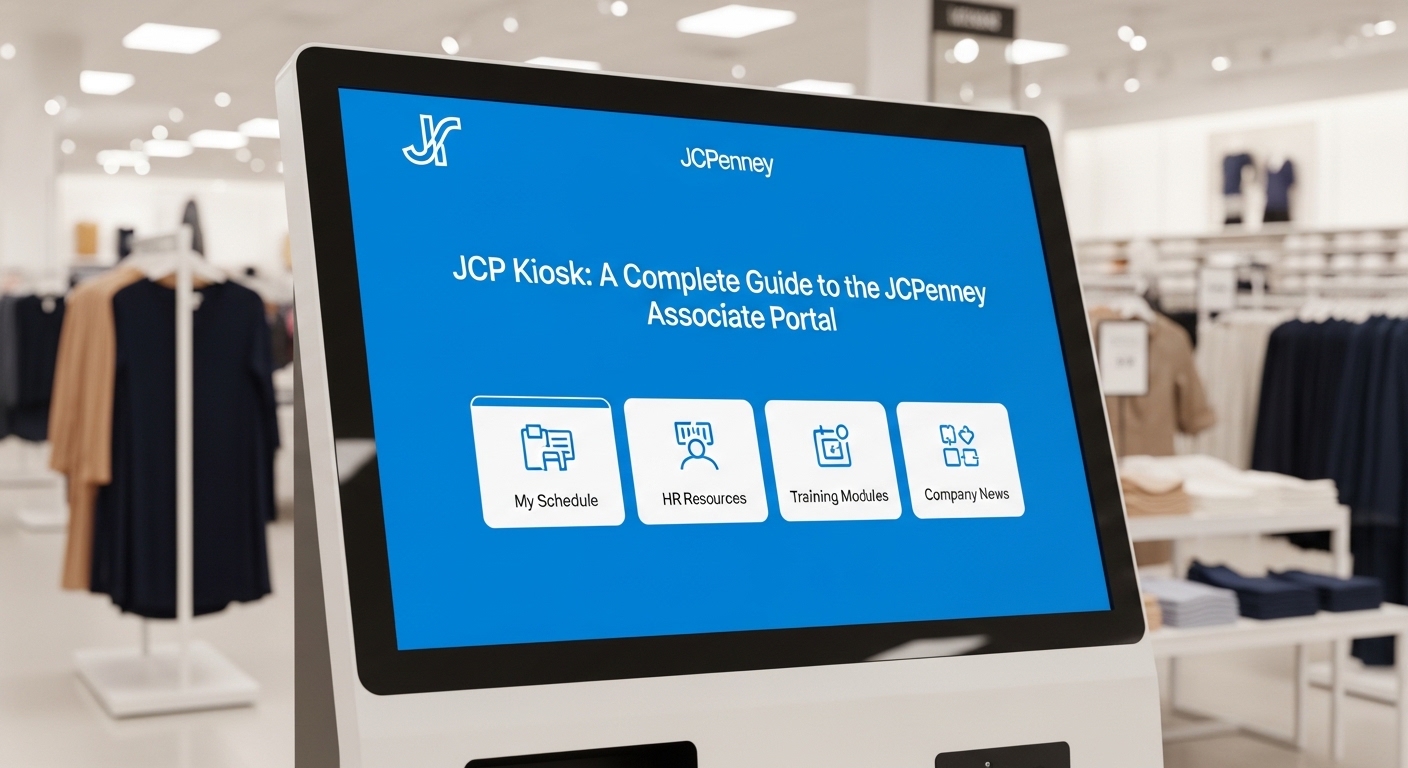
Core Features Available on the Portal
- Workforce Scheduling: View real-time shift allocations, swap requests, time-off requests, and availability updates managed by department supervisors.
- Payroll and Compensation: Instant access to historical and current pay stubs, direct deposit configuration, annual W-2 tax forms, and detailed hourly wage calculations.
- Benefits Administration: Comprehensive management tools for healthcare plans, 401(k) contributions, life insurance, and paid time off (PTO) accrual tracking.
- Human Resources and Compliance: Direct access to internal job postings (Career Hub), corporate policy updates, mandatory annual compliance training modules, and personal contact information updates.
Accessing the JCPenney Associate Kiosk: In-Store vs. Remote Protocols
Depending on your physical location and device security status, the access pathway varies. Understanding the technical distinction between on-premise network access and off-site remote access ensures you avoid locked accounts or security flag triggers.
On-Premise Store Access
When logging in from a designated hardware terminal inside a JCPenney retail location or distribution center:
- Connect directly to the internal store local area network (LAN) or use the dedicated physical kiosk terminal in the back office.
- Open the browser shortcut pointing to the internal enterprise portal URL.
- Enter your active credentials to bypass external multi-factor verification steps required on public networks.
Remote At-Home Access
When logging in from outside corporate physical locations:
- Navigate to the official external-facing associate portal URL using a modern web browser like Google Chrome, Safari, or Microsoft Edge.
- Enter your unique Associate ID (often referred to as a user ID or Personnel Number) and your personalized account password.
- Complete the multi-factor authentication prompt (such as an SMS code or authenticator app verification) to confirm identity authorization.
Step-by-Step Guide to Resetting Your Password and Recovering User IDs
Login issues are the single most common hurdle retail workers face when trying to check schedules outside of work hours. Because enterprise identity management systems enforce strict password expiration policies for financial and data security compliance, associates frequently need to update or reset their credentials.
Security Advisory: JCPenney corporate human resources will never call, text, or email you asking for your password, multi-factor authentication codes, or Social Security number. If you suspect unauthorized access to your associate kiosk account, immediately notify your store manager or human resources representative.
Follow this sequential workflow to recover or reset locked credentials:
- Navigate to the Login Page: Open your web browser and go to the official JCPenney Associate Kiosk login portal.
- Select the Recovery Prompt: Look for the self-service hyperlinks located directly beneath the login fields, usually labeled "Forgot Password" or "Look Up User ID."
- Verify Identity: Input your registered personal identifiers, which typically include your Associate ID, the last four digits of your Social Security Number (SSN), and your date of birth.
- Complete Security Challenge: Answer your pre-selected security questions or choose to receive a temporary verification code via your mobile phone number or personal email address on file.
- Establish New Credentials: Create a secure, compliant password adhering to complexity requirements (typically a mix of upper and lower case letters, numbers, and special symbols) and immediately test your new login.
Operational Comparison: In-Store Terminals vs. Remote Web Portal
Choosing how to access your employment data depends on your immediate needs, device availability, and whether you are currently on the clock. The following matrix outlines the functional differences between using the physical in-store kiosk versus the remote web interface.
| Access Method | Location Requirement | MFA Requirement | Best Used For | Network Security |
|---|---|---|---|---|
| In-Store Kiosk Terminal | Physical JCPenney Store / Breakroom | None (Internal LAN) | Quick shift checks, mandatory training on the clock, timecard reviews. | High (Corporate Intranet Firewall) |
| Remote Web Portal | Anywhere with Internet Access | Required (MFA / SMS) | Checking schedules days in advance, managing PTO, viewing pay stubs off-site. | Maximum (Encrypted HTTPS + Token Auth) |
| Mobile Smartphone Browser | Anywhere with Cellular/Wi-Fi | Required (MFA / SMS) | Last-minute schedule verifications, quick availability changes. | Maximum (Encrypted HTTPS + Token Auth) |
Troubleshooting Common JCPenney Kiosk Technical Glitches
Even robust enterprise software experiences occasional downtime or user-side connectivity barriers. If you encounter errors while attempting to load the portal, review the following troubleshooting checklist before escalating the issue to IT support:
- Browser Cache and Cookies: Outdated cache files often cause endless loading loops or broken form fields. Clear your browser history, cache, and cookies, or attempt to log in using an incognito/private browsing window.
- Network Restrictions: Corporate Wi-Fi networks or public hotspots may block secure authentication ports. Switch from store or public Wi-Fi to a secure cellular data connection to test remote portal access.
- Account Lockout Status: Entering incorrect credentials multiple times in succession triggers an automated security lockout. If your account is locked, you must wait out the lockout timer (typically 30 minutes) or utilize the self-service password reset tool.
- Unsupported Browsers: Ensure your browser is fully updated to the latest version. Outdated software may fail modern SSL/TLS handshake protocols required by enterprise identity providers.
Frequently Asked Questions
Can I access the JCPenney Associate Kiosk when I am off the clock?
Yes, associates can securely access the portal remotely from home using any internet-connected device or smartphone. However, checking work schedules or completing tasks off the clock must align with company policies regarding compensated working hours for non-exempt hourly employees.
What should I do if my Associate ID is not recognized by the system?
If your Associate ID returns an error, verify that you are entering the correct personnel number assigned to you during onboarding. If the problem persists, contact your store manager or human resources coordinator to confirm your active status and verify your employee record in the human capital management database.
How can I view my historical W-2 tax forms through the portal?
Once logged into the kiosk dashboard, navigate to the payroll and tax documentation section. From there, you can select specific tax years to download, view, or print secure PDF copies of your W-2 forms for filing purposes.
Why am I required to complete multi-factor authentication (MFA) every time I log in remotely?
Multi-factor authentication is an essential enterprise security standard enforced to protect your sensitive banking details, home address, and compensation records from unauthorized cyber threats and credential-stuffing attacks.
Who should I contact if I experience persistent technical issues with my account?
If self-service password resets fail and technical errors continue, reach out to your local store human resources representative or call the internal JCPenney associate support help desk for manual account provisioning and password overrides.
Take Control of Your Employment Records Today
Mastering the digital tools provided by your employer ensures you stay informed regarding schedule changes, compensation details, and critical benefit enrollment windows. Bookmark the official JCPenney Associate Kiosk login page on your preferred devices, keep your authentication details secure, and take full advantage of the self-service platform to streamline your retail career management in 2026.
Image Gallery