How to Share Links in Instagram Stories: A Complete Guide for 2026
To share a link in an Instagram Story, capture or upload content to the Story editor, then tap the Sticker icon in the top toolbar. Select the Link sticker, paste your destination URL, and tap "Done." You can then tap the sticker to ch...
To share a link in an Instagram Story, capture or upload content to the Story editor, then tap the Sticker icon in the top toolbar. Select the Link sticker, paste your destination URL, and tap "Done." You can then tap the sticker to change its color or long-press to reposition it before sharing.
Contents
The ability to share external links via Instagram Stories is one of the most powerful tools for creators, businesses, and casual users alike. Once restricted to accounts with over 10,000 followers—the era of the "Swipe Up"—the Link Sticker is now available to every account on the platform. As we navigate the digital landscape of 2026, the integration of external content into the Instagram ecosystem remains the primary method for driving traffic to blogs, storefronts, and third-party resources.
The Evolution of the Instagram Link Sticker
For years, the "Swipe Up" feature was a status symbol on Instagram, creating a divide between established influencers and growing accounts. In late 2021, Instagram retired the swipe-up gesture in favor of the Link Sticker. This shift was not merely aesthetic; it was functional. Unlike the swipe-up, which occupied the bottom of the screen and prevented users from replying to or reacting to a Story, the Link Sticker is an interactive element.
In 2026, the Link Sticker continues to offer more versatility than its predecessor. It allows for precise placement, size adjustments, and the ability for viewers to send a "Quick Reaction" or a direct message response while viewing the linked content. This transition reflects Instagram's broader goal of fostering engagement rather than just passive consumption. Whether you are sharing a news article, a petition, or a product page, the Link Sticker is your bridge from social media to the wider web.
Prerequisites for Sharing Links
Before you can add a link to your Story, ensure your Instagram application is updated to the latest version available in the App Store or Google Play Store. While the feature is universal, missing updates can sometimes cause the sticker tray to lag or hide newer features.
There are no longer any follower count requirements to access the Link Sticker. However, your account must remain in good standing. Accounts that frequently share "misinformation" or content that violates Instagram's Community Guidelines may find their ability to use the Link Sticker restricted or revoked. Additionally, ensure that the URL you intend to share is a valid, secure link (HTTPS), as Instagram’s security filters may block shortened or suspicious URLs to protect users from phishing or malware.
Step-by-Step Guide to Adding a Link
Adding a link is a straightforward process, but maximizing its effectiveness requires a few extra steps in the customization phase.
Step 1: Prepare Your Story Content
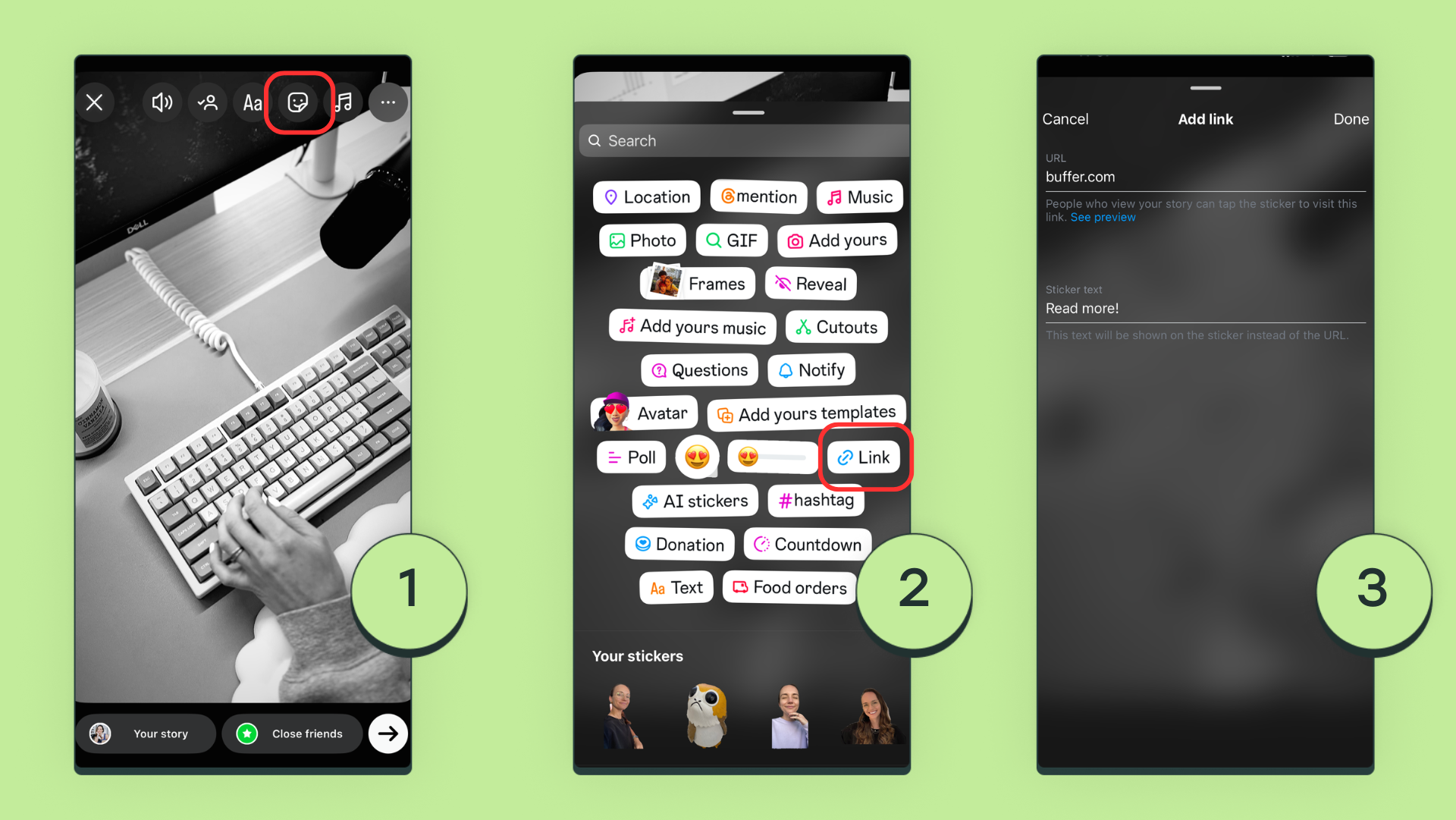
Open the Instagram app and swipe right from your feed or tap the "plus" icon on your profile picture to open the Story camera. You can either take a fresh photo or video or swipe up to select media from your device's gallery. Since the link is the primary call-to-action (CTA), ensure the background content provides enough "white space" or a clear area where the sticker will be legible.
Step 2: Access the Sticker Tray
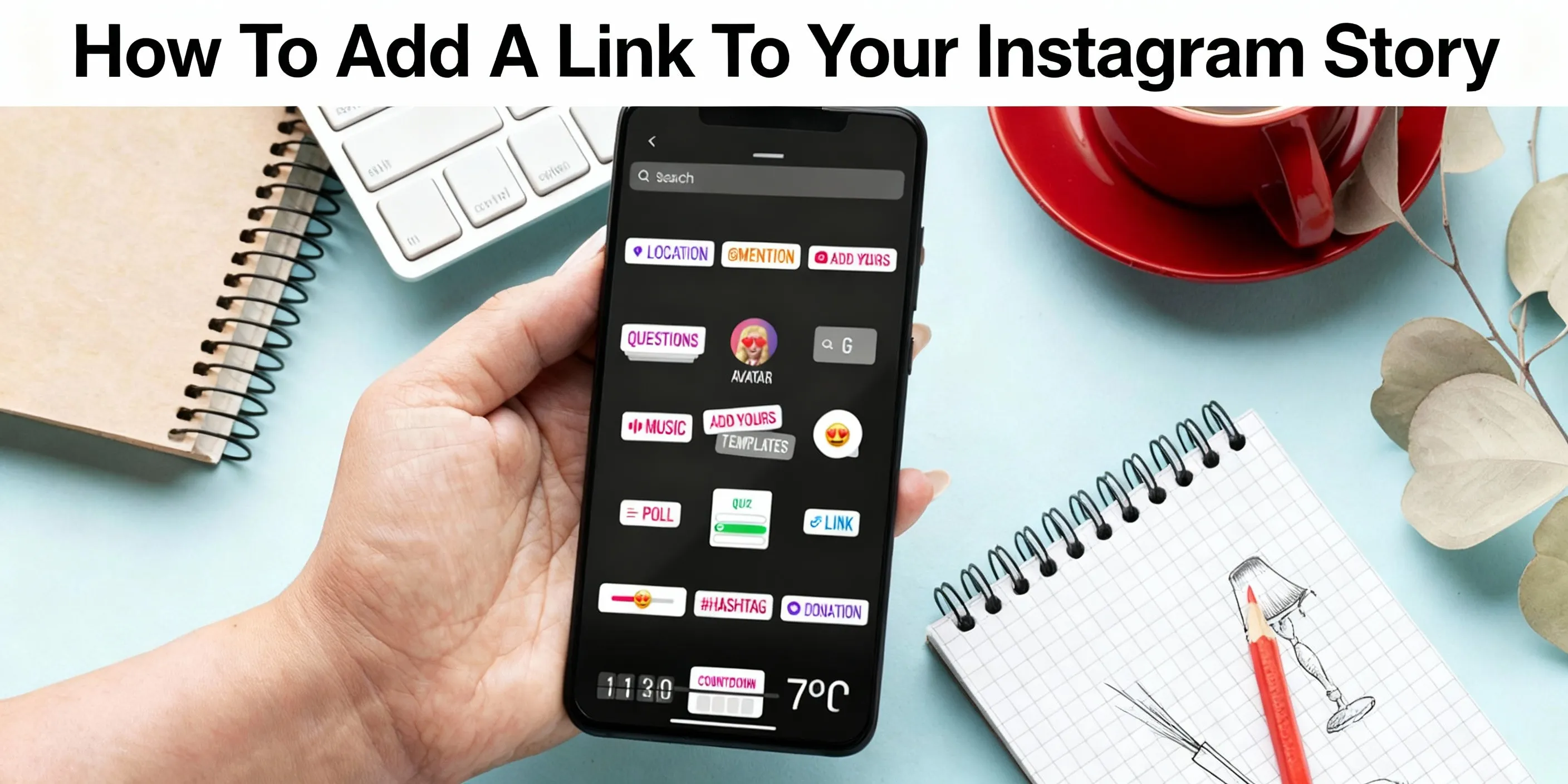
Once your media is selected, look at the top of the screen for the square smiley face icon, which represents the Stickers menu. Tap this icon to open the tray. You will see various options like Location, Mentions, Questions, and Music. Locate the one labeled Link.
Step 3: Enter the URL
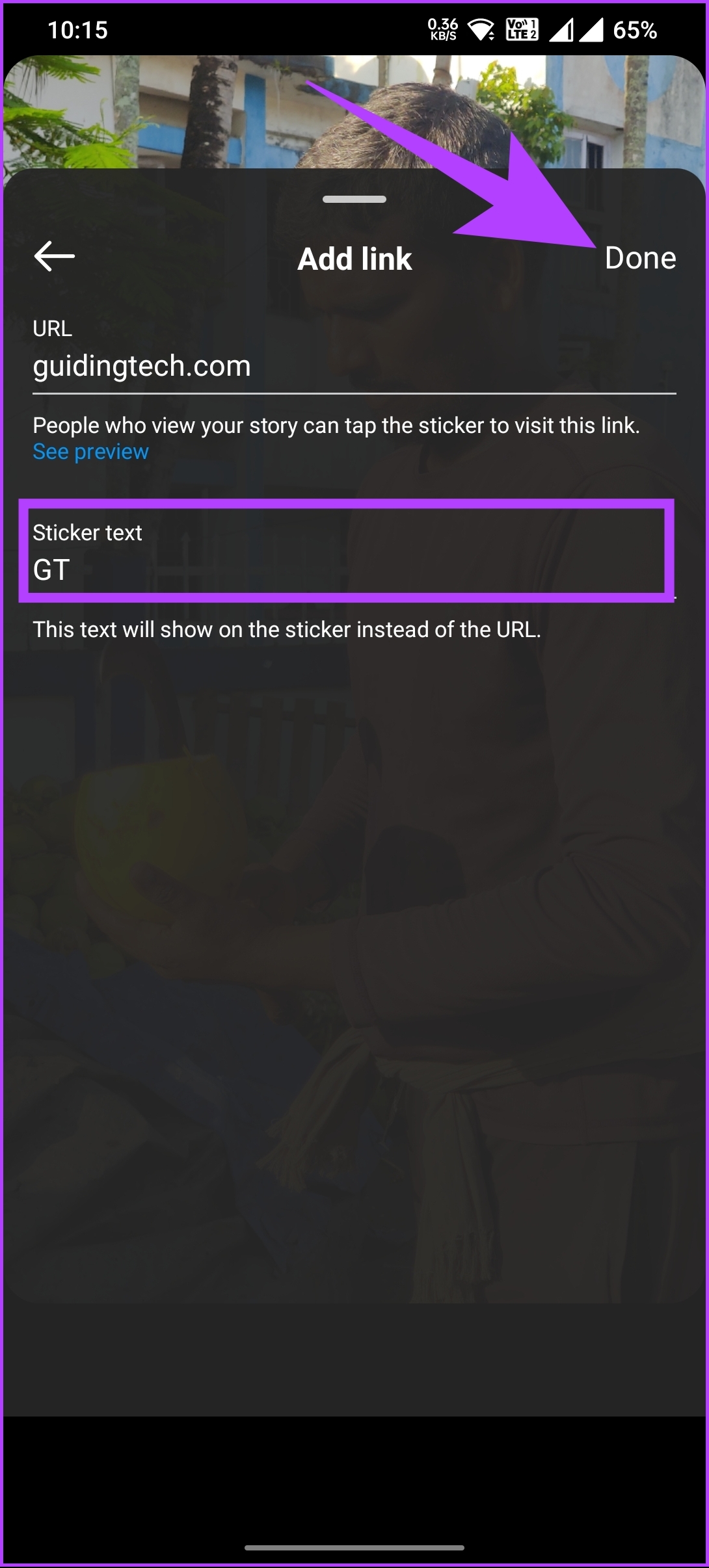
Upon tapping the Link sticker, a prompt will appear asking you to "Add Link." Carefully paste the full URL into the field. It is always best to copy the URL directly from your mobile browser rather than typing it manually to avoid broken links.
Step 4: Customize the Sticker Text
In 2026, the "Customize Sticker Text" option is the gold standard for high-conversion Stories. Instead of showing the raw URL (e.g., www.brandname.com/products/item-567-xyz), you can tap "Customize sticker text" below the URL field. Enter a compelling CTA like "Shop the Sale," "Read the Full Story," or "Register Here." This makes the sticker look cleaner and tells the user exactly what to expect when they tap.
Step 5: Placement and Styling
After tapping "Done," the sticker will appear on your Story.
- Change Colors: Tap the sticker to cycle through different color schemes (typically blue, white, or black-and-transparent).
- Resize: Use two fingers to pinch or expand the sticker to your desired size.
- Position: Hold and drag the sticker to any part of the screen. Avoid the very top or very bottom, as the UI elements of the Instagram app (like your profile icon or the "Send Message" bar) might overlap and make it unclickable.
Technical Best Practices for Link Sharing
Simply placing a link is rarely enough to drive significant traffic. To optimize your link-sharing strategy, consider the technical and psychological aspects of how users interact with Stories.
Using UTM Parameters for Tracking
If you are running a business or a professional blog, you should use UTM (Urgency Tracking Module) parameters. These are tags added to the end of your URL that allow Google Analytics or other tracking software to identify that the traffic came specifically from an Instagram Story. A typical URL with UTM parameters looks like: yoursite.com/?utm_source=instagram&utm_medium=stories&utm_campaign=summer_sale. This data is essential for calculating ROI and understanding which types of content drive the most clicks.
The Role of Mobile Responsiveness
Instagram is a mobile-first platform. When a user taps your Link Sticker, the destination page opens in an in-app browser. If your website is not optimized for mobile devices, users will likely bounce before the page even finishes loading. Ensure that your landing pages have fast load times, readable font sizes, and buttons that are easy to tap on a smartphone screen.
Strategic Placement and Visual Cues
Human eyes tend to follow "pointers." Many successful creators use built-in Instagram features or GIFs to draw attention to the link. Adding a GIF of a "Tap Here" arrow or a "New Post" sticker near your link can significantly increase the click-through rate (CTR). Furthermore, keep the link away from the right edge of the screen, as users often tap the right side to skip to the next Story, which can lead to accidental skips instead of intentional clicks.
Comparing Instagram Link Sharing Methods
While the Story Sticker is the most popular method, it is not the only way to share links on the platform.
| Method | Best Use Case | Primary Limitation | Effort Level |
|---|---|---|---|
| Story Link Sticker | Daily updates, temporary promotions, and timely news. | Disappears after 24 hours unless saved to Highlights. | Low |
| Link in Bio | Evergreen content, main website, or "Linktree" style menus. | Requires users to leave the Story/Feed and visit your profile. | Medium |
| Instagram Shop | E-commerce and direct product sales. | Requires a Facebook Business Manager setup and approved catalog. | High |
| Direct Messages (DMs) | Personalized recommendations or high-value leads. | Not scalable for large audiences; manual process. | Medium |
| Paid Story Ads | Reaching new audiences outside your follower base. | Requires an advertising budget and Meta Ad Manager. | High |
Troubleshooting Common Link Issues
Even with a simple process, technical glitches can occur. Here is how to resolve the most common problems with Instagram links:
- The Sticker is Missing: If you don't see the Link Sticker in your tray, first refresh the app. If it’s still missing, check if you are in "Layout" or "Dual" mode, as some specific camera modes occasionally limit sticker availability.
- The Link is Not Clickable: This often happens if the sticker is placed too close to the "Send Message" bubble or the "Share to" button. Re-edit the Story and move the sticker to the center of the screen.
- "Link Not Allowed" Error: Instagram blocks certain URLs that have been flagged as spam. If your link is legitimate, try using a different link shortener or verify that your domain hasn't been blacklisted by Meta.
- Low Engagement: If no one is clicking, your CTA might be too vague. Use the "Customize Sticker Text" feature to create a sense of urgency or value.
Frequently Asked Questions
Do I still need 10,000 followers to share links?
No. Since late 2021, Instagram has made the Link Sticker available to all users. Whether you have 10 followers or 10 million, the process for adding a link remains identical. This change was implemented to empower smaller creators and businesses to share their work more effectively.
Can I add more than one link to a single Story?
Currently, Instagram only allows one Link Sticker per Story. If you need to share multiple resources, you have two options: create a sequence of several Stories with one link each, or use a "Link in Bio" service (like Linktree or a custom landing page) and link to that single destination which contains all your other links.
Can viewers see the URL before they click it?
If you do not use the "Customize Sticker Text" feature, the sticker will display the root domain (e.g., google.com). If you do customize the text, the viewer will only see your custom text (e.g., "Search Here"). However, Instagram’s built-in security features will still scan the underlying URL to ensure it is safe for the user.
Why does my link open in a weird browser?
Instagram uses an "In-App Browser" to keep users within the app ecosystem. This is a light version of Safari (on iOS) or Chrome (on Android). While it supports most web functions, some complex site features—like certain types of file uploads or specific saved passwords—may not work as smoothly as they do in a standalone browser.
How can I see how many people clicked my link?
To view your metrics, open your Story and swipe up to see the viewers list. If you have a Professional or Creator account, you can tap the Insights (graph) icon to see specific data, including "Link Clicks." This data is only available for 14 to 30 days depending on your account settings, so be sure to record your results if you are tracking long-term performance.
Final Recommendation
To achieve the best results with Instagram Story links in 2026, always prioritize context and clarity. Never post a link without explaining why the viewer should click it. Use a combination of video or text overlays to build interest, and always utilize the "Customize Sticker Text" feature to replace raw URLs with actionable, branded language. By placing your sticker in a high-visibility area and using UTM parameters for tracking, you can transform your Instagram Stories from simple photos into a robust engine for web traffic and conversion.
Image Gallery