How to Access and Read Your Emails Across Any Device or Platform
To read your emails, open your provider’s web portal (such as Gmail, Outlook, or Yahoo Mail) in a web browser, launch your device’s native mail app, or command a voice assistant to read messages aloud. For technical setups, configuring...
To read your emails, open your provider’s web portal (such as Gmail, Outlook, or Yahoo Mail) in a web browser, launch your device’s native mail app, or command a voice assistant to read messages aloud. For technical setups, configuring IMAP/POP3 protocols or authenticating through OAuth APIs provides direct access to your inbox.
Contents
Methods for Reading Emails on Web, Mobile, and Desktop Applications
Accessing your email inbox depends on the hardware device, operating system, and service provider you use. Modern email services support standard web browsers, dedicated mobile applications, and full-featured desktop software clients.
Webmail Platforms
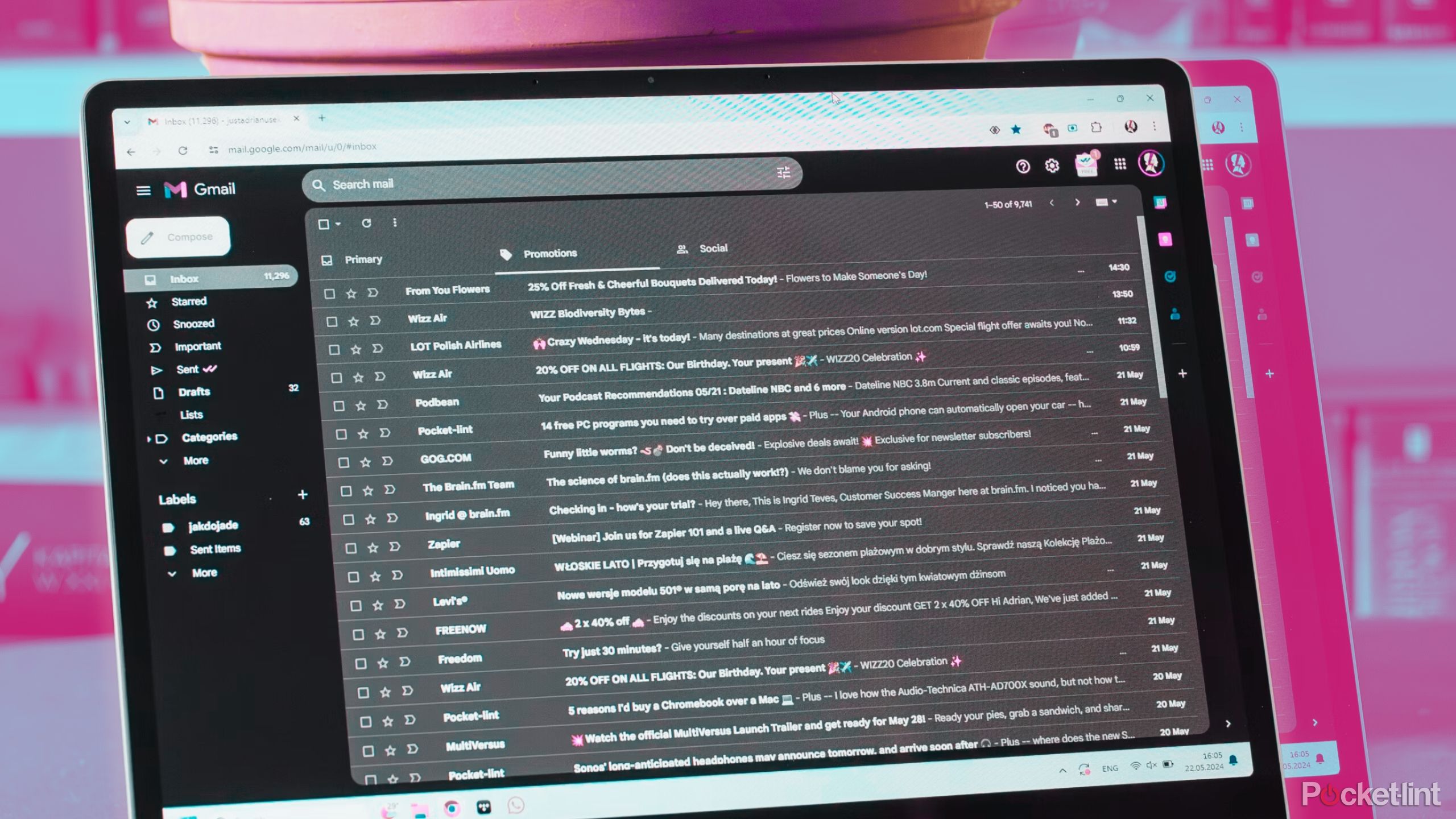
Webmail allows you to read your emails directly inside any modern browser (such as Google Chrome, Mozilla Firefox, Microsoft Edge, or Apple Safari) without installing extra software.
- Navigate to the Login Page: Visit your provider's official URL (e.g.,
mail.google.comfor Gmail,outlook.live.comfor Microsoft Outlook, ormail.yahoo.comfor Yahoo). - Authenticate: Enter your full email address and password. If two-factor authentication (2FA) is enabled, complete the verification step via your authenticator app, security key, or SMS code.
- Navigate the Interface: Inboxes are organized vertically by recency. Click or tap any message row to display the full body text, attachments, and header details.
Mobile Applications (iOS and Android)
On smartphones and tablets, email reading is optimized through push notifications and responsive layouts. You can use native system apps (Apple Mail on iOS, Gmail on Android) or install third-party clients like Microsoft Outlook, Spark, or Canary Mail.
- Account Setup: Go to your device settings, select Accounts, and choose Add Account. Modern operating systems support auto-configuration for major providers via OAuth2, eliminating the need to enter server ports manually.
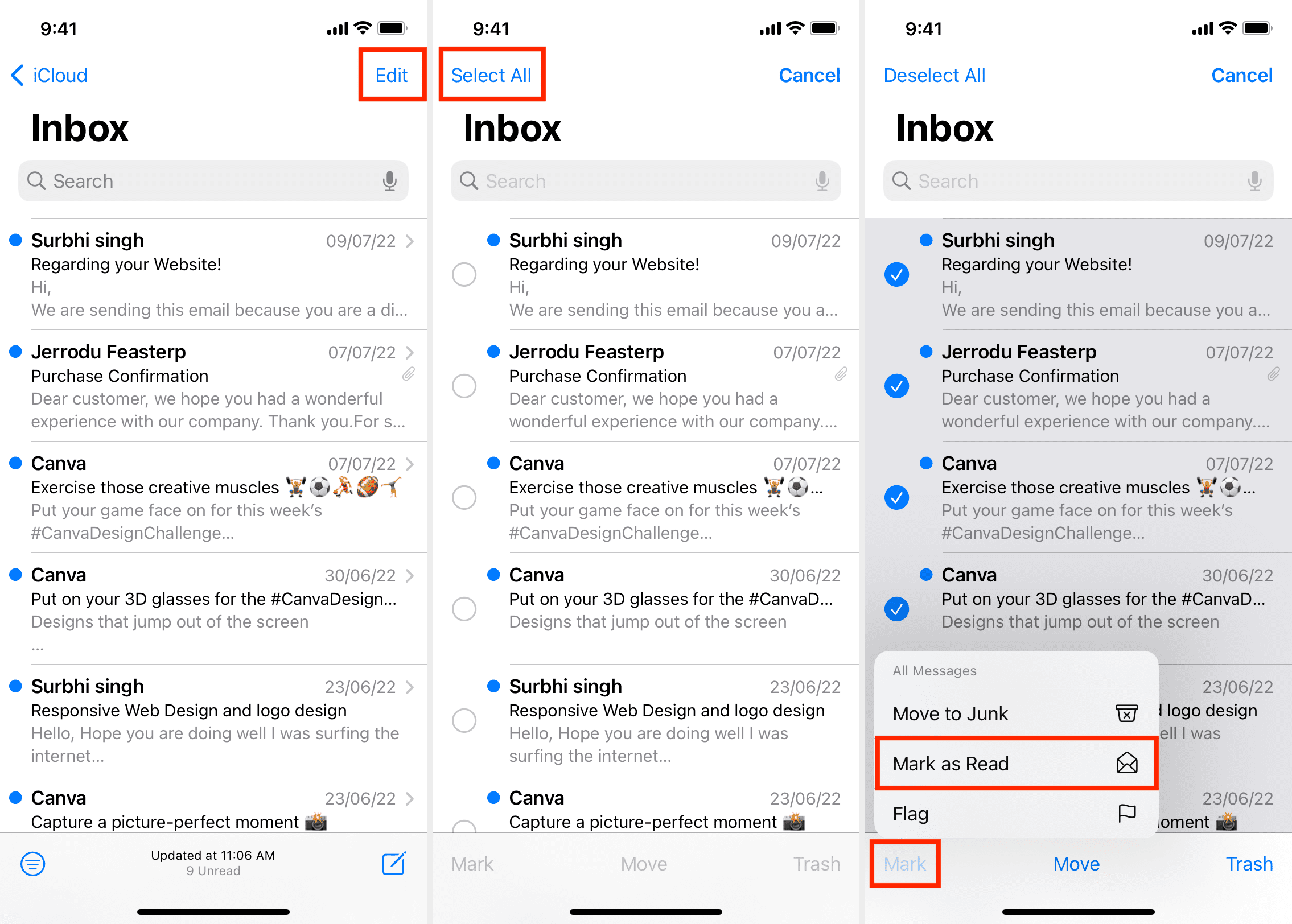
- Reading Workflow: Mobile apps utilize touch gestures. Swiping left or right typically archives, deletes, or flags messages, while tapping a thread expands full conversations.
Desktop Email Clients
For power users managing multiple email accounts simultaneously, desktop clients like Microsoft Outlook, Apple Mail, and Mozilla Thunderbird offer robust offline reading, local archive storage, and advanced filtering.
Desktop clients download raw message files to your local drive. This enables fast search capabilities and offline access to previously synchronized messages, though initial synchronization across large mailboxes requires significant storage space and broadband bandwidth.
How to Have Voice Assistants Read Your Emails Aloud
Hands-free email access relies on voice assistants integrated into mobile platforms and smart home speakers. These systems use text-to-speech (TTS) engines to synthesize voice readouts of sender names, subject lines, and message body text.
Using Google Assistant on Android and Google Nest
Google Assistant integrates natively with Gmail and Google Workspace accounts to summarize and read incoming communications.
- Activation Command: Say "Hey Google, read my emails" or "Hey Google, do I have any new emails?"
- Behavior: Google Assistant scans your primary inbox for unread messages received within the past 24 hours. It reads the sender's name, timestamp, subject line, and a brief snippet of the message.
- Interactive Actions: After reading a message, Google Assistant pauses and asks if you want to reply, archive, or skip to the next email. You can dictate a reply directly by speaking after the prompt.
Using Apple Siri on iPhone, iPad, and Mac
Apple's Siri assistant interacts with the native Apple Mail app across iOS, iPadOS, and macOS systems.
- Activation Command: Say "Siri, read my unread emails" or "Siri, check my email from [Contact Name]."
- CarPlay and AirPods Integration: When driving with CarPlay active or wearing connected AirPods, Siri can automatically announce new incoming emails. You can configure this under Settings > Notifications > Announce Notifications.
- Privacy Limits: Siri requires the device to be unlocked to read email contents containing sensitive personal data, protecting user privacy if the device is misplaced.
Using Amazon Alexa for Smart Displays and Speakers
Amazon Alexa devices can link to Microsoft Outlook, Office 365, Gmail, and Hotmail accounts through the Alexa companion application.
- Setup Procedure: Open the Alexa app, navigate to Settings > Calendar & Email, select your service provider, and grant account access permissions.
- Voice Trigger: Say "Alexa, read my email" or "Alexa, check my inbox." Alexa reads the newest unread items and offers options to delete, mark as read, or flag messages using speech inputs.
Programmatic Email Reading: Protocols and Developer APIs
Organizations, system administrators, and software developers frequently automate email retrieval to parse incoming reports, monitor server alerts, or extract transaction data. This requires configuring network protocols or leveraging RESTful application programming interfaces (APIs).
- Email Reading Architecture
- Standard Protocols
- IMAP: Mail Sync (Two-Way)
- POP3: Download (Local Only)
- Modern APIs
- Gmail API: OAuth2 Auth Token Access
- MS Graph: JSON / REST Endpoints
- Standard Protocols
Accessing Emails via IMAP and POP3 Protocols
legacy systems and desktop clients interact with mail servers through standard TCP/IP protocols:
- IMAP (Internet Message Access Protocol): IMAP establishes a two-way synchronization between your local email software and the mail server. Actions taken locally—such as marking an email as read, moving it to a folder, or deleting it—reflect immediately on the server and all other connected devices.
- Standard TLS Port:
993
- Standard TLS Port:
- POP3 (Post Office Protocol 3): POP3 downloads emails from the server to your local machine and typically deletes the server copy. POP3 is generally discouraged for multi-device workflows because actions are not synchronized across devices.
- Standard TLS Port:
995
- Standard TLS Port:
Programmatic Access via REST APIs
Modern cloud email providers restrict legacy protocol access (such as basic username/password authentication) in favor of OAuth 2.0-protected REST APIs.
- Gmail API: Developers use endpoints like
users.messages.listandusers.messages.getover HTTPS. The Gmail API returns email structures in JSON format, allowing applications to read headers, body content, and MIME attachments cleanly without manual parsing. - Microsoft Graph API: For Office 365 enterprise environments, Microsoft Graph provides the
/me/messagesendpoint. It returns structured JSON data containing email properties, flag status, inline attachments, and metadata fields.
Key Security and Privacy Rules When Opening and Reading Emails
Reading incoming emails carries inherent cybersecurity risks. Malicious actors frequently distribute malware, phishing links, and tracking scripts disguised as legitimate electronic communications.
Identifying Phishing and Header Manipulation
Phishing messages mimic communications from banks, online retailers, or enterprise IT departments to trick users into revealing credentials or financial details.
- Verify Sender Domain: Examine the actual email address behind the display name. A sender claiming to be "PayPal Support" using an address like
support@paypa1-security-update.comis an impersonation attempt. - Inspect SPF, DKIM, and DMARC: Email headers contain cryptographic authentication records. Authentic enterprise emails pass SPF (Sender Policy Framework), DKIM (DomainKeys Identified Mail), and DMARC (Domain-based Message Authentication, Reporting, and Conformance) checks. Most webmail interfaces display these under an "Original Message" or "Details" menu option.
- Hover Over Embedded Links: Before clicking any link inside an email body, hover your cursor over the text to reveal the true destination URL in your browser’s status bar.
Blocking Email Tracking Pixels and External Images
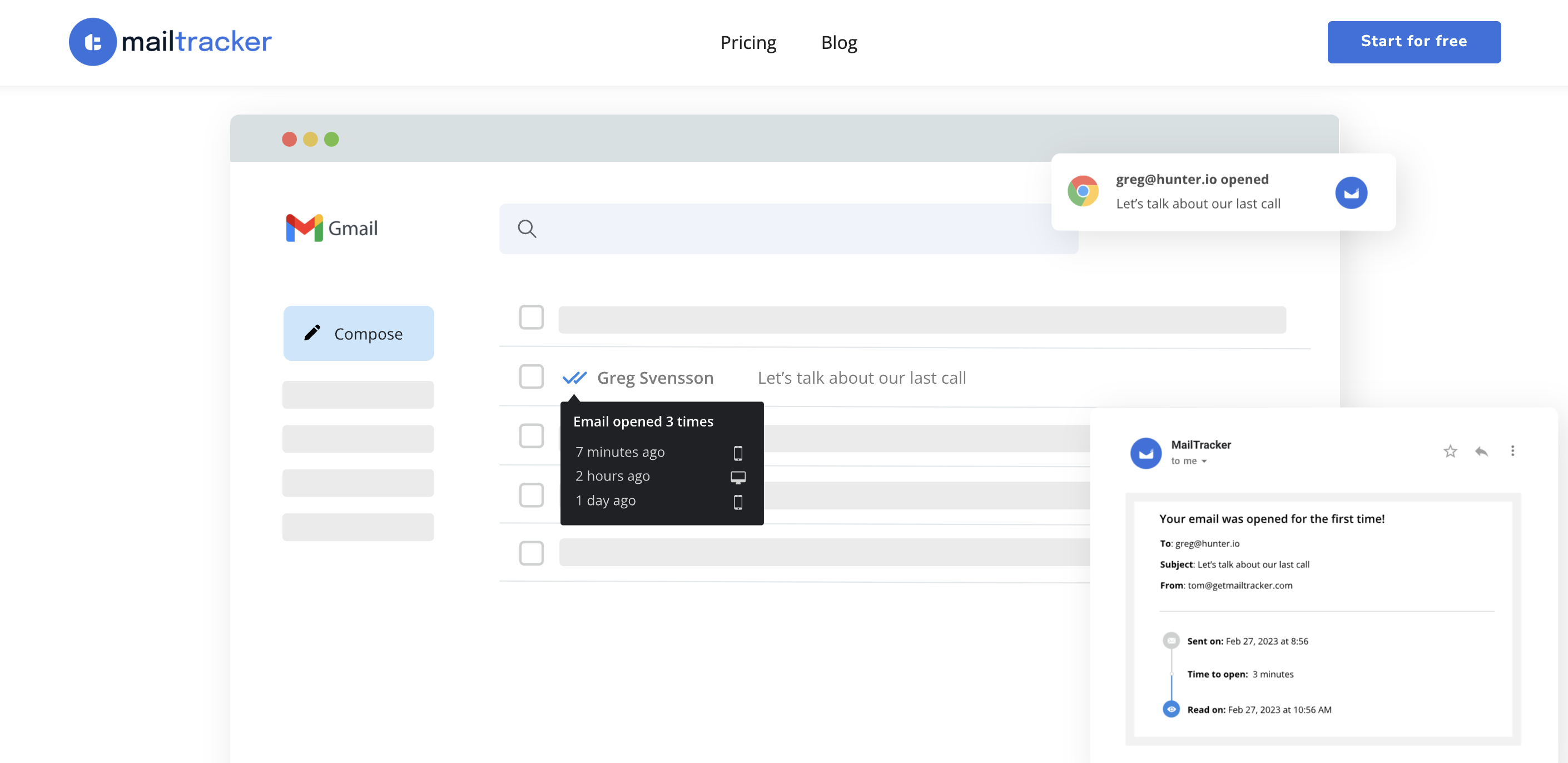
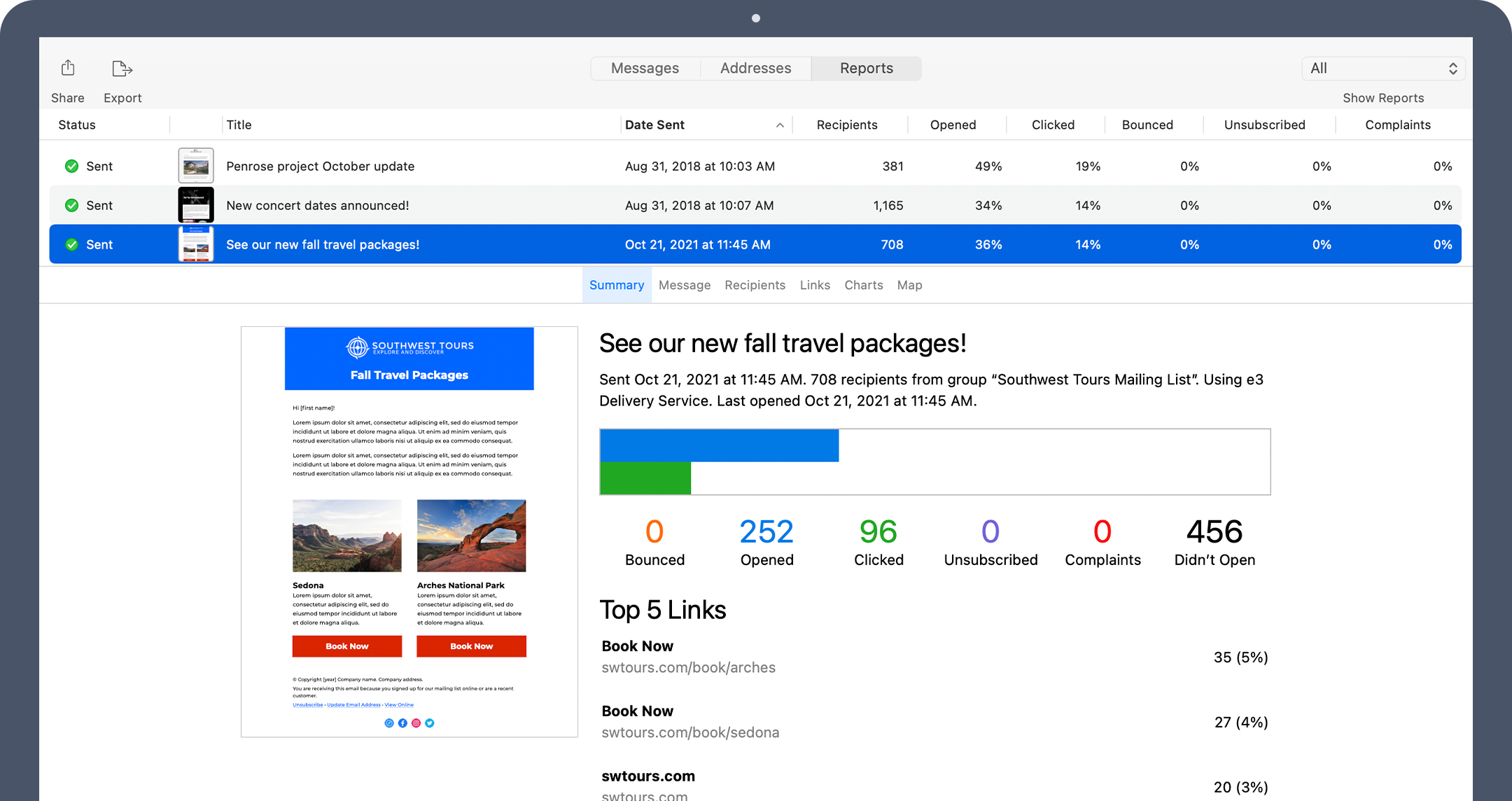
Marketers and malicious actors insert hidden, 1x1-pixel transparent images inside HTML emails. When you open and read the message, your email client fetches this remote image, revealing your IP address, geographic location, device type, and the exact timestamp when you read the email.
To protect your privacy:
- Disable Automatic Image Loading: Configure your email app to block remote images by default. Modern clients like Apple Mail include settings like Protect Mail Activity, which proxies image requests to obscure your IP address.
- Read Plain Text: Reading emails in plain-text mode strips out all embedded scripts, tracking pixels, and custom HTML styling entirely.
Troubleshooting Common Email Access and Display Issues
If you experience errors while trying to read your inbox messages, system misconfigurations or network connectivity limits are usually responsible.
Sync Failures and Server Connection Errors
If your inbox fails to update with new incoming messages:
- Check Internet Connectivity: Verify active LAN, Wi-Fi, or cellular data connections.
- Verify Server Hostnames: Ensure server settings use correct domain addresses (e.g.,
imap.gmail.comoroutlook.office365.com). - Authentication Tokens Expired: OAuth tokens periodically expire or revoke upon password changes. Remove and re-add the email account inside your app settings to re-authenticate.
- Storage Quotas Exceeded: Cloud mailboxes (like Gmail's 15 GB default quota or Microsoft's 50 GB mailbox limit) reject incoming messages once fully saturated. Clear trash, span, and large attachment archives to restore function.
HTML Rendering and Encoding Corruption
Occasionally, opening an email reveals raw HTML code, unformatted layout blocks, or corrupted text characters (e.g., é instead of é).
- Character Encoding: Ensure your client’s rendering engine is set to UTF-8 encoding.
- Corrupted Cache: Clear your web browser cache or local client index databases (such as rebuilding the index in Apple Mail or deleting the
.ostdata file in Microsoft Outlook) to force a fresh local download of corrupt messages.
Technical Access Protocol Comparison
The following table summarizes the key protocols, APIs, and methods available for reading emails, detailing their core mechanisms, connection ports, sync capabilities, and ideal use cases.
| Access Method / Protocol | Connection Port / Base Endpoint | Synchronization Type | Authentication standard | Primary Use Case |
|---|---|---|---|---|
| Webmail (HTTPS) | Port 443 |
Real-time Server Sync | OAuth2 / Web 2FA | Browser access on shared or personal computers. |
| IMAP4 (over TLS) | Port 993 |
Two-Way Active Sync | OAuth2 / App Password | Multi-device synchronization in native desktop apps. |
| POP3 (over TLS) | Port 995 |
One-Way Download | Basic / App Password | Single-device offline archiving (legacy configurations). |
| Gmail API | www.googleapis.com/gmail/v1/ |
RESTful Request/Response | OAuth 2.0 Bearer Token | Custom software automation, Python scripts, SaaS platforms. |
| Microsoft Graph API | graph.microsoft.com/v1.0/ |
RESTful Request/Response | OAuth 2.0 / Azure AD | Enterprise app integrations, automated data ingestion. |
| Voice Assistants | Platform Voice Engine | Cloud API Service Sync | Device Account Token | Hands-free audio summaries while driving or multitasking. |
Frequently Asked Questions
How do I make my phone read my emails out loud automatically?
You can use integrated voice assistants such as Siri or Google Assistant. On iOS, navigate to Settings > Notifications > Announce Notifications and turn on notifications for the Mail app to hear incoming messages automatically through AirPods or CarPlay. On Android, activate Google Assistant and ask it to read your emails aloud.
What is the difference between reading email over IMAP and POP3?
IMAP leaves original messages on the central server and syncs all changes (read status, folder moves, deletions) across all connected devices in real time. POP3 downloads messages to a single local device and often removes them from the server, preventing effective multi-device access.
Why can't I see the full images or formatting in emails I receive?
Most modern email apps block external images by default to prevent marketers and attackers from tracking when and where you read the email. You can view full formatting by clicking "Load Remote Images" inside the individual message header or disabling global image blocking in your client’s security settings.
Is it safe to allow third-party apps to read my emails?
Granting a third-party app permission to read your inbox allows the application to access sensitive personal and corporate communications. You should only authorize applications from verified publishers that use OAuth 2.0 authentication. Regularly review and revoke unused permissions in your Google or Microsoft security account dashboards.
How do I fix an error where emails display as raw code?
Raw code displays typically result from broken HTML formatting sent by the original composer or incorrect character set decoding by your email app. Switch the display mode to "Plain Text" or ensure your email software’s text encoding setting is configured to UTF-8.
Recommended Next Actions
To establish a secure, reliable workflow for reading your emails across all environments:
- Audit Security Access: Log into your primary email provider's security portal to verify that multi-factor authentication (MFA) is active. Review all connected devices and third-party apps with read permissions, revoking any outdated entries.
- Optimize Privacy Settings: Adjust your primary email client's default settings to block automatic remote image loading to neutralize tracking pixels.
- Consolidate Mail Clients: For multi-account access on mobile or desktop, select modern clients that support native OAuth 2.0 authentication and IMAP sync to maintain consistent message status across devices.
Image Gallery