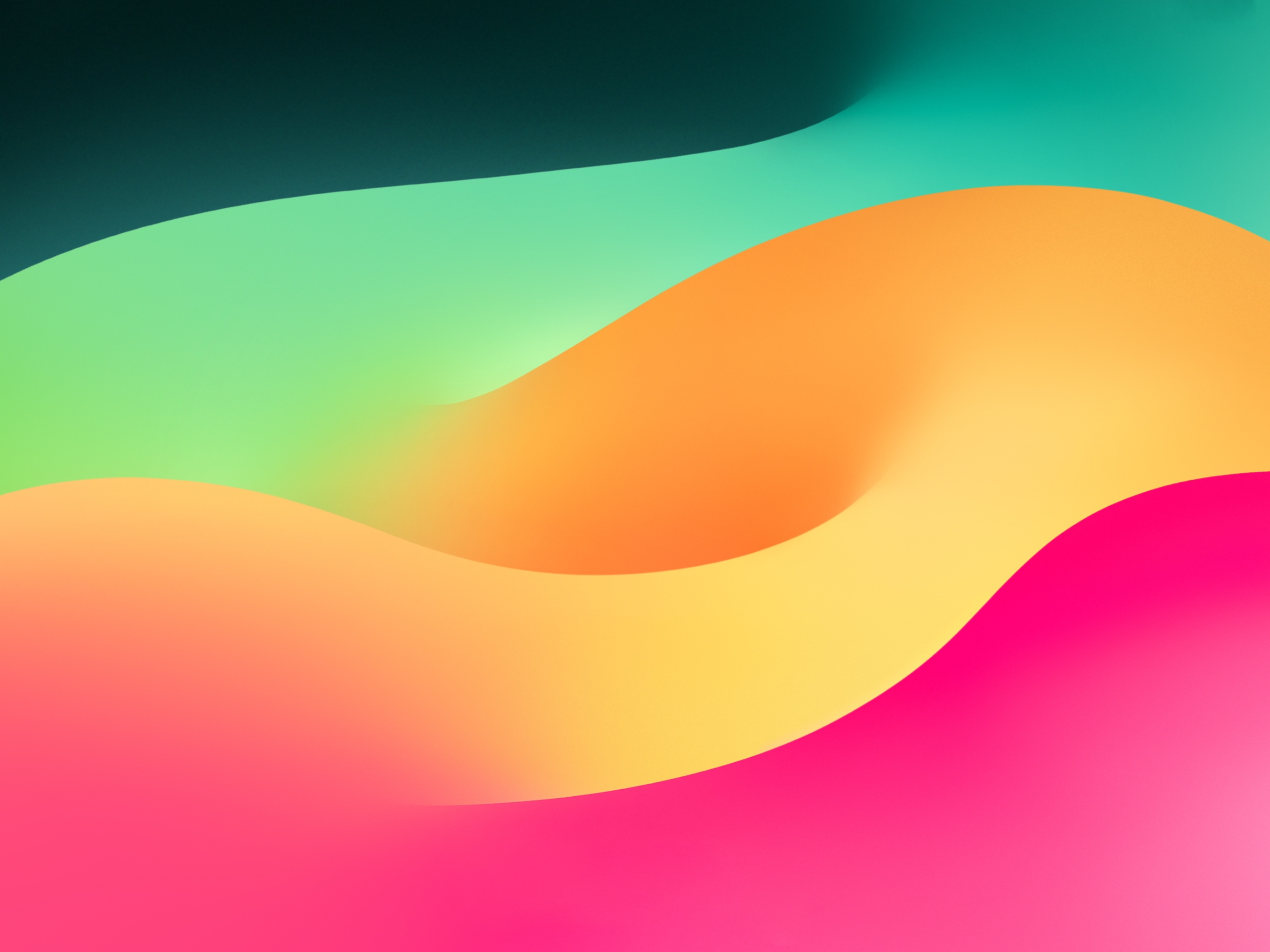
PC Wallpaper Maker Basics: Customizing Your Desktop Environment
A PC wallpaper maker is a software tool or web-based utility designed to help users create, format, and organize custom desktop backgrounds. These applications allow for the manipulation of high-resolution imagery, the integration of g...
A PC wallpaper maker is a software tool or web-based utility designed to help users create, format, and organize custom desktop backgrounds. These applications allow for the manipulation of high-resolution imagery, the integration of graphical overlays, and the management of multi-monitor display configurations to ensure visual output matches specific screen resolutions and aspect ratios.
Contents
Understanding the Role of PC Wallpaper Design Tools
At its core, a PC wallpaper maker functions as a specialized image editor. Unlike general-purpose creative suites like Adobe Photoshop or GIMP, which offer extensive technical depth, wallpaper-specific tools are optimized for the constraints of display technology. The primary function of these tools is to bridge the gap between source media and the unique requirements of a computer monitor.
When you create a wallpaper, you are essentially defining the aesthetic parameters of your primary workspace. This involves considerations beyond simple image scaling. You must account for pixel density (PPI), color profiles (typically sRGB for web and standard displays), and the physical arrangement of your monitors. A dedicated wallpaper maker simplifies these technical hurdles by providing presets for common resolutions, such as 1920x1080 (Full HD), 2560x1440 (QHD), and 3840x2160 (4K UHD).
Prerequisites for Creating High-Quality Wallpapers
Before engaging with any software, you must understand the technical specifications of your hardware. Designing a background that looks crisp on a 4K display requires source assets that meet or exceed that resolution. Using low-resolution images often results in "pixelation" or "blurring" when the software attempts to stretch the file to fit your screen.
1. Source Asset Quality
The foundation of a good wallpaper is the original asset. Whether you are using digital photography, vector art, or generated imagery, ensure the file is saved in a lossless or high-quality format like PNG or high-bitrate JPEG. Avoid using images sourced from social media platforms, as these are often compressed, resulting in significant artifacting when viewed on a large monitor.
2. Aspect Ratio Considerations
Monitors generally operate on a 16:9 aspect ratio, but ultra-wide monitors (21:9 or 32:9) are increasingly common. If your wallpaper maker does not support custom canvas sizes, you may find your design cropped or distorted. Always verify the aspect ratio of your target screen before beginning your design process.
Essential Features to Look For
When selecting a tool, distinguish between basic image editors and dedicated wallpaper makers. The latter should provide features that automate the more tedious aspects of desktop customization.
- Resolution Presets: The ability to select standardized monitor resolutions saves time and ensures the output is pixel-perfect for your OS display settings.
- Layering Systems: Just as in professional design software, a layer-based system allows you to place text, watermarks, or graphical elements over a background image without permanently altering the base layer.
- Multi-Monitor Support: If you operate a dual or triple-monitor setup, you need a tool that can either "span" one image across multiple screens or apply unique images to each monitor without losing clarity.
- Export Profiles: Ensure the software can export in file formats recognized by Windows and macOS, such as JPG, PNG, or BMP, which the operating system handles natively as background files.
Comparison of Common Wallpaper Design Approaches
| Feature | Basic Image Editors | Dedicated Wallpaper Makers | Online Canva/Web Tools |
|---|---|---|---|
| Ease of Use | Moderate | High | High |
| Resolution Presets | Manual Setup | Built-in | Limited |
| Layer Control | Advanced | Specialized | Moderate |
| Hardware Integration | None | High | None |
| Cost | Varies | Usually Free/Freemium | Subscription-based |
Step-by-Step: The Wallpaper Creation Workflow
Creating a functional and aesthetically pleasing desktop background follows a standardized professional workflow. By adhering to these steps, you minimize the risk of technical issues such as color banding or scaling errors.
Step 1: Define Your Canvas
Launch your chosen tool and set your canvas size to match your primary monitor's native resolution. In 2026, the industry standard for most consumer workstations remains 1920x1080, though 4K is becoming standard for creative professionals. If you are using a non-standard resolution, input the specific pixel width and height manually.
Step 2: Import and Optimize Backgrounds
Import your base asset. If the image is smaller than your canvas, avoid enlarging it, as this introduces artifacts. Instead, use the tool’s "fill" or "fit" settings to adjust the composition. If you intend to use text or icons, ensure your background remains visually quiet; high-contrast busy images can make desktop icons difficult to read.
Step 3: Utilize Overlays and Text
If you choose to add text or logos, ensure they are placed away from the areas where your operating system typically places desktop icons (usually the top-left and left-hand side of the screen). Use a layer-based approach to adjust the opacity or shadow of these elements to ensure they stand out against the background.
Step 4: Verification and Export
Before finalizing, zoom the view to 100% to check for compression artifacts. If the image looks clean at full scale, export the file. PNG is recommended if you have transparency or crisp text, while high-quality JPEG is sufficient for most photographic backgrounds.
Common Pitfalls and Troubleshooting
Users often face issues related to how operating systems handle wallpaper scaling. If your wallpaper appears blurry, it is likely due to the "Center" or "Stretch" setting in your Windows or macOS Personalization menu. Always set your system background scaling to "Fill" or "Fit" to ensure the software-rendered dimensions align perfectly with your physical display.
Another common mistake is ignoring color profiles. If your colors appear "washed out," check that your image is saved in the sRGB color space. Wide-gamut profiles (like Adobe RGB) are designed for print and may not display correctly on standard monitor hardware, leading to significant shifts in color accuracy.
Frequently Asked Questions
Do I need professional design experience to use a wallpaper maker?
No. Most PC wallpaper makers are designed with intuitive drag-and-drop interfaces that require no prior design experience. Their primary purpose is to automate technical sizing so you can focus on the artistic composition rather than the underlying mathematics of pixel resolution.
How do I handle wallpaper designs for multiple monitors of different sizes?
For multi-monitor setups with mismatched resolutions, you should treat each monitor as a separate project. Create individual background files for each screen's specific resolution. Then, use your operating system's native display settings to assign the correct file to the corresponding screen, rather than relying on a single "spanned" image.
Is it better to use a web-based maker or local software?
Local software offers more privacy and typically works offline, making it preferable for those using personal or sensitive photographic assets. Web-based tools are more convenient for quick, template-based designs but require you to upload your files to a third-party server, which may involve privacy considerations.
How does screen refresh rate affect my wallpaper choice?
Refresh rate does not directly affect static wallpapers; however, if you are using "Live" or animated wallpaper tools, higher refresh rates (144Hz+) can make animations appear much smoother. Ensure that any dynamic wallpaper software you choose is compatible with your monitor's specific refresh rate to avoid visual stuttering.
Can I create wallpapers for mobile devices using these tools?
Most PC-focused tools use 16:9 or 21:9 aspect ratios. While you can create mobile wallpapers, you would need to manually adjust your project dimensions to a vertical aspect ratio, such as 9:16, which is standard for smartphones. Most desktop-centric tools do not offer these vertical presets by default.
Next Actions
To get started, identify your monitor's native resolution through your system settings—specifically the Display tab in Windows or the Displays panel in macOS. Once you have confirmed your resolution, download a reputable desktop-based editor to begin your first project. Start by creating a simple, high-resolution solid or gradient background to familiarize yourself with the export settings before moving on to complex photographic composites.
Image Gallery