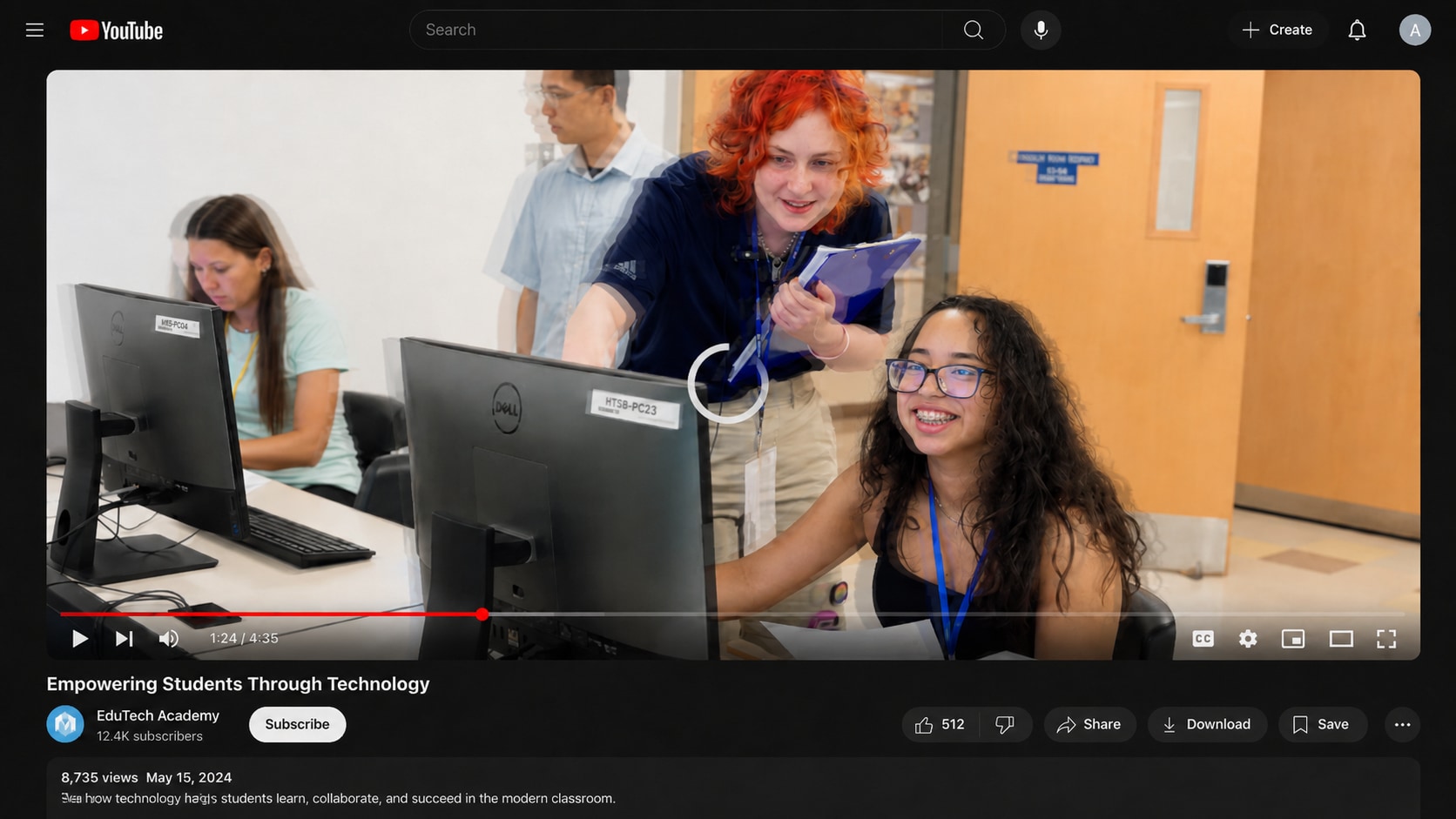
Why YouTube Is Choppy on Some Devices: Troubleshooting Playback Stutter
YouTube choppiness usually stems from a mismatch between video bitrate and device processing power, network instability, or software overhead. Whether it is an aging tablet or a high-end PC with misconfigured settings, stuttering occur...
YouTube choppiness usually stems from a mismatch between video bitrate and device processing power, network instability, or software overhead. Whether it is an aging tablet or a high-end PC with misconfigured settings, stuttering occurs when the hardware cannot decode frames fast enough to maintain a consistent playback rhythm, resulting in visible lag or dropped frames.
Contents
Understanding the Mechanics of Video Stutter
To solve why YouTube is choppy on some devices, one must first distinguish between "buffering" and "choppiness." Buffering is a network issue where the video stops to load more data. Choppiness, or stuttering, refers to a situation where the video data has been downloaded, but the device is struggling to render the frames smoothly. In 2026, with the prevalence of high-bitrate 4K and 8K streams, the strain on hardware has never been higher.
When you press play, YouTube sends a compressed data stream to your device. Your device’s processor (CPU) or graphics chip (GPU) must "decode" this data in real-time. If the device takes longer than 1/60th of a second to decode a frame (for a 60fps video), it will skip that frame to try and keep up with the audio. This results in the "choppy" visual experience that feels like a slideshow rather than a fluid motion.
The Role of Modern Video Codecs (AV1 and VP9)
One of the primary reasons YouTube feels choppy on older or budget devices in 2026 is the transition to advanced video codecs. YouTube utilizes AV1 (AOMedia Video 1) and VP9 to deliver high-quality video at lower bitrates. While these codecs are efficient for data saving, they are computationally intensive.
Most modern devices released after 2022 include dedicated hardware decoders for AV1. However, if you are using an older device or a budget model that lacks a hardware AV1 decoder, the device must use "software decoding." This forces the general-purpose CPU to do the heavy lifting. On older smartphones, tablets, or low-end laptops, the CPU simply cannot keep up with the mathematical complexity of AV1 decoding, leading to severe choppiness, especially at 1440p resolutions or higher.
Hardware Acceleration and Browser Conflicts
On desktop and laptop computers, the most common culprit for choppy YouTube playback is a misconfiguration of Hardware Acceleration. This feature allows the browser to offload video rendering tasks from the CPU to the GPU.
If hardware acceleration is disabled, the CPU handles everything. If the CPU is already busy with background tasks, or if it is an older model, the video will stutter. Conversely, sometimes hardware acceleration is the cause of the problem. This happens if your graphics drivers are outdated or if there is a compatibility glitch between the browser (like Chrome or Edge) and your specific GPU architecture.
To diagnose this, users often need to toggle the "Use hardware acceleration when available" setting in their browser's system settings. If the choppiness disappears when disabled, the issue is likely a driver conflict; if it improves when enabled, the CPU was likely the bottleneck.
Network Stability vs. Raw Bandwidth
It is a common misconception that "fast internet" guarantees smooth video. You may have a 1Gbps connection, yet YouTube remains choppy. This is often due to micro-stuttering caused by packet loss or high "jitter."
Jitter refers to the variation in the time it takes for data packets to arrive. If packets arrive out of order or at inconsistent intervals, the YouTube player's "jitter buffer" may struggle to reassemble the stream in time for the renderer. This is particularly prevalent on 2.4GHz Wi-Fi networks in crowded apartment buildings where signal interference is high. In 2026, as 6GHz Wi-Fi (Wi-Fi 6E and 7) becomes the standard for stability, older devices stuck on 2.4GHz are increasingly prone to this specific type of playback choppiness.
Device-Specific Performance Limitations
The "some devices" part of the problem usually points to specific hardware categories that face unique challenges:
Smart TVs and Streaming Sticks
Budget Smart TVs often ship with underpowered processors. Manufacturers prioritize the display panel over the internal SOC (System on a Chip). After a few years of YouTube app updates, the app becomes too "heavy" for the TV's original hardware. Streaming sticks (like older Chromecasts or Fire Sticks) also suffer from thermal throttling. Because they sit behind a hot TV panel, they can overheat, causing the processor to slow down (downclock) to protect itself, which immediately manifests as choppy video.
Mobile Devices and Thermal Throttling
On smartphones, choppiness often occurs after several minutes of watching high-resolution HDR content. HDR (High Dynamic Range) requires significantly more processing power and screen brightness. This generates heat. Once the phone reaches a certain temperature threshold, it reduces performance. If you notice the video starts smooth but becomes choppy after 10 minutes, thermal throttling is the likely culprit.
Desktop PCs and Background Overload
On PCs, background processes are frequent offenders. In 2026, modern operating systems are aggressive with background telemetry, updates, and indexing. If your RAM is nearing 90% capacity, the system will use "swapping" (writing temporary data to the hard drive), which is much slower than RAM. This delay can interrupt the video decoding pipeline, causing a frame-skip.
Comparative Requirements for Smooth Playback
The following table outlines the hardware and network requirements as of 2026 to avoid choppiness at various resolutions.
| Resolution | Recommended Codec Support | Minimum RAM | Network Stability (Jitter) |
|---|---|---|---|
| 1080p (HD) | H.264 / VP9 | 4GB | < 30ms |
| 1440p (QHD) | VP9 / AV1 | 8GB | < 20ms |
| 4K (UHD) | AV1 (Hardware Required) | 8GB - 16GB | < 15ms |
| 8K (FUHD) | AV1 (Dedicated GPU) | 16GB+ | < 10ms |
Troubleshooting Steps to Resolve Choppiness
If you are experiencing stuttering, follow this hierarchical approach to isolate the cause:
- Lower the Resolution: Switch from "Auto" to a fixed lower resolution (e.g., 1080p instead of 4K). If the choppiness stops, your hardware or network cannot handle the higher bitrate.
- Disable Browser Extensions: Ad-blockers and "Dark Mode" extensions can interfere with the way YouTube's scripts run. Open an Incognito/Private window to see if the video plays smoothly without extensions.
- Update Graphics Drivers: For PC users, ensure your GPU drivers are current. Manufacturers like NVIDIA, AMD, and Intel frequently release patches specifically for video decoding stability.
- Clear App Cache: On Android and Smart TVs, a bloated app cache can lead to sluggish performance. Go to Settings > Apps > YouTube > Clear Cache.
- Check for System Updates: Ensure the device's OS is updated. Modern OS patches often include "microcode" updates for processors that improve the efficiency of video decoding tasks.
The Impact of Browser Choice
Not all browsers handle YouTube equally. Because Google owns both YouTube and the Chrome browser, Chrome (and Chromium-based browsers like Edge or Brave) often receives optimization updates first. However, Chrome is also known for high RAM usage. If you are on a device with limited memory, switching to a more lightweight browser or the dedicated YouTube app (on mobile/tablets) can provide a more direct path for the video data to reach the hardware decoder, bypassing the extra layers of browser processing.
FAQ
Why is YouTube choppy but Netflix plays perfectly?
Netflix and YouTube use different streaming protocols and encoding profiles. Netflix often uses more aggressive "look-ahead" buffering and may use different codecs (like Dolby Vision profiles) that your device might be better optimized for. YouTube’s player is highly interactive and dynamic, which places a different type of load on the system compared to Netflix’s more linear streaming.
Does a slow hard drive cause YouTube to be choppy?
Yes, indirectly. If your system is low on RAM and starts using the hard drive for "virtual memory" (page filing), the slow read/write speeds of a traditional HDD (Hard Disk Drive) can cause the entire system to stutter, including video playback. In 2026, using an SSD as a boot drive is essentially required for smooth 4K/8K media consumption.
Can a VPN cause video choppiness?
A VPN can cause choppiness by adding "overhead" to the data. Not only does the data have to be decrypted by your CPU (adding to its workload), but the routing through a VPN server can increase jitter and packet loss, disrupting the smooth arrival of video frames.
Why does 60fps video look more choppy than 30fps?
A 60fps video requires the device to decode and render twice as many frames in the same amount of time. If a device is right on the edge of its performance capability, it might handle 30fps perfectly but fail to meet the strict 16.6ms per-frame deadline required for 60fps.
Will upgrading my internet speed fix choppy video?
Only if the issue is bandwidth-related. If your device is struggling with decoding (hardware issue), a faster internet connection will not help. If your "Stats for Nerds" (right-click on a YouTube video) shows zero "Dropped Frames" but the video still feels slow, it is likely a network issue. If "Dropped Frames" shows a high number, it is a hardware or software processing issue.
Final Recommendation
To eliminate YouTube choppiness, start by identifying if the bottleneck is hardware-based. Check the "Stats for Nerds" overlay on a desktop; if the "Dropped Frames" counter is climbing rapidly, your device is the problem, not your internet. For older devices, the most effective "fix" is often forcing the player to use a simpler codec through browser extensions like "enhanced-h264ify" or simply capping the resolution at 1080p. If the issue persists across all resolutions, investigate thermal issues or background software conflicts that may be robbing your processor of the resources it needs to render smooth video.
Image Gallery