Why Your LG TV Auto Dims: Understanding and Managing Display Brightness
LG TV auto dimming occurs primarily due to a combination of power-saving configurations, ambient light sensors, and sophisticated panel-protection algorithms designed to prevent hardware degradation. While these features are intended t...
LG TV auto dimming occurs primarily due to a combination of power-saving configurations, ambient light sensors, and sophisticated panel-protection algorithms designed to prevent hardware degradation. While these features are intended to improve energy efficiency or prolong the lifespan of the display—particularly for OLED models—they can often result in a frustrating viewing experience during dark movie scenes or long gaming sessions.
Contents
In 2026, LG televisions continue to lead the market in display technology, but the fundamental mechanisms of brightness management remain a frequent point of inquiry for users. Whether you own a high-end OLED or a standard LED/LCD model, understanding the "why" behind these shifts in luminance is the first step to achieving a consistent picture.
The Primary Drivers of LG TV Auto Dimming
To address why your screen is losing brightness, it is essential to distinguish between user-facing settings and "under-the-hood" protection mechanisms. Most dimming issues fall into one of three categories: environmental adjustments, energy conservation, or panel preservation.
Energy Saving Mode and Regulatory Compliance
One of the most common reasons an LG TV dims is the Energy Saving feature. By default, many LG TVs are shipped in "Eco" or "Standard" modes to comply with international energy efficiency standards. These settings limit the backlight or pixel brightness to reduce the total wattage consumed by the device.
If the Energy Saving mode is set to "Auto," the TV uses its built-in light sensor to detect the brightness of your room. When the room gets darker, the TV automatically lowers the brightness to reduce eye strain and save power. While this is helpful in a bedroom setting, it can be erratic if your room has fluctuating light levels, such as passing clouds outside a window.
AI Brightness Settings
Modern LG sets equipped with Alpha-series processors utilize AI Brightness Control. This feature uses machine learning to analyze the content on the screen and the ambient light in the room. Unlike a simple light sensor, AI Brightness attempts to adjust the tone mapping of the image. In HDR (High Dynamic Range) content, this can lead to the TV dimming certain parts of the image to preserve detail in bright areas, which may be perceived by the viewer as an overall drop in screen luminance.
OLED-Specific Protection: TPC and GSR
For owners of LG OLED TVs (such as the C-series or G-series), auto dimming is often tied to ASBL (Auto Static Brightness Limiter). This is a firmware-level safety net designed to prevent "burn-in" or permanent image retention. Within ASBL, there are two main components:
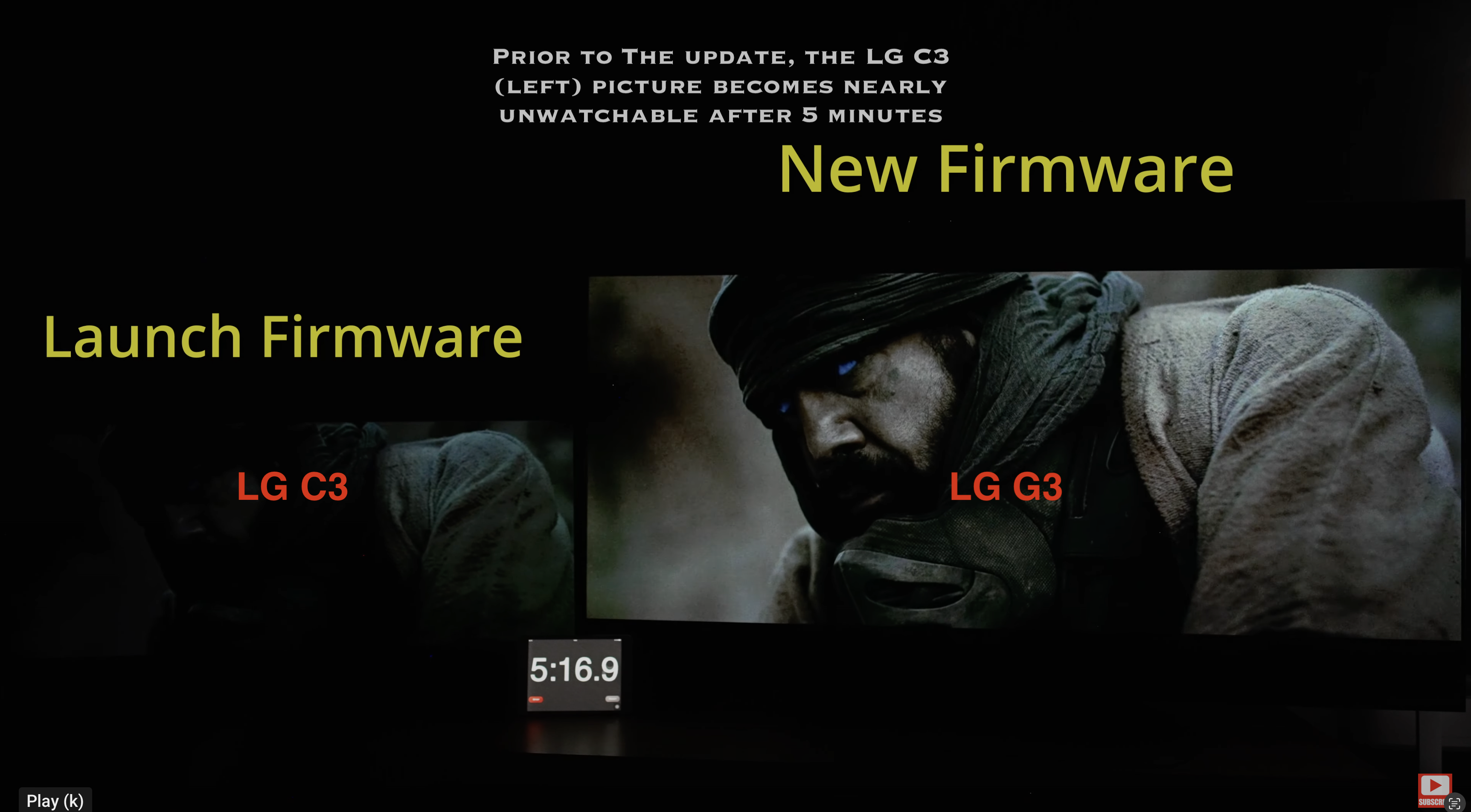
- TPC (Temporal Peak Luminance Control): This algorithm monitors the average picture level (APL). If the screen detects that the image is relatively static or that the brightness hasn't changed significantly for several minutes (common in dark, slow-moving movie scenes), it assumes the TV has been left on a static menu and gradually dims the display to protect the organic pixels.
- GSR (Global Static Detection): This feature looks for static elements like news tickers, sports scoreboards, or video game HUDs (Heads-Up Displays). If a static bright object is detected in a specific area for too long, the TV will dim the entire screen or the specific area to mitigate the risk of heat buildup and pixel wear.
Technical Breakdown of Dimming Mechanisms
| Feature Name | Technology Type | Primary Purpose | Trigger Condition |
|---|---|---|---|
| Energy Saving | LED & OLED | Power efficiency | Ambient light or user setting |
| TPC (ASBL) | OLED Only | Burn-in prevention | Static or low-motion scenes |
| GSR | OLED Only | Longevity | Static logos or HUDs |
| Logo Brightness | OLED Only | Pixel protection | High-contrast static icons |
| Local Dimming | LED/LCD | Contrast enhancement | Dark scenes with bright objects |
| Thermal Throttling | All Panels | Hardware safety | Excessive internal heat |
Deep Dive into OLED Burn-In Prevention (ASBL)
The phenomenon where an LG OLED dims during a long, dark scene—often referred to by enthusiasts as the "dark scene dimming bug"—is actually the TPC algorithm at work. Because the pixels in an OLED panel are organic and self-emissive, they generate heat. High brightness over a long period increases the rate at which these pixels degrade.
In 2026, LG's MLA (Micro Lens Array) and Brightness Booster Max technologies have significantly increased the peak brightness of panels. However, the higher the brightness potential, the more aggressive the protection algorithms must be. When you watch a movie with a long, dimly lit sequence, the TPC algorithm may fail to detect enough pixel movement and conclude that the image is static. It then begins a slow, imperceptible dimming process. The frustration occurs when the scene finally shifts to a bright one, and the TV suddenly "snaps" back to full brightness, making the previous dimming obvious.
The Role of Dynamic Tone Mapping
Another layer of complexity is Dynamic Tone Mapping (DTM). When viewing HDR10 content, the TV must decide how to map the brightness of the source material to the physical capabilities of the panel. If DTM is enabled, the TV analyzes the frame in real-time. If a scene has a very bright highlight, the TV might dim the rest of the image to ensure that the highlight doesn't "clip" or lose detail. This can create a "pulsing" effect where the brightness shifts frequently depending on what is happening in the frame.
How to Solve and Manage LG TV Auto Dimming
If the auto dimming on your LG TV is interfering with your viewing experience, you can take several steps to mitigate or disable these features. Note that some settings are easily accessible, while others may require deeper menu navigation.
Step 1: Adjusting Energy and AI Settings
The first and most effective step for most users is to disable the environmental sensors.
- Navigate to Settings > All Settings > General.
- Select Energy Saving or OLED Care > Device Self Care > Energy Saving.
- Set Energy Saving Step to Off. This prevents the TV from dimming based on room light or power limits.
- Go to Settings > All Settings > General > AI Service.
- Turn off AI Brightness Settings.
Step 2: Modifying Picture Mode Options
Certain picture modes have "hard-coded" dimming behaviors.
- Avoid Eco or APC Modes: These modes are designed to prioritize power savings over accuracy. Switch to Filmmaker Mode, ISF Expert (Bright Room/Dark Room), or Cinema. These modes usually disable most aggressive auto-dimming features by default.
- Adjust Logo Brightness: On OLED models, go to Settings > All Settings > Picture > OLED Care > Panel Care. Set Adjust Logo Brightness to "Low." This reduces the intensity of GSR dimming without disabling the protection entirely.
Step 3: Managing Local Dimming on LED/LCD TVs
If you own an LG QNED or NanoCell TV, you may experience dimming due to the LED Local Dimming feature. This feature turns off backlight zones to create deeper blacks.
- If the "blooming" (light bleeding into dark areas) or constant brightness shifting bothers you, go to Picture > Advanced Settings > Brightness and set LED Local Dimming to Medium or Low. Setting it to "Off" will stop the dimming but will significantly reduce the contrast ratio.
Step 4: The Service Menu (Advanced Users Only)
For enthusiasts who find the TPC and GSR algorithms on OLED TVs intolerable, there is a way to disable them through the LG Service Menu. Warning: Accessing the service menu and changing settings can void your warranty and potentially damage your panel if not done correctly.
To access this, users typically use a specialized service remote or a digital infrared blaster. Within the service menu:
- TPC Enable: Setting this to "Off" prevents the TV from dimming during static or dark scenes.
- GSR Enable: Setting this to "Off" prevents the TV from dimming when it detects static logos.
As of recent firmware updates in the mid-2020s, LG has improved these algorithms significantly, making service menu adjustments less necessary than they were on older models like the C1 or CX series.
Hardware vs. Software Dimming: Identifying Faults
Not all dimming is a feature. In rare cases, an LG TV might dim because of a hardware malfunction. Understanding the difference is crucial for determining if you need a repair.
- Uniform vs. Non-Uniform Dimming: If the entire screen dims equally, it is almost certainly a software feature (Energy Saving, TPC, etc.). If one side of the screen is darker than the other, or if there are dark patches, this indicates a failing backlight (on LED TVs) or a panel defect (on OLED TVs).
- Thermal Throttling: If the TV remains bright for the first 30 minutes and then dims and stays dim until the unit is turned off and cooled down, the TV may be overheating. Ensure the vents on the back of the TV are not obstructed and that the TV is not mounted too close to a heat source.
- Flickering: Sudden, rapid changes in brightness that look like a strobe effect are usually indicative of a failing power supply board or a loose internal ribbon cable.
Best Practices for 2026 LG TV Models
For the best experience on modern 2026 LG sets, it is recommended to use Filmmaker Mode for movies and Game Optimizer mode for consoles. LG has tuned these modes to provide the most consistent brightness while still respecting the physical limits of the hardware. In Game Optimizer mode, specifically, LG provides a "Stabilizer" setting that allows users to manually adjust black and white levels, which can help counteract some of the perceived dimming in dark gaming environments.
Frequently Asked Questions
Why does my LG TV dim when I play video games?
Gaming often features static elements like health bars and mini-maps. The GSR (Global Static Detection) algorithm identifies these static elements and dims the screen to prevent burn-in. Additionally, if you are playing in HDR, the TV may be using HGiG (HDR Gaming Interest Group) metadata to dim parts of the screen to preserve highlight detail according to the game’s internal calibration.
Does turning off Energy Saving affect picture quality?
Yes, but in a positive way. Turning off Energy Saving allows the TV to reach its rated peak brightness and maintain a more accurate color temperature. Energy Saving modes often shift the white balance to a cooler (bluer) tone to save power, so disabling it will result in a more vibrant and "correct" image.
Can a firmware update fix the auto-dimming issue?
Historically, yes. LG has released several firmware updates for their OLED lineups that specifically "tweak" the TPC algorithm to be less aggressive. Always ensure your TV is connected to the internet and updated to the latest version, as LG frequently refines how these protection features behave based on user feedback.
Is ASBL/TPC permanent once it starts?
No. ASBL is temporary. As soon as the TV detects a significant change in the image (such as a scene cut or the user opening a menu), the brightness will immediately return to the previous level. It does not permanently lower the brightness of your television.
Should I be worried about burn-in if I disable all dimming features?
While modern OLED panels are much more resilient than those from a decade ago, disabling all protection features (especially via the service menu) does increase the risk of burn-in over several years of use. If you choose to disable these, it is wise to avoid leaving the TV on stagnant news channels or static game menus for hours at a time.
Recommended Next Steps
To resolve the auto-dimming on your LG TV, start by disabling the Energy Saving Step and AI Brightness in the standard settings menu. For most viewers, this eliminates 90% of unwanted brightness shifts. If you are an OLED owner experiencing dimming during movies, try switching to Filmmaker Mode, which is designed to minimize image processing. If the issue persists and appears non-uniform, contact LG Support to verify if your panel is operating within its intended thermal and voltage specifications.
Image Gallery