The Complete Guide to Honeyselect Cards in 2026: Creation, Customization, and Management
Understanding the ecosystem of character files requires navigating complex data structures, asset dependencies, and modern asset management workflows. As the community continues to expand through 2026, mastering how to handle, troubles...
Understanding the ecosystem of character files requires navigating complex data structures, asset dependencies, and modern asset management workflows. As the community continues to expand through 2026, mastering how to handle, troubleshoot, and optimize these files remains a core technical skill for digital artists and simulation hobbyists alike.
Contents
Architectural Overview of Character Data Files
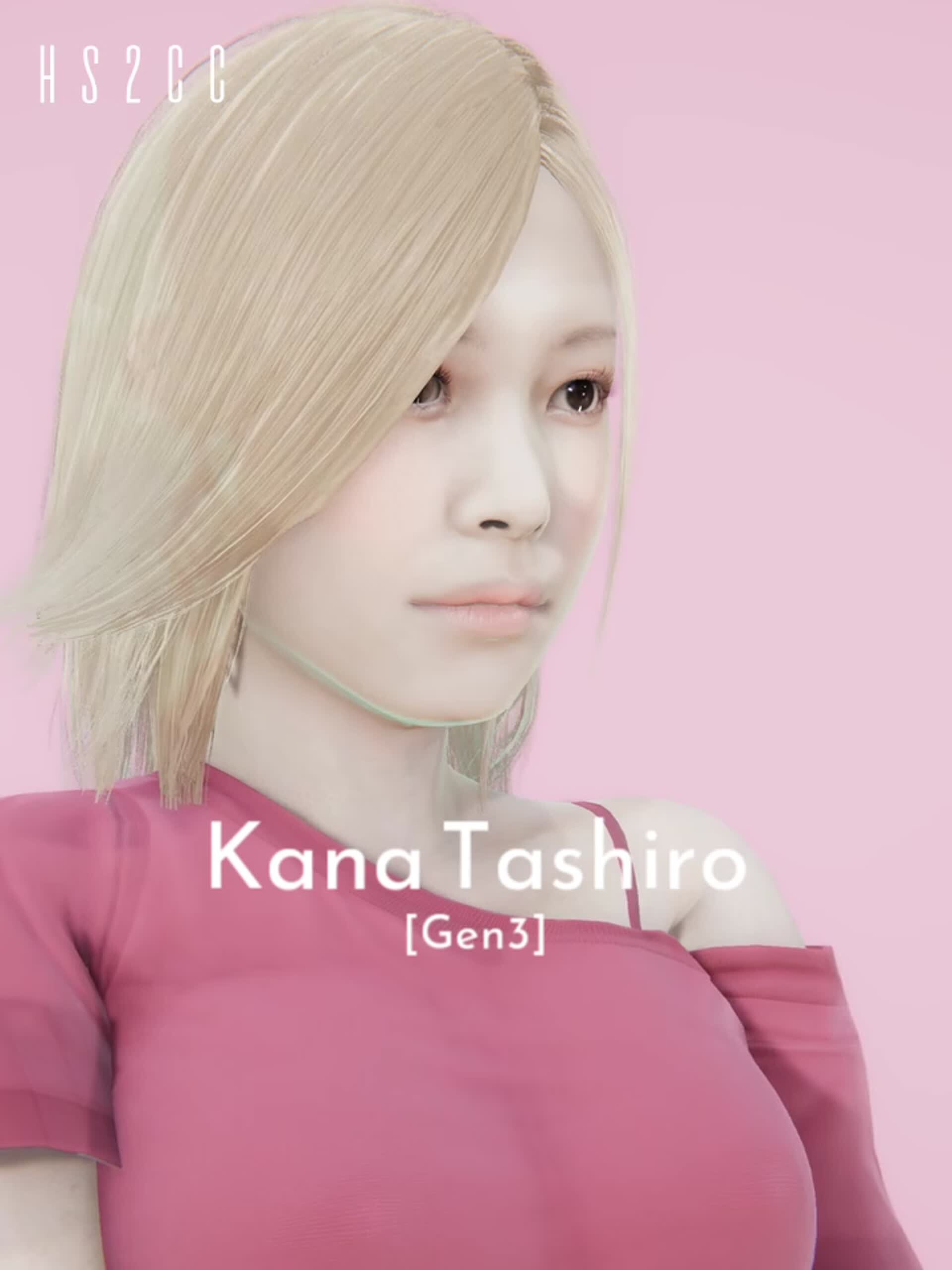
At its technical core, a standard character file functions as a specialized container holding all parameters required to render a 3D avatar within the underlying engine. This includes facial geometry morphs, skeletal scaling offsets, coordinate maps for clothing, and embedded preview rendering thumbnails.
When users interact with the generation suite, the application compiles these distinct parameter sets into a single PNG image file utilizing proprietary metadata chunks. This clever file-type disguise ensures easy sharing across web forums and image hosts while preserving the complex array configuration needed by the game engine.
- Parameter Dictionaries: Store exact numerical values for sliders ranging from bone scaling to facial expression weights.
- Material Maps: Define surface shaders, specular highlights, normal map intensities, and color channel multipliers for skin, eyes, and hair.
- Embedded Metadata: Houses version numbers, creator tags, and mod dependency lists to alert users if a file requires external assets.
Essential Toolsets and Asset Dependencies for 2026
Maintaining a stable setup requires utilizing up-to-date community loaders and plugin frameworks. Without proper dependency mapping, loading an advanced community asset often results in missing textures, default facial geometries, or catastrophic runtime crashes.
Managing these dependencies effectively relies on structured mod organization. The table below outlines the primary utility tools and their respective functions within a modern configuration.
| Tool Name | Primary Function | Technical Impact on File Management |
|---|---|---|
| BepinEx Framework | Core plugin injection loader | Enables execution of custom C# mods and runtime asset patchers. |
| StudioNEO v2 | Advanced scene composition suite | Allows complex multi-avatar posing and custom lighting setups. |
| ExtraData Enabler | Extended slider and data handler | Prevents data loss when importing characters exceeding vanilla slider limits. |
| Texture Loader Plugin | Dynamic asset streaming | Streamlines high-resolution texture loading without modifying base game archives. |
Step-by-Step Workflow for Importing and Troubleshooting Files
Integrating a newly downloaded asset into your environment requires a methodical approach to prevent conflicts and ensure visual fidelity. Following a structured procedure eliminates common rendering errors.
- Verify Base Game and Plugin Versions: Ensure your runtime environment matches or exceeds the version used to create the target file, particularly regarding major plugin frameworks like BepinEx.
- Scan for Missing Mod Dependencies: Utilize asset scanner utilities to cross-reference the required hair, clothing, and plugin mods listed in the file metadata against your local directory.
- Place the File in the Designated Directory: Move the downloaded image file directly into the user character folder, typically located within the primary user data directory structure under designated subfolders for male or female presets.
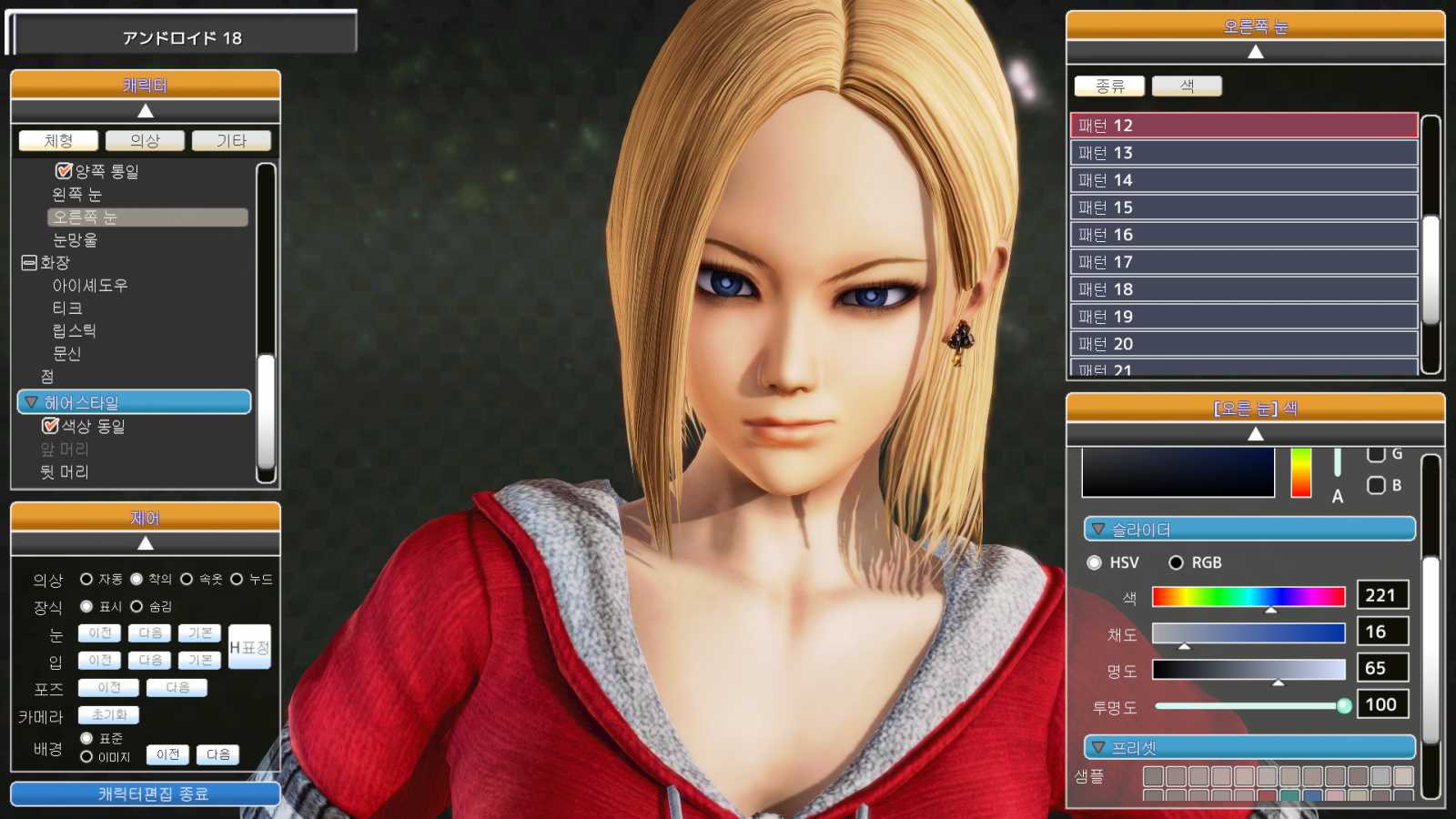
- Launch and Validate in Maker Mode: Open the game's character creation suite, load the preset, and carefully inspect the face, body, and clothing tabs for any glowing red error text or default placeholder assets.
- Save and Update Metadata: Once missing elements are resolved or substituted, re-save the character inside the application to update internal timestamp registries and thumbnail caches.
Comparative Analysis of Asset Management Approaches
Choosing the right method for organizing your library impacts both loading times and system stability. Users typically choose between manual directory sorting and dedicated manager utilities.
Manual Directory Structure
- Advantages: Complete control over folder hierarchies; no third-party software overhead; highly reliable during major game updates.
- Disadvantages: Time-consuming dependency tracking; difficult to locate specific assets across hundreds of files; prone to human error during batch sorting.
Automated Manager Utilities
- Advantages: Instant detection of missing dependencies; drag-and-drop installation support; automated duplicate file detection and cleanup.
- Disadvantages: Requires frequent updates alongside game patches; potential overhead if utility software encounters database corruption.
Advanced Optimization and Performance Tuning
As collections grow, handling hundreds of high-poly assets can lead to significant stuttering and extended loading times. Optimizing your library involves both asset cleanup and configuration tweaks.
Asset Compression Guidelines Texture Downscaling: Convert uncompressed 4K textures used in minor clothing items down to 2K formats to significantly reduce VRAM consumption without noticeable visual degradation. Duplicate Removal: Routinely scan your directories for duplicate files saved under different names to keep the active file index lean and responsive.
Frequently Asked Questions
What causes a character file to load with default features and missing textures?
This typically occurs because the file requires specific mods, hair meshes, or clothing assets that are not currently installed in your local directory. Review the file's metadata using an asset scanner to identify and install the missing dependencies.
Can I use files generated from older versions in current 2026 runtime environments?
Yes, backward compatibility is generally supported, provided you have updated your core framework plugins and extension loaders to handle legacy data structures correctly.
Where should I place downloaded files so the game recognizes them?
Place the downloaded PNG files directly into the designated user data character folder within your game installation directory, ensuring they reside in the correct gender-specific subfolder.
Why does the creation suite display error text when attempting to load a specific file?
Error text indicates that the file utilizes extended sliders or plugin data that your current game installation lacks the necessary mod framework to interpret. Installing the corresponding extended data enabler plugins will resolve this issue.
How can I fix corrupted preview thumbnails on my saved assets?
You can regenerate broken or missing thumbnails by loading the character into the creation suite and saving the file again, which forces the engine to render a fresh preview image.
To maximize your simulation experience and maintain a seamless, error-free asset library, audit your plugin configurations and organize your mod directories today. Download the latest framework updates and ensure your system is fully optimized for peak creative performance.
Image Gallery