How to Access Your Email Account: A Comprehensive Guide for 2026
To access your email account, navigate to your provider's login page (such as Gmail, Outlook, or Yahoo Mail), enter your registered email address or username, and provide your password or passkey. If you use a mobile device or desktop...
To access your email account, navigate to your provider's login page (such as Gmail, Outlook, or Yahoo Mail), enter your registered email address or username, and provide your password or passkey. If you use a mobile device or desktop application, enter these credentials into the account settings to synchronize your messages.
Contents
Accessing an email account is the foundational step for digital communication, yet the process has evolved significantly with the integration of advanced security protocols and cross-platform synchronization. In 2026, the shift toward passwordless authentication and biometric verification has streamlined access, but it has also introduced new layers of troubleshooting for users transitioning from legacy systems. Whether you are using a web browser, a dedicated mobile application, or a third-party desktop client, understanding the specific requirements of your service provider is essential for maintaining consistent and secure access.
Primary Methods of Accessing Your Email
Depending on your hardware and your specific needs for productivity or privacy, you will likely use one of three primary methods to reach your inbox.
Webmail Access via Browser
Webmail is the most common method of access because it requires no software installation. By using a standard web browser such as Google Chrome, Microsoft Edge, or Safari, you can access your mail from any computer with an internet connection.
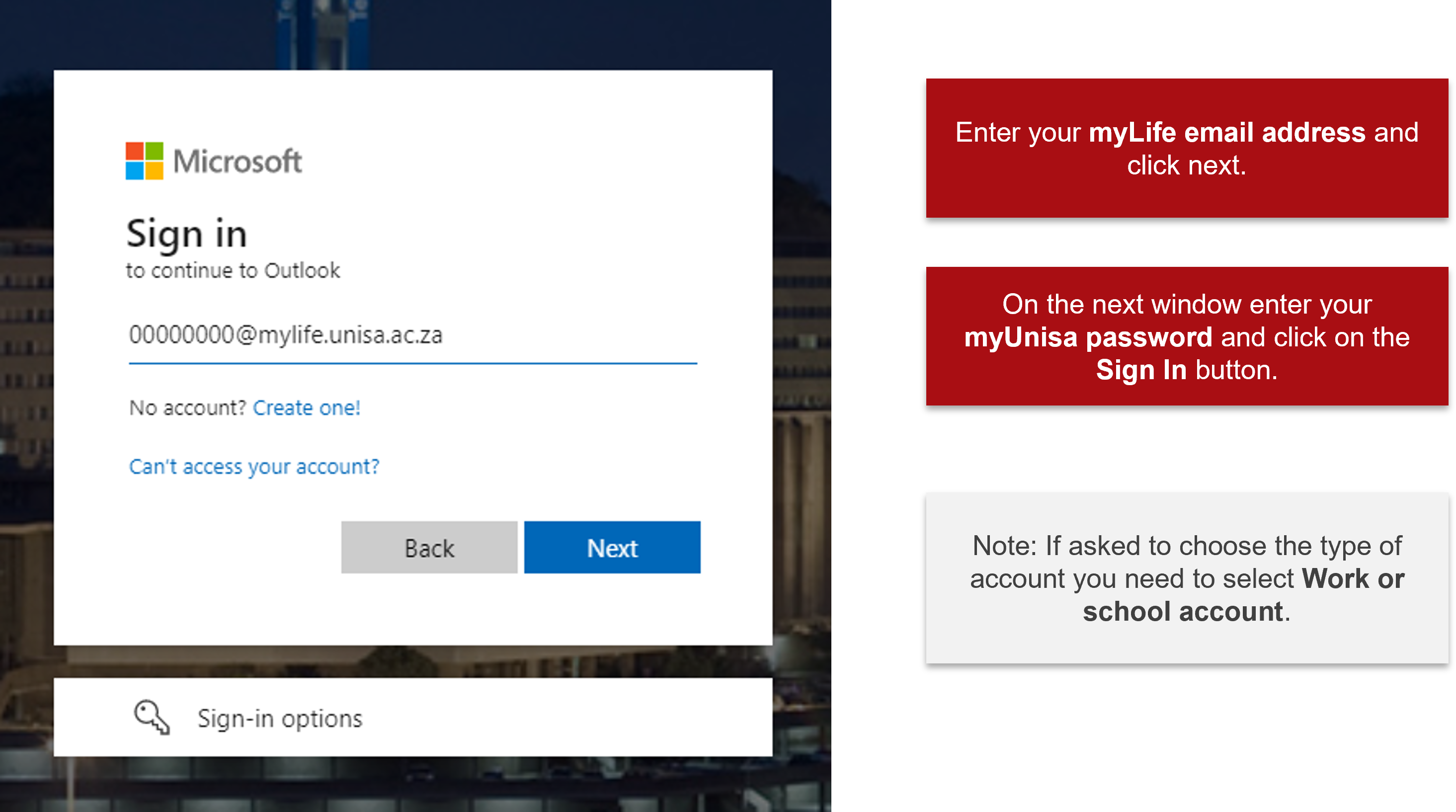
- Navigate to the URL: Type the official address of your provider into the browser's address bar. For example, use mail.google.com for Gmail or outlook.live.com for Outlook.
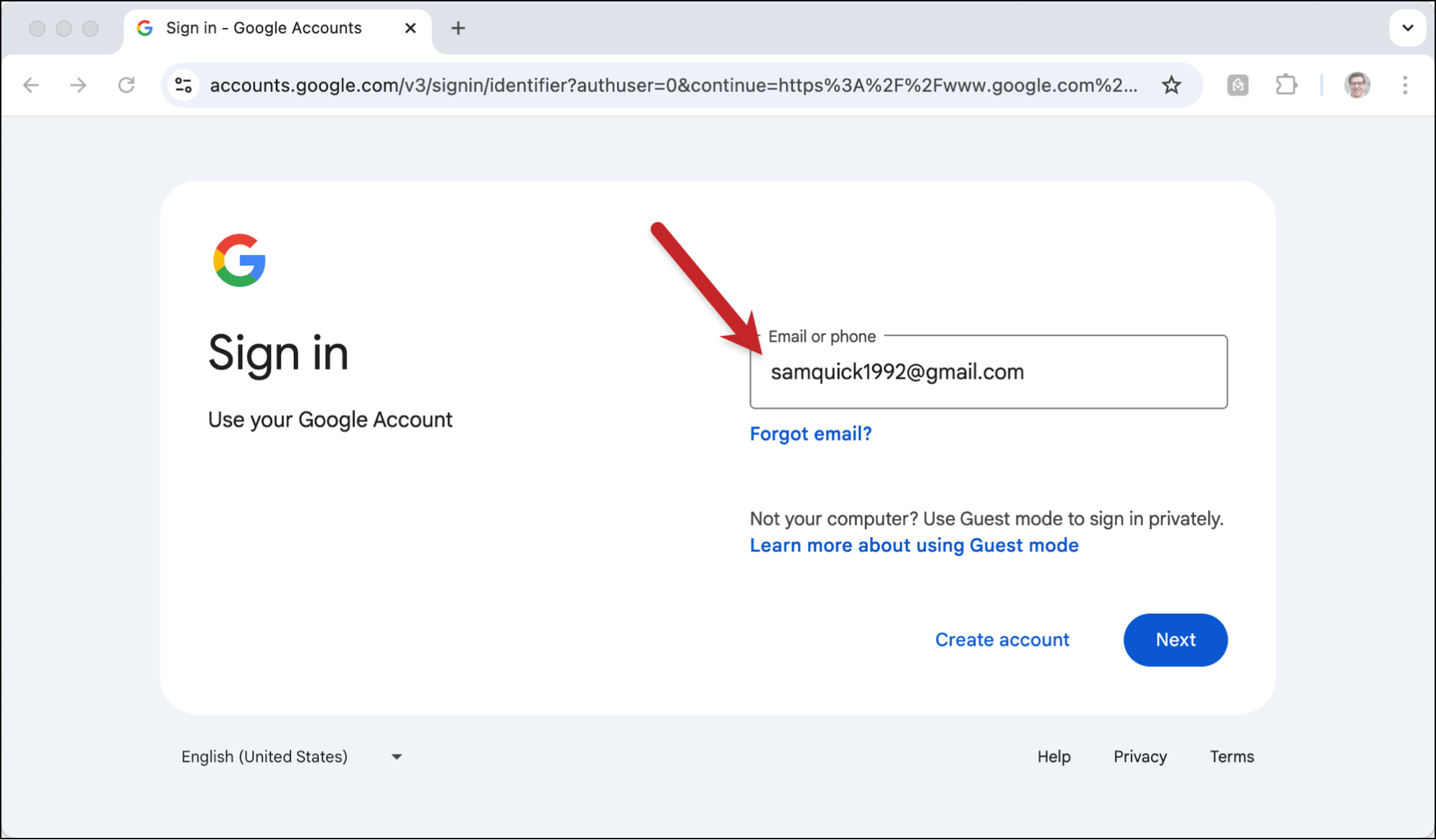
- Identity Verification: Enter your email address. In 2026, many providers have moved toward "Passkeys," allowing you to verify your identity using a fingerprint or face scan on your synced mobile device rather than typing a traditional password.
- Two-Factor Authentication (2FA): If you still use passwords, you will likely be prompted for a secondary code sent via an authenticator app or hardware key.
Mobile Application Access
For users on the go, mobile apps provide push notifications and offline reading capabilities. You can use the native app provided by your email service (like the Gmail app) or the default mail app integrated into your phone’s operating system (like Apple Mail on iOS).
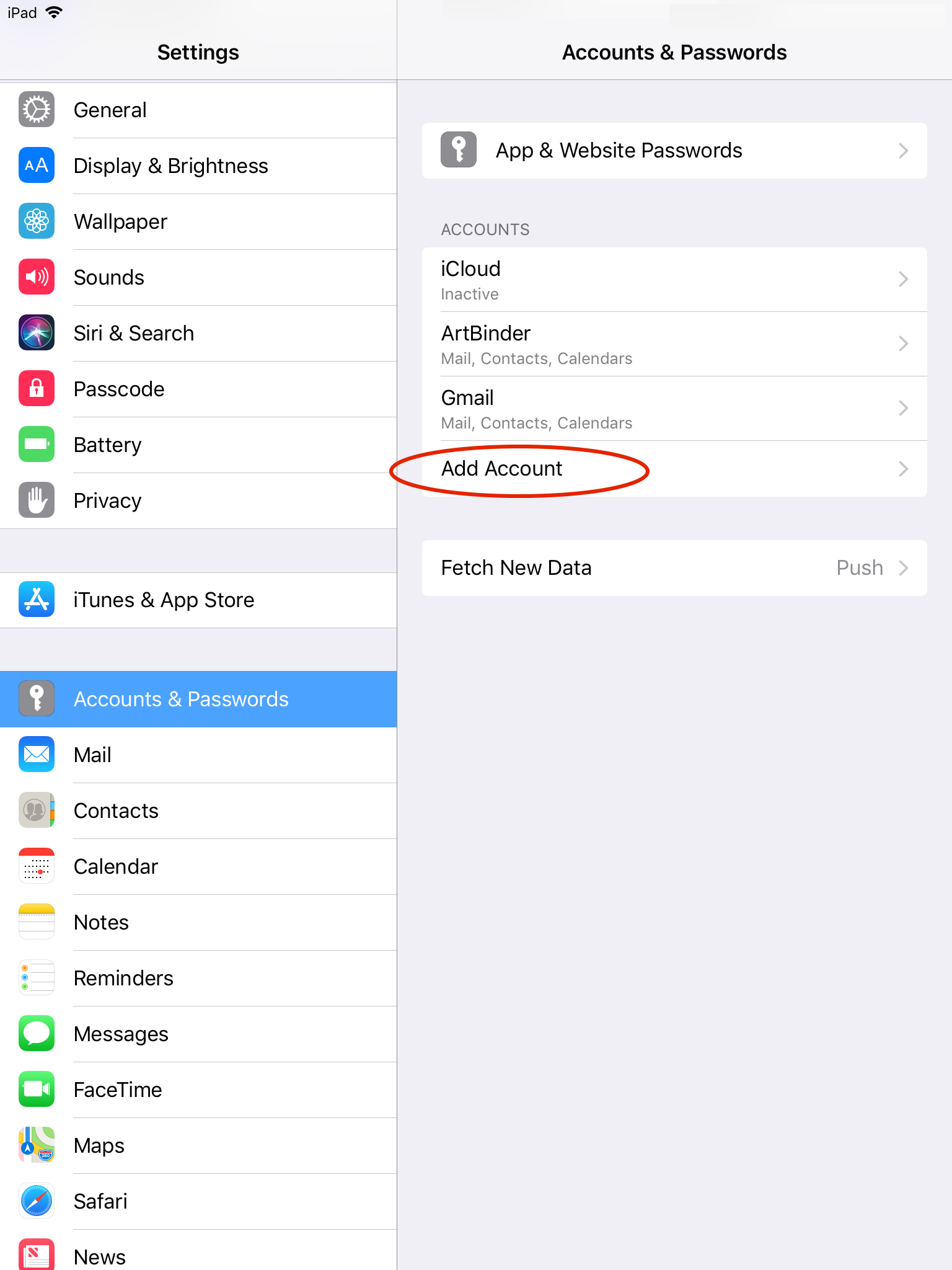
- iOS/Android Integration: Open the "Settings" menu on your device, navigate to "Mail" or "Accounts," and select "Add Account." The system will provide a list of major providers. Selecting your provider will open a secure login window.
- App-Specific Features: Using a provider’s specific app often grants access to proprietary features, such as Google’s "Smart Reply" or Outlook’s "Focused Inbox," which may not be fully functional in generic mail aggregators.
Desktop Mail Clients
Professionals often prefer desktop clients like Microsoft Outlook (Classic or New), Apple Mail, or Mozilla Thunderbird. These applications allow for sophisticated folder management, local archiving of large attachments, and the management of multiple accounts from different providers in a single interface.
Technical Configuration: IMAP vs. POP3 vs. SMTP
When you access your email through a third-party application (one not made by your email provider), you must understand the underlying protocols that govern how data is transferred between the server and your device.
IMAP (Internet Message Access Protocol)
IMAP is the modern standard for email synchronization. When you use IMAP, your email client "talks" to the server and mirrors what is there. If you delete an email on your phone, it is deleted on the server and consequently disappears from your desktop client. This is the recommended setting for almost all users in 2026, as it ensures a consistent experience across all devices.
POP3 (Post Office Protocol)
POP3 is a legacy protocol that downloads the email from the server to your local device and, depending on your settings, deletes the copy on the server. While this can save server storage space, it makes accessing the same email from multiple devices nearly impossible. It is generally only used today for high-security local archiving.
SMTP (Simple Mail Transfer Protocol)
While IMAP and POP3 handle receiving mail, SMTP is the protocol used for sending mail. If you can see your inbox but cannot send messages, the issue usually lies in your SMTP configuration, such as an incorrect port number or an authentication error.
| Feature | IMAP (Recommended) | POP3 (Legacy) |
|---|---|---|
| Multi-device Sync | Yes - Full synchronization | No - Downloads to one device |
| Server Storage | Uses server space | Minimizes server space |
| Speed | Fast with stable internet | Fast once downloaded |
| Best Use Case | Everyday use, smartphones | Local backups, limited connectivity |
| Standard Port | 993 (SSL/TLS) | 995 (SSL/TLS) |
Navigating Modern Security Requirements
In 2026, security standards have reached a point where a simple username and password are rarely sufficient for access. Service providers have implemented several layers of protection to prevent unauthorized access.
The Rise of Passkeys
A Passkey is a digital credential tied to your hardware. Instead of remembering a complex string of characters, your browser or app communicates with your phone or computer’s secure enclave (like TouchID or FaceID). This method is immune to phishing because there is no password for a hacker to steal. To use this, you must usually enable "Bluetooth" and "Screen Lock" on your devices to prove physical proximity during the login process.
Multi-Factor Authentication (MFA)
If you have not yet transitioned to passkeys, MFA remains a requirement. This typically involves:
- Time-based One-Time Passwords (TOTP): Generated by apps like Google Authenticator or Authy.
- Hardware Keys: Physical USB or NFC devices like YubiKeys that you must tap against your device to authorize access.
- Verified Push: A notification appears on your smartphone asking, "Is this you trying to sign in?" with a matching number displayed on the login screen.
Common Login Obstacles and Fixes
If you find yourself locked out, the resolution depends on the specific error message provided by the server.
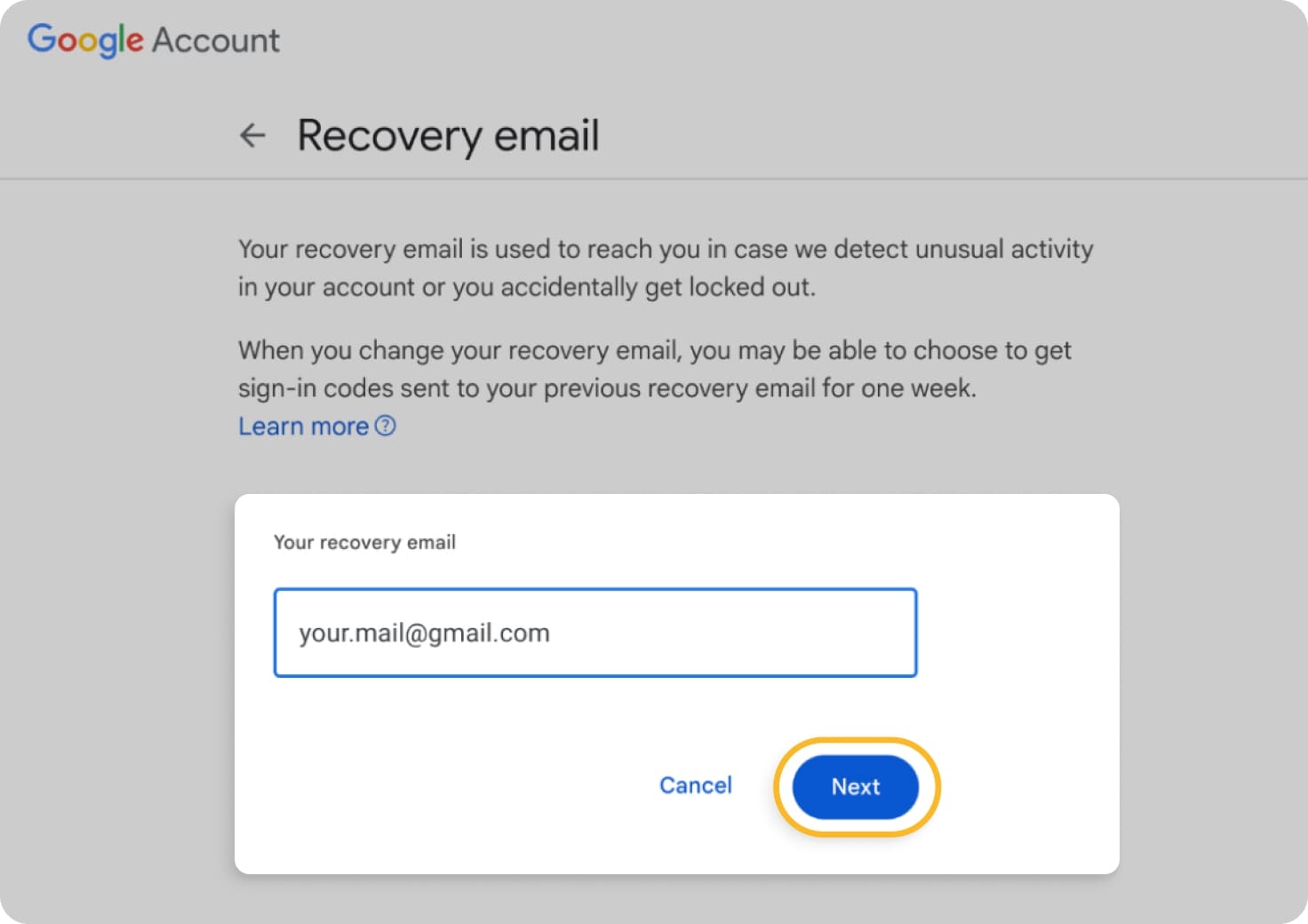
- "Account Disabled" or "Locked": This usually occurs after too many failed password attempts or if the provider detects "suspicious activity" (such as a login from a new country). You will need to use a "Recovery Email" or "Recovery Phone Number" to verify your identity.
- "Server Unavailable" or "Connection Timed Out": This is often a local network issue. Ensure you are not behind a restrictive firewall or a VPN that has been blacklisted by the email provider.
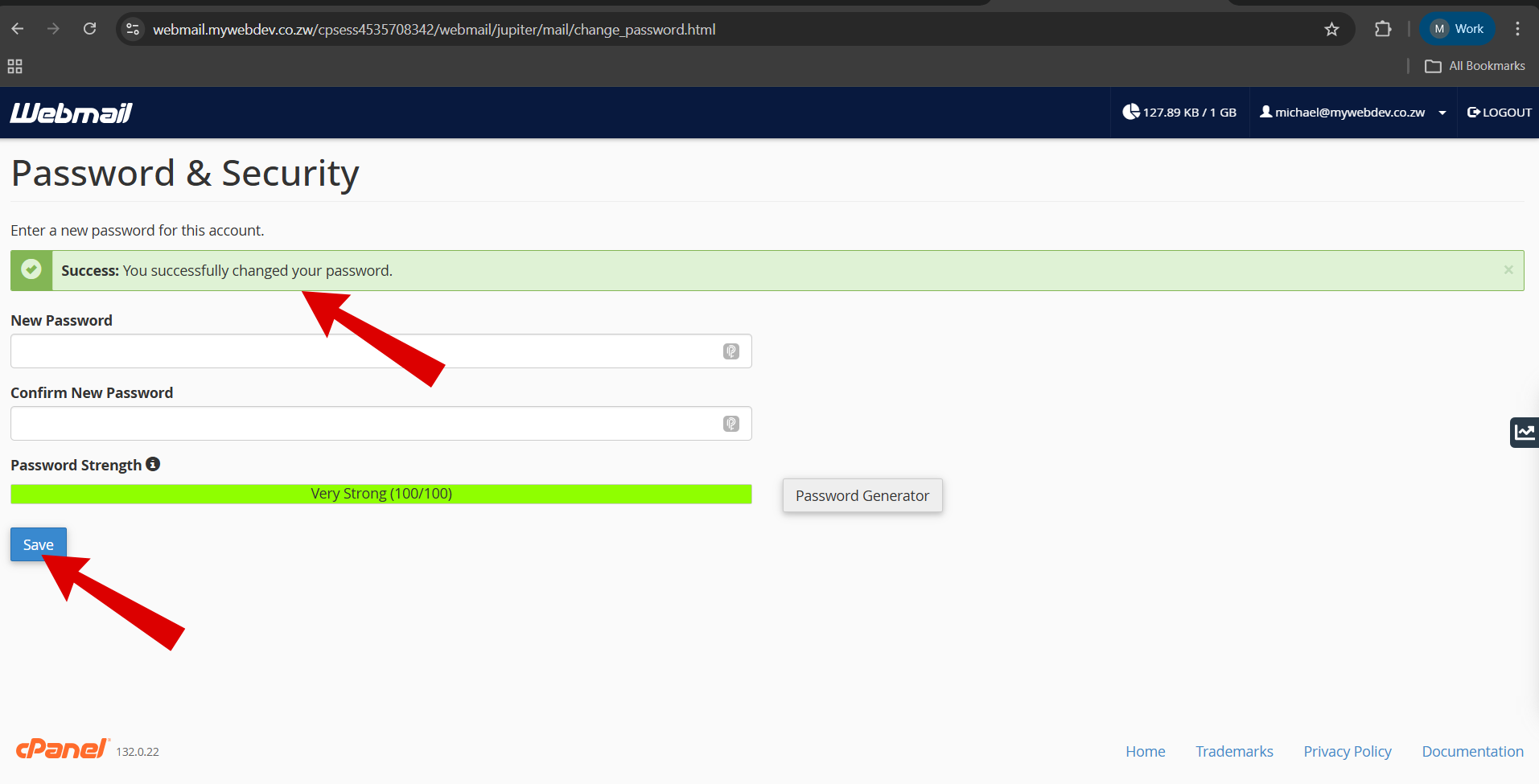
- "Incorrect Password" despite being sure: Check for "Caps Lock" or "Num Lock" issues. In some cases, if you have recently enabled 2FA, legacy apps may require an "App-Specific Password"—a unique 16-character code generated in your account settings—rather than your main password.
Managing Multiple Email Accounts
As digital footprints expand, many users manage a combination of personal, work, and "spam-filter" accounts. To access these efficiently in 2026, consider the following strategies:
- Unified Inboxes: Applications like Outlook or Spark allow you to view all incoming messages in a single "All Inboxes" view, regardless of whether the account is Gmail, iCloud, or a private corporate server.
- Browser Profiles: If you use multiple Google or Microsoft accounts, create separate browser profiles (e.g., "Work Profile" and "Personal Profile"). This keeps your login sessions separate and prevents "Account Switching" errors where the browser attempts to use the wrong credentials for a specific service.
- Forwarding Rules: If you find checking five accounts tedious, you can set up server-side forwarding to send all mail to one primary "Master Inbox." However, be aware that replying to these forwarded emails will often reveal your primary address unless you configure "Send Mail As" permissions.
Troubleshooting Connectivity for Major Providers
Each major provider has specific support documentation and recovery protocols. If you are experiencing persistent issues, refer to the official resources provided by these organizations:
- Google (Gmail): Visit the Google Account Help Center for issues regarding password recovery and hijacked accounts.
- Microsoft (Outlook/Hotmail): Refer to the Microsoft Support Portal for configuration details regarding Exchange and IMAP settings.
- Apple (iCloud): Use the Apple Support page to manage your Apple ID and "Hide My Email" aliases.
- Yahoo Mail: Access the Yahoo Help site for troubleshooting login "loops" and account key issues.
Frequently Asked Questions
What should I do if I lost my recovery phone number?
If you no longer have access to the phone number associated with your account, you must use the "Recovery Code" or "Backup Codes" that were provided when you first set up 2FA. If you do not have these codes, most providers like Google and Microsoft will require you to go through an "Account Recovery" manual review, which can take 3-5 business days to verify your identity via alternative methods.
Can I access my email without an internet connection?
You can read previously downloaded emails and draft new messages without an internet connection if you are using a dedicated mobile app or desktop client. However, you cannot receive new mail or send your drafts until a connection is re-established. Webmail services generally do not support offline access unless specific browser extensions or "Offline Mode" settings are enabled beforehand.
Is it safe to stay logged in on a public computer?
It is highly discouraged to stay logged in on public or shared computers. If you must use one, always use "Incognito" or "Private" mode, which clears your session data when the window is closed. Additionally, ensure you "Sign Out" manually rather than just closing the tab. In 2026, many providers offer a "Sign out of all other sessions" feature in their security settings, which you should use if you suspect you left an account open elsewhere.
Why does my email say "Account Not Found" even though I know it exists?
This often occurs due to a typo in the domain (e.g., @gmal.com instead of @gmail.com) or because the account has been deactivated due to prolonged inactivity. Most major providers now deactivate accounts after 12 to 24 months of no login activity to save server space and reduce security risks. Once an account is fully deleted for inactivity, the username is often permanently retired and cannot be recreated.
How do I access my work email from home?
Accessing corporate email usually requires a VPN (Virtual Private Network) or a specific web-based portal (like Outlook Web Access). Many companies in 2026 also utilize "Conditional Access," meaning you may be blocked from logging in unless your device meets specific security updates or is registered with the company's mobile device management (MDM) software.
Recommendations for Secure Email Management
To ensure you never lose access to your email account, perform a "Security Audit" every six months. Verify that your recovery email address is current and that you have a physical or encrypted digital copy of your 2FA backup codes. If your provider supports it, transition to passkeys to eliminate the risk of password-based attacks. Finally, always ensure your mail client or browser is updated to the latest version to maintain compatibility with evolving encryption standards.
Image Gallery