How to Change Text Tone on iPhone: A Complete Guide to Sounds and Writing Styles
To change your text tone on an iPhone, you can adjust the notification sound or the linguistic writing style. For sounds, go to Settings > Sounds & Haptics > Text Tone to select a new alert. For writing style, highlight your message te...
To change your text tone on an iPhone, you can adjust the notification sound or the linguistic writing style. For sounds, go to Settings > Sounds & Haptics > Text Tone to select a new alert. For writing style, highlight your message text and select Writing Tools to rewrite it in a professional, friendly, or concise tone using Apple Intelligence.
Contents
Modern iOS versions have expanded the definition of "text tone" beyond simple auditory alerts. As of 2026, users often seek to modify either the sound their phone makes upon receiving a message or the emotional "tone" of the message they are sending. This guide provides comprehensive instructions for both interpretations, ensuring you can customize your communication experience fully.
Understanding the Dual Nature of "Text Tone"
In the current smartphone landscape, "changing text tone" is a phrase with significant ambiguity. It is essential to distinguish between these two distinct functions to ensure you are applying the correct settings:
- Auditory Text Tones: These are the sound files and haptic patterns that play when a notification arrives. Customizing these helps you distinguish between different types of alerts or identify who is messaging you without looking at the screen.
- Linguistic Writing Tones: Powered by Apple Intelligence, these tools allow you to alter the prose of your draft. If a message sounds too aggressive, too casual, or too wordy, the system can rewrite it to be "Professional," "Friendly," or "Concise."
Both features are central to the iPhone user experience in 2026, though they reside in different areas of the operating system.
How to Change Text Notification Sounds
The most common reason to change a text tone is to personalize the alert sound for incoming SMS or iMessages. Apple provides a library of "Alert Tones" (short sounds) and "Ringtones" (longer loops) for this purpose.
Changing the Global Default Tone
If you want every text message to trigger a specific sound, you must change the global setting:
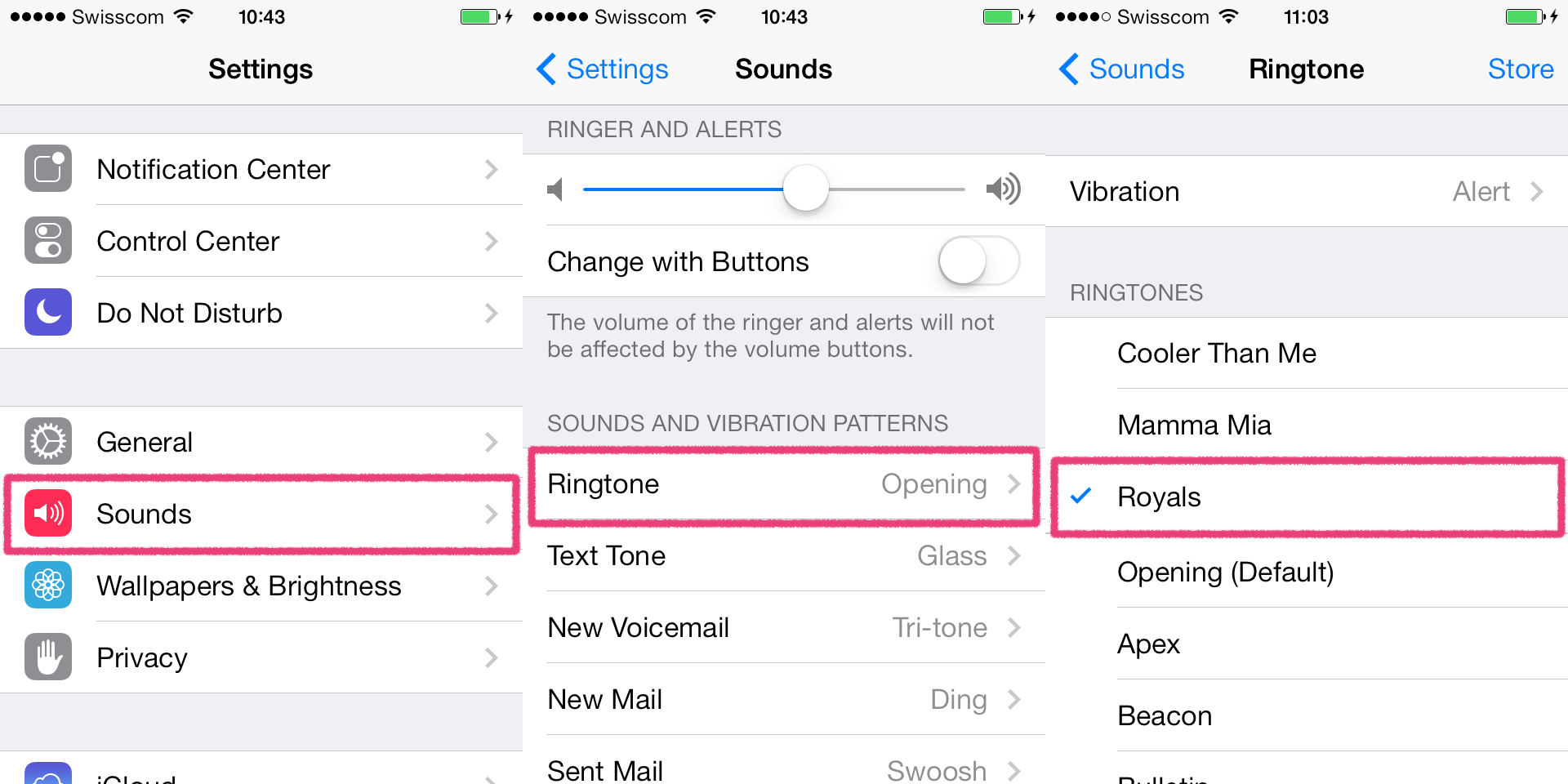
- Open the Settings app on your iPhone.
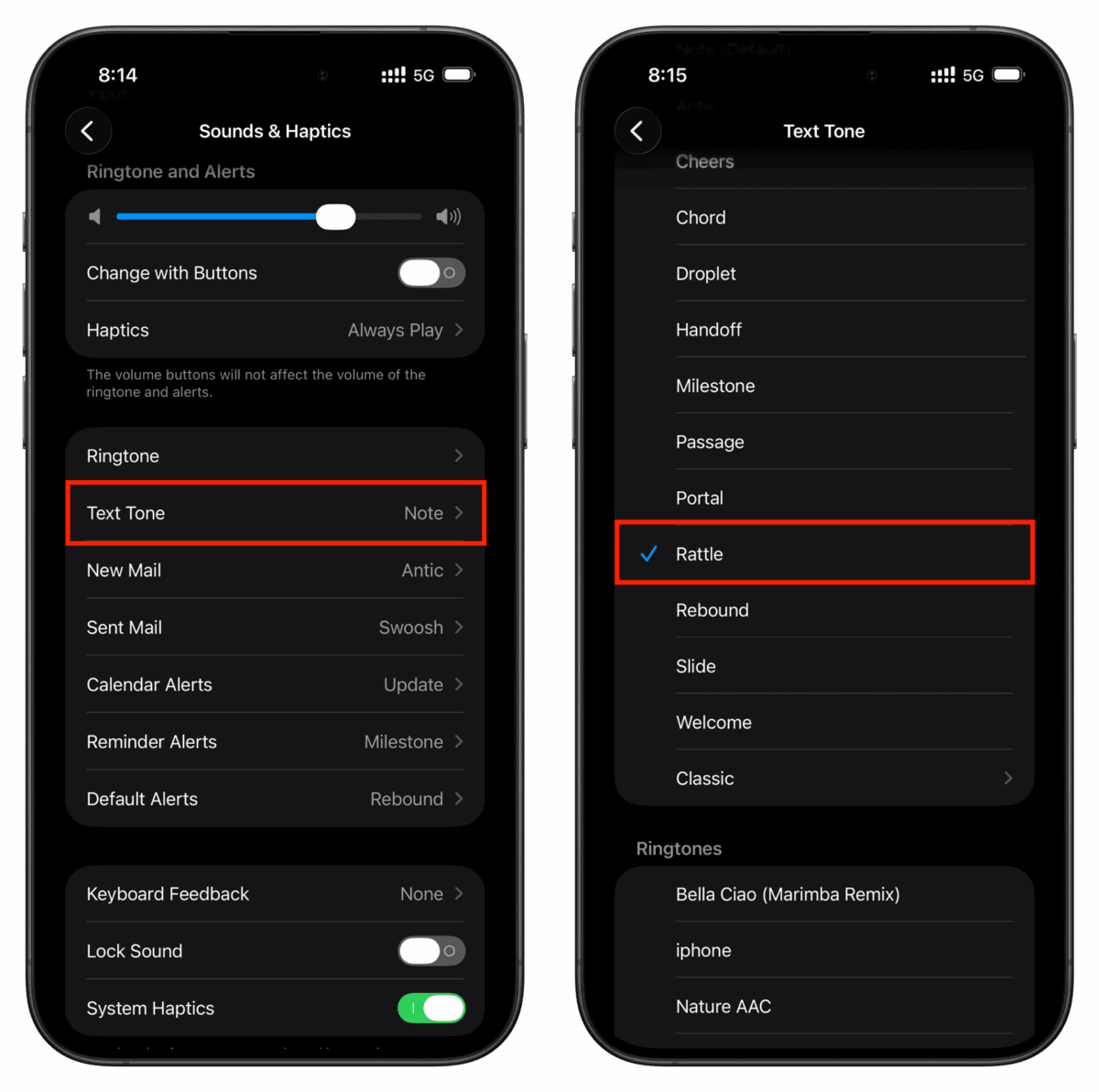
- Navigate to Sounds & Haptics.
- Under the "Sounds and Haptic Patterns" section, tap on Text Tone.
- Browse the list of available sounds. Tapping a sound will play a preview.
- Select your preferred tone. A checkmark will appear next to it.
- (Optional) Tap Haptics at the top of the screen to change the vibration pattern that accompanies the sound.
Assigning Unique Tones to Specific Contacts
Assigning a unique "Text Tone" to specific people allows you to know who is messaging you instantly. This is particularly useful for prioritizing family members or colleagues.
- Open the Contacts app (or the Phone app and tap the Contacts tab).
- Select the person you wish to customize.
- Tap Edit in the top-right corner.
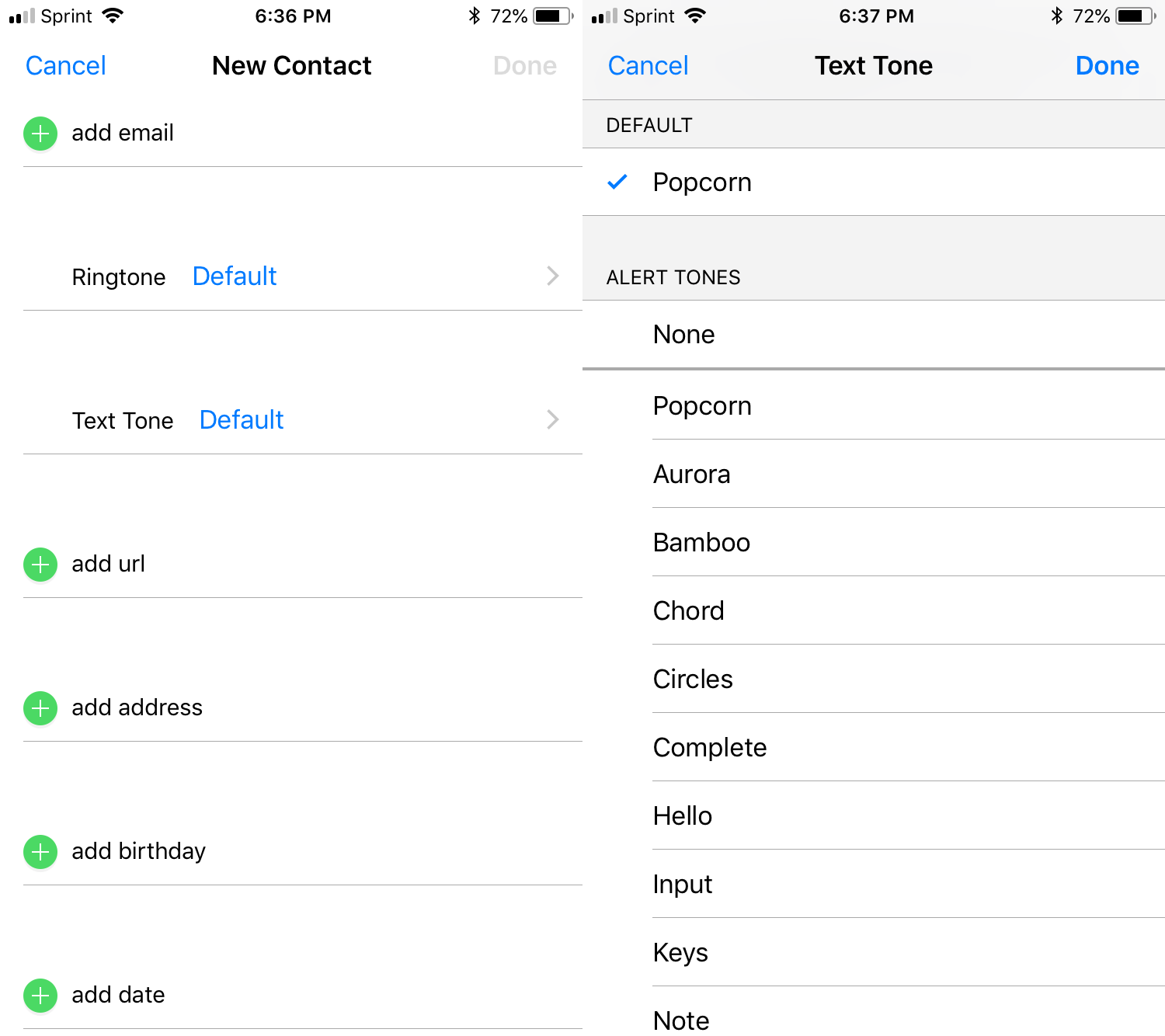
- Scroll down to the Text Tone field. By default, it will say "Default."
- Tap the field and select a unique sound and haptic pattern for this specific individual.
- Tap Done to save the changes.
Changing Writing Tone with Apple Intelligence
With the maturation of Apple Intelligence in 2026, changing the literal tone of your written text has become a standard feature within the Messages app, Mail, and third-party editors. This utility uses on-device processing to ensure your message conveys the right intent.
Accessing Writing Tools
To change the tone of a draft you have already typed:
- Type your message in the text input field of any app (e.g., Messages, Notes, or Mail).
- Double-tap or long-press the text to select the portion you want to modify.
- In the contextual menu that appears (where "Copy" and "Paste" are located), tap Writing Tools.
- A menu will appear with several "Tone" options:
- Professional: Adjusts the vocabulary to be more formal and structured.
- Friendly: Adds warmth and uses more approachable, casual language.
- Concise: Removes filler words and gets straight to the point.
- Select the desired tone. Apple Intelligence will generate a preview of the rewritten text.
- Tap Replace to update your message with the new version.
Why Tone Adjustment Matters
Linguistic tone adjustment is not just about grammar; it is about social context. Using the "Professional" tone can help a user quickly draft an email to a supervisor that might otherwise take ten minutes to word correctly. Conversely, the "Friendly" tone is excellent for softening the blow of a direct request or making a text sound more enthusiastic.
Creating and Adding Custom Text Tones
If the built-in library of sounds is insufficient, you can add custom audio files to your iPhone. While the "Tone Store" in the iTunes Store app is the easiest method, you can also use the GarageBand method to turn any audio file into a text tone for free.
Using the GarageBand Method
- Download or save an audio file (under 30 seconds) to your Files app.
- Open GarageBand and choose any instrument (like the Audio Recorder).
- Tap the Tracks icon (looks like a wall of bricks) to enter the timeline view.
- Tap the Loop Browser icon in the top right and select the Files tab.
- Drag your audio file into the timeline.
- Tap the downward arrow in the top left and select My Songs.
- Long-press your song and select Share, then choose Ringtone.
- Name the tone and tap Export. Once finished, select Use sound as... and choose Standard Text Tone.
Comparison of Tone Customization Options
| Feature | Primary Purpose | Location in iOS | Required Hardware/Software |
|---|---|---|---|
| Default Text Tone | Global notification sound | Settings > Sounds & Haptics | All iOS versions |
| Contact-Specific Tone | Identifying specific senders | Contacts > [Name] > Edit | All iOS versions |
| Haptic Patterns | Silent/Tactile alerts | Text Tone > Haptics | iPhone 8 and later |
| Writing Tools (AI) | Rewriting message style | Text Selection Context Menu | iPhone 15 Pro or newer (iOS 18+) |
| Custom Tones | Personalized audio alerts | iTunes Store or GarageBand | All iOS versions |
Troubleshooting Common Issues
Why is my text tone not playing?
If you have selected a new tone but hear nothing when messages arrive, check the following:
- The Silent Switch/Action Button: Ensure your phone is not in Silent Mode.
- Focus Modes: Check if "Do Not Disturb" or a custom Focus mode is silencing notifications.
- Attention Aware Features: If you are looking at your phone, the iPhone may lower the volume of alerts automatically. Turn this off in Settings > Face ID & Passcode.
Why don't I see the "Writing Tools" option?
If the linguistic tone features are missing:
- Hardware Compatibility: Apple Intelligence requires an iPhone 15 Pro, iPhone 16 series, or newer.
- Language Settings: As of 2026, these features are most robust in English, though support for other languages has expanded. Ensure your Siri and System language are set to a supported dialect.
- On-Device Models: Ensure you have downloaded the necessary AI models under Settings > Apple Intelligence & Siri.
Best Practices for Text Tones in 2026
When choosing a notification sound, consider the frequency and environment. High-pitched, "piercing" sounds like "Keys" or "Tri-tone" are better for loud environments, while "Classic" tones like "Note" are less intrusive in office settings.
Regarding linguistic tones, always review the AI's suggestions. While Apple Intelligence is highly sophisticated in 2026, it can occasionally misinterpret nuances or sarcasm. The "Concise" tool is particularly useful for smartwatches (Apple Watch), where shorter messages are easier for recipients to read on small displays.
FAQs
Can I use a song from Apple Music as a text tone?
You cannot directly set a song from the Apple Music streaming catalog as a text tone due to Digital Rights Management (DRM) restrictions. You must either purchase the tone from the Tone Store or use a DRM-free audio file with the GarageBand export method described above.
How do I delete custom text tones I no longer want?
To remove custom tones, go to Settings > Sounds & Haptics > Text Tone. Locate the custom tone in the list (usually at the top), swipe left on the name of the tone, and tap the red Delete button. Note that built-in Apple tones cannot be deleted.
Will changing my text tone also change my ringtone?
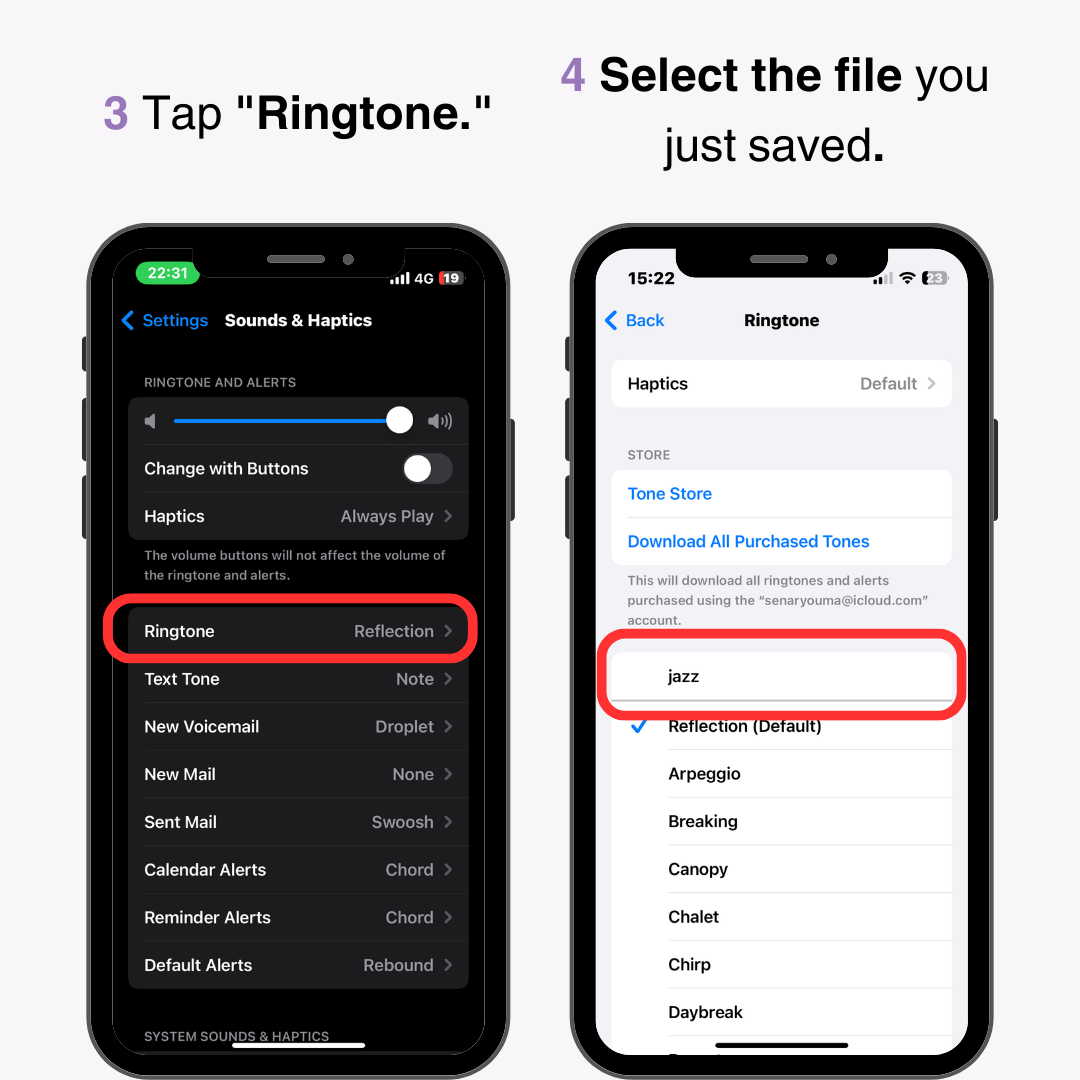
No. Text tones and Ringtones are managed as separate entities. You can have a different sound for incoming calls (Ringtone), text messages (Text Tone), and new voicemails. You can find all these options within the same Sounds & Haptics menu.
Can I set different text tones for different SIM cards?
Yes, if you use Dual SIM (an eSIM and a physical SIM, or two eSIMs), you can assign different notification sounds to each line. This is found under Settings > Sounds & Haptics > Text Tone, where the menu will split into "Primary" and "Secondary" options if two lines are active.
Does changing the Writing Tone affect the recipient's settings?
No. When you use Writing Tools to change the tone of your text to "Professional" or "Friendly," it only changes the words you are sending. It does not affect how the recipient's phone sounds or how the message is displayed on their end, other than the literal text content.
Recommendation for Next Actions
To optimize your iPhone experience, start by setting a unique Text Tone for your most frequent contact. This reduces "notification fatigue" by allowing you to ignore low-priority alerts. If you frequently communicate in a professional capacity, practice using the Writing Tools feature on a few drafts to familiarize yourself with how the AI handles your specific writing style.
Image Gallery