How to Make a Non-Editable PDF Editable: A Complete 2026 Guide
To make a non-editable PDF editable, you must first identify if the file is a scanned image or restricted by security settings. For scanned documents, use Optical Character Recognition (OCR) tools like Adobe Acrobat Pro or Google Docs...
To make a non-editable PDF editable, you must first identify if the file is a scanned image or restricted by security settings. For scanned documents, use Optical Character Recognition (OCR) tools like Adobe Acrobat Pro or Google Docs to generate a text layer. For restricted files, you must enter the permissions password or use a PDF unlocking utility to enable editing capabilities.
Contents
Understanding Why Your PDF is Not Editable
Before attempting to modify a document, it is essential to diagnose why the "non-editable" state exists. In the professional landscape of 2026, PDF (Portable Document Format) files generally fall into three categories of restricted access. Identifying the specific category determines the tools and techniques required for a successful conversion.
1. Image-Based or Scanned PDFs
The most common reason a PDF is non-editable is that it contains no actual text data. When a physical document is scanned into a digital format, the computer perceives it as a single high-resolution image (essentially a photograph of the page). Because there are no individual characters or fonts embedded in the file, standard text cursors cannot interact with the content. To resolve this, you must apply Optical Character Recognition (OCR), which analyzes the pixels and converts them into searchable and editable text.
2. Password-Protected or Restricted PDFs
Security is a primary feature of the PDF format. Creators can apply "Owner Passwords" or "Permissions Passwords" that allow a user to view the file but prevent printing, copying, or editing. In these instances, the text layer exists, but the software’s editing tools are programmatically greyed out. Overcoming this requires the original password or specialized decryption software that can strip these metadata flags from the file header.
3. Read-Only Form Fields
Some PDFs are "flattened" forms. These documents may have been interactive at one point, but the fields have been merged into the background layer. This is often done to preserve the integrity of a signed or finalized document. Making these editable involves either "unflattening" the document through advanced PDF editors or overlaying new interactive elements on top of the existing graphics.
Method 1: Using Professional OCR Software (Adobe Acrobat Pro)
Adobe Acrobat Pro remains the industry standard in 2026 for high-fidelity PDF manipulation. Its integrated OCR engine, now enhanced by generative AI, can recognize layout structures, complex tables, and proprietary fonts with near-perfect accuracy.
Step-by-Step Conversion:
- Open the Document: Launch Adobe Acrobat and open your non-editable file.
- Access the Edit Tool: Navigate to the "Edit PDF" tool in the right-hand pane. If the file is a scan, Acrobat will automatically detect this and display a message stating it is performing OCR.
- Configure OCR Settings: Click on "Settings" within the Edit pane. Ensure the "Recognize Text" checkbox is active. You can choose between "Searchable Image" (which keeps the original look but adds a text layer) or "Editable Text and Images" (which replaces the image with live text).
- Execute the Edit: Once the OCR process completes, the image blocks transform into text boxes. You can now click into any paragraph to change the wording, adjust the font size, or replace images.
- Save the File: Select "File > Save As" to preserve your changes in a new document.
Pros: Maintains the highest level of visual fidelity; automatically matches fonts used in the original scan. Cons: Requires a paid Creative Cloud subscription; may be resource-intensive on older hardware.
Method 2: Converting via Microsoft Word
If you do not have access to specialized PDF software, Microsoft Word offers a surprisingly robust built-in conversion feature. This method is best suited for text-heavy documents where the exact visual layout is less critical than the content itself.
The Conversion Process:
- Open Microsoft Word: Start the application and go to "File > Open."
- Locate the PDF: Browse to your non-editable PDF and select it.
- Accept the Conversion Warning: Word will display a notification: "Word will now convert your PDF to an editable Word document. This may take a while..." Click OK.
- Refine the Text: Word’s engine will attempt to reconstruct the PDF as a
.docxfile. It works by identifying lines of text and recreating them. - Edit and Re-save: Once the conversion is complete, edit the text as you would any Word document. If you need the final file to be a PDF again, go to "File > Save As" and select "PDF" from the format dropdown menu.
Technical Limitation: Word struggles with complex graphical elements, such as intricate borders, overlapping images, or multi-column layouts with varied spacing. It is primarily a word processor, not a layout engine.
Method 3: Utilizing Google Drive and Google Docs (Free OCR)
For a fast, free, and cloud-based solution, Google Drive provides an effective OCR engine that handles multiple languages and simple layouts with high efficiency.
How to Use Google OCR:
- Upload to Drive: Drag and drop your non-editable PDF into your Google Drive account.
- Open with Google Docs: Right-click the file, select "Open with," and then choose "Google Docs."
- Wait for Processing: Google will perform an OCR scan on the fly. It will create a new Google Doc containing the image of the PDF page followed by the extracted, editable text.
- Cleanup: You may need to reformat the text, as Google Docs often strips away the original layout in favor of a clean, linear text flow.
- Download: Go to "File > Download > PDF Document" to export your edited work back to the original format.
Method 4: Handling Restricted and Password-Protected PDFs
If the PDF is non-editable due to security permissions (and you have the legal right to edit it), you must remove the encryption layer.
Permissions vs. Document Open Passwords
- Document Open Password: Prevents you from even viewing the file. You cannot make this editable without the password.
- Permissions Password: Allows viewing but restricts editing.
How to Remove Restrictions:
- Official Method: If you have the password, open the PDF in Adobe Acrobat, go to "Tools > Protect > Encrypt > Remove Security."
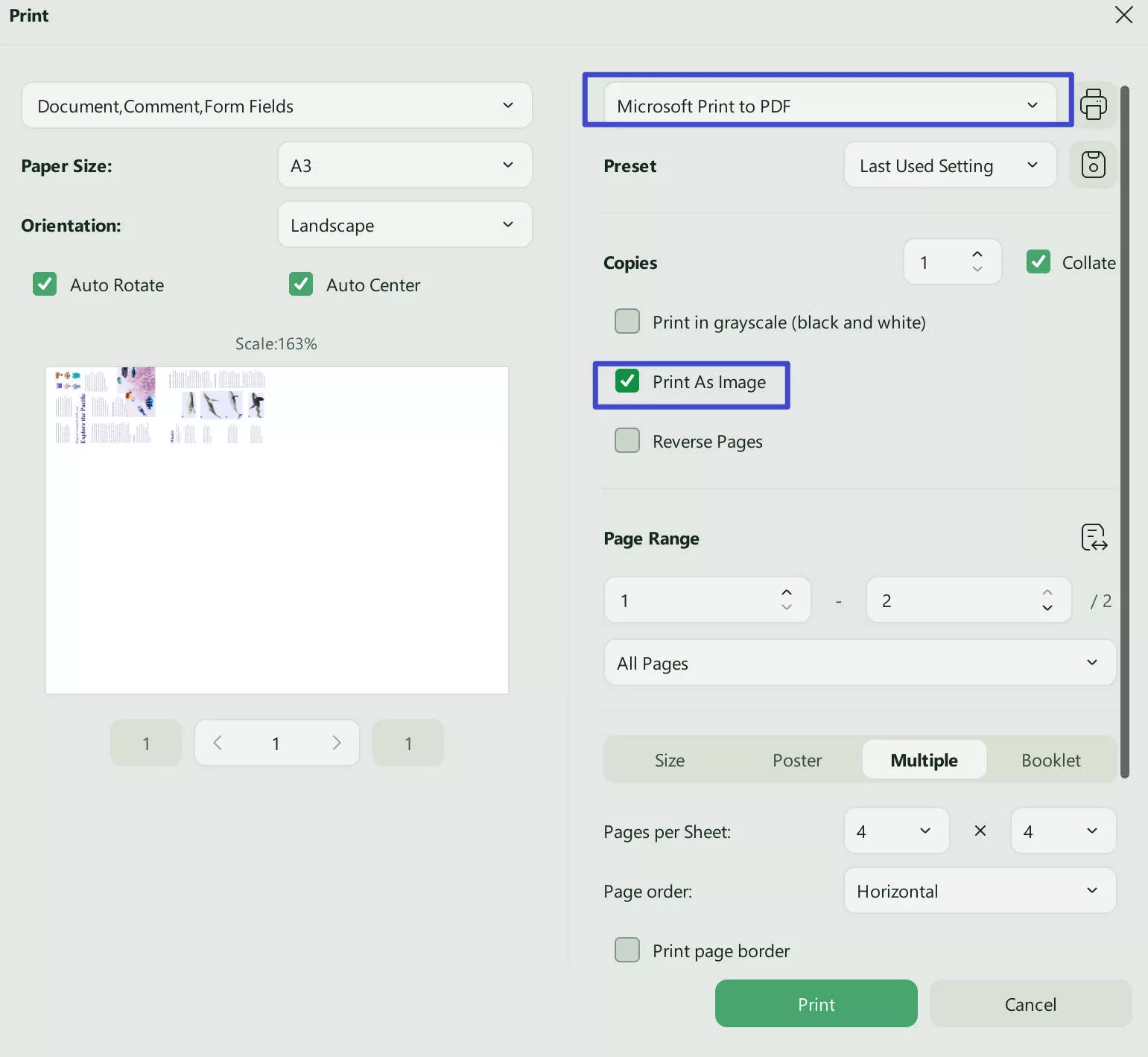
- The "Print to PDF" Workaround: Sometimes, if printing is allowed but editing is not, you can open the PDF in a browser (like Chrome or Edge), click "Print," and select "Save as PDF" or "Microsoft Print to PDF" as the printer. This creates a new copy of the file that often lacks the original security metadata, effectively making it editable.
- Note: In 2026, many security protocols have patched this loophole, but it remains a viable first step for older documents.
- Online Unlockers: Services like Smallpdf or iLovePDF allow you to upload a restricted file and strip the permissions. Caution: Never upload sensitive, financial, or private legal documents to third-party online converters, as your data is processed on their servers.
Comparison of PDF Editing Methods
| Method | Best For | Accuracy | Cost | Privacy Level |
|---|---|---|---|---|
| Adobe Acrobat Pro | Professional/Complex Layouts | Excellent | High (Subscription) | High (Local) |
| Microsoft Word | Simple Text Documents | Moderate | Included with Office | High (Local) |
| Google Docs | Quick/Free OCR | Good (Text only) | Free | Moderate (Cloud) |
| Online Converters | One-off tasks | Variable | Free/Freemium | Low (Third-party) |
| ABBYY FineReader | High-volume/Legal scans | Industry Leading | High (One-time) | High (Local) |
Advanced Troubleshooting and Best Practices
Dealing with Low-Resolution Scans
If your OCR results are coming back as gibberish (e.g., "3ditabl3" instead of "editable"), the source resolution is likely too low. OCR software typically requires a minimum of 300 DPI (dots per inch) for reliable recognition. If you are scanning the document yourself, ensure you select a higher resolution and keep the pages flat to avoid warping the text lines.
Preserving Hidden Metadata
When you convert a non-editable PDF to an editable format, you risk losing "invisible" data, such as digital signatures, XMP metadata, or accessibility tags (Alt-text for the visually impaired). If the document must remain compliant with PDF/UA (Universal Accessibility) or PDF/A (Archival) standards, you must use a professional editor like Acrobat or Nitro Pro that can "re-tag" the document after the text has been made editable.
Font Matching Issues
A common frustration when making a PDF editable is the lack of matching fonts. If the original document used a font that is not installed on your system, the editor will substitute it with a generic font like Arial or Times New Roman, which can break the layout. In 2026, premium editors use AI to synthesize missing characters based on the surrounding shapes, but the most reliable fix is to install the specific font family on your OS before starting the edit.
Frequently Asked Questions
Is it legal to make a non-editable PDF editable?
It depends on the ownership and copyright of the document. If you own the document or have permission from the creator, it is legal. However, bypassing security on copyrighted materials or legally binding contracts without authorization may violate terms of service or local intellectual property laws. Always ensure you have the right to modify a file before using "unlocking" tools.
Why does my text look like a "jumble" after OCR?
This usually occurs due to complex layouts, such as text wrapping around irregular images or multi-column formats. OCR software reads in "zones." If the software misidentifies the reading order of these zones, it may merge two separate columns into a single line. Most professional tools allow you to manually draw and order the OCR zones to fix this issue.
Can I make a PDF editable on a mobile device?
Yes. Apps like Adobe Scan, Microsoft Lens, and the mobile version of Google Drive have integrated OCR features. You can take a photo of a physical document, and these apps will convert it into an editable PDF or Word file directly on your smartphone.
Does "flattening" a PDF make it permanently uneditable?
Flattening merges all layers (text, form fields, and images) into one single graphic layer. While it makes the document significantly harder to edit, it is not "permanent." Applying OCR to a flattened document can recreate the text layer, though some formatting and interactive features (like dropdown menus) will be lost.
Can I edit a PDF that has been digitally signed?
Editing a document that has a cryptographic digital signature will typically "break" the signature. This is a security feature to show that the document has been altered since it was signed. If you must edit a signed PDF, you will likely need to clear the signatures, make the edits, and then have the document re-signed by all parties.
Final Recommendation: Selecting the Right Path
To achieve the best results in 2026, your choice should be dictated by the document's complexity. For high-stakes business or legal documents, invest in Adobe Acrobat Pro or ABBYY FineReader. These tools provide the precision necessary to ensure that "making it editable" doesn't result in "making it inaccurate."
For casual, one-time edits of simple letters or lists, Microsoft Word or Google Docs are sufficient and cost-effective. Always remember to save a backup of the original non-editable file before beginning the process, as the conversion can sometimes be destructive to the original formatting. If you encounter a password-protected file, your first action should always be to contact the source for the original credentials to maintain document integrity and security compliance.
Image Gallery