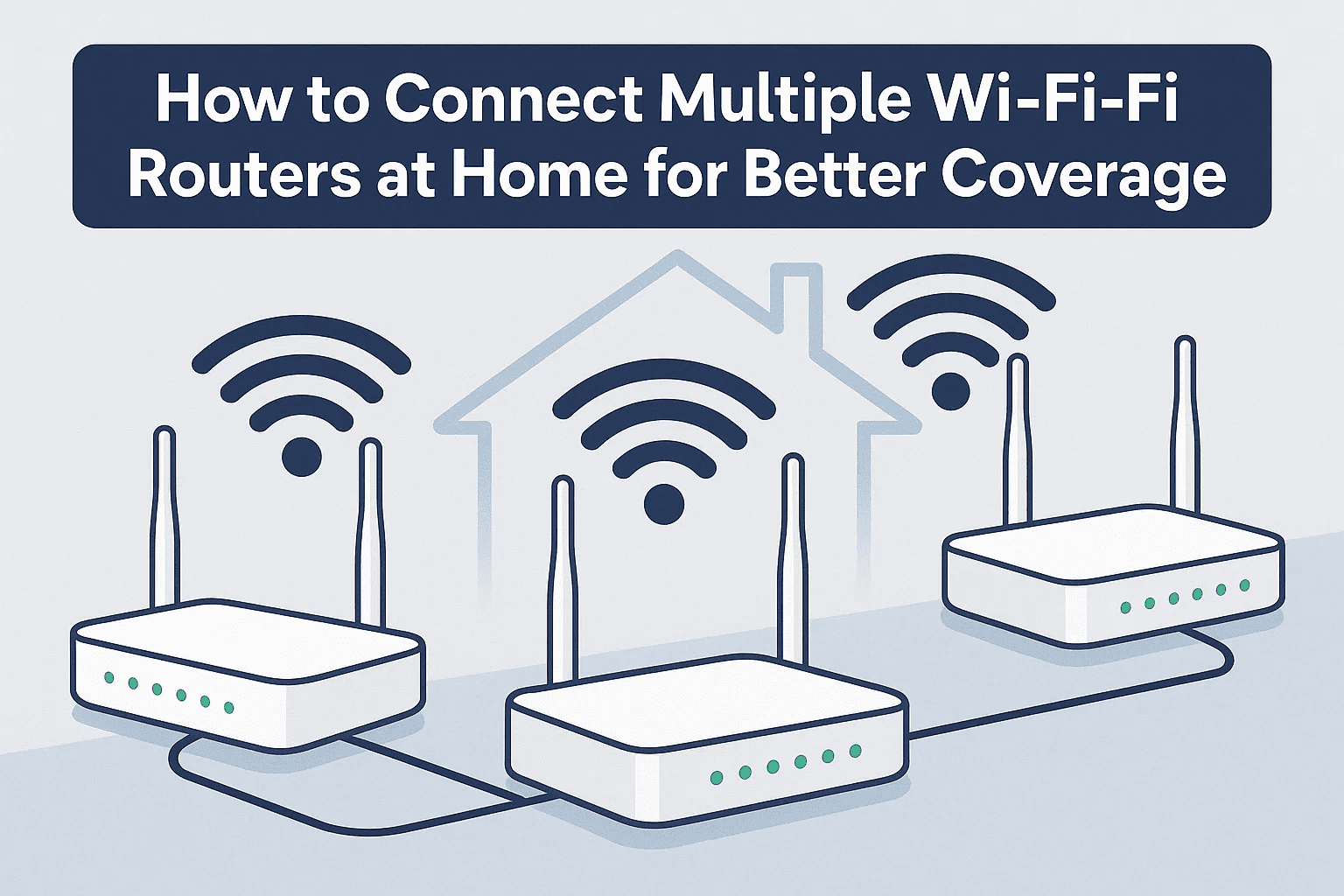
How to Connect Internet to Router in Your Home: A Step-by-Step Guide
Connecting internet to your router requires linking the device to your modem using an Ethernet cable, powering both units on, and configuring the network settings via a web-based interface or a dedicated mobile app. This process bridge...
Connecting internet to your router requires linking the device to your modem using an Ethernet cable, powering both units on, and configuring the network settings via a web-based interface or a dedicated mobile app. This process bridges your Internet Service Provider’s (ISP) incoming signal with your local devices to enable wired and wireless connectivity.
Contents
Establishing a stable home network is the foundation of modern digital life, supporting everything from remote work and education to smart home automation and high-definition entertainment. While the process may seem daunting due to the technical jargon involved, modern hardware in 2026 has become increasingly user-friendly. Most routers now feature automated setup wizards that handle the heavy lifting, but understanding the underlying physical connections and security configurations remains essential for a reliable, high-speed connection.
Understanding the Core Hardware Requirements
Before attempting to connect your router, it is vital to distinguish between the two primary pieces of hardware involved: the modem and the router. Many modern ISPs provide a "Gateway," which is a single device that combines both functions. However, if you are using your own equipment to maximize performance—particularly for Wi-Fi 7 or 10Gbps fiber connections—you will likely have two separate units.
The Modem (The Translator)
The modem is the device that communicates directly with your ISP. Whether your service arrives via fiber-optic cable, coaxial cable, or satellite, the modem "modulates" and "demodulates" these signals into a digital format that computer hardware can understand. It typically features one incoming port for the service line and one outgoing Ethernet port (often labeled WAN or Internet) to send data to the router.
The Router (The Director)
The router takes the internet connection provided by the modem and distributes it to multiple devices in your home. It acts as a traffic controller, assigning local IP addresses and managing data packets so that your laptop, smartphone, and smart TV can all access the internet simultaneously without interference. In 2026, high-performance routers frequently feature 2.5Gbps or 10Gbps WAN ports to accommodate the multi-gigabit speeds offered by modern fiber providers.
Essential Equipment Checklist
To complete the setup, ensure you have the following items ready:
- The Router: Your primary networking device.
- The Modem: Provided by your ISP or purchased separately.
- Ethernet Cables: At least one Category 6 (Cat6) or Category 6a cable is recommended. Cat6a is preferable in 2026 to ensure support for 10Gbps speeds over longer distances.
- Power Adapters: Use only the specific power cables provided with each device to avoid electrical damage.
- A Setup Device: A smartphone with the manufacturer’s app installed or a laptop with an Ethernet port (or USB-C to Ethernet adapter).
Step-by-Step Physical Installation
Follow these steps in the exact order listed to ensure the hardware synchronizes correctly and avoids IP conflict errors during the initialization phase.
Step 1: Position the Hardware
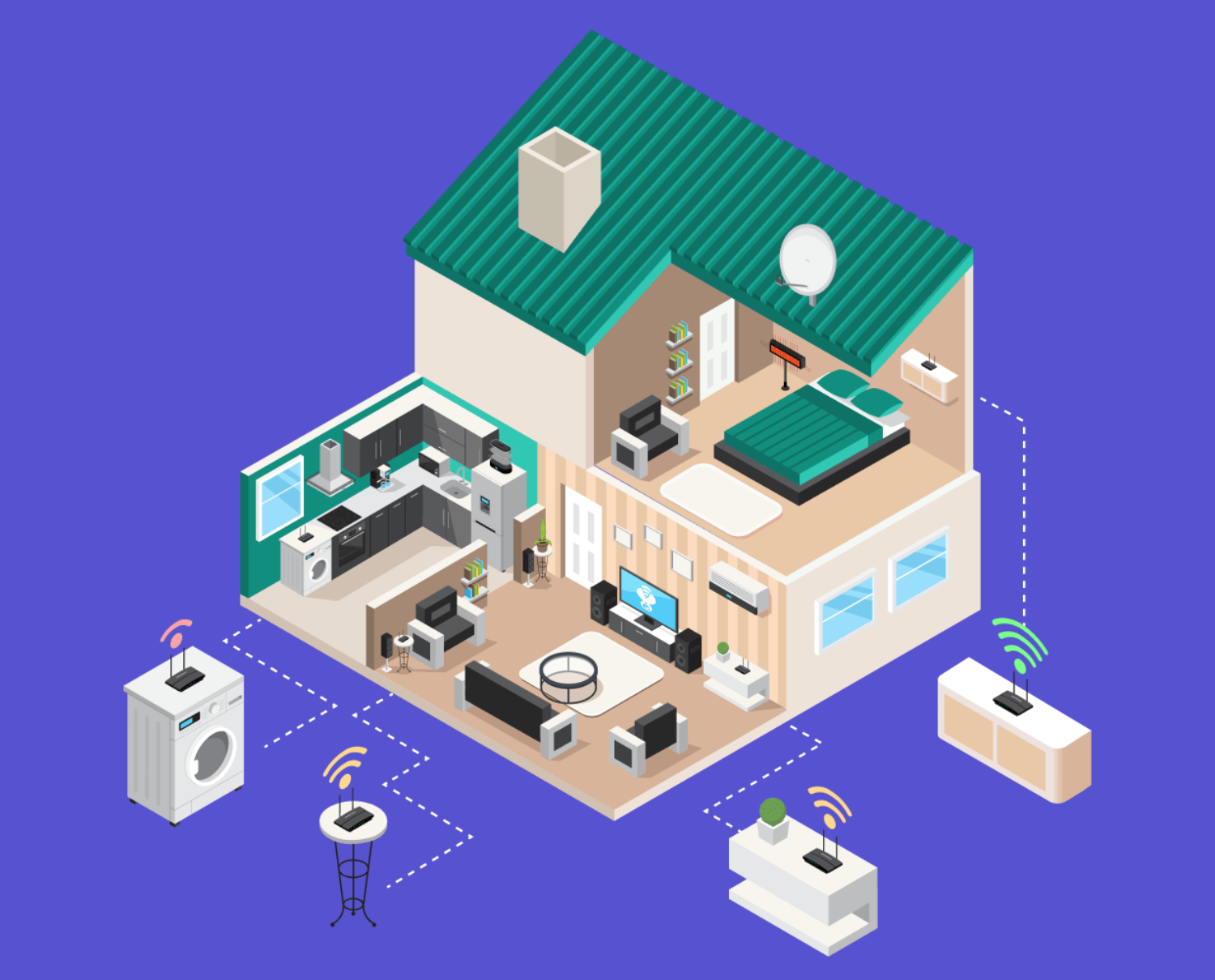
Place your router in a central, elevated location. Avoid placing it inside cabinets or behind large metal objects, as these can severely degrade Wi-Fi signal strength. For optimal coverage, the router should be at least three feet away from other electronic devices like microwaves or cordless phones that operate on similar frequencies.
Step 2: Connect the Modem to the Service Line
Ensure your modem is connected to the wall outlet provided by your ISP (e.g., the coax cable for cable internet or the optical network terminal for fiber). If you are setting up a new service, ensure the ISP has activated your line.
Step 3: Link the Modem to the Router
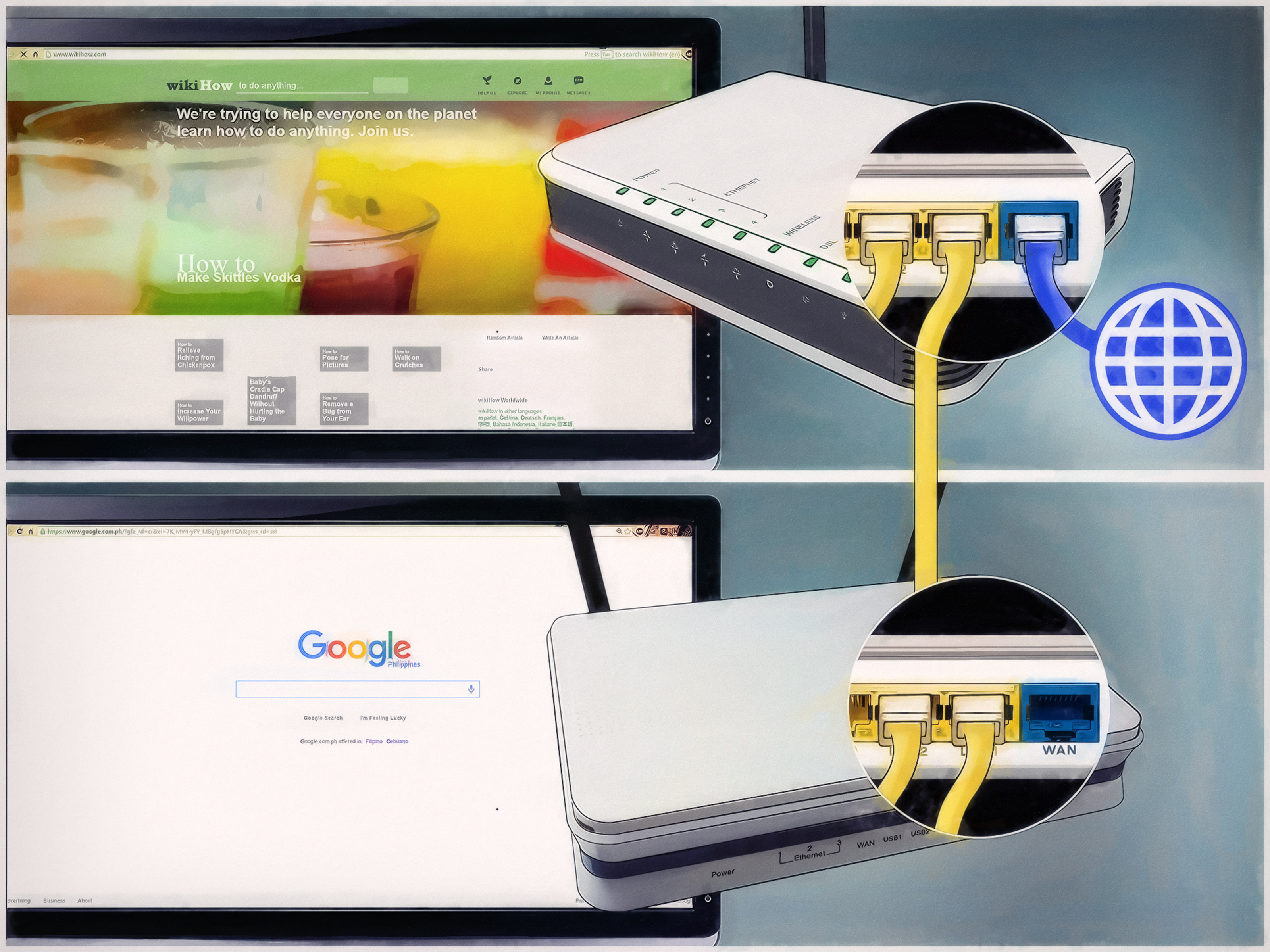
Take your Ethernet cable and plug one end into the Ethernet/LAN port on the back of the modem. Plug the other end into the port labeled WAN (Wide Area Network) or Internet on the back of your router. This port is often color-coded (usually yellow or blue) to distinguish it from the local LAN ports.
Step 4: Power Cycle the Devices
Plug in the modem’s power adapter and wait for the "Online" or "Power" lights to turn solid. This can take up to five minutes as the modem synchronizes with the ISP’s headend. Once the modem is stable, plug in the router's power adapter. Wait for the router’s indicator lights to stabilize, which signals that the internal operating system has booted up.
Step 5: Connect Your Configuration Device
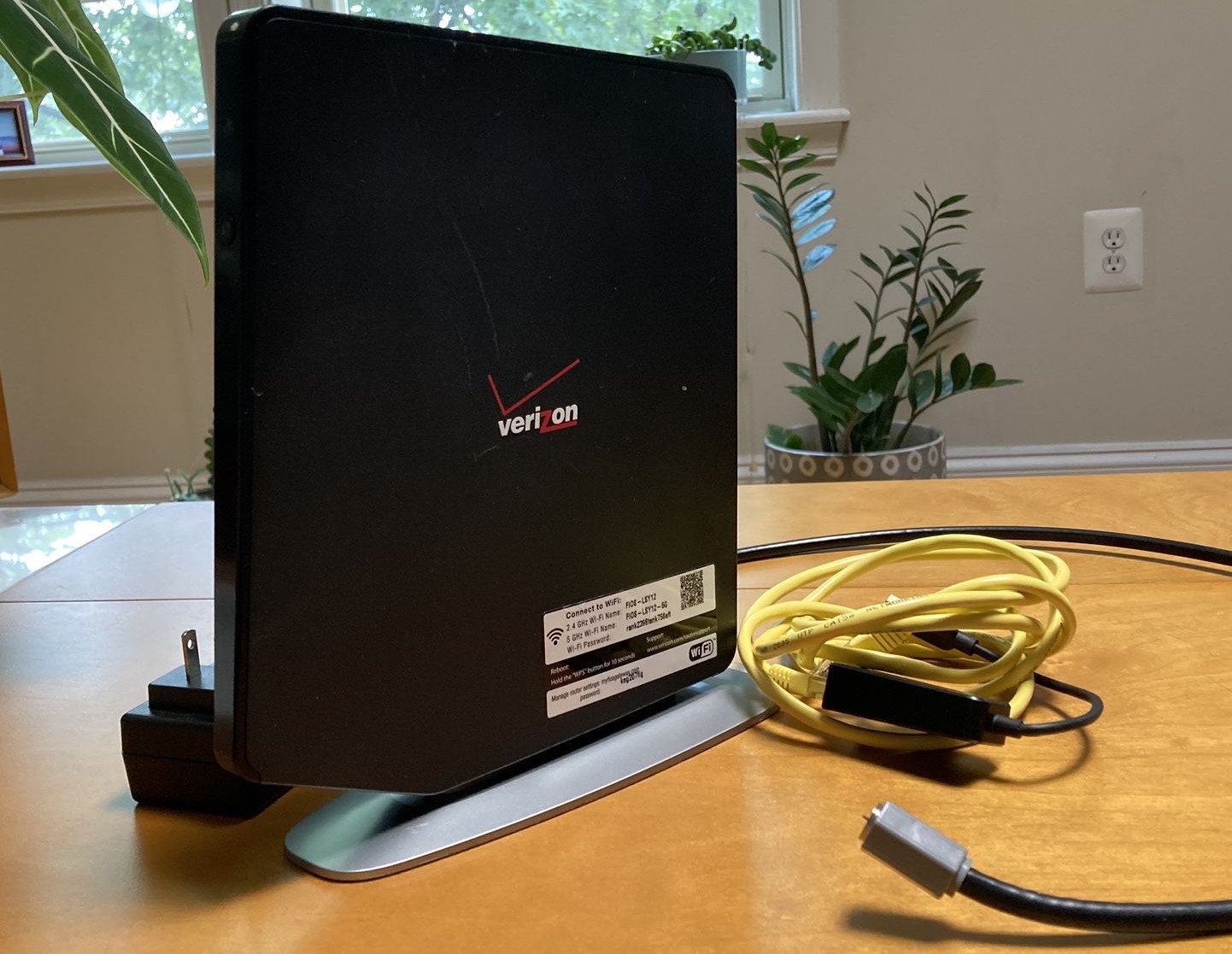
If you are using a laptop, connect it to one of the router’s LAN ports (not the WAN port) using another Ethernet cable. If you are using a smartphone, open your Wi-Fi settings and look for the default network name (SSID) printed on the label at the bottom of the router. Connect using the default password provided on that same label.
Configuring the Network Software
Once the physical connection is established, you must configure the software to secure your network and optimize performance.
Accessing the Administrative Interface
Open a web browser on your connected device and enter the router’s default IP address into the address bar. Common addresses include 192.168.1.1 or 192.168.0.1. Alternatively, most modern brands like Asus, TP-Link, and Netgear utilize dedicated mobile apps that automatically detect the new router on your network.
Setting the SSID and Password
Change the default network name (SSID) to something unique. When setting the password, ensure you select WPA3-SAE encryption, which is the current industry standard in 2026 for robust security. Avoid using easily guessable information like your street address or phone number. A strong password should be at least 12 characters long and include a mix of letters, numbers, and symbols.
Updating Firmware
Manufacturers frequently release firmware updates to patch security vulnerabilities and improve hardware compatibility. During the initial setup, check for available updates. This is a critical step, as many routers ship with "out of the box" firmware that may be several months old and contain known bugs.
Comparison of Home Internet Connection Types
| Connection Type | Recommended Hardware | Average Speed (2026) | Primary Benefit |
|---|---|---|---|
| Fiber Optic | ONT + Wi-Fi 7 Router | 1 Gbps - 10 Gbps | Symmetrical upload/download speeds and lowest latency. |
| Cable (DOCSIS 4.0) | Cable Modem + Router | 500 Mbps - 2 Gbps | Widely available in urban and suburban areas. |
| 5G Home Internet | 5G Gateway (Integrated) | 100 Mbps - 1 Gbps | Easy "plug-and-play" setup without professional installation. |
| Satellite (LEO) | Proprietary Dish + Router | 100 Mbps - 300 Mbps | Ideal for rural areas where ground infrastructure is missing. |
Optimizing for Maximum Performance
Connecting the internet is only the first step; ensuring it works efficiently across your home requires fine-tuning.
Frequency Band Management
Most 2026-era routers are tri-band or quad-band, utilizing the 2.4GHz, 5GHz, and 6GHz frequencies. Use the 6GHz band for high-bandwidth devices like gaming PCs and VR headsets, as it offers the highest speeds and least interference. Reserve the 2.4GHz band for smart home devices (IoT) like light bulbs and thermostats, which require range rather than speed.
Quality of Service (QoS) Settings
If you have multiple users in the home, enable QoS settings in the router's admin panel. This allows you to prioritize specific types of traffic, such as video conferencing or online gaming, ensuring that a large file download on another device doesn't cause lag or buffering during important tasks.
Troubleshooting Common Connectivity Issues
If you have followed the steps above and still cannot access the internet, check the following:
- Check Physical Connections: Ensure the Ethernet cables are pushed in until they "click." A loose WAN cable is the most common cause of "No Internet" errors.
- Verify ISP Status: Log into your ISP’s mobile app or website to check for local outages. If the modem’s "Internet" light is flashing or red, the issue likely lies with the service provider.
- The 30-Second Reset: Unplug both devices, wait 30 seconds, then plug in the modem first, followed by the router two minutes later. This forces a fresh handshake between the hardware.
- MAC Address Cloning: Some ISPs (particularly cable providers) "lock" to the hardware ID (MAC address) of the first device they see. If you are replacing an old router, you may need to use the "Clone MAC Address" feature in your new router's settings to mimic the old one.
Frequently Asked Questions
What is the difference between a WAN port and a LAN port?
The WAN (Wide Area Network) port is designed to receive the incoming internet signal from your modem. It connects your home to the outside world. LAN (Local Area Network) ports are used to connect your internal devices, such as desktop computers or game consoles, directly to the router via Ethernet cables for a faster, more stable connection than Wi-Fi.
Can I use my own router with an ISP-provided modem?
Yes, and in most cases, it is recommended for better performance. If your ISP provided a gateway (a modem/router combo), you should put that device into "Bridge Mode." This disables the gateway’s internal routing functions and Wi-Fi, allowing your personal router to handle all network traffic without causing a "Double NAT" conflict, which can interfere with gaming and VPNs.
Why is my router not getting an internet signal?
This is often due to a synchronization error. Ensure the modem is fully booted and showing a "link" light before turning on the router. If the WAN light on the router remains orange or red, try swapping the Ethernet cable connecting the two devices, as cables can occasionally fail or have internal wiring breaks.
How do I update my router's firmware?
Most routers sold in 2026 handle this automatically via their mobile app. However, you can also do it manually by logging into the web interface, navigating to the "System" or "Administration" tab, and clicking "Check for Updates." It is vital not to power off the router during this process, as it can "brick" the device, making it unusable.
Do I need an Ethernet cable for the initial setup?
While many routers allow for a completely wireless setup via a smartphone app, having an Ethernet cable is highly recommended. If the Wi-Fi fails or the default password doesn't work, a physical connection to a LAN port is the only way to access the administrative settings to resolve the issue.
For further information on home networking standards, the IEEE provides detailed technical specifications for the 802.11 standards, while the Wi-Fi Alliance offers resources on the latest Wi-Fi 7 certifications. For consumers concerned about security, the National Institute of Standards and Technology (NIST) provides frameworks for securing home IoT and networking environments.
Final Recommendation
Once your router is successfully connected and secured, perform a speed test to ensure you are receiving the bandwidth you pay for. If coverage is weak in distant rooms, consider upgrading to a Mesh Wi-Fi system rather than a single router. Mesh systems use multiple nodes to create a single, seamless network throughout larger homes, eliminating dead zones and providing a more consistent internet experience.
Image Gallery