How to Create an EA ID: A Complete Guide to Setting Up Your Gaming Identity in 2026
To create an EA ID, you must register for an Electronic Arts account via the official EA website, the EA App on Windows or Mac, or through the initial setup screen of an EA game on your console. During registration, you will provide an...
To create an EA ID, you must register for an Electronic Arts account via the official EA website, the EA App on Windows or Mac, or through the initial setup screen of an EA game on your console. During registration, you will provide an email address, password, and your unique EA ID.
Contents
An EA ID—formerly known as an Origin ID—is the unique public identifier used across the Electronic Arts ecosystem. Whether you are competing in Apex Legends, managing a squad in EA Sports FC 26, or building a legacy in The Sims 4, your EA ID is how friends find you, how cross-play identifies you, and how your progress is tracked across different platforms. In 2026, with the full integration of cross-platform progression, having a correctly configured EA ID is more critical than ever for maintaining a seamless gaming experience.
The Distinction Between an EA Account and an EA ID
Before beginning the creation process, it is essential to understand the hierarchy of your gaming identity. An EA Account is the overarching container for your digital presence. It stores your purchase history, your subscription status (such as EA Play), and your security settings.
The EA ID is the public-facing name associated with that account. While your login credentials (email and password) remain private, your EA ID is visible to other players on leaderboards, in multiplayer lobbies, and on your profile. In the current 2026 landscape, EA allows users to change their EA ID, but the underlying account remains constant, preserving all earned achievements and digital entitlements.
Prerequisites for Creating an EA ID
To ensure a smooth registration process, gather the necessary components before navigating to the sign-up page. Electronic Arts maintains strict security and regional compliance standards that can block account creation if requirements are not met.
- A Valid Email Address: Use a permanent email address that you check frequently. Avoid using "burner" or temporary email services, as these are often flagged by EA's security filters and can prevent you from recovering your account if you lose your password.
- Age Requirements: EA follows regional regulations such as COPPA in the United States and GDPR in Europe. Users under a certain age (usually 13 or 16, depending on the country) may be required to create a "Child Account," which has restricted social features and requires a parent or guardian's email for oversight.
- Unique Handle Ideas: Your EA ID must be unique. Because millions of players are active in 2026, your first choice may be taken. Prepare a few variations that include underscores or numbers.
- System Access: You can create an ID via a web browser, the EA App for desktop, or a gaming console (PlayStation 5, Xbox Series X|S, or Nintendo Switch).
Method 1: Creating an EA ID via the Web Portal
The most direct way to create an account is through the official EA Help or EA.com websites. This method is preferred for users who want to manage their security settings immediately after creation.
- Navigate to the Registration Page: Go to the EA homepage and click the profile icon in the top right corner. Select "Create an Account."
- Select Your Region and Date of Birth: This is a crucial step for legal compliance. Ensure your date of birth is accurate, as changing it later can be difficult and may require contacting customer support.
- Enter Your Credentials: Provide your email address and create a strong password. In 2026, EA recommends passwords of at least 10 characters, including a mix of uppercase, lowercase, numbers, and symbols.
- Claim Your EA ID: This is where you enter your public handle. If the name is unavailable, the system will provide a red error message. Once you find an available name, proceed.
- Set Privacy and Email Preferences: Choose who can see your profile (Everyone, Friends, or No One) and decide if you want to receive marketing communications.
- Verify Your Email: EA will send a six-digit verification code to your provided email. Enter this code on the website to activate your account.
Method 2: Creating an EA ID via the EA App
For PC and Mac gamers, the EA App is the primary gateway to their library. Creating an account through the app is efficient as it automatically links the account to the software you will use to play.
- Download and Install: Ensure you have the latest version of the EA App installed on your machine.
- Launch the App: On the login screen, look for the link that says "Create an account."
- Follow the On-Screen Prompts: The process mirrors the web registration, asking for your region, age, and email.
- Finalize the ID: The app will prompt you to choose your EA ID. Once confirmed, the app will log you in automatically, allowing you to begin downloading titles or adding friends immediately.
Method 3: Creating an EA ID on Consoles
If you boot up an EA title on a PlayStation, Xbox, or Nintendo Switch without a linked account, the game will prompt you to sign in or create an account.
- Open an EA Game: Start a title like Madden NFL or Battlefield.
- Access the Sign-in Prompt: When asked to sign in to your EA Account, select the option to create a new one.
- Input Details via Controller: Use the on-screen keyboard to enter your email and chosen EA ID.
- Account Linking: This process automatically "links" your console's network ID (PSN ID or Xbox Gamertag) to your new EA ID. This link is vital for cross-progression, allowing you to access the same unlocks on PC that you earned on your console.
Account Creation Method Comparison
| Feature | Web Portal | EA App (PC/Mac) | Console In-Game |
|---|---|---|---|
| Ease of Use | High (Full Keyboard) | High (Full Keyboard) | Moderate (Controller) |
| Security Setup | Full 2FA Control | Basic 2FA Setup | Limited |
| Speed | Fast | Moderate (Requires App) | Instant (While Gaming) |
| Verification | Immediate Email | Immediate Email | Required before play |
| Linking Options | Manual | Automatic (PC) | Automatic (Console) |
Naming Rules and Restrictions for Your EA ID
When choosing your EA ID, you must adhere to Electronic Arts’ Terms of Service. Failure to do so can result in an automated name change (usually to a generic string like "Player12345") or account suspension.
- Length: Your ID must be between 4 and 16 characters long.
- Characters: You may use alphanumeric characters (A-Z, 0-9), underscores (_), and hyphens (-).
- Prohibited Content: Names cannot contain profanity, hate speech, or references to illegal activities. Additionally, you cannot impersonate EA employees or celebrities.
- Uniqueness: Every EA ID is one-of-a-kind. If you want a specific name that is taken, you cannot "buy" it from another user. You must wait for the name to become available if the previous owner changes theirs.
Essential Security: Enabling Login Verification
In 2026, gaming accounts are high-value targets for credential stuffing and phishing attacks. After creating your EA ID, your next action should be enabling Login Verification (Two-Factor Authentication).
Electronic Arts provides several methods for 2FA:
- Email Codes: The most common method, where a code is sent to your registered email.
- App Authenticator: Using apps like Google Authenticator or Authy to generate time-sensitive codes. This is the most secure method.
- SMS Codes: A code sent via text message to your mobile device.
- Backup Codes: EA provides a list of one-time use codes. It is critical to save these in a physical location or a secure password manager. If you lose access to your phone and email, these codes are the only way to recover your EA ID.
To enable this, go to your Account Settings on the EA website, navigate to the Security tab, and turn on "Login Verification."
Troubleshooting Common Account Creation Issues
Despite a streamlined process, users often encounter technical hurdles when setting up their EA ID.
"Email Address is Already in Use"
This error occurs if you previously created an account for an older game (perhaps on a PlayStation 3 or Xbox 360) and forgot. Instead of creating a new account, use the "Forgot Password" feature with that email address. Merging two accounts later is a complex process that often results in the loss of game progress, so it is better to recover the original account if possible.
"Invalid EA ID"
This typically means the name contains a word that has been flagged by the automated "banned words" filter. Even if the word is not offensive in your language, it may be restricted due to international regulations or unintended sub-strings. Try a completely different name to see if the error persists.
Not Receiving the Verification Code
Check your "Junk" or "Promotions" folders. Some service providers, particularly those with aggressive spam filters, may delay EA's automated emails. If the code does not arrive within 10 minutes, click "Resend Code" or try using a different email provider.
Managing Your EA ID Post-Creation
Your gaming identity can evolve. EA allows users to update their public ID to reflect new branding or personal preferences. To change your ID, log in to your account settings at myaccount.ea.com, go to the About Me section, and click "Edit" next to Basic Information.
Note that while your first name change is often free, frequent changes might be restricted or flagged for review. Furthermore, changing your EA ID will update your name across all EA titles simultaneously, including older games in your library.
Frequently Asked Questions
Can I have multiple EA IDs? While you can technically create multiple EA accounts with different email addresses, it is highly discouraged. EA's modern ecosystem is built around a single "Global Identity." Having multiple accounts makes it impossible to share progress, DLC, or friends lists between games.
Is an EA ID the same as an Origin ID? Yes. When Electronic Arts transitioned from the Origin brand to the EA App, all existing Origin IDs were automatically converted into EA IDs. The underlying database and friend structures remain the same.
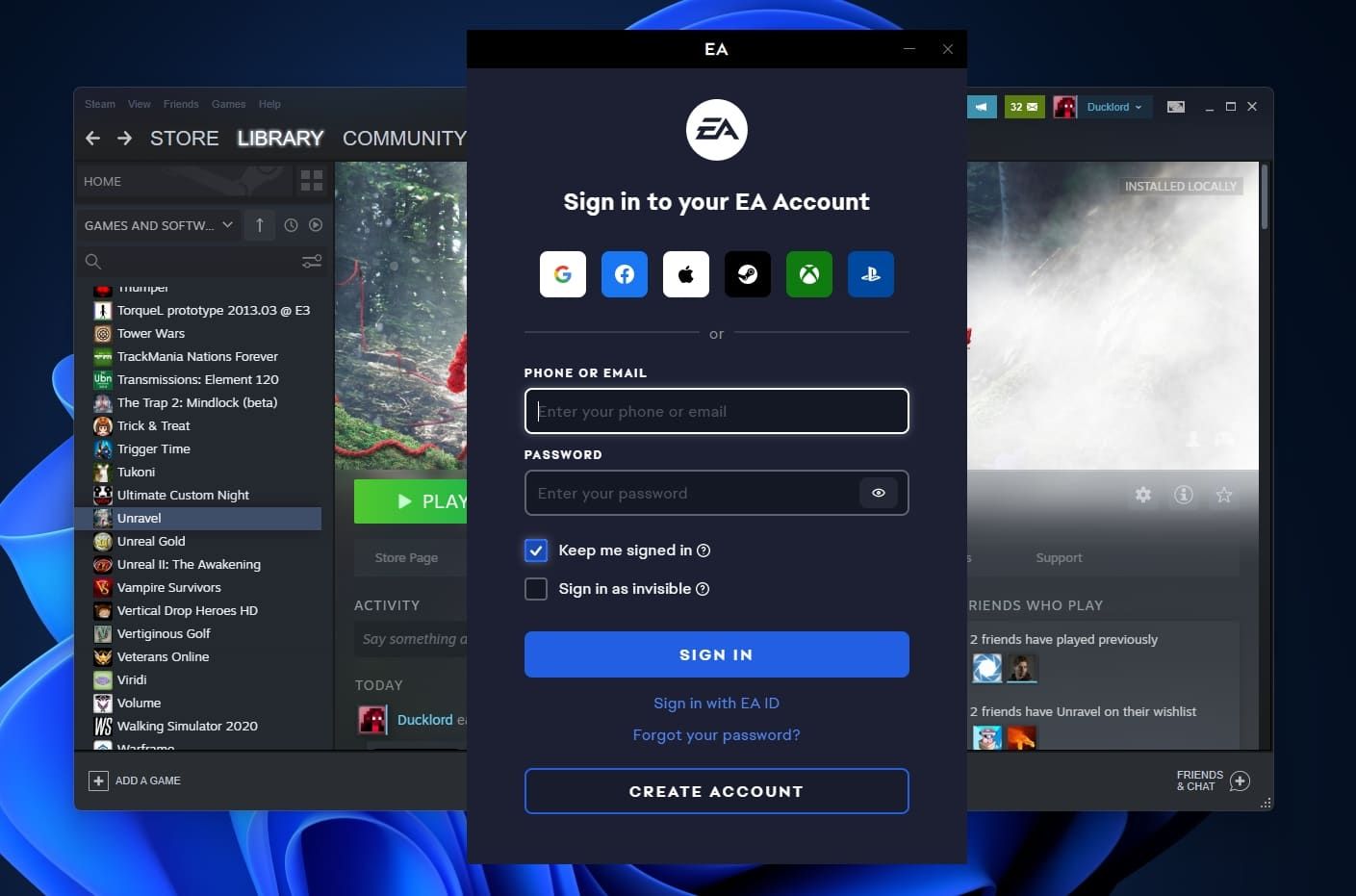
Can I link my EA ID to my Steam account? Yes. When you purchase an EA game on Steam, you will be prompted to link your Steam account to your EA ID. This allows you to launch games through Steam while still utilizing EA’s backend services for multiplayer and achievements.
What happens if my EA ID is reported? If other players report your ID for being offensive, EA’s Terms of Service team will review it. If they find it violates their guidelines, they will reset your ID to a placeholder name. You will then be required to choose a new, compliant ID before you can access online features again.
Can I hide my EA ID from search results? You can adjust your privacy settings to limit who can find you. In the "Privacy Settings" tab of your account, you can uncheck the box that allows users to search for you via email or platform ID, though your EA ID will always be visible to people you are currently playing with in a match.
Final Recommendation
Once your EA ID is active, immediately log into the EA Help portal to link any secondary console accounts. This ensures that any progress you make in cross-progression titles is unified from day one, preventing the common headache of "split progress" that occurs when users accidentally create separate accounts for each device.
Image Gallery