Integrating Ubuntu with Active Directory: Enterprise Configuration and Best Practices
Joining Ubuntu to Active Directory enables centralized identity management, single sign-on (SSO), and unified access controls across Linux and Windows fleets. System administrators primarily use SSSD combined with realmd for identity m...
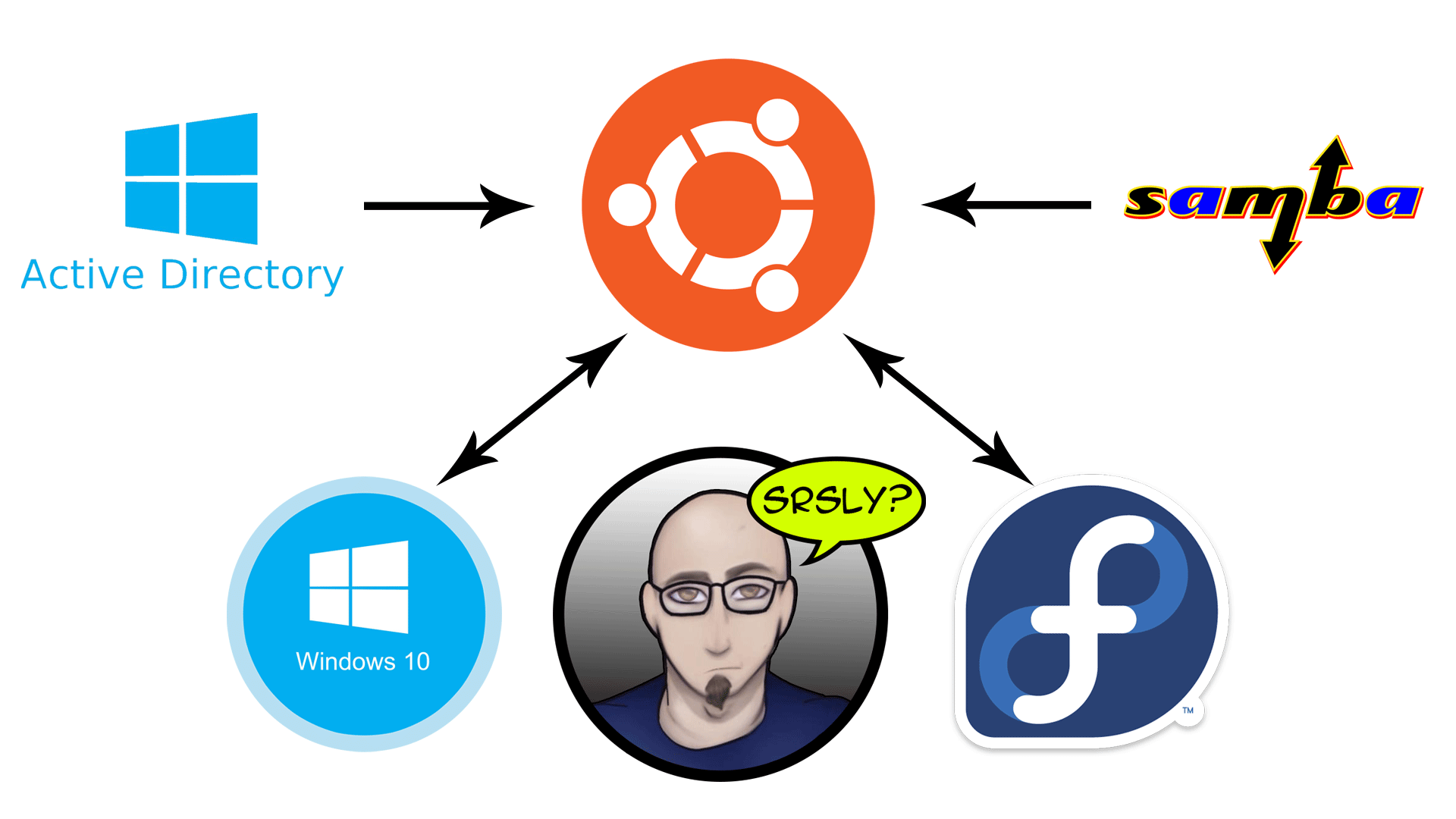
Joining Ubuntu to Active Directory enables centralized identity management, single sign-on (SSO), and unified access controls across Linux and Windows fleets. System administrators primarily use SSSD combined with realmd for identity mapping and authentication, while Canonical’s ADSys tool extends native Active Directory Group Policy Object (GPO) management and privilege control to Ubuntu Desktop and Server systems.
Contents
Understanding Active Directory Integration on Ubuntu
Integrating Linux systems into a Microsoft Active Directory (AD) environment allows organizations to leverage existing identity infrastructure, centralizing user provisioning, authentication, and access policies. Rather than maintaining local account databases on individual machines, an Ubuntu system joined to an AD domain validates credentials directly against Domain Controllers (DCs) using standardized protocols.
At the technical core, Active Directory integration relies on several foundational technologies working in tandem:
- Kerberos v5: Handles mutual authentication and ticket-granting services, enabling secure, single sign-on (SSO) capabilities without transmitting raw credentials across the network.
- LDAP (Lightweight Directory Access Protocol): Queries directory objects, such as user attributes, group memberships, and organizational units (OUs).
- NSS (Name Service Switch): Maps directory database entities (users and groups) into system-level identity formats recognizable by Linux tools (
posixAccountandposixGroup). - PAM (Pluggable Authentication Modules): Intercepts authentication requests from local consoles, SSH sessions, or graphical logins and routes them to the underlying directory service.
Modern Linux distributions have streamlined this process. While early implementations depended on complex Samba configurations or proprietary third-party software, modern Ubuntu releases use SSSD (System Security Services Daemon) and realmd to handle discovery, authentication, and offline credential caching efficiently. Furthermore, Canonical’s ADSys suite bridges the historical gap between Linux endpoints and Windows Group Policy enforcement.
Architectural Options for Ubuntu AD Integration
Choosing the right architecture depends on organizational requirements, including operating system edition, management scope, and licensing requirements.
- Active Directory Controller
- Identity & Auth Only (SSSD + realmd)
- Kerberos/LDAP auth
- NSS/PAM integration
- Offline credential caching
- Policy & Identity (Canonical ADSys)
- SSSD Authentication
- Native ADMX GPO
- Dconf & Sudo Policy
- Privilege Management
- Identity & Auth Only (SSSD + realmd)
1. SSSD and realmd (Standard Enterprise Architecture)
SSSD is the standard Daemon for managing user authentication and access on Linux systems connected to remote identity providers. Paired with realmd—a system service that automates domain discovery and configuration—this stack simplifies joining an Ubuntu endpoint to Active Directory. SSSD caches credentials locally, ensuring users can log into laptops or remote servers even when disconnected from the corporate network.
2. Canonical ADSys (Enterprise GPO and Client Management)
While SSSD handles authentication and identity lookup, it does not natively process complex Windows Group Policy Objects (GPOs). Canonical introduced ADSys to address this limitation. ADSys works alongside SSSD to apply group policies, execute logon/logoff scripts, configure privilege escalation (sudo rules), and manage dconf desktop settings directly from the Windows Group Policy Management Console (GPMC).
Note: Core ADSys integration features are available across standard Ubuntu installations, while advanced features and long-term support integration require an Ubuntu Pro subscription.
3. Samba Winbind (Legacy Integration)
Samba's winbindd daemon historically served as the primary mechanism for joining Linux machines to Active Directory. While still functional, Winbind is generally reserved for environments requiring deep Samba file sharing (SMB/CIFS) integration. For general identity management and authentication on modern Ubuntu systems, SSSD is preferred due to superior performance, modular architecture, and robust offline caching.
4. Samba Active Directory Domain Controller (AD DC)
Rather than joining Ubuntu as a client to an existing Microsoft domain, Samba can run on Ubuntu to turn the host into an Active Directory Domain Controller. This approach is deployed in non-Windows environments seeking open-source directory services compatible with native AD protocols.
Key Prerequisites for a Successful Domain Join
Before initiating a domain join on Ubuntu, verify that network, resolution, and time synchronization services meet Active Directory requirements.
Network and DNS Resolution
Active Directory relies heavily on DNS. The Ubuntu host must use Active Directory Domain Controllers as its primary DNS servers to locate domain services via SRV records.
- Ensure the system hostname is fully qualified or cleanly formatted in
/etc/hostname. - Verify DNS resolution for Active Directory service records using
digornslookup:
dig _krb5._tcp.domain.example.com SRV dig _ldap._tcp.domain.example.com SRV
If the DNS query fails to return the IP addresses of your Domain Controllers, update your network configuration (via Netplan or NetworkManager) to point directly to your AD DNS servers.
Network Time Protocol (NTP) Synchronization
Kerberos authentication fails if the clock skew between the Ubuntu host and the Domain Controller exceeds five minutes (the default Kerberos tolerance).
Configure chrony or systemd-timesyncd to synchronize host system time against the Active Directory Domain Controller or the enterprise Primary Domain Controller (PDC) Emulator:
sudo apt update sudo apt install chrony
Add your Domain Controller IP to /etc/chrony/chrony.conf:
server dc1.domain.example.com iburst
Restart the time service and check synchronization status:
sudo systemctl restart chrony chronyc tracking
Step-by-Step Guide: Joining Ubuntu to Active Directory via SSSD and realmd
Follow these step-by-step procedures to install dependencies, discover your domain, perform the domain join, and configure PAM user environment settings.
- Install Packages (realmd, sssd, adcli, krb5-user, pam-modules)
- Discover Domain (realm discover domain.example.com)
- Join Domain (sudo realm join -U Administrator domain.example.com)
- Enable PAM (sudo pam-auth-update --enable mkhomedir)
- Validate Auth (id user@domain.example.com / su - user@domain.example.com)
Step 1: Install Required Packages
Install realmd, SSSD, Active Directory administration tools (adcli), Kerberos client binaries, and supporting PAM libraries:
sudo apt update sudo apt install -y realmd sssd sssd-tools adcli krb5-user packagekit libpam-modules libnss-sssd libpam-sssd
During the installation of krb5-user, a prompt may ask for the default Kerberos realm. Enter your Active Directory domain name in uppercase (e.g., DOMAIN.EXAMPLE.COM).
Step 2: Discover the Active Directory Domain
Test whether realmd can locate your Active Directory domain over the network:
realm discover domain.example.com
Expected output includes details about the domain, configured software (SSSD), and required packages:
domain.example.com type: kerberos realm-name: DOMAIN.EXAMPLE.COM domain-name: domain.example.com configured: no server-software: active-directory client-software: sssd required-packages: sssd sssd-tools adcli
Step 3: Join the Ubuntu Host to the Domain
Execute the join command using an Active Directory account that holds rights to join computers to the domain (such as a Domain Admin or a delegated service account):
sudo realm join --user=Administrator domain.example.com
To specify a targeted Organizational Unit (OU) for the computer account during the join process, append the --computer-ou flag:
sudo realm join --user=Administrator --computer-ou="OU=LinuxServers,DC=domain,DC=example,DC=com" domain.example.com
Prompt for the user password to complete host enrollment.
Step 4: Configure Automatic Home Directory Creation
By default, Active Directory users logging into an Ubuntu machine for the first time may lack a local home directory. Enable pam_mkhomedir to generate home directories automatically upon initial authentication:
sudo pam-auth-update --enable mkhomedir
Step 5: Adjust SSSD Configuration
Review and edit /etc/sssd/sssd.conf. Make sure permissions on this file remain strictly locked down (chmod 600 /etc/sssd/sssd.conf).
A standard operational configuration for /etc/sssd/sssd.conf looks like this:
[sssd] domains = domain.example.com config_file_version = 2 services = nss, pam [domain/domain.example.com] default_shell = /bin/bash krb5_store_password_if_offline = True cache_credentials = True krb5_realm = DOMAIN.EXAMPLE.COM realmd_tags = manages-system joined-with-adcli id_provider = ad fallback_homedir = /home/%u@%d ad_domain = domain.example.com use_fully_qualified_names = False ldap_id_mapping = True access_provider = ad
Setting use_fully_qualified_names = False allows users to log in using username rather than username@domain.example.com.
Restart SSSD to apply structural changes:
sudo systemctl restart sssd
Step 6: Verify Domain Integration
Validate user identity resolution and initial login:
id aduser
If successful, id returns the numeric UID, GID, and active Active Directory group memberships for aduser. Test active authentication via SSH or console switch:
su - aduser
Advanced Policy Management with Canonical ADSys
In enterprise environments where managing authentication is insufficient, ADSys enables centralized management of Ubuntu systems using native Microsoft Active Directory tools.
- Active Directory Group Policy Management
- Windows GPMC Console
- Import ADMX / ADML Templates
- Apply Policies to Ubuntu OUs
- Ubuntu Client (ADSys Agent)
- System Daemon (adsysd)
- Download & Parse GPOs
- Enforce sudo, dconf, and scripts
How ADSys Operates
ADSys runs as a daemon (adsysd) on Ubuntu endpoints. When a machine boots or a domain user logs in, ADSys queries Active Directory for assigned Group Policy Objects (GPOs), downloads the definitions, and translates them into native Linux configurations:
- Sudo Privilege Management: Assign explicit
sudopermissions to AD security groups without manual file edits in/etc/sudoers.d/. - Desktop Configuration (
dconf): Enforce desktop backgrounds, lock screen policies, proxy parameters, and application restrictions on Ubuntu Desktop instances. - Custom Script Execution: Automatically run startup, shutdown, logon, and logoff scripts defined in GPOs.
Setting Up ADSys
- Install the ADSys package on Ubuntu:
sudo apt install adsys
- Download Canonical’s official Administrative Templates (ADMX/ADML files) from Canonical's Active Directory Documentation or the ADSys GitHub repository.
- Import the ADMX templates into your Active Directory Central Store (
\\domain.example.com\sysvol\domain.example.com\policies\PolicyDefinitions). - Open the Group Policy Management Console (GPMC) on a Windows Server management system.
- Create or edit a GPO targeting the Organizational Unit (OU) where your Ubuntu computer objects reside.
- Configure Linux-specific policies located under
Computer Configuration -> Policies -> Administrative Templates -> Ubuntu.
Comparison of Ubuntu Active Directory Integration Approaches
The following table summarizes key technical differences across integration pathways available on modern Ubuntu systems:
| Criteria / Feature | SSSD + realmd |
Canonical ADSys | Samba Winbind | Samba AD DC |
|---|---|---|---|---|
| Primary Role | Client Authentication & Identity | Client GPO Enforcement & Policy | Legacy Client Auth & File Sharing | Domain Controller (Host Provider) |
| GPO Support | Limited / Manual | Native ADMX GPO Support | Basic | N/A (Serves Policies) |
| Offline Caching | Advanced (SSSD Caching) | Dependent on SSSD | Limited | N/A |
| Directory Schema Changes | None Required | None Required | None Required | Requires Schema Setup |
| User Access Control | Simple (realm permit) |
Fine-grained (GPO / Group Rule) | PAM / Local Rule | AD Native Objects |
| Licensing / Subscription | Open Source (Free) | Open Source / Ubuntu Pro Features | Open Source (Free) | Open Source (Free) |
| Recommended Target | Servers & Generic Workstations | Enterprise Ubuntu Desktop Fleets | File Servers (SMB) | Heterogeneous Open-Source Labs |
Common Operational Challenges and Troubleshooting
System administrators frequently encounter edge cases when bridging Linux clients to Active Directory infrastructure. The solutions below resolve standard integration hurdles.
1. Kerberos Clock Skew Errors
Symptom: Logging errors such as KRB5KRB_AP_ERR_SKEW or failed domain join attempts.
Root Cause: Local system clock time differs from the Domain Controller by more than five minutes.
Resolution: Force an immediate clock resynchronization against the DC:
sudo chronyc sync step
Verify that system time, timezone, and network latency match DC diagnostic benchmarks.
2. DNS Discovery Failures
Symptom: realm discover returns Cannot discover domain.
Root Cause: The system cannot locate domain controllers because public DNS servers or misconfigured local resolvers are handling requests.
Resolution: Inspect system DNS configuration using systemd-resolve --status or resolvectl status. Confirm that the DNS server listed matches the Active Directory primary DNS IP address.
Ensure SRV queries return accurate domain controllers:
host -t SRV _ldap._tcp.domain.example.com
3. Sudo Privileges for Active Directory Groups
Symptom: Active Directory domain administrators cannot execute sudo commands on the Ubuntu host.
Resolution: Grant privileges using a dedicated configuration drop-in file inside /etc/sudoers.d/. Avoid directly editing /etc/sudoers.
Create /etc/sudoers.d/domain-admins:
sudo visudo -f /etc/sudoers.d/domain-admins
Add group rules (escape backslashes or spaces in group names):
# Allow members of "Domain Admins" group to execute all commands %"Domain Admins" ALL=(ALL:ALL) ALL # Alternatively, using standard Linux group naming conventions: %domain_admins ALL=(ALL:ALL) ALL
Ensure permissions remain standard:
sudo chmod 0440 /etc/sudoers.d/domain-admins
4. Restricting User Access
Symptom: By default, any valid Active Directory user can log into the joined Ubuntu host.
Resolution: Restrict access using realm access management commands:
To deny all domain users and grant access to specific accounts or groups:
# Deny all domain users sudo realm deny --all # Allow specific AD users sudo realm permit user1@domain.example.com user2@domain.example.com # Allow an entire AD security group sudo realm permit -g "Linux Users"
Frequently Asked Questions
Can Ubuntu apply Windows Active Directory GPOs natively without third-party tools?
Standard SSSD configuration does not interpret standard Windows Group Policy Object (GPO) settings such as registry changes or software distribution. However, Canonical’s ADSys client software enables Ubuntu systems to fetch, parse, and enforce native Windows GPOs defined via official ADMX administrative templates.
Is an Ubuntu Pro subscription mandatory to join Ubuntu to Active Directory?
No. Standard Ubuntu releases can join Active Directory domains, authenticate users, and manage access controls using open-source utilities like realmd, SSSD, and adcli without any software cost or subscription requirement. Ubuntu Pro adds advanced enterprise features to ADSys, including expanded GPO execution options and extended security update guarantees.
How does offline authentication work when an Ubuntu laptop loses domain connectivity?
When using SSSD, successful authentication attempts store password hashes and Kerberos tickets locally in encrypted caches. When a user logs in away from the corporate network, SSSD verifies credentials against the cached entries, granting seamless access until network connectivity to the Domain Controller is restored.
What is the primary difference between SSSD and Samba Winbind on Ubuntu?
SSSD is designed as a lightweight, modular service focused on system identity, PAM integration, and directory authentication (LDAP/Kerberos). Samba Winbind is tightly coupled to SMB network file-sharing protocols. For general identity management on Linux desktops and infrastructure servers, SSSD is preferred due to performance and maintenance advantages.
How do I completely unjoin an Ubuntu machine from an Active Directory domain?
To gracefully remove an Ubuntu host from an Active Directory domain and clean up local configurations, run:
sudo realm leave domain.example.com
This command notifies the Domain Controller, disables or deletes the machine account object, and clears local SSSD domain configurations.
Strategic Next Steps for Enterprise Deployment
To roll out Active Directory integration across your enterprise infrastructure effectively, follow a structured deployment model:
- Establish Dedicated OUs: Create specialized Active Directory Organizational Units (OUs) specifically for Linux workstations and servers to keep directory assets segregated from Windows clients.
- Automate Installation: Incorporate configuration scripts into orchestration pipelines (Ansible, Puppet, or Terraform) to automate host registration, NTP sync, and package provisioning during system build phases.
- Audit Group Permissions: Define explicit Active Directory security groups (e.g.,
Linux-Admins,Linux-Users) to manage administrative privileges uniformly across your fleet. - Deploy ADSys Centralized Management: If managing Ubuntu desktop endpoints, load Canonical ADMX templates into your Active Directory Central Store to centrally manage user security settings and privilege controls.
Image Gallery