How to Install Cydia on iPhone or iPad: Step-by-Step Guide
To install Cydia on an iPhone or iPad, you must jailbreak your iOS device using a verified jailbreaking tool compatible with your specific iOS version and device processor. Cydia cannot be downloaded directly as a standalone app or ins...
To install Cydia on an iPhone or iPad, you must jailbreak your iOS device using a verified jailbreaking tool compatible with your specific iOS version and device processor. Cydia cannot be downloaded directly as a standalone app or installed through Safari without jailbreaking. Running a legitimate exploit tool like Unc0ver or Checkra1n automatically installs Cydia onto your home screen.
Contents
Understanding Cydia and How Installation Works
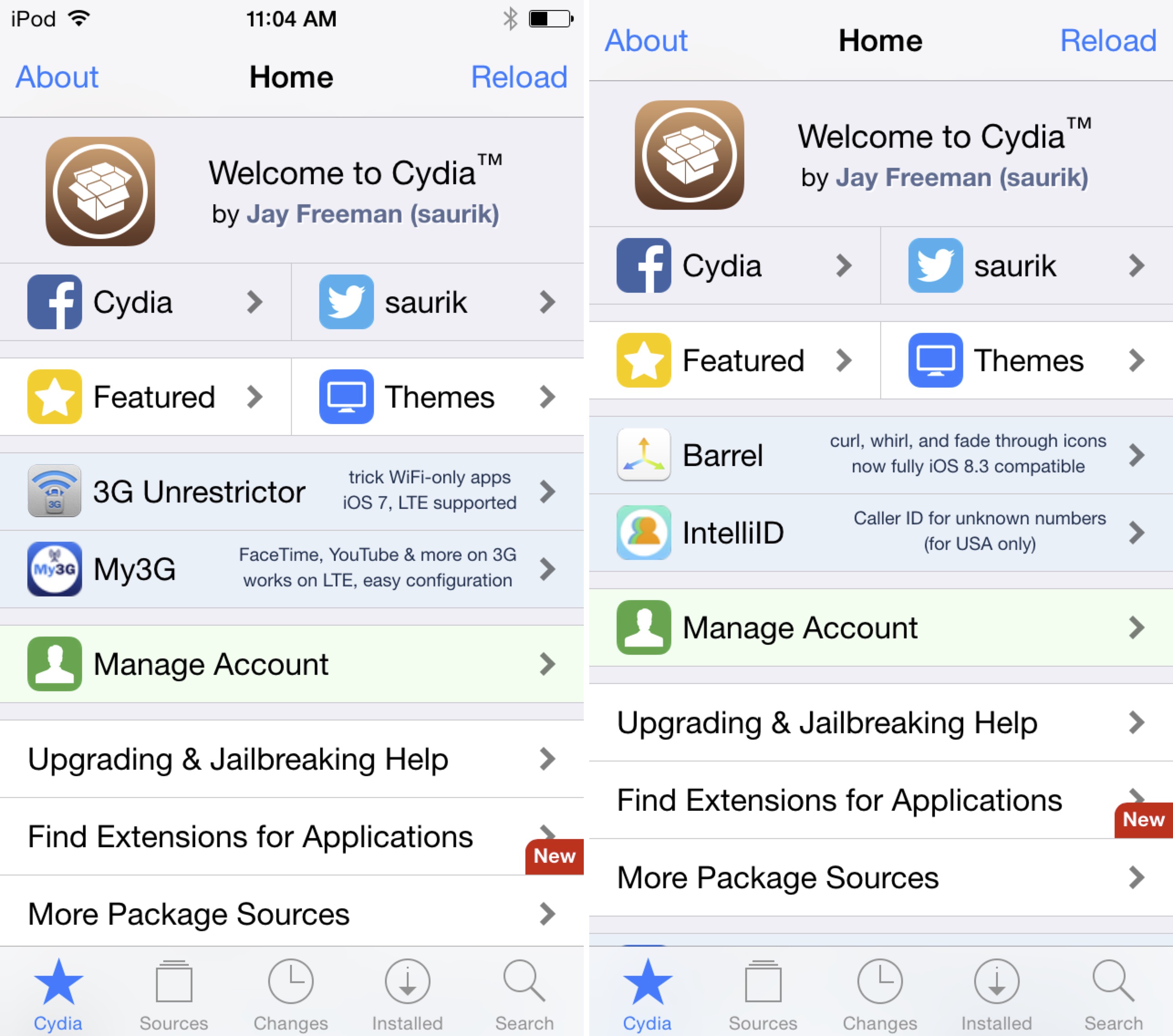
Cydia is a graphical user interface developed by Jay Freeman (saurik) that serves as a package manager for jailbroken iOS devices. It allows users to browse, download, and manage software packages, system tweaks, custom themes, and extensions that are otherwise restricted by Apple's sandboxing mechanisms.
Because iOS relies on strict security controls, standard applications downloaded from the Apple App Store run within limited user privileges. Cydia requires root access to modify core system files and load custom code injectors (such as Substrate or Substitute). As a result, Cydia cannot be installed using standard web downloads, configuration profiles, or enterprise certs alone. It must be deployed alongside an exploit that breaks the device out of its sandbox—a process known as jailbreaking.
Beware of Fake "Cydia Without Jailbreak" Scams
Numerous websites claim to offer "Cydia Installer," "Cydia Cloud," or "Cydia Free Download without Jailbreak." These services typically install a web clip (a Safari shortcut dressed up to look like an app) or ask users to complete surveys, download sponsored apps, or pay for subscription profiles. None of these web clips provide functional root access or real Cydia package management. Real Cydia requires an exploit executed by legitimate jailbreaking utilities.
Essential Safety Warnings and Device Preparation
Jailbreaking and installing Cydia alters the foundational security model of iOS. Before proceeding with any installation, consider the following technical and operational factors:
- Complete System Backup: Always perform a full local backup using Finder (macOS) or Apple Devices / iTunes (Windows), or an iCloud backup. If an exploit fails or causes a boot loop, you may need to restore your device to factory settings.
- Warranty and Support Implications: Modifying iOS system files violates Apple's End User License Agreement (EULA). While jailbreaking is legal under exemptions to the Digital Millennium Copyright Act (DMCA) in the United States, Apple reserves the right to deny service for devices running unauthorized modifications.
- Device Security: Jailbreaking disables certain sandbox protections. Change your default root password via Secure Shell (SSH) after installation (the default password for iOS root access is
alpine) to prevent unauthorized network access. - Stale OTA Update Packages: Pending over-the-air (OTA) system update files downloaded in the background can cause jailbreak exploits to fail or trigger unexpected reboots.
Prerequisites for Installation
To successfully install Cydia, you must verify your hardware model, identify your exact software version, and gather the necessary preparation tools.
Device Details Required:
- Chipset Generation (e.g., A11 Checkm8 vs. A12+ Bionic)
- iOS Version (Settings > General > About)
- Available Storage Space (Minimum 2–3 GB recommended)
- Identify Your iOS Version: Go to Settings > General > About and check your iOS Version. Jailbreak tools are strictly tied to specific software build ranges.
- Check Your Processor Architecture:
- A8 through A11 Devices (iPhone 8 / iPhone X and older): Hardware-level exploits like Checkm8 apply to these chips, allowing permanent semi-tethered jailbreaking via tools like Checkra1n.
- A12 through A17 / M1 / M2 Devices (iPhone XS and newer): These devices rely on software-based kernel exploits (such as Unc0ver, Taurine, or Dopamine) which depend on specific iOS firmware vulnerabilities.
- Delete Downloaded System Updates:
- Navigate to Settings > General > iPhone Storage.
- Locate any pending software update file (e.g., "iOS 14.8").
- Tap Delete Update and confirm.
- Prepare Sideloading Software: For semi-untethered software exploits, you will need a computer running Windows or macOS along with a management utility such as AltStore or Sideloadly to install the initial jailbreak application file (.IPA).
Step-by-Step Guide: Installing Cydia via Semi-Untethered Jailbreak (Unc0ver Example)
This method applies to devices running compatible iOS versions (such as iOS 11.0 through iOS 14.8) using semi-untethered tools like Unc0ver.
Step 1: Install AltServer on Your Computer
- Download and install AltServer on your macOS or Windows computer.
- Connect your iPhone or iPad to the computer using a lightning or USB-C cable.
- Open AltServer, select Install AltStore, and choose your connected device.
- Enter your Apple ID credentials when prompted. This generates a personal developer provisioning certificate required to sign the app.
Step 2: Sideload the Official Jailbreak App
- On your iPhone or iPad, open Safari and navigate to the official Unc0ver website.
- Download the latest
.IPArelease file. - Open the AltStore app on your device, navigate to the My Apps tab, tap the + icon, and select the downloaded Unc0ver
.IPAfile. - AltStore will sign and install the Unc0ver app onto your home screen.
Step 3: Authorize the Developer Certificate
- Go to Settings > General > VPN & Device Management (or Profiles & Device Management on older iOS builds).
- Under Developer App, tap your Apple ID email address.
- Tap Trust [Your Apple ID] and confirm your selection.
Step 4: Run the Exploit to Install Cydia
- Place your device into Airplane Mode and disable Wi-Fi and Bluetooth to increase exploit stability.
- Open the Unc0ver application from your home screen.
- Ensure the toggle for Install Cydia is enabled in the app's settings menu (gear icon).
- Tap the main Jailbreak button on the interface.
- The tool will execute system exploits, patch kernel protections, and unpack Cydia files.
- Your device may reboot during the process. If prompted, unlock your device and open the Unc0ver app again, then tap Jailbreak a second time to complete the deployment.
- Once the process completes, a pop-up will indicate success, and the device will perform a "respring" (restarting the iOS user interface).
Step 5: Launch and Initialise Cydia
- Locate the Cydia icon on your home screen and open it.
- Allow Cydia to complete its initial file system configuration and database download.
- Navigate to the Changes tab and tap Upgrade in the top right corner if essential packages (such as APT, Cydia Installer, or Substrate) require updating.
Alternative Method: Hardware-Based Installation via Checkra1n
For devices equipped with A8 through A11 processors (iPhone 5s through iPhone X), the Checkra1n jailbreak utilizes an unpatchable hardware exploit in bootrom code.
- Download the Checkra1n application on a Mac or Linux computer.
- Connect your device via USB cable and open Checkra1n.
- Follow the on-screen instructions to put your device into DFU (Device Firmware Update) Mode:
- Hold the Power and Volume Down (or Home) buttons simultaneously.
- Release Power after a specified duration while continuing to hold the secondary button.
- Checkra1n will execute the exploit and boot your device with a modified kernel.
- Once the device restarts, tap the loader app on your home screen.
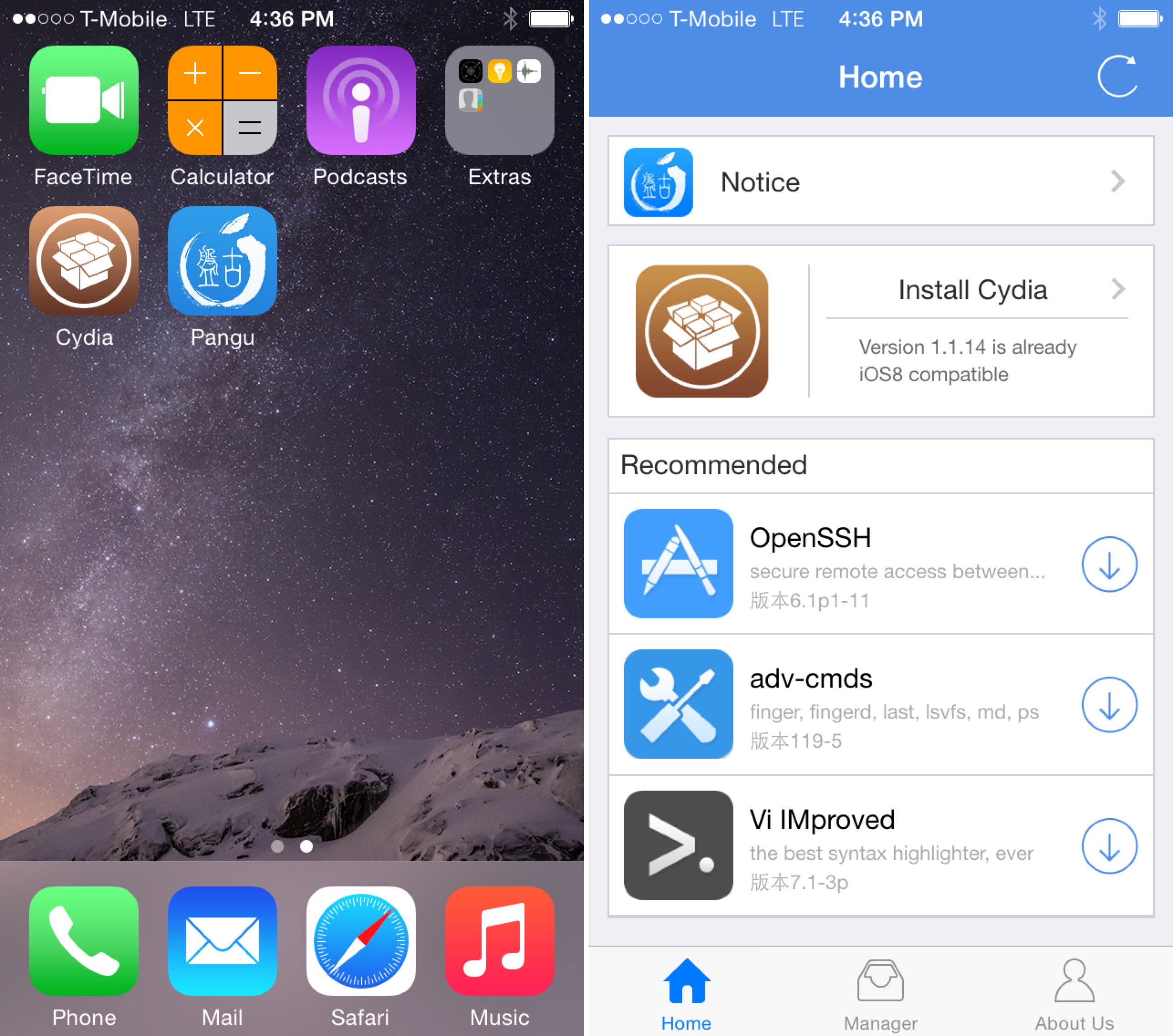
- Select Cydia from the menu and tap Install Cydia. The loader will fetch the payload and unpack Cydia onto your system.
Modern iOS Architecture: Cydia vs. Modern Package Managers
As iOS security evolved—introducing features like Page Unregistered Executive (PPL), Pointer Authentication Codes (PAC), and sealed system volumes—jailbreaking shifted from rootful architectures (which modify / directly) to rootless architectures (which store jailbreak files inside /var/jb).
Because Jay Freeman stopped actively maintaining Cydia for modern rootless environments, newer jailbreak tools designed for iOS 15, 16, and beyond (such as Dopamine and Palera1n) install modern package managers like Sileo or Zebra instead of traditional Cydia.
| Jailbreak Tool | Supported iOS Range | Exploitation Type | Default Package Manager | Architecture Type |
|---|---|---|---|---|
| Unc0ver | iOS 11.0 – 14.8 | Software Kernel Vulnerability | Cydia | Rootful |
| Checkra1n | iOS 12.0 – 14.8.1 | Hardware Bootrom (Checkm8) | Cydia / Loader | Rootful |
| Taurine | iOS 14.0 – 14.8.1 | Software Kernel Vulnerability | Sileo | Rootful |
| Dopamine | iOS 15.0 – 16.6.1 | Software / CoreTrust Exploit | Sileo / Zebra | Rootless |
| Palera1n | iOS 15.0 – 18.x (A8–A11) | Hardware Bootrom (Checkm8) | Sileo / Zebra | Rootless / Rootful |
While Cydia remains the baseline standard for legacy iOS versions, modern users on newer firmwares will find Sileo and Zebra faster, more reliable, and fully compatible with modern 64-bit rootless repositories.
Troubleshooting Common Cydia Errors
During or after installation, you may encounter system warnings or package execution errors. Below are solutions for frequent installation issues.
1. Cydia Crashes Immediately on Launch
- Cause: Your device restarted, ending the active jailbreak state on a semi-untethered installation.
- Solution: Open your jailbreak app (e.g., Unc0ver or Dopamine) and run the jailbreak process again to re-enable kernel patches and relaunch Cydia. If the jailbreak app itself fails to open, re-sideload the
.IPAusing AltStore or Sideloadly.
2. "Could not open file /var/lib/dpkg/status - open (2: No such file or directory)"
- Cause: Corrupted package database files or incomplete installation during initial execution.
- Solution: Open your jailbreak application settings and select the option to Restore RootFS (or Restore System). This restores the root file system to stock without wiping user data. Once completed, re-run the jailbreak to reinstall clean system directories.
3. "Sub-process /usr/bin/dpkg returned an error code"
- Cause: Broken dependency or conflicting tweak installation.
- Solution: Launch Cydia in Safe Mode (hold Volume Up while re-jailbreaking), open the Installed tab, tap User -> Expert, and uninstall the most recently added tweak that caused the conflict.
4. Network and Repository SSL Errors
- Cause: Outdated certificate bundles or inactive third-party package repositories.
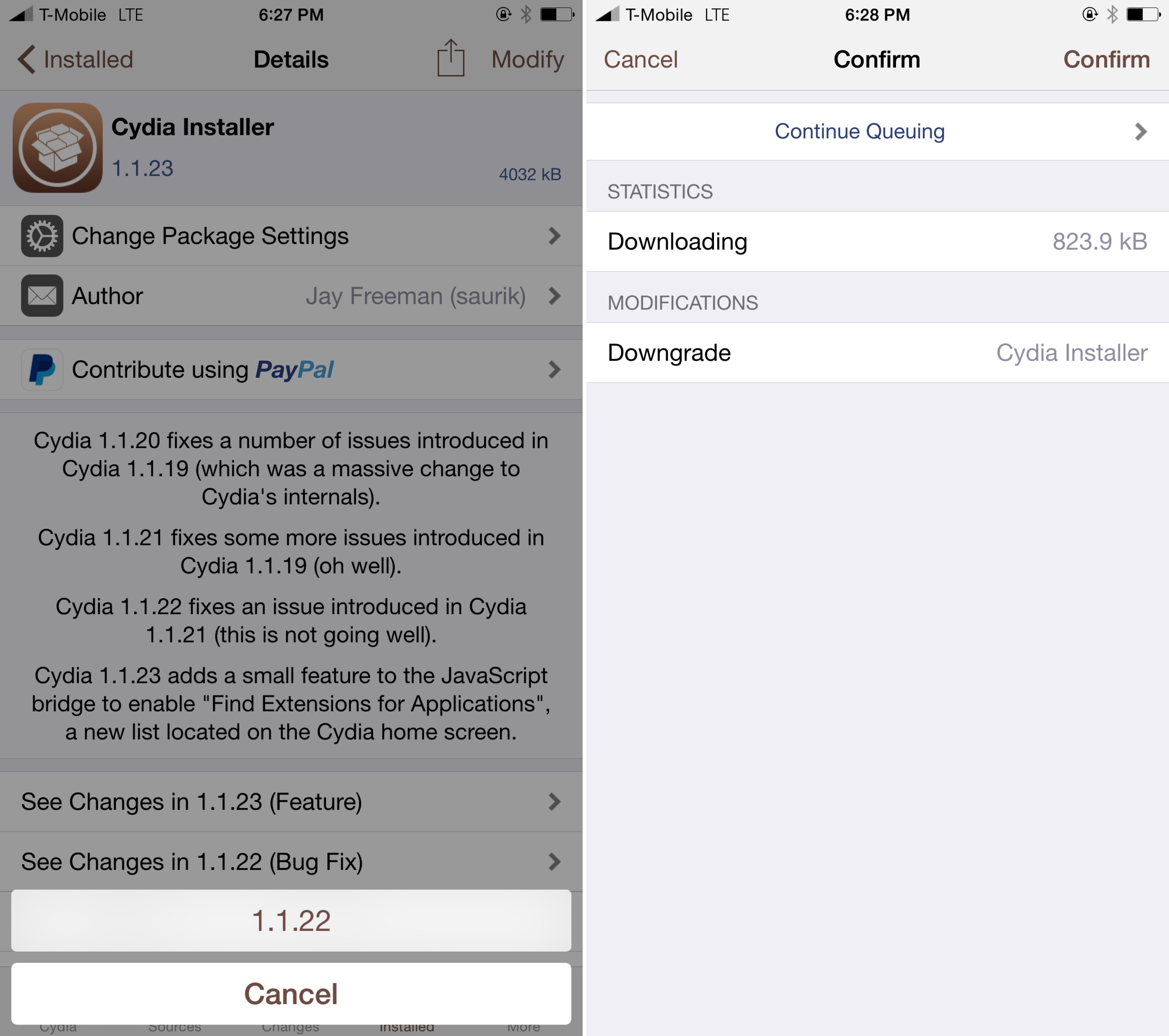
- Solution: Update the Cydia Installer and Cydia Substrate core packages from the official Saurik repository. Remove dead or unmaintained third-party source URLs from Cydia > Sources > Edit > Delete.
Frequently Asked Questions
Can I install Cydia without jailbreaking my iPhone?
No. Cydia relies on elevated root privileges and kernel patches to manage system extensions. Any website or application claiming to install full functional Cydia without jailbreaking uses web links, fake configuration profiles, or survey traps.
Is installing Cydia legal?
In the United States, jailbreaking smart devices like iPhones is legal under exemptions to the Digital Millennium Copyright Act (DMCA) granted by the U.S. Copyright Office. However, downloading pirated or copyrighted paid software via unauthorized repositories remains illegal.
Will installing Cydia erase my personal data?
Legitimate jailbreak tools do not wipe user files, photos, or app data during installation. However, software instability can sometimes cause system failures that require a full device restore. Creating a full backup prior to installation is essential.
How do I remove Cydia if I want to return to stock iOS?
To completely remove Cydia and reverse the jailbreak without upgrading your iOS version, open your jailbreak tool's settings (e.g., Unc0ver) and toggle the Restore RootFS switch. Run the process, and the app will remove all Cydia directories while keeping your iOS version intact. Alternatively, perform a full system restore via Finder or iTunes.
Why does Cydia stop opening after my phone battery dies?
Most modern jailbreaks are semi-untethered. When your device completely powers off or restarts, kernel modifications are cleared from RAM. You must open the original jailbreak utility on your home screen and tap "Jailbreak" or "Re-jailbreak" to reactivate Cydia and your installed tweaks.
Recommended Next Actions
If you are planning to install Cydia on your iOS device, follow this sequential path:
- Verify your exact device model and firmware version under Settings > General > About.
- Check official technical communities (such as the
/r/jailbreakcommunity or official tool documentation) to select the exact jailbreak utility matched to your iOS version. - Perform a full local backup using Finder or Apple Devices on your computer.
- Remove any pending iOS OTA update files from iPhone Storage.
- Use a computer to sideload your chosen utility (or boot checkra1n/palera1n environment) and execute the exploit to install Cydia or its modern rootless equivalents.
Image Gallery