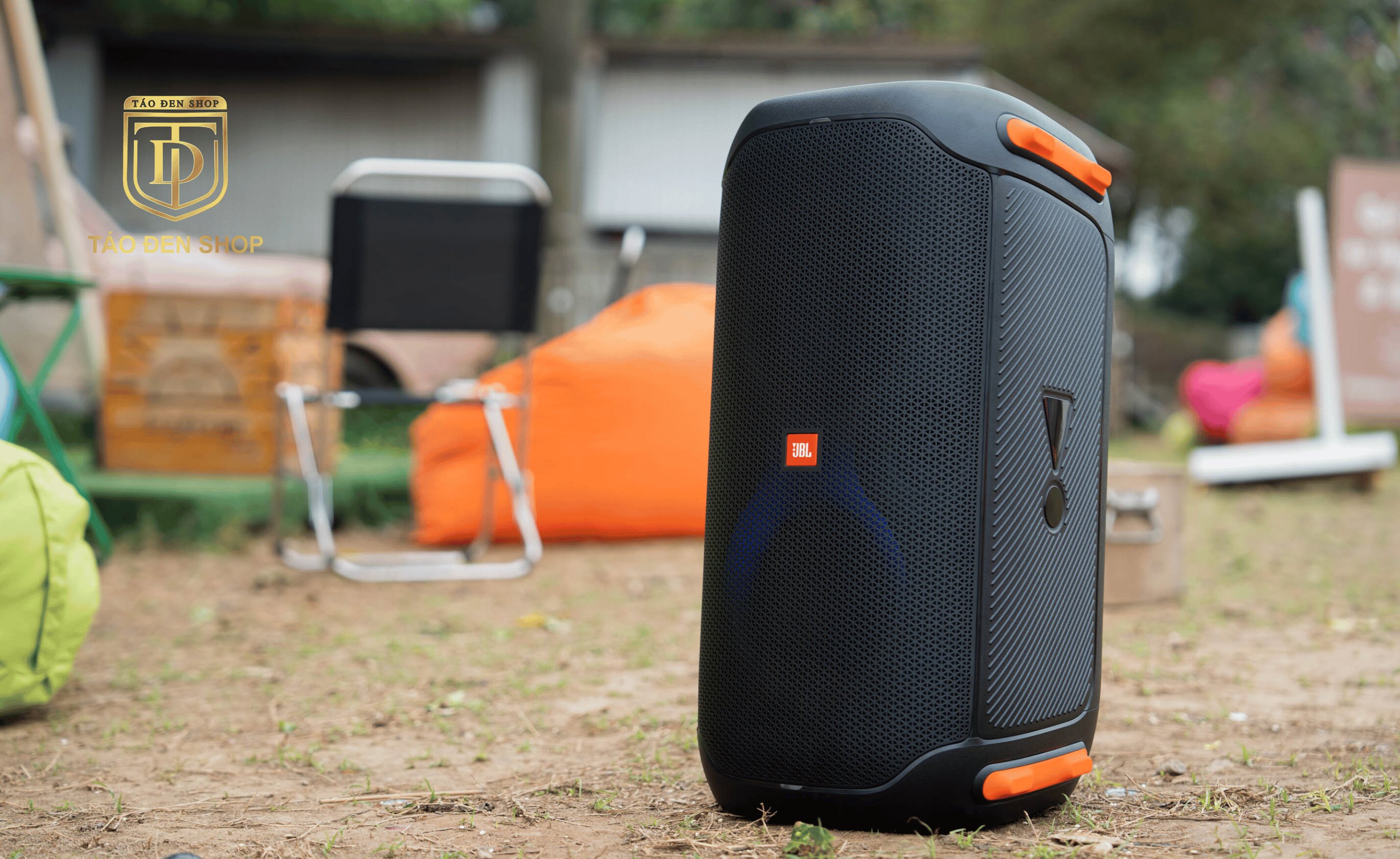
How to Reset JBL PartyBox 110: Step-by-Step Factory Reset & Troubleshooting Guide
To perform a factory reset on a JBL PartyBox 110, turn the speaker on, then simultaneously press and hold the Play/Pause button and the Light button for at least 10 seconds. The speaker will play an audible tone and power off automatic...
To perform a factory reset on a JBL PartyBox 110, turn the speaker on, then simultaneously press and hold the Play/Pause button and the Light button for at least 10 seconds. The speaker will play an audible tone and power off automatically, clearing all saved Bluetooth devices, custom sound settings, and light configurations.
Contents
Understanding the JBL PartyBox 110 Reset Process
The JBL PartyBox 110 is a powerful portable Bluetooth speaker designed for high-output audio, dynamic light shows, and versatile connectivity options including microphone and guitar inputs. Like most advanced modern audio hardware, the PartyBox 110 relies on internal firmware and onboard memory to manage Bluetooth paired-device lists, True Wireless Stereo (TWS) links, equalization presets, and LED light patterns.
Over time, cached connection data can become corrupted, or the speaker may experience software locks caused by conflicting signal requests from paired devices. Executing a factory reset clears the internal flash memory and restores the speaker's microcode to its original factory state.
Resetting the device is safe and does not damage the internal electronics or battery. However, it permanently erases memory files stored on the board, meaning all previously connected smartphones, tablets, and laptops will need to be re-paired after the process is complete.
When Should You Reset Your JBL PartyBox 110?
A factory reset serves as the primary troubleshooting standard for resolving firmware glitches, connectivity breakdowns, and operational unresponsiveness. Performing a reset is recommended when encountering any of the following technical issues:
- Bluetooth Pairing Failures: The speaker fails to appear on your smartphone or computer's available Bluetooth list, repeatedly drops active connections, or rejects new pairing attempts.
- True Wireless Stereo (TWS) Desynchronization: Two JBL PartyBox units fail to pair together in stereo mode, or one speaker experiences audio lag and signal dropping during dual-playback.
- JBL PartyBox App Sync Errors: The mobile companion application cannot detect the speaker, freezes while adjusting light effects, or fails during firmware updates.
- Audio Distortion or Muted Output: Sound is erratic, distorted across volume ranges, or completely silent despite an active Bluetooth or auxiliary connection.
- Unresponsive Control Panel: The physical volume dials, Bass Boost toggle, or light control buttons stop responding to user input while the speaker remains powered on.
- Preparing for Transfer of Ownership: You plan to sell, gift, or return the speaker and want to remove all personal device registry data from its memory board.
Prerequisites Before Performing a Hard Reset
Before initiating the reset procedure, taking a few preparatory steps ensures the process completes smoothly without risking firmware corruption:
- Ensure Adequate Battery Power: Charge the JBL PartyBox 110 to at least 30% battery level, or plug it directly into an AC wall outlet using the provided power cable. If the speaker powers off mid-reset due to a dead battery, memory corruption can occur.
- Disconnect Physical Cables: Unplug all auxiliary cables (3.5mm AUX), USB storage drives, microphone cables, and guitar quarter-inch jacks from the back panel to prevent ground-loop signal interference during reboot.
- Prepare Paired Source Devices: Have your smartphone, tablet, or PC nearby so you can remove the existing JBL PartyBox 110 profile from your device's Bluetooth settings menu.
How to Perform a Factory Reset on JBL PartyBox 110 (Step-by-Step)
Executing a hard factory reset on the JBL PartyBox 110 requires a simple physical button combination on the top control panel.
- Top Panel Controls:
- Power
- Light
- Play/Pause
- Bass Boost
- Hold both Light and Play/Pause for 10 seconds
Follow these detailed steps to complete the reset:
Step 1: Power On the Speaker
Press the Power button located on the top panel of the PartyBox 110. Ensure the ring lights illuminate and the startup chime plays. If the speaker does not turn on, connect the AC power cord to a wall outlet and allow it to charge for 15 minutes before proceeding.
Step 2: Press and Hold the Button Combination
Locate the Play/Pause button (represented by a standard triangle and double-bar icon) and the Light button (represented by a sunburst icon) on the top panel interface.
Press and hold down both the Play/Pause button and the Light button simultaneously.
Step 3: Wait for the Reset Confirmation Tone
Keep holding both buttons continuously for 10 seconds. Do not release the buttons early.
After roughly 10 seconds, the speaker will emit an audible notification chime or shutdown tone, and the LED light rings around the woofers will turn off. The power button status light will also darken, indicating the speaker has successfully shut down.
Step 4: Power On and Verify Reset State
Press the Power button again to turn the JBL PartyBox 110 back on.
When the speaker boots up, the Power button light should flash blue, signaling that the device has reverted to its factory-default state and automatically entered Bluetooth pairing mode.
How to Force Restart a Frozen JBL PartyBox 110
If your speaker is completely frozen—where buttons do not respond, the lights remain stuck on a single pattern, and holding the reset button combination produces no result—a hard factory reset may not register. In this situation, you must perform a force restart to interrupt the power supply.
Method 1: The Long Power Switch Cutoff
- Press and hold the Power button continuously for 20 to 30 seconds.
- Keep holding even if the lights flicker or remain static.
- This forces the internal power management IC (integrated circuit) to cut power to the mainboard.
- Release the power button once all LED lights turn completely off.
- Wait 60 seconds, then power the unit back on normally and attempt the standard factory reset again.
Method 2: Total Power Cycle (Battery Drain)
If the forced power button shutdown fails and the speaker is unplugged from the wall:
- Disconnect the AC power cord from the rear inlet.
- Allow the speaker to sit powered on until the internal lithium-ion battery drains completely and the lights turn off on their own. This process may take several hours depending on the remaining charge.
- Plug the AC power cable back into the wall outlet and connect it to the speaker.
- Leave the speaker to charge uninterrupted for at least one hour before turning it back on.
Post-Reset Setup: Re-pairing Bluetooth and App Integration
Once the factory reset is finished, your host devices will still hold stale cache files for the JBL PartyBox 110. To prevent immediate connection dropouts, you must clean the pairing records on your smartphone, tablet, or computer before re-establishing a connection.
Step 1: Remove Old Bluetooth Registries
- iOS Devices (iPhone/iPad): Go to Settings > Bluetooth. Locate "JBL PartyBox 110" under My Devices, tap the Info icon ("i") next to it, and select Forget This Device.
- Android Devices: Go to Settings > Connected Devices (or Bluetooth). Locate "JBL PartyBox 110" under Paired Devices, tap the Gear icon, and select Unpair or Forget.
- Windows PCs: Open Settings > Bluetooth & devices. Find the speaker under Devices, click the three-dot menu icon next to it, and click Remove device.
- macOS Computers: Navigate to System Settings > Bluetooth. Hover over "JBL PartyBox 110", click Options or control-click the device name, and choose Forget.
Step 2: Establish a Fresh Bluetooth Pair
- Turn on the JBL PartyBox 110. The Bluetooth status indicator on the power button will flash blue continuously. If it is solid blue, short-press the dedicated Bluetooth button once to force pairing mode.
- Open the Bluetooth settings menu on your phone or host device and scan for new hardware.
- Select JBL PartyBox 110 from the list of available devices.
- Confirm the pairing prompt on your device screen. Once connected, the speaker will play an audible confirmation tone, and the Bluetooth light will turn solid blue.
Step 3: Reconnect to the JBL PartyBox App
To regain custom control over light patterns, equalizer bands, and firmware updates:
- Open the JBL PartyBox App on iOS or Android.
- Ensure your phone's Bluetooth and Location/Local Network permissions are granted for the app.
- Tap Add Device or wait for the app to automatically discover your freshly reset PartyBox 110.
- Select the detected speaker to pair it with the application interface.
Troubleshooting Persistent Connectivity and Audio Issues
If performing a factory reset does not resolve your operational issues, the problem may stem from environment interference, corrupted mobile software, or physical hardware defects.
Fixing True Wireless Stereo (TWS) Pairing Issues
If you are attempting to link two JBL PartyBox 110 speakers together wirelessly and TWS fails:
- Ensure both PartyBox 110 units have undergone a factory reset.
- Do not connect both speakers to your phone's Bluetooth menu simultaneously prior to establishing the TWS link. Connect your phone to Speaker 1 only.
- Short-press the dedicated TWS button on the rear panel of Speaker 1.
- Short-press the TWS button on the rear panel of Speaker 2.
- Both speakers will chime within 5 to 10 seconds, locking into a left/right stereo channel configuration.
Clearing Radio Frequency (RF) Interference
Portable Bluetooth audio operates over the 2.4 GHz ISM frequency band. Nearby hardware can clutter this spectrum and cause audio stuttering:
- Move the PartyBox 110 away from Wi-Fi routers, smart home hubs, microwaves, and cordless landline phones.
- Maintain a clear line of sight within 30 feet (10 meters) between your smartphone and the PartyBox 110.
- Avoid placing the speaker directly against solid concrete walls or metal barriers, which absorb RF signals.
Inspecting Firmware Version via App
Firmware bugs can occasionally survive a factory reset if the installed software build contains an unresolved bug:
- Launch the JBL PartyBox App while connected to the speaker.
- Navigate to Device Information / Settings.
- Check for available firmware updates. If an update is pending, plug the speaker into AC power and run the installation script through the app.
Reset Button Combinations Across the JBL PartyBox Series
JBL uses different key combinations across its various speaker models. If you operate multiple PartyBox units within your audio setup, refer to this breakdown matrix to ensure you execute the correct button commands:
| Speaker Model | Factory Reset Button Combination | Hold Duration | Visual/Audio Confirmation Indicator |
|---|---|---|---|
| JBL PartyBox 110 | Play/Pause + Light | 10 seconds | Shutdown tone; LED rings turn off |
| JBL PartyBox 310 | Play/Pause + Volume UP (+) | 10 seconds | System chimes; powers down automatically |
| JBL PartyBox 710 | Play/Pause + Volume UP (+) | 10 seconds | Shutdown tone; power LED goes dark |
| JBL PartyBox Encore / Essential | Play/Pause + Light | 10 seconds | Unit chimes and switches off |
| JBL PartyBox Club 120 | Play/Pause + Light | 10 seconds | System chimes; restarts in pairing mode |
| JBL PartyBox Stage 320 | Play/Pause + Volume UP (+) | 10 seconds | LED ring flashes white, then turns off |
Frequently Asked Questions
Does resetting the JBL PartyBox 110 erase firmware updates?
No. Resetting the speaker restores user-configurable settings, paired device registers, and EQ preferences back to default. It does not roll back installed firmware updates; the internal microcontroller retains the latest operating software flashed onto the board.
Why is my JBL PartyBox 110 light button not responding during a reset?
If the light button fails to trigger the reset, verify that the speaker is powered on first. If the control panel is physically damaged or frozen, perform a force restart by holding the Power button down for 30 seconds before re-attempting the Play + Light combination.
Will a factory reset fix a JBL PartyBox 110 that won't turn on?
A factory reset requires the speaker to be powered on to process the command. If your speaker will not turn on at all, check the AC power cord, try a different wall outlet, and let it charge for at least one hour. If the charging indicator light does not turn on, the issue may stem from a faulty power board, blown fuse, or degraded lithium battery.
How do I reset the Bluetooth connection only, without wiping all settings?
To reset only the Bluetooth search stack, press the dedicated Bluetooth button on the top panel once to enter active pairing mode, or hold the Bluetooth button down for more than 3 seconds to disconnect active host devices and open the speaker to new pairing requests without clearing internal custom settings.
Can I reset the JBL PartyBox 110 using the mobile app?
No, the JBL PartyBox app does not offer a software-based factory reset command for security and hardware safety reasons. You must execute the factory reset using the physical hard key combinations on the top control panel of the unit.
Conclusion and Next Actions
Resetting your JBL PartyBox 110 is a quick, effective way to resolve connectivity drops, frozen app screens, control panel locks, and stereo pairing failures. By holding down the Play/Pause and Light buttons simultaneously for 10 seconds, you wipe corrupted software states and restore original factory performance.
If your speaker continues to suffer from erratic audio drops, power cuts, or connection failures after a complete factory reset and software update, the unit may require physical servicing. Inspect the AC charging port and rear jack panel for debris or structural wear, and reach out to official JBL Customer Support to review potential repair solutions or process a warranty claim.
Image Gallery