How to Use Google Drive Recovery for Lost Files
When files disappear from Google Drive, recovery is often possible by utilizing the built-in Trash folder, checking shared drive permissions, or contacting Google Workspace support if you are an administrator. Most "lost" files are not...
When files disappear from Google Drive, recovery is often possible by utilizing the built-in Trash folder, checking shared drive permissions, or contacting Google Workspace support if you are an administrator. Most "lost" files are not permanently deleted; they are either moved to the Trash, orphaned by the deletion of a parent folder, or misplaced within a complex directory structure. Understanding the hierarchical nature of Google’s file system is the first step toward restoring your data.
Contents
Understanding the Google Drive Deletion Lifecycle
To recover files effectively, you must understand how Google Drive handles deletions. When a user deletes a file, it is not immediately wiped from the servers. Instead, it is moved to the Trash (or Bin) for a specific duration.
For standard personal Google accounts, items in the Trash are permanently deleted after 30 days. If you are using a Google Workspace account through an organization, the rules may differ based on your administrator's settings. Administrators can often recover files deleted by users for up to 25 days after they have been emptied from the Trash.
The Problem of Orphaned Files
A common scenario involves "orphaned" files. This occurs when you create a file in a folder owned by someone else, and that owner deletes the folder. The file itself is not deleted, but it loses its "home" directory, making it invisible in the standard folder view. These files still exist within your account but remain hidden unless searched for specifically using the command is:unorganized owner:me in the Google Drive search bar.
Step-by-Step Recovery Methods
Before assuming your data is lost, execute these steps in order of increasing complexity.
1. Searching the Trash
The most frequent location for lost files is the Trash.
- Sign in to drive.google.com.
- On the left sidebar, click the Trash icon.
- Review the list of deleted files.
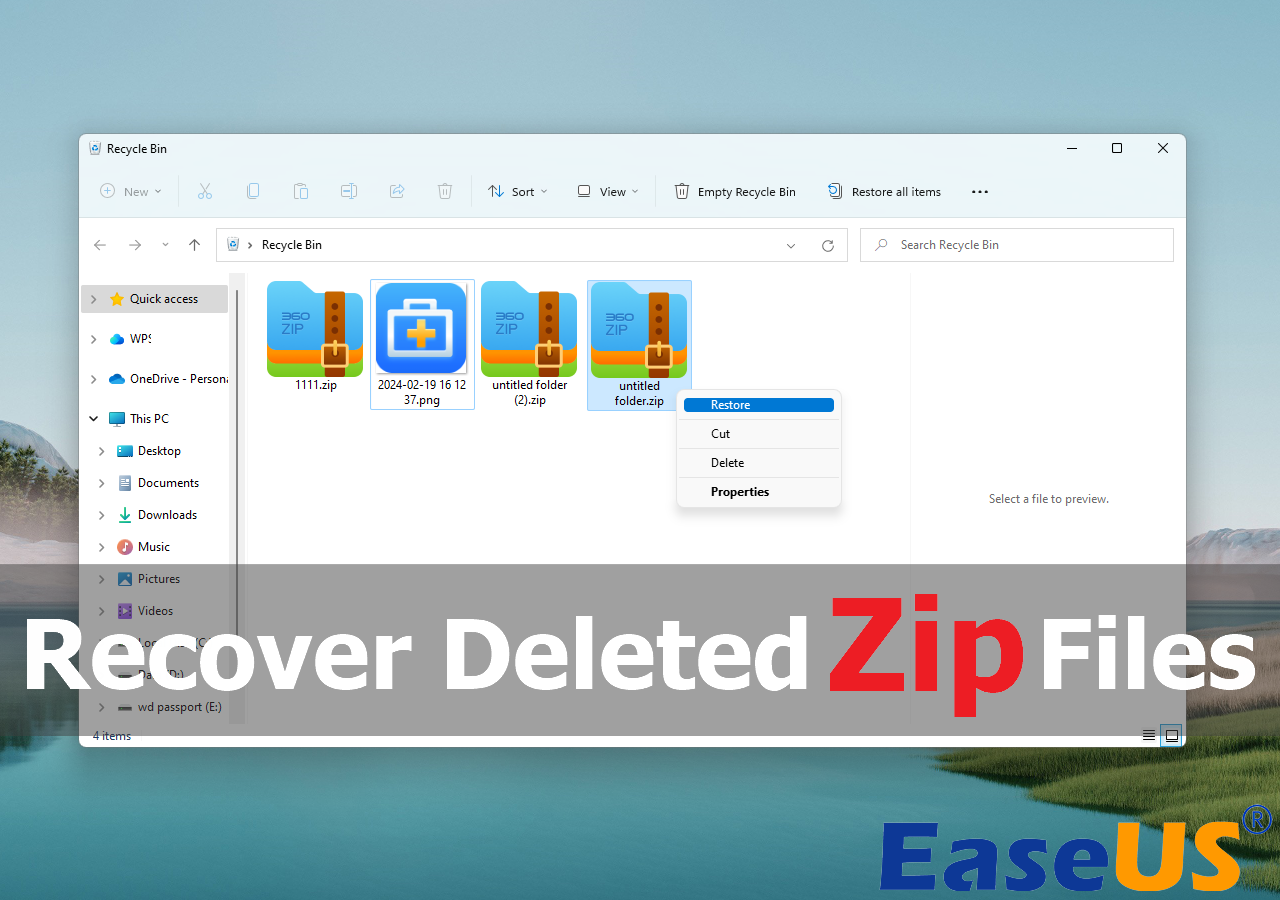
- If you find the file, right-click it and select Restore. The file will return to its original location.
2. Utilizing the Advanced Search Bar
If the file is not in the Trash, it may have been moved accidentally. Use the advanced search operators to find it.
- Search by Type: In the search bar, type
type:pdfortype:spreadsheetto filter by format. - Search by Owner: Use
owner:meto filter out files shared with you by others. - Search by Date: Use
before:2026-01-01to find files modified or created before a specific date.
3. Finding Orphaned Files
As mentioned previously, use the specialized search query to reveal files that have lost their parent folder.
- Navigate to the Google Drive search bar.
- Enter
is:unorganized owner:me. - If the missing file appears in these results, drag it into a new folder to "re-home" it.
Comparison of Recovery Capabilities by Account Type
The ability to recover files depends significantly on the type of Google account held. Understanding these tiers is vital for determining the scope of your recovery options.
| Feature | Personal (Free/Google One) | Google Workspace (Business/Edu) |
|---|---|---|
| Trash Retention | 30 Days | 30 Days (Admin configurable) |
| Admin Recovery Window | N/A | 25 Days post-Trash deletion |
| Google Support Access | Community/Help Docs | Direct Admin Support |
| Orphaned File Access | User-managed | User/Admin-managed |
When to Contact Google Workspace Support
If you are a member of an organization using Google Workspace, and you have exhausted the steps above, you may need to escalate the issue. Individual users usually cannot contact Google directly for file recovery; this must be done by your organization’s Google Workspace Administrator.
Administrators have access to the Google Admin console, where they can restore data for specific users. The recovery process involves:
- Accessing the Users section in the Admin console.
- Selecting the specific user whose data needs restoration.
- Choosing the Restore data option from the user’s profile menu.
- Selecting the date range for the recovery.
Be aware that administrators can only restore files within a specific timeframe (typically 25 days) after the file was permanently deleted from the Trash. If the time has exceeded this window, the data is generally considered unrecoverable by standard means.
Common Pitfalls and Troubleshooting
Syncing Issues
If you use Google Drive for Desktop, your files may be affected by local sync errors. If a file was deleted on your local machine while the Drive app was disconnected, the sync might not have propagated correctly. Check your local "Offline" folder or the cache directory for the Google Drive application to see if a local copy remains.
Permissions Changes
Sometimes a file appears "lost" because the owner changed the sharing permissions. If you were accessing a file through a "Shared with me" link, verify if you still have the link or if the owner has revoked your access. If you cannot find the file in your "Shared with me" section, reach out to the original owner to confirm the file still exists and that your permissions remain intact.
False Deletions
Users often confuse "Removing" a file from a Shared Drive with deleting it. In a Shared Drive, when you remove a file, it is moved to the Shared Drive's trash, not your personal trash. Only members with "Manager" access to the Shared Drive can restore items from that specific trash bin.
Frequently Asked Questions
Can I recover files if I accidentally deleted them more than 30 days ago?
For personal accounts, no. Once the 30-day window passes and the file is permanently deleted from the Trash, it is purged from Google’s servers. For Workspace accounts, an administrator may have a slightly longer window, but it is still limited.
Why did my file disappear from a shared folder?
If a file was inside a folder owned by someone else and that owner deleted the folder, your file may have become an "orphan." Use the is:unorganized search query to locate it.
Does Google Drive keep previous versions of files?
Yes. If you edited a file and lost the latest content, you can right-click the file and select Manage versions. This allows you to view and download versions from the last 30 days or up to 100 versions, whichever comes first.
Can Google Support recover files for free?
Google provides support based on your service tier. Standard users utilize the Google Help Community, while Workspace administrators can open support tickets if their plan includes premium support. No official channel exists for restoring files deleted by user error beyond the stated retention policies.
Will restoring a folder restore the files inside it?
Yes, restoring a parent folder from the Trash will generally restore all contents that were inside that folder at the time of deletion, provided those items were not individually deleted prior to the folder.
Next Steps for Data Protection
To prevent future data loss, consider implementing a secondary backup solution for critical documents. While Google Drive is reliable, it is not a substitute for a comprehensive backup strategy. Regularly export essential files to an external hard drive or a secondary cloud storage provider to ensure you maintain full control over your data, independent of any single service provider's retention policies or potential account access issues.
Image Gallery