How to Create and Manage a Netflix Profile in 2026
Creating a Netflix profile is a straightforward process that allows you to maintain personalized viewing history, custom recommendations, and individual "My List" selections within a single account. To create one, log in to Netflix, na...
Creating a Netflix profile is a straightforward process that allows you to maintain personalized viewing history, custom recommendations, and individual "My List" selections within a single account. To create one, log in to Netflix, navigate to the "Manage Profiles" screen, select "Add Profile," enter a name, and save your changes.
Contents
Netflix remains the dominant force in global streaming as of 2026, largely due to its sophisticated personalization engine. While a single Netflix account can support multiple users, the magic of the platform lies in its ability to differentiate between them. Without individual profiles, your high-octane action recommendations might be buried under a mountain of preschool cartoons or romantic comedies watched by other household members.
The Importance of Individual Profiles
Each Netflix account supports up to five distinct profiles. These profiles are more than just digital placeholders; they are the primary data source for the Netflix recommendation algorithm. When you create a profile, you are essentially building a private sandbox where the AI observes your habits to curate a unique homepage.
Every profile maintains its own:
- Viewing History: A chronological record of everything watched.
- My List: A personalized queue of titles you intend to watch.
- Ratings: Your specific "Thumbs Up" or "Double Thumbs Up" feedback.
- Language Preferences: Both for the user interface and for audio/subtitles.
- Maturity Levels: Customizable age restrictions to ensure appropriate content.
- Playback Settings: Data usage and autoplay preferences specific to that user.
Prerequisites for Profile Creation
Before attempting to create a profile, ensure you meet the necessary account requirements. As of 2026, Netflix’s subscription tiers have evolved, but the core profile functionality remains consistent across most plans.
- Active Subscription: Your account must be in good standing with a valid payment method.
- Device Access: You need access to the Netflix app or a web browser on a computer.
- Profile Limit: Ensure you have not already reached the five-profile limit. If you have, you must delete an existing profile before adding a new one.
- Internet Connectivity: A stable connection is required to sync the new profile data across all devices linked to the account.
How to Create a Netflix Profile on Different Devices
The process for adding a profile varies slightly depending on the hardware you are using. Below are the detailed steps for the most common platforms.
Using a Web Browser (PC or Mac)
This is the most efficient way to manage account settings, as it provides the most comprehensive interface.
- Visit Netflix.com and sign in with your account credentials.
- On the "Who's watching?" screen, click the Add Profile icon (represented by a plus sign).
- Enter a name for the profile.
- If the profile is for a child, select the Kids? checkbox or toggle. This automatically limits the content to titles appropriate for children aged 12 and under.
- Click Continue or Save. The new profile will now appear on your list.
Using the Netflix App (Mobile and Tablets)
Whether you are on an iOS or Android device, the mobile app is designed for quick profile switching.
- Open the Netflix app.
- In the bottom right (or top right on some versions), tap the My Netflix icon or your current profile picture.
- Tap on the Switch Profiles or Manage Profiles option.
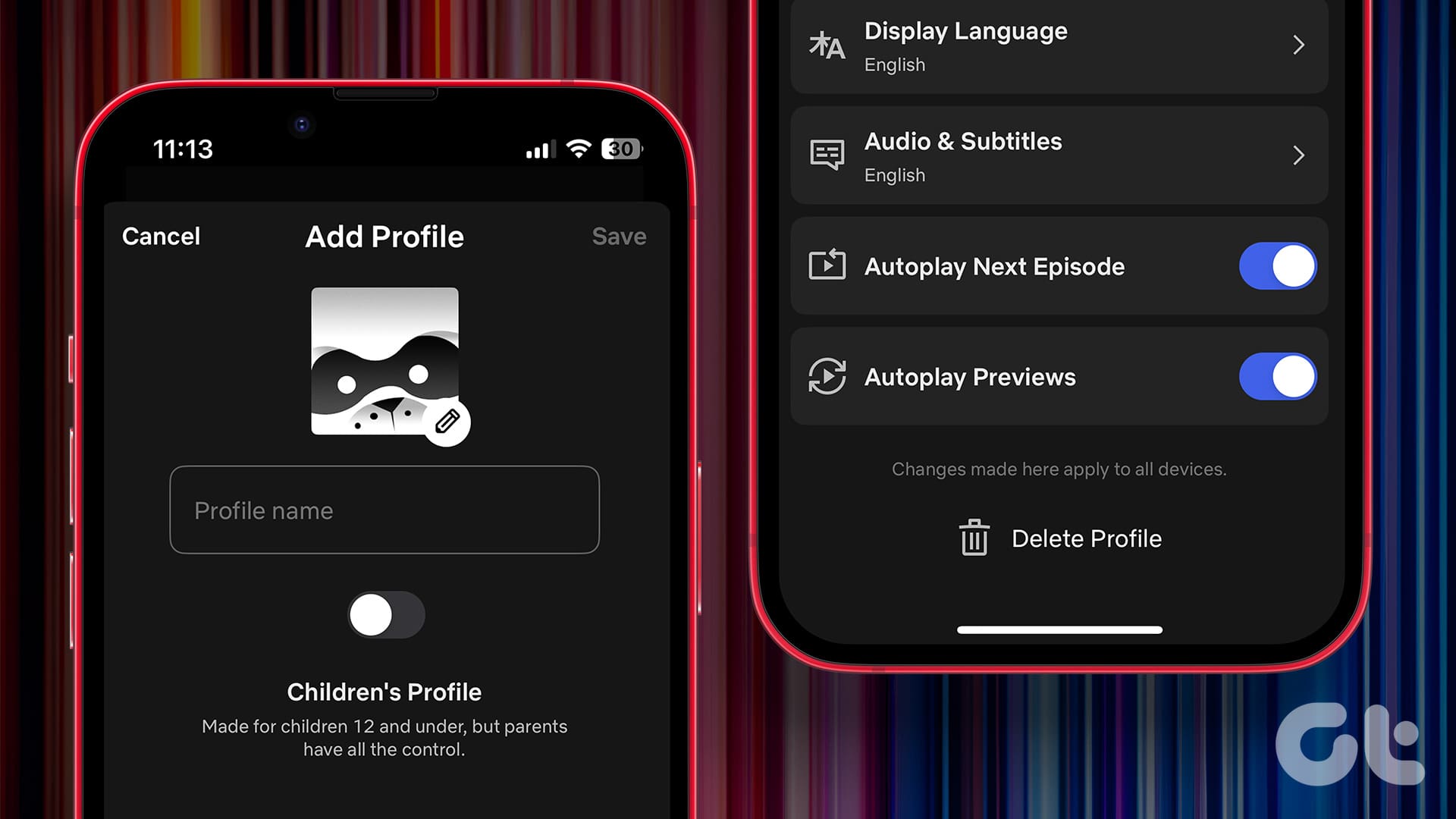
- Select Add Profile.
- Enter the name and choose an avatar if prompted.
- Tap Done or Save.
Using Smart TVs and Gaming Consoles
On larger screens, the interface is optimized for remote control navigation.
- Launch the Netflix app on your TV, PlayStation, or Xbox.
- Navigate to the left-side menu to find the profile selection icon.
- Scroll to the far right or bottom of the profile list and select the Plus (+) icon labeled "Add Profile."
- Use the on-screen keyboard to enter the name.
- Confirm the creation. Some TVs may require you to visit a web browser to finalize advanced maturity settings.
Customizing Your Profile Experience
Once a profile is created, you should customize it to maximize the utility of the service. Netflix offers extensive options to tailor the experience to the specific user.
Selecting an Icon
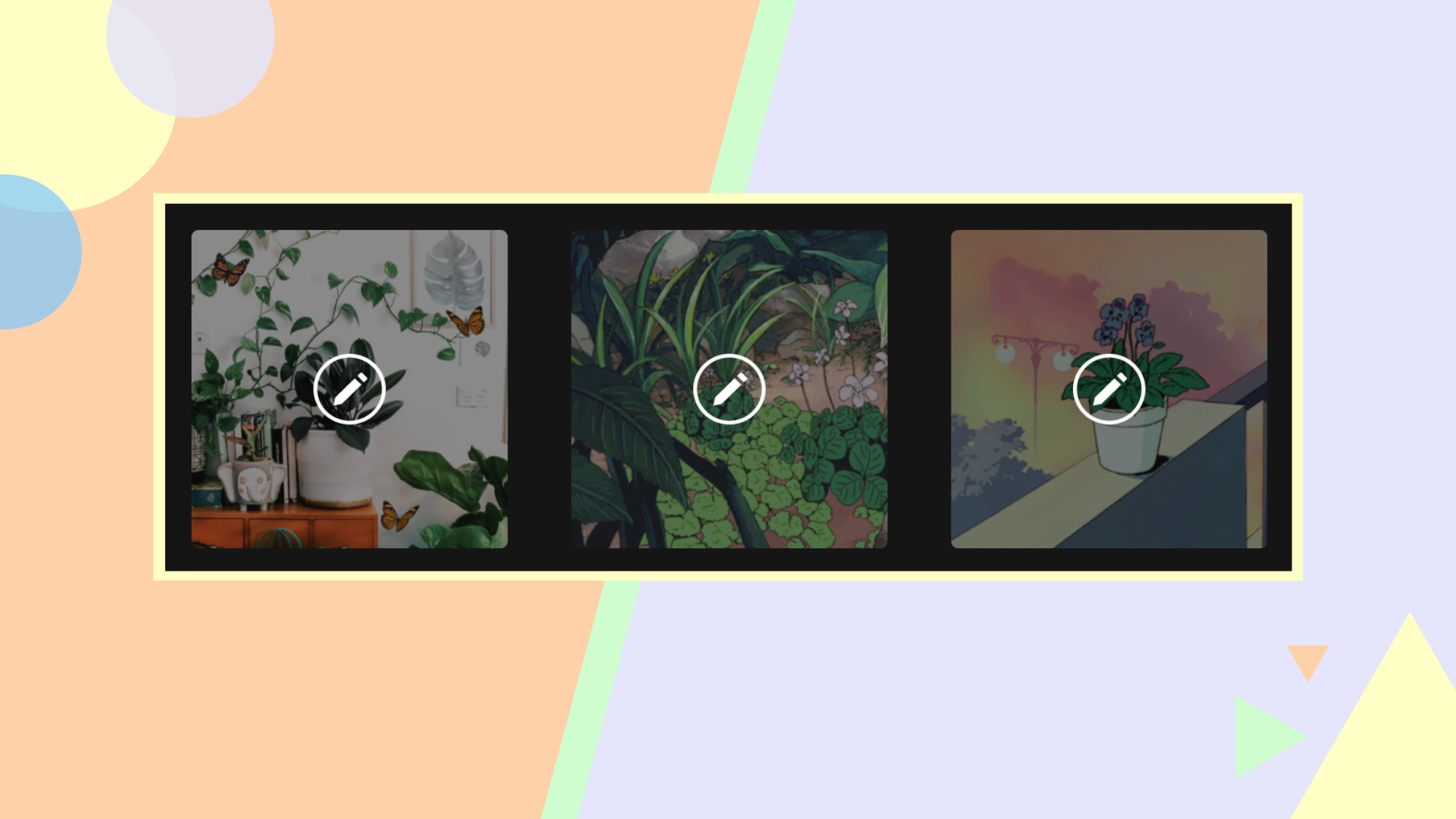
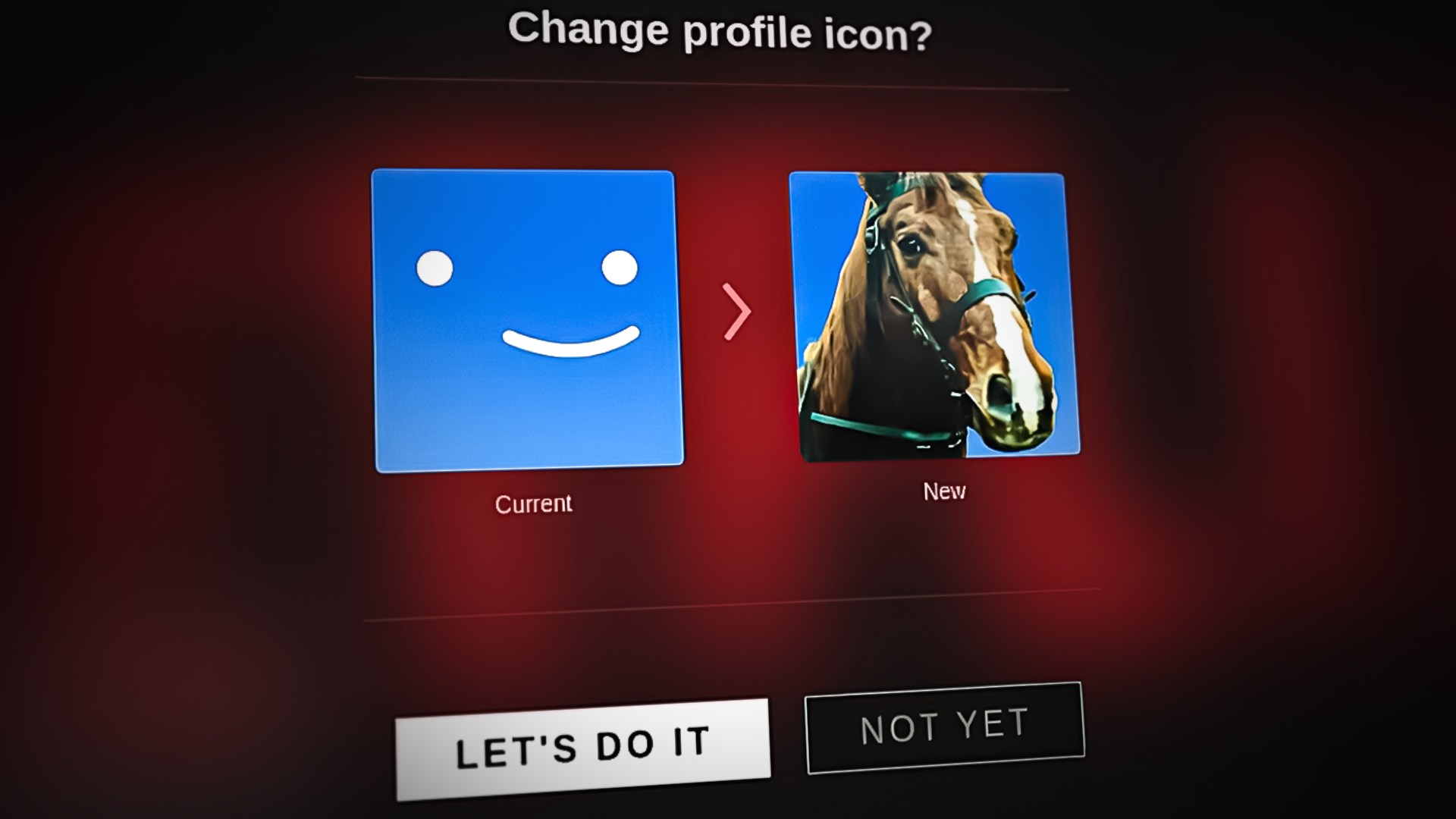
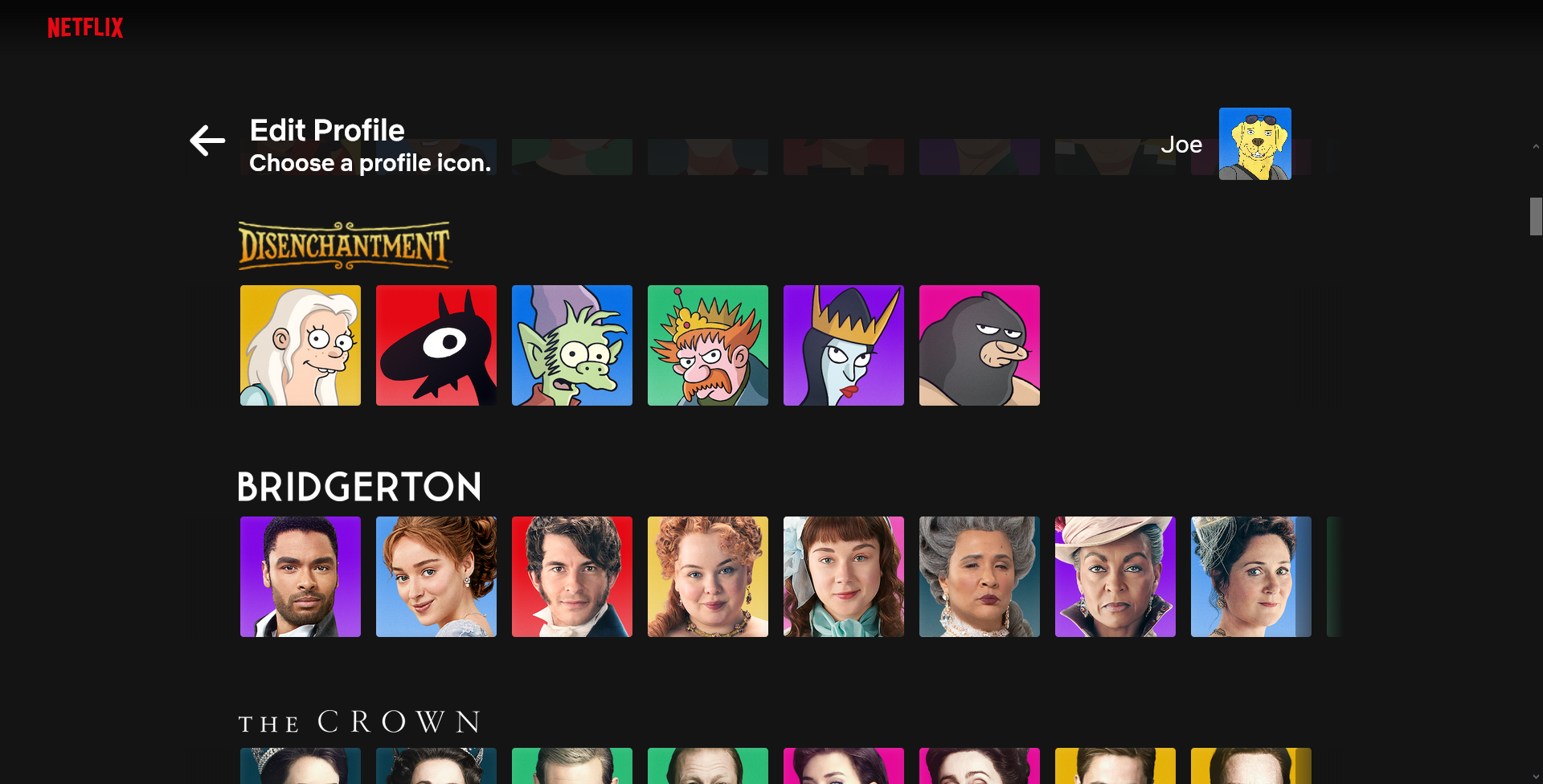
Netflix provides a massive library of avatars, ranging from classic "smiley" icons to characters from popular original series like Stranger Things, The Crown, or Squid Game. To change your icon, go to Manage Profiles, click the pencil icon on your profile, and select the current image to view the gallery.
Setting Maturity Levels
This is a critical step for households with children. You can set a specific maturity rating for each profile (e.g., TV-PG, TV-14, TV-MA). By doing so, any content exceeding that rating will be hidden from the profile’s library and search results.
Playback Settings
Within each profile’s specific settings, you can toggle Autoplay Next Episode and Autoplay Previews. Disabling these can be useful for users who find automatic video playback distracting or who want more control over their data consumption.
Managing and Protecting Your Profile
As streaming accounts become more central to our digital lives, managing privacy and data becomes paramount.
| Feature | Standard Profile | Kids Profile |
|---|---|---|
| Max Maturity Rating | All Ratings (Up to TV-MA/R) | Limited (Usually up to TV-PG) |
| Profile PIN | Supported | Supported |
| My List | Available | Available (Curated) |
| Access to Account Settings | Full Access | Restricted |
| Interface Style | Standard Grid | Character-based, Simplified |
| Transfer Feature | Supported | Not Supported |
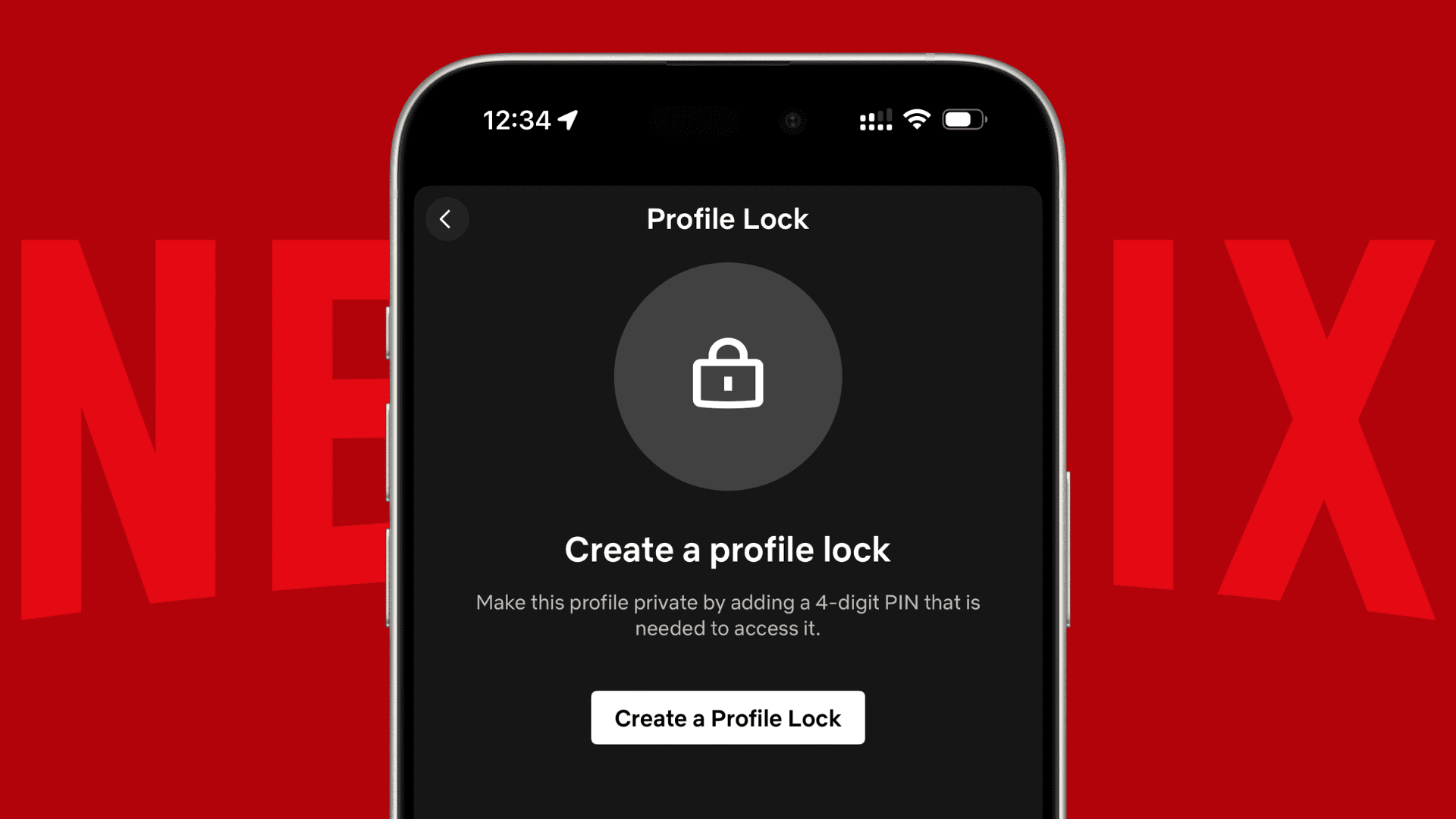
Implementing a Profile Lock (PIN)
If you share an account with roommates or family members and want to keep your viewing history private (or prevent children from accessing an adult profile), you can set a Profile Lock PIN.
- Access your Account page via a web browser.
- Find the Profile & Parental Controls section.
- Select the profile you wish to lock.
- Change the Profile Lock setting and enter a 4-digit PIN.
- Check the box requiring a PIN to access the profile.
The Profile Transfer Feature
Introduced to facilitate Netflix’s policy changes regarding account sharing, the Profile Transfer tool allows you to move a profile (including history and recommendations) to a completely new account or an "Extra Member" slot. This is particularly useful for individuals moving out of a shared household who do not want to lose their curated algorithm data.
Troubleshooting Common Profile Issues
Sometimes, creating or managing a profile doesn't go as planned. Here are solutions to frequent hurdles.
- "Maximum Profiles Reached": You cannot have more than five profiles. If you need a new one, you must go to Manage Profiles, select an old one, and click Delete Profile. Be careful: deleting a profile permanently erases its history.
- Profile Not Appearing on TV: If you created a profile on your phone but don't see it on your TV, try "reloading" Netflix. Go to the "Get Help" section in the TV app and select "Reload Netflix" or simply sign out and sign back in.
- Cannot Delete a Profile: You cannot delete the "primary" profile (the one created when the account was first opened). This profile is tethered to the account's email and billing information.
- Language Glitches: If your profile suddenly displays text in a different language, navigate to Account > Profile & Parental Controls > Language to reset your display preferences.
FAQs About Netflix Profiles
Can I have more than 5 profiles if I pay for a higher tier? No. Regardless of the subscription plan (Standard with Ads, Standard, or Premium), the technical limit for profiles remains five per account. To accommodate more users, Netflix encourages the use of "Extra Member" slots, which act as sub-accounts with their own login credentials, rather than just additional profiles.
Will deleting my profile also delete my My List? Yes. Deleting a profile is a permanent action. It removes all associated data, including the "Continue Watching" row, My List selections, and the algorithmic "taste profile" Netflix has built for you.
Can I password-protect only one profile? Yes, this is done through the Profile Lock feature. You can set a unique 4-digit PIN for any profile on the account, allowing you to secure your personal viewing space without affecting how others log into their own profiles.
How do I change a Standard profile into a Kids profile? You can edit an existing profile by going to Manage Profiles, clicking the edit (pencil) icon, and adjusting the Maturity Settings. Selecting the "Kids" experience will simplify the UI and automatically apply age-appropriate filters.
Do profiles work the same way for "Extra Members"? Extra Member accounts (available on Standard and Premium plans for an additional fee) are slightly different. An Extra Member account is a separate sub-account with its own password and one single profile. It does not share the five-profile pool of the primary account holder.
Final Steps for a Better Streaming Experience
After creating your profile, the best way to "train" your new Netflix experience is to interact with the content. Spend a few minutes searching for five to ten titles you have enjoyed in the past and add them to your My List. Use the Rate feature (the thumb icons) on a few movies or series immediately. This provides the algorithm with a baseline, ensuring that your "Top Picks" and "Recommended for You" sections are relevant from day one.
Image Gallery