How to Use a Phone Hotspot Using Wi-Fi: A Comprehensive Guide
Using a phone hotspot allows you to share your mobile data connection with other devices, effectively turning your smartphone into a portable wireless router. By enabling the hotspot feature, your phone broadcasts a Wi-Fi network that...
Using a phone hotspot allows you to share your mobile data connection with other devices, effectively turning your smartphone into a portable wireless router. By enabling the hotspot feature, your phone broadcasts a Wi-Fi network that laptops, tablets, or other smartphones can join to access the internet, provided your mobile plan supports tethering and you have an active cellular signal.
Contents
Understanding the Hotspot Mechanics
A common point of confusion for users is the distinction between "Wi-Fi" and "Hotspot" functionality. When you use a phone as a hotspot, it is often referred to as "Wi-Fi tethering." Your phone connects to the internet via the cellular network (4G, 5G, or LTE) and then broadcasts that connection as a local Wi-Fi signal.
Crucially, you cannot typically use a phone to "extend" an existing Wi-Fi network by acting as a repeater for another Wi-Fi signal. While some modern Android devices possess a feature called "Wi-Fi Sharing" or "Wi-Fi Bridge," which allows a device to connect to a Wi-Fi network and simultaneously broadcast a hotspot, this remains a niche feature dependent on specific hardware capabilities. In most standard configurations, your phone acts as a cellular-to-Wi-Fi gateway.
Prerequisites for Hotspot Usage
Before attempting to set up your hotspot, verify the following conditions:
- Carrier Compatibility: Not all mobile plans include mobile hotspot features. Some carriers charge an additional monthly fee for tethering, while others restrict the total amount of high-speed data you can use per month via a hotspot. Check your plan details through your carrier’s official app or website.
- Cellular Signal Strength: The speed and stability of your hotspot are entirely dependent on your phone’s reception. If your phone has a poor cellular signal, the devices connected to your hotspot will experience slow speeds or frequent disconnects.
- Battery Power: Tethering is energy-intensive. Maintaining a Wi-Fi signal while managing incoming and outgoing data traffic causes rapid battery depletion. Keep a portable power bank or a wall charger accessible during extended sessions.
- Data Consumption: Unlike standard browsing on a phone, devices connected to a hotspot often engage in data-heavy activities, such as system updates, cloud syncing, and high-definition video streaming. Monitor your data usage to avoid exceeding your plan's caps or triggering "throttling" (a reduction in speed by your carrier).
Setting Up Your Hotspot on Android
On Android devices, the menu structure may vary slightly depending on the manufacturer, but the workflow remains consistent across most 2026 operating system versions.
- Navigate to Settings: Open the main Settings application.
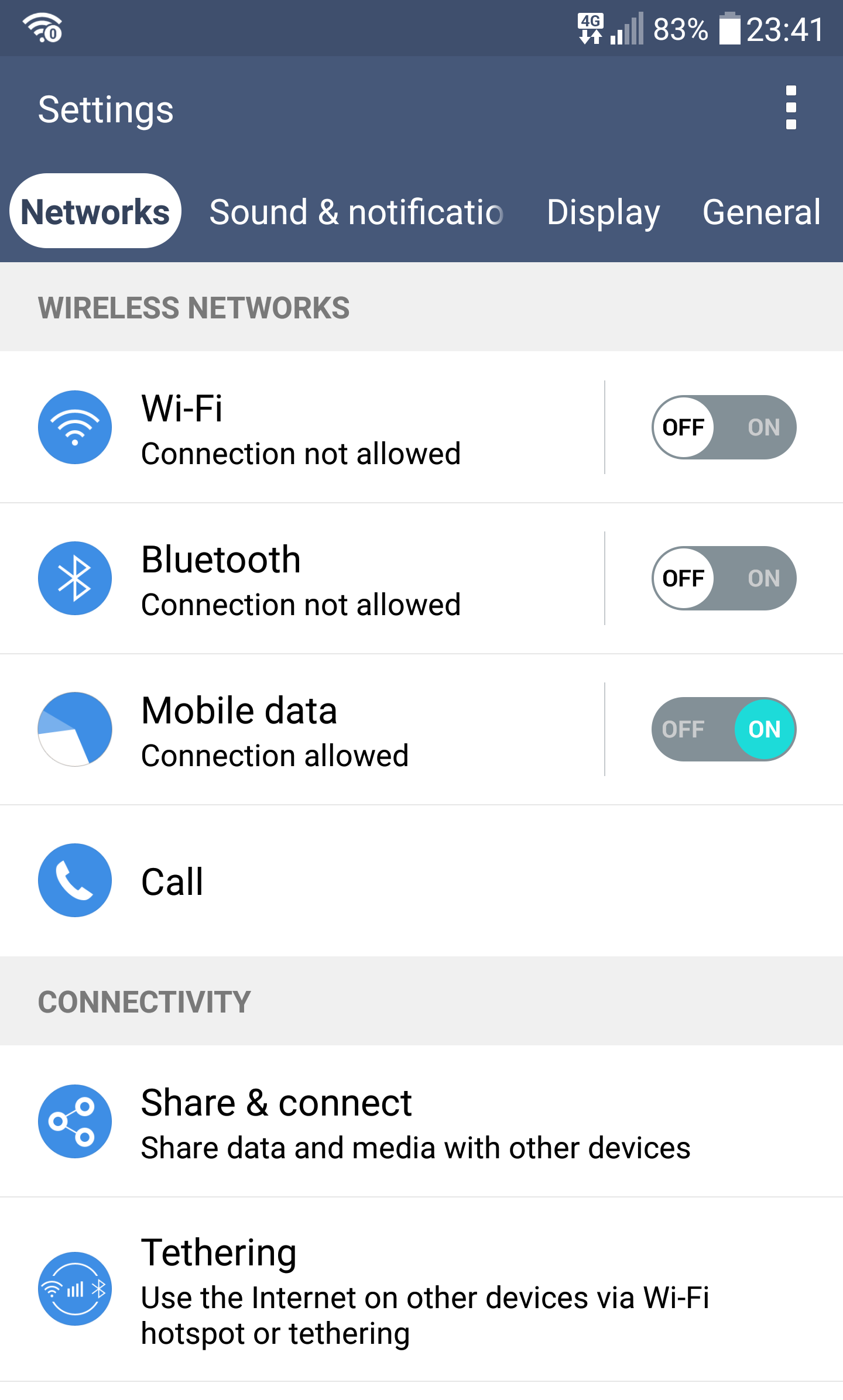
- Access Network Settings: Tap on "Network & internet" or "Connections," depending on your device manufacturer.
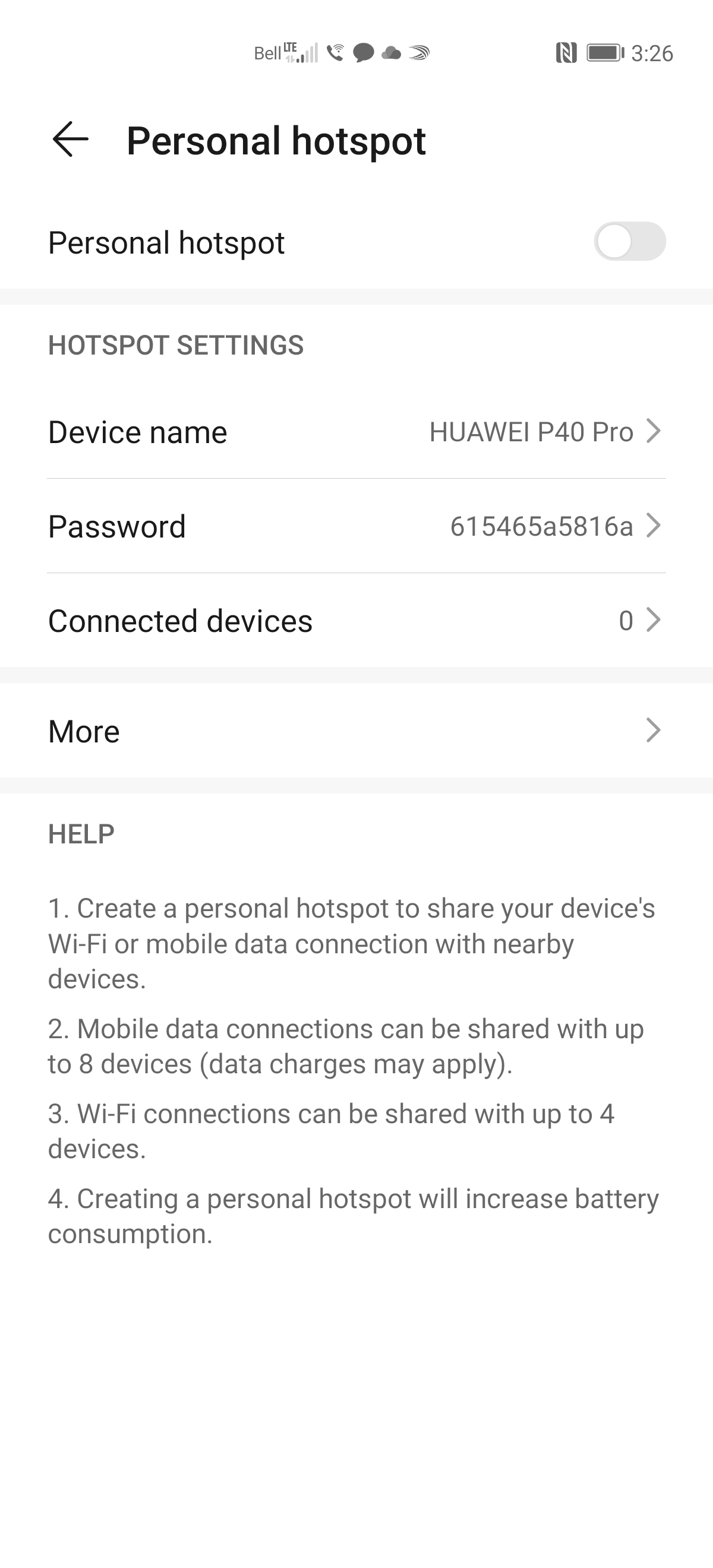
- Locate Hotspot & Tethering: Select "Hotspot & tethering" or "Mobile Hotspot."
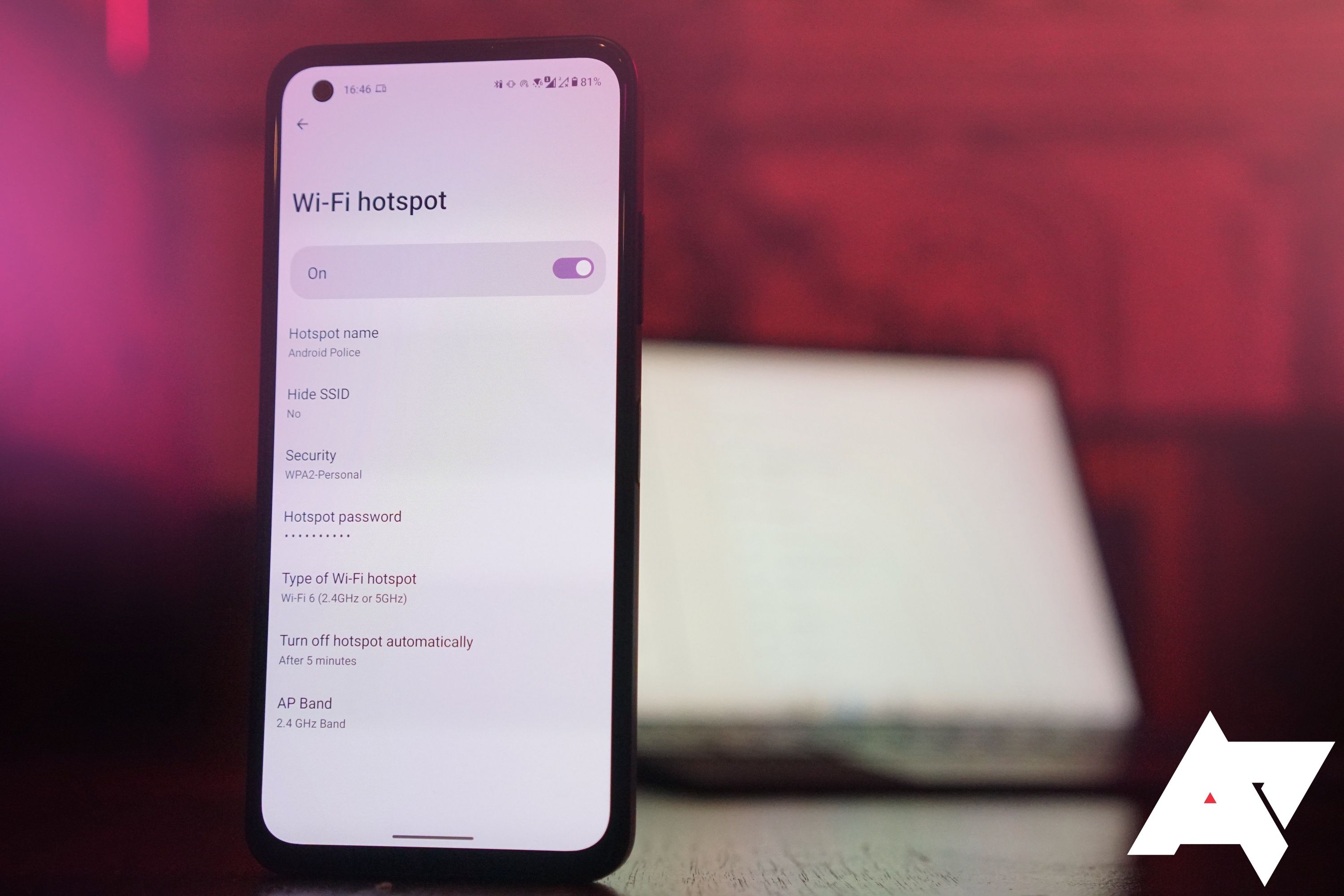
- Configure Security: It is vital to set a strong password. Navigate to "Hotspot password" or "Configure mobile hotspot." Choose WPA3 or WPA2-Personal security, which is the industry standard for preventing unauthorized access.
- Enable the Feature: Toggle the switch to "On."
- Connect Your Client Device: On the device you wish to connect, open the Wi-Fi settings, scan for your phone’s broadcasted SSID (network name), and enter the password you defined.
Setting Up Your Hotspot on iPhone (iOS)
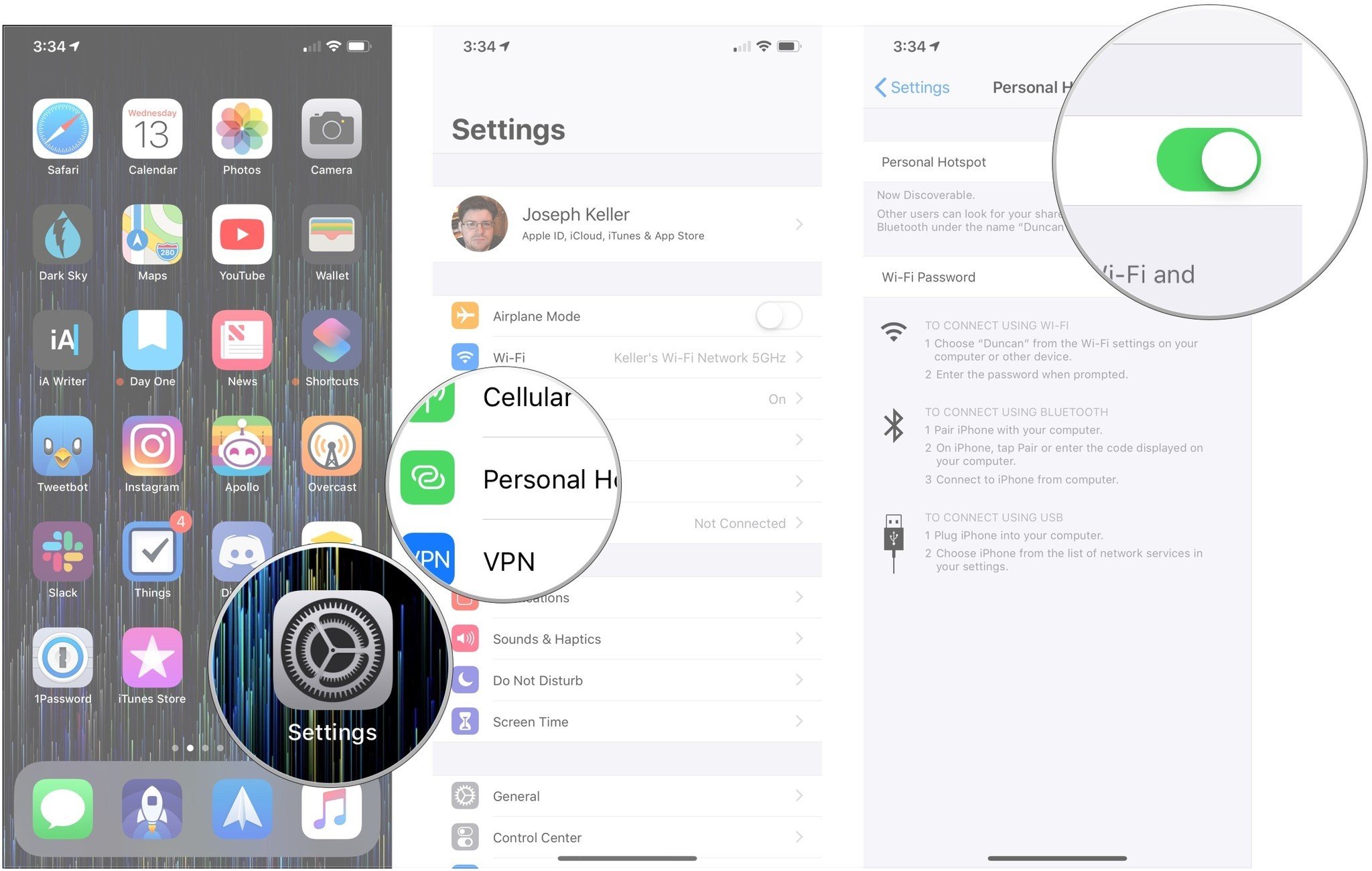
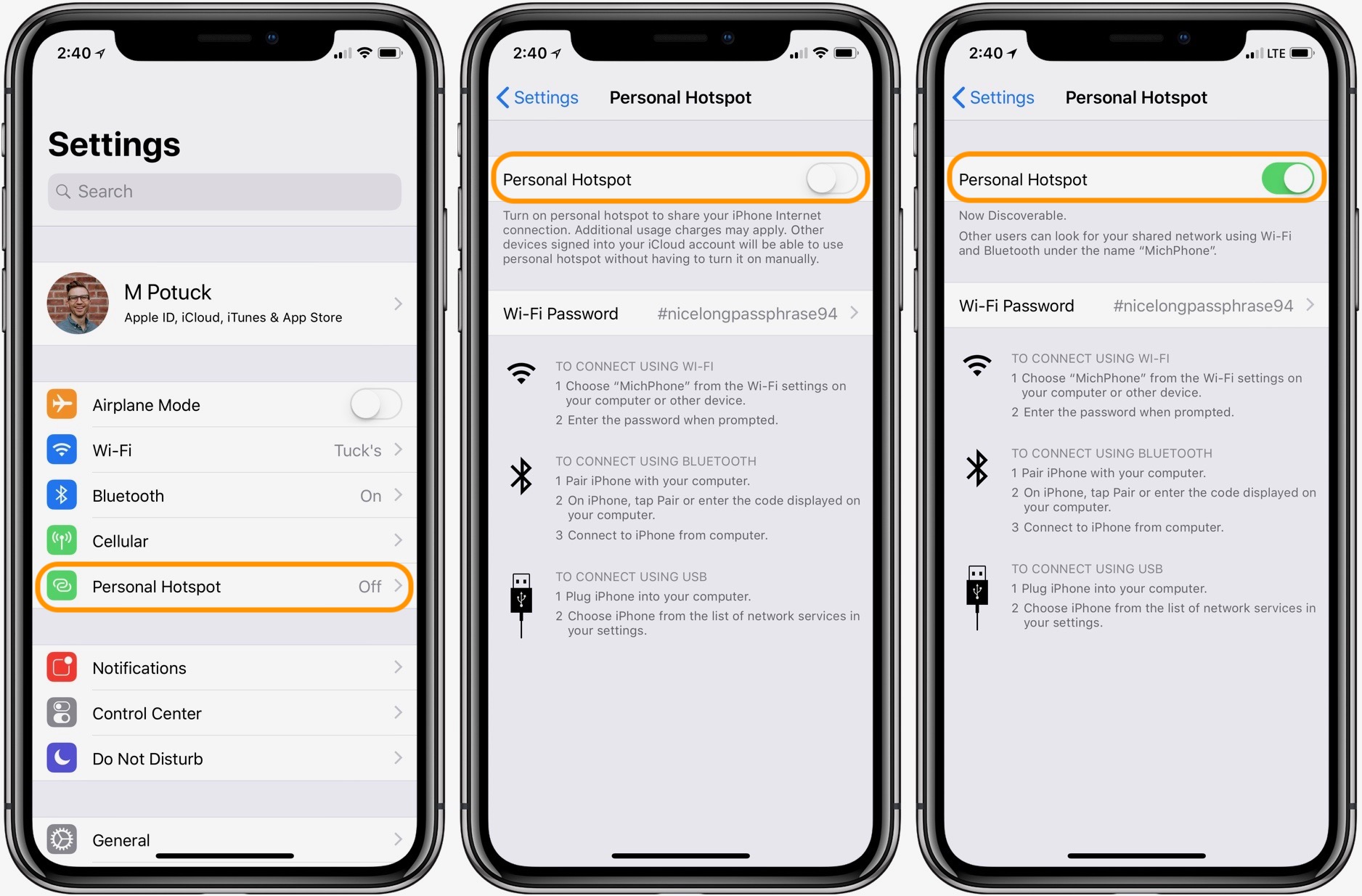
Apple’s "Personal Hotspot" feature is integrated directly into the primary settings menu for ease of access.
- Navigate to Settings: Open the Settings app.
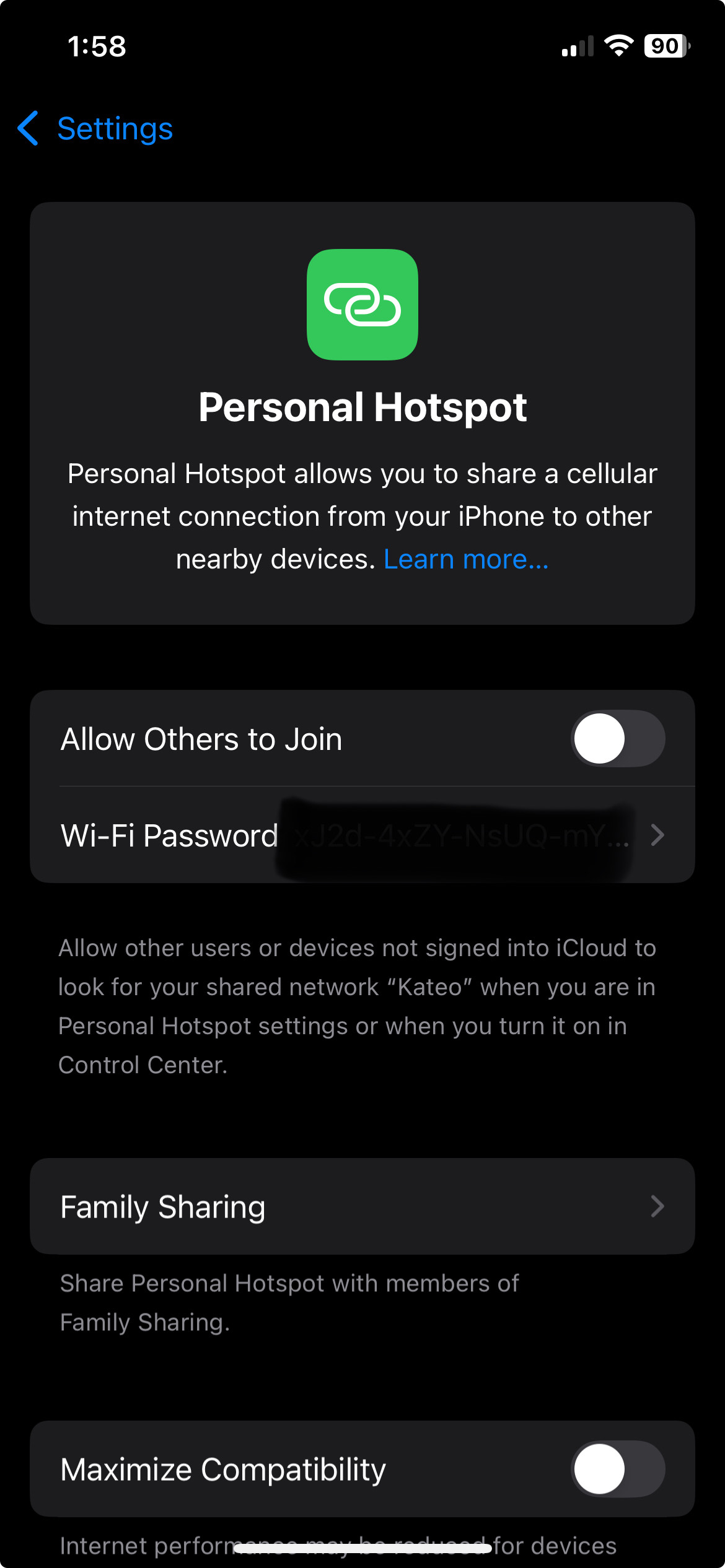
- Toggle Hotspot: Look for "Personal Hotspot." If you do not see it, check "Cellular" to ensure the feature is enabled in your carrier settings.
- Configure Access: Ensure "Allow Others to Join" is toggled on.
- Set Password: Tap "Wi-Fi Password" to create a unique, secure key.
- Maintain Active Screen: For initial pairing, it is often necessary to keep the Personal Hotspot settings screen open until the secondary device successfully connects and establishes a handshake with the iPhone.
Comparison of Connectivity Methods
While Wi-Fi tethering is the most common method, other options exist depending on the devices involved.
| Method | Best For | Pros | Cons |
|---|---|---|---|
| Wi-Fi Hotspot | Multiple devices | Wireless, high compatibility | Battery drain, heat |
| USB Tethering | Single laptop | Faster, charges device | Requires cable, driver-heavy |
| Bluetooth | Low-data tasks | Minimal battery usage | Extremely slow speeds |
Troubleshooting Common Issues
If you encounter difficulty using your phone as a hotspot, approach the problem systematically.
Connection Failures
If a device cannot "see" your hotspot, ensure your phone is broadcasting on a frequency the secondary device supports. Many modern phones broadcast at 5GHz by default for better speed; however, some older laptops only support 2.4GHz. Look for a "Band" setting in your hotspot configuration and toggle it to 2.4GHz if a device fails to detect the network.
Performance Drops
If the internet feels sluggish, check for "background synchronization." Your laptop might be attempting to download large OS updates because it perceives the hotspot connection as a standard home Wi-Fi network. In Windows or macOS, you can set the connection as a "Metered Connection" to prevent these heavy automatic downloads.
Security Best Practices
Never leave your hotspot open (unsecured). Without a password, anyone within range can connect to your network, potentially depleting your data plan and exposing your connected devices to local network attacks. Always use WPA2 or WPA3 security protocols.
Frequently Asked Questions
Why does my phone get so hot while using a hotspot? Processing data through both the cellular radio (receiving) and the Wi-Fi radio (broadcasting) simultaneously generates significant heat. This is a normal physical side effect of high-speed wireless data transmission and is not typically a sign of device damage, though you should avoid keeping it in a hot environment while tethering.
Can I connect a smart TV to my phone hotspot? Yes. You can connect a smart TV just as you would any other Wi-Fi device. Be cautious: streaming high-definition video on a TV via a cellular hotspot can consume several gigabytes of data in less than an hour.
Do I need a special cable to use a hotspot? No. Wi-Fi tethering is purely wireless. If you are using USB tethering, you must use a data-capable USB cable; some cheap "charging-only" cables will not work because they lack the data transfer pins required to facilitate the connection.
How do I stop devices from using too much data? On most modern laptops, you can mark a specific Wi-Fi network as "Metered" in the connection settings. This informs the operating system to pause automatic updates and cloud backups, ensuring your limited mobile data is reserved for the tasks you choose.
Does turning on the hotspot consume more data than regular browsing? The hotspot itself does not consume more data, but the connected devices behave differently. A phone browser is designed to load mobile-optimized, lightweight versions of websites. A computer browser loads full-scale desktop versions of websites, which are significantly heavier in terms of bandwidth usage.
Recommendation for Optimal Use
For the most reliable experience, place your phone near a window or in a location with the strongest cellular reception. If you intend to use the hotspot for an extended period, plug the device into a power source and, if possible, place it on a hard surface to allow for heat dissipation. Always review your carrier’s specific "Hotspot/Tethering" data policy in your 2026 account dashboard to ensure you are aware of any caps that could lead to unexpected charges or speed reductions.
Image Gallery