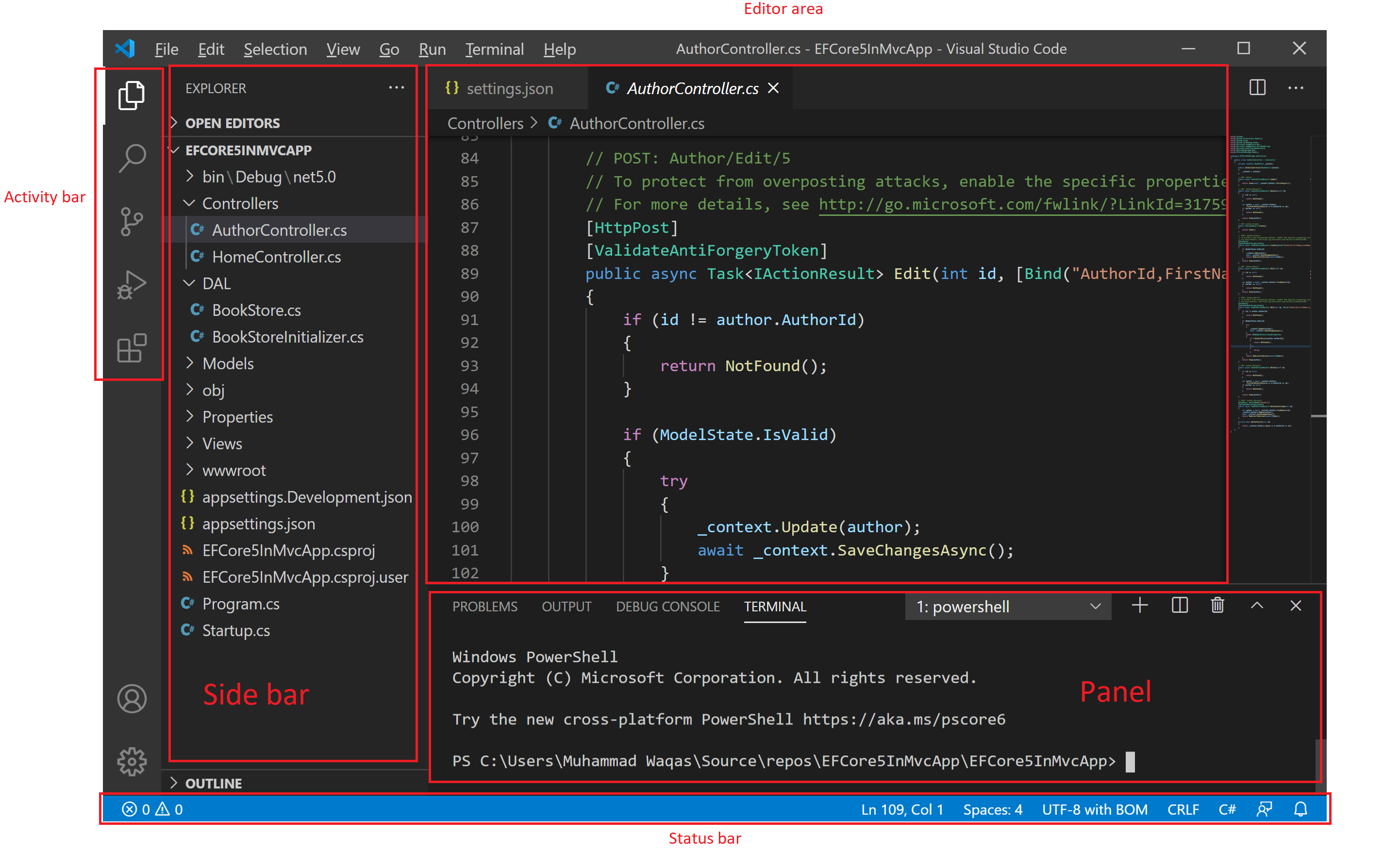
Visual Studio Code PHP: A Comprehensive Overview for 2026
Visual Studio Code (VS Code) is a versatile, lightweight code editor that transforms into a high-performance PHP development environment through a robust ecosystem of extensions. By integrating tools for IntelliSense, Xdebug-based debu...
Visual Studio Code (VS Code) is a versatile, lightweight code editor that transforms into a high-performance PHP development environment through a robust ecosystem of extensions. By integrating tools for IntelliSense, Xdebug-based debugging, and linting, VS Code provides a professional-grade alternative to heavy Integrated Development Environments (IDEs) for modern PHP web development.
Contents
The Evolution of PHP Development in Visual Studio Code
As we navigate through 2026, the landscape of web development continues to favor tools that balance performance with extensibility. Visual Studio Code has solidified its position as the most popular editor for PHP developers, largely due to its ability to handle massive codebases without the memory overhead traditionally associated with full-scale IDEs.
PHP remains a cornerstone of the web, powering a significant percentage of the world's content management systems and enterprise applications. While VS Code provides basic syntax highlighting out of the box, its true power for PHP developers lies in its "extension-first" philosophy. This allows developers to build a tailored environment that matches their specific workflow—whether they are building microservices with Slim, robust applications with Laravel, or managing legacy WordPress installations.
Core Prerequisites for PHP in VS Code
Before leveraging VS Code for PHP, it is essential to understand that the editor does not ship with a PHP interpreter. To execute scripts, run local servers, or use advanced linting tools, you must have a functional PHP environment installed on your local machine or within a containerized environment.
- PHP Interpreter: You must install PHP (standard versions in 2026 typically include PHP 8.3, 8.4, or early iterations of PHP 9). On Windows, this is often handled via installers or tools like XAMPP; on macOS, via Homebrew; and on Linux, through the native package manager.
- Environment Variables: The PHP executable must be added to your system's PATH environment variable. This allows VS Code and its integrated terminal to call the
phpcommand globally. - VS Code Installation: Ensure you are running the latest stable build of Visual Studio Code to maintain compatibility with 2026-era extensions and security protocols.
Essential Extensions for a Professional Workflow
To match the functionality of a dedicated PHP IDE, several extensions are considered industry standards. These tools bridge the gap between simple text editing and comprehensive code intelligence.
PHP Intelephense
PHP Intelephense is the most critical extension for any serious developer. Unlike the basic built-in PHP support, Intelephense provides high-performance code completion, detailed signature help, and workspace-wide symbol search. It supports modern PHP features, including union types, attributes, and property promotion. In 2026, its indexing engine is highly optimized, allowing it to handle projects with tens of thousands of files with minimal latency.
PHP Debug
Debugging is often the most challenging aspect of PHP development. The PHP Debug extension acts as the interface between VS Code and Xdebug, the PHP extension used for profiling and debugging. By configuring a launch.json file, developers can set breakpoints, inspect variables in real-time, and step through code execution. This eliminates the need for "var_dump" debugging, significantly reducing development cycles.
PHP Sniffer & Beautifier
Consistency is vital in collaborative environments. This extension integrates PHP_CodeSniffer directly into the editor. It alerts developers to violations of defined coding standards (such as PSR-12 or project-specific rules) in real-time. Coupled with a beautifier, it can automatically format code upon saving, ensuring the entire team adheres to the same stylistic guidelines.
Configuring VS Code for PHP
Once the extensions are installed, fine-tuning the editor's settings is necessary to optimize performance and accuracy. This is primarily handled via the settings.json file or the graphical Settings UI.
Validating the PHP Executable
VS Code needs to know exactly where your PHP binary resides to perform linting (checking for syntax errors). In your settings, you should define the php.validate.executablePath. If this is not set, VS Code will attempt to find it in the system path, but explicit definition prevents conflicts if multiple PHP versions are installed on the same machine.
Integrating with Composer
Composer is the standard dependency manager for PHP. Most modern VS Code setups include extensions that provide a graphical interface for Composer or at least provide IntelliSense for composer.json files. In 2026, seamless integration with Composer ensures that your autoloader is always recognized by the editor's IntelliSense engine, providing accurate suggestions for third-party packages.
Advanced Debugging and Xdebug Setup
The transition from a "coder" to a "developer" often happens when one masters the debugger. Setting up Xdebug in VS Code requires a two-step configuration: one in the php.ini file and one within VS Code itself.
Step 1: php.ini Configuration
You must enable the Xdebug extension in your PHP installation and configure it to communicate with the editor. A typical 2026 configuration for Xdebug 3.x might look like this:
xdebug.mode = debugxdebug.start_with_request = yesxdebug.client_port = 9003
Step 2: launch.json in VS Code
In the .vscode folder of your project, you create a launch.json file. This file tells VS Code to listen on the specified port (usually 9003). When you trigger a page load in your browser or run a script in the terminal, Xdebug sends the execution data to VS Code, pausing the code at your active breakpoints.
Comparison: VS Code vs. JetBrains PhpStorm
While VS Code is highly capable, it is often compared to PhpStorm, the leading commercial PHP IDE. Choosing between them depends on your project requirements and hardware constraints.
| Feature | Visual Studio Code (with Extensions) | JetBrains PhpStorm |
|---|---|---|
| Cost | Free (Open Source core) | Paid Subscription |
| Memory Usage | Low to Moderate | High |
| Out-of-the-box PHP Support | Minimal (requires setup) | Comprehensive |
| Refactoring Tools | Good (via Intelephense) | Industry-Leading |
| Startup Speed | Near-Instant | Slow (indexing phase) |
| Integrated Tools | Plugin-dependent | Deeply integrated (Database, SSH, etc.) |
Working with Frameworks (Laravel, Symfony, and WordPress)
In 2026, most PHP development happens within frameworks. VS Code excels here through specialized extension packs.
- Laravel: Extensions like "Laravel Extra IntelliSense" and "Laravel Blade Snippets" provide deep integration for the Blade templating engine and Eloquent ORM.
- Symfony: Dedicated plugins assist with YAML configuration files and Twig templates, ensuring that the editor understands the specific architecture of a Symfony project.
- WordPress: For developers managing the world's most popular CMS, VS Code offers hooks IntelliSense and specialized linting rules to comply with WordPress Coding Standards.
The Role of AI and Copilots in 2026 PHP Coding
By 2026, AI-assisted coding has moved from a novelty to a standard requirement. GitHub Copilot and similar LLM-based extensions are deeply integrated into VS Code. For PHP developers, this means:
- Boilerplate Generation: Instantly creating classes, methods, and unit tests.
- Legacy Refactoring: Using AI to suggest modern PHP 8/9 syntax for older codebases.
- Documentation: Automatically generating DocBlocks based on function logic.
These tools do not replace the developer but act as a highly efficient "pair programmer" within the VS Code interface.
Troubleshooting Common VS Code PHP Issues
Even with a mature setup, developers may encounter hurdles. The most common issues usually stem from version mismatches or path errors.
- IntelliSense Not Working: This is often caused by a corrupted index. In VS Code, you can usually trigger a "Clear Cache and Reload" or "Index Workspace" command within the Intelephense extension to resolve this.
- Debug Breakpoints Not Hitting: Ensure that your firewall is not blocking port 9003 and that the
xdebug.client_hostis correctly set tolocalhostor the appropriate IP if using Docker. - Slow Performance: If VS Code becomes sluggish, it is often due to an extension conflict. Use the "Extension Bisect" feature built into VS Code to identify the culprit.
Summary of Best Practices
To maintain a high-quality PHP development environment in Visual Studio Code, follow these guidelines:
- Limit Extensions: Only install what you need. Too many extensions can increase memory consumption and cause conflicts.
- Use Workspace Settings: Save project-specific settings (like coding standards) in
.vscode/settings.jsonso they stay with the project, even when shared with other team members. - Regularly Update PHP: Ensure your local PHP version matches your production server to avoid "it works on my machine" bugs.
- Leverage the Terminal: Don't rely solely on GUI tools. The integrated terminal in VS Code is perfect for running Composer commands, PHPUnit tests, and Artisan commands.
Frequently Asked Questions
Is Visual Studio Code really free for PHP development?
Yes, Visual Studio Code is free for both personal and commercial use. While some specific extensions may offer "pro" versions (like Intelephense), the vast majority of the PHP ecosystem within VS Code is open source and free to use.
Do I need to install a web server like Apache to use VS Code for PHP?
Not necessarily. PHP comes with a built-in development server that you can launch directly from the VS Code terminal using php -S localhost:8000. However, for complex projects, using Docker or a local stack like Herd or Laravel Sail is recommended.
Can I use VS Code for PHP on a Chromebook or Tablet?
Yes, through VS Code for the Web (vscode.dev) or by using a remote development setup. By using the "Remote - SSH" extension, you can run VS Code on a lightweight device while the actual PHP processing and file storage happen on a powerful remote server.
What is the best extension for PHP linting in 2026?
PHP Intelephense remains the leader for general linting and code intelligence, but for strict adherence to coding standards, PHP_CodeSniffer (via the PHP Sniffer & Beautifier extension) is the industry standard for 2026.
How do I run PHPUnit tests inside Visual Studio Code?
You can use the "PHPUnit" extension, which provides a dedicated test explorer. This allows you to run individual tests or entire suites with a single click, viewing the results and stack traces directly within the editor's UI.
Recommended Next Steps
To get started, install Visual Studio Code and the PHP Extension Pack from the marketplace. Begin by configuring your php.validate.executablePath to point to your local PHP installation. Once your environment is validated, initialize a simple project and practice setting up Xdebug; mastering the debugger early will save countless hours of troubleshooting as your projects grow in complexity.
Image Gallery