How to Type a Spanish Exclamation Point on Any Device
Typing the inverted exclamation point (¡) requires a specific keystroke combination or system setting adjustment based on your operating system. On Windows, use the Alt code Alt + 0161, while macOS users can hold the Option key and pre...
Typing the inverted exclamation point (¡) requires a specific keystroke combination or system setting adjustment based on your operating system. On Windows, use the Alt code Alt + 0161, while macOS users can hold the Option key and press 1. Mobile devices typically involve long-pressing the standard exclamation mark on the virtual keyboard to reveal the inverted variant.
Contents
Understanding the Spanish Exclamation System
The Spanish language utilizes a unique punctuation system that distinguishes it from English. While English uses only the closing exclamation point (!), Spanish grammar mandates the use of an opening inverted exclamation point (¡) at the beginning of an exclamatory sentence or clause. This requirement ensures that the reader understands the exclamatory tone of the text from the start, preventing the need to re-read sentences once the emotional weight is revealed at the end.
Mastering these characters is essential for professional correspondence, academic writing, and digital communication in Spanish. Whether you are using a standard QWERTY keyboard or a mobile interface, the methods to input these symbols are standardized across modern platforms, though they vary by the specific operating system you use.
Typing on Windows Systems
Windows provides several ways to input the inverted exclamation point. If you frequently write in Spanish, the most efficient method is to change your keyboard layout; however, for occasional use, specialized key sequences are preferred.
Using Alt Codes
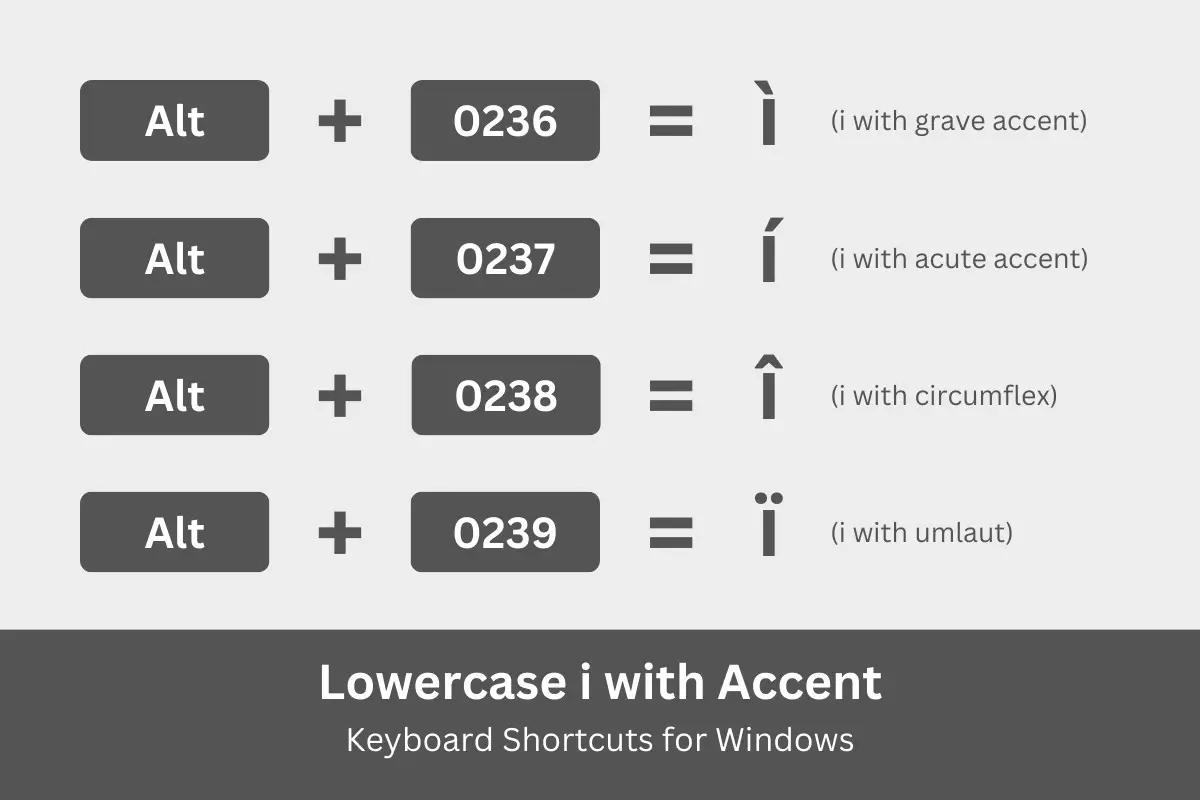
The most universal method for Windows users is the numeric keypad.
- Ensure your Num Lock is turned on.
- Hold down the Alt key on the left side of your keyboard.
- Type 0161 on the numeric keypad (not the numbers above the letter keys).
- Release the Alt key, and the ¡ will appear.
Using the Emoji Panel
In Windows 10 and 11, you can access the emoji and symbol panel by pressing the Windows Key + Period (.) or Windows Key + Semicolon (;). Once the panel opens, click the "Symbols" tab (often represented by an omega symbol or a currency icon) and navigate to the "General Punctuation" section to select the ¡.
Typing on macOS
Apple’s macOS simplifies the process for special characters by utilizing the Option key, which acts as a modifier for many international symbols.
- Press and hold the Option key.
- Press the 1 key.
- The ¡ character will appear instantly.
If you are typing in an environment that supports macOS text replacement, you can navigate to System Settings > Keyboard > Text Replacements. You can create a custom shortcut (such as typing "!!i") that automatically expands into "¡" whenever you type your defined trigger phrase.
Typing on Mobile Devices
Modern iOS and Android keyboards handle inverted punctuation with intuitive gestures.
iOS (iPhone and iPad)
- Open your keyboard in any text field.
- Find the standard exclamation mark (!) key.
- Tap and hold your finger on the ! key.
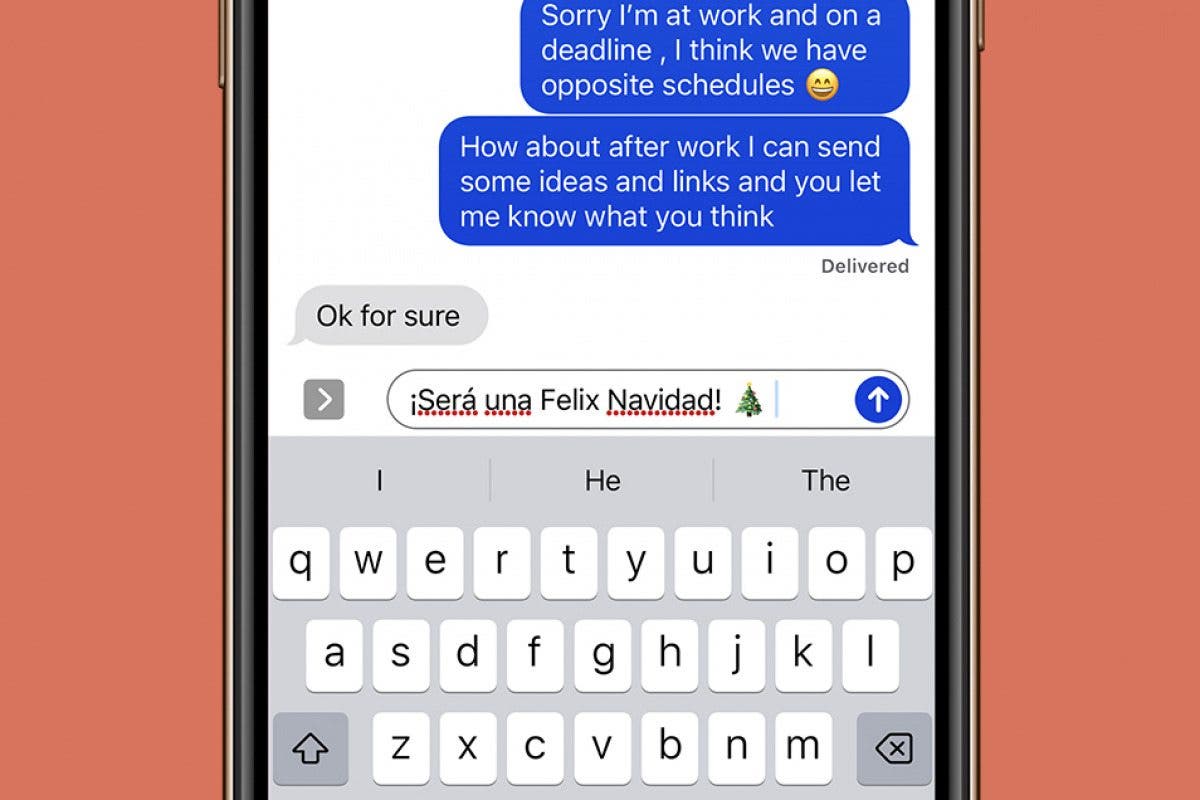
- A small pop-up will appear showing the ¡ symbol.
- Slide your finger to the ¡ and release.
Android
The process for Android is nearly identical to iOS. Long-press the standard exclamation mark on your virtual keyboard. On some keyboards, the inverted exclamation point may be visible as a secondary character on the key itself; dragging upward or long-pressing will select it.
Comparison of Input Methods
| Method | OS | Complexity | Best For |
|---|---|---|---|
| Alt + 0161 | Windows | Moderate | Desktop users without a numpad/layout shift |
| Option + 1 | macOS | Low | Quick, frequent entry |
| Long-press | iOS/Android | Low | Mobile messaging and email |
| Language Pack | All | Low (set-up) | Frequent, long-form writing |
Changing System Keyboard Settings
For users who translate or write in Spanish regularly, changing the input language of your operating system is the most professional approach. This allows you to use a "Spanish (International)" keyboard layout, which remaps keys to include accents and inverted punctuation marks directly.
On Windows, go to Settings > Time & Language > Language & Region. Add "Spanish" as a language pack. Once added, you can switch between your native language and Spanish by using the Windows + Space shortcut. When in Spanish mode, specific keys will act as dead keys for accents and symbols, making the writing process significantly faster and more accurate.
Troubleshooting Common Issues
If you are unable to type the inverted exclamation point, consider these common technical hurdles:
- Numeric Keypad Errors: If you are using a laptop without a dedicated numeric keypad, the standard Alt code (Alt + 0161) will not work. In this case, use the Windows Character Map tool: press the Windows key, type "Character Map," find the ¡, click "Select," "Copy," and then paste it into your document.
- Keyboard Region Conflicts: If you have multiple keyboard layouts installed, ensure your active layout matches the physical keyboard you are using. If your keyboard is set to "English (US)" but you attempt to use shortcuts intended for "Spanish (Spain)," the characters will not map correctly.
- Software-Specific Limitations: Some legacy software programs may not support Unicode characters properly. If the symbol appears as a box or a question mark, ensure your document encoding is set to UTF-8.
Frequently Asked Questions
Why does Spanish use an inverted exclamation point at the start of a sentence? Spanish is a prosodic language that uses punctuation to guide the reader’s intonation. The opening ¡ tells the reader that the following sentence is an exclamation, allowing them to adjust their tone of voice before they reach the end of the sentence.
Are both the inverted (¡) and the standard (!) required? Yes, in formal Spanish writing, both are required. You must open with ¡ and close with !. Omitting the opening mark is common in informal digital communication, such as text messages or social media, but it is considered grammatically incorrect in professional or academic contexts.
Can I use the inverted exclamation point in English sentences? While you technically can, it is not part of English orthography. Using it in English may confuse readers or be perceived as a stylistic choice. It is generally reserved for Spanish-language content or when quoting Spanish text.
Does this method work for inverted question marks (¿) as well? The logic is similar, though the codes differ. On macOS, you use Option + Shift + ?. On Windows, the Alt code is Alt + 0191. The long-press method on mobile devices functions exactly the same for both inverted punctuation marks.
What should I do if I am working on a public or shared computer? If you cannot install language packs or change settings, use a web-based character map or a simple search engine query for "inverted exclamation point." Copying and pasting the symbol from a reliable source is a perfectly acceptable workaround for occasional needs.
Final Recommendation
For the fastest and most sustainable workflow, rely on the built-in keyboard shortcuts for your specific operating system (Option + 1 for macOS; Alt + 0161 for Windows). If you find yourself frequently using Spanish punctuation, take five minutes to add the Spanish language pack to your OS settings; this transition will eliminate the need to memorize codes and allow you to type as naturally in Spanish as you do in English.
Image Gallery