What are Extensions on Google Chrome? A Comprehensive Guide for 2026
Extensions on Google Chrome are modular software programs that add new features or enhance existing functionality within the browser. Built using web technologies like HTML, CSS, and JavaScript, they allow users to personalize their br...
Extensions on Google Chrome are modular software programs that add new features or enhance existing functionality within the browser. Built using web technologies like HTML, CSS, and JavaScript, they allow users to personalize their browsing experience, improve productivity, and integrate third-party services directly into the Chrome interface without leaving the active webpage.
Contents
As we move through 2026, the ecosystem for Chrome extensions has matured into a sophisticated platform. These tools are no longer just simple add-ons; they are integrated components of a modern digital workflow. Whether you are looking to block intrusive advertisements, manage complex passwords, or automate repetitive data entry, understanding the architecture, security, and management of these tools is essential for any web user.
The Evolution and Architecture of Chrome Extensions
To understand what extensions are, one must first understand their structure. Google Chrome extensions are essentially small web applications. However, unlike a standard website that resides on a server, an extension is downloaded and executed locally within your browser environment.
The Shift to Manifest V3
By 2026, the transition to Manifest V3 (MV3) is complete. This is the technical framework that dictates how extensions interact with the browser and the hardware. Google initiated this shift to improve security, privacy, and performance.
Under the older Manifest V2, extensions had broad, sometimes unchecked access to browser functions. Manifest V3 replaced "background pages" with service workers, which are ephemeral scripts that only run when needed. This change significantly reduces the memory and battery consumption of extensions, ensuring that a browser loaded with twenty extensions doesn't drain a laptop's battery as quickly as it once did.
Core Components
Every extension consists of several key files:
- The Manifest File (
manifest.json): This is the "ID card" of the extension. It tells Chrome the name, version, required permissions, and which scripts to run. - Background Scripts (Service Workers): These handle long-running tasks and react to browser events, such as opening a new tab or clicking the extension icon.
- Content Scripts: These are the files that actually "see" the website you are visiting. They can read the DOM (Document Object Model) of a page and make changes, such as changing colors or inserting new buttons.
- UI Elements: This includes the popup window that appears when you click the extension icon and any "options" pages where you configure settings.
Where to Find and How to Install Extensions
The primary source for extensions is the Chrome Web Store. In 2026, this marketplace serves as a vetted repository where developers submit their tools for review before they are made available to the public.
The Installation Process
- Navigate to the Store: Visit the Chrome Web Store.
- Search and Filter: Use the search bar to find specific tools or browse categories like Productivity, Accessibility, or Developer Tools.
- Review the Product Page: Before installing, it is vital to check the "Privacy practices" tab. Google now requires developers to disclose exactly what data they collect and how it is used.
- Add to Chrome: Clicking "Add to Chrome" prompts a permission dialog. This dialog is the most important step in the process, as it details exactly what the extension can access (e.g., "Read and change all your data on the websites you visit").
- Confirmation: Once confirmed, the extension downloads and installs automatically, usually appearing in the "Extensions" menu (the puzzle piece icon) next to the address bar.
Categories of Chrome Extensions
The versatility of the Chrome API allows for a wide range of applications. Below is a breakdown of the most common types of extensions used in 2026.
Productivity and Workflow
These are the most popular extensions. Tools like Grammarly or LanguageTool provide real-time spellcheck and grammar corrections across all websites. Others, like Todoist or Trello, allow users to add tasks to their project management boards without switching tabs.
Security and Privacy
This category includes password managers like Bitwarden or 1Password, which auto-fill credentials and generate secure passwords. VPN extensions and ad blockers also fall into this category. With the full implementation of Manifest V3, modern ad blockers like uBlock Origin Lite utilize the declarativeNetRequest API to block trackers more efficiently without needing to "read" every packet of data you send.
Developer and Technical Tools
Web developers rely heavily on extensions to debug code. The Chrome DevTools are built-in, but extensions like React Developer Tools, JSON Viewer, and ColorPick Eyedropper add specialized functionality for designing and troubleshooting websites.
Comparison: Extensions vs. Other Browser Technologies
| Feature | Chrome Extension | Progressive Web App (PWA) | Bookmarklet |
|---|---|---|---|
| Integration | Deeply integrated into UI/Context menus | Operates as a standalone window | Limited to a single bookmark click |
| Persistence | Can run in the background | Only runs when the app is open | Only runs when manually clicked |
| Installation | Requires Chrome Web Store/Local load | Installed via the browser address bar | Dragged to the bookmarks bar |
| Permissions | Granular access to browser APIs | Standard web permissions (Camera, Location) | No special permissions |
| Maintenance | Updates automatically via the Store | Updates like a standard website | Must be updated manually |
Managing and Troubleshooting Extensions
As you accumulate extensions, managing them becomes a matter of performance and security. Overloading a browser with too many active tools can lead to "extension bloat," where pages load slowly or the interface becomes cluttered.
The Extensions Menu
In the top-right corner of Chrome, the puzzle piece icon acts as the central hub. From here, you can:
- Pin Extensions: Keep your most-used icons visible on the toolbar.
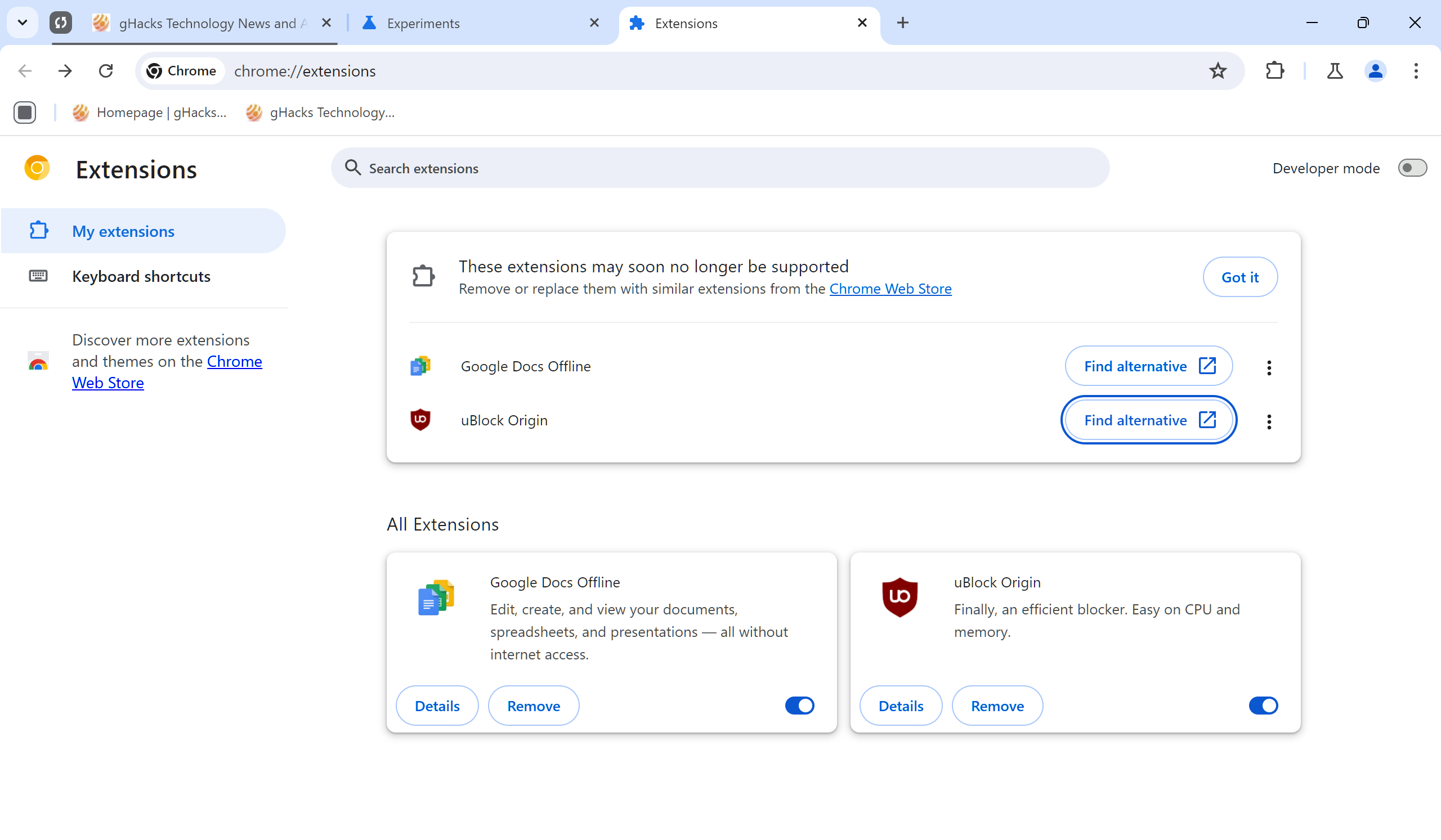
- Manage Extensions: This opens
chrome://extensions/, where you can toggle extensions on or off, view detailed permissions, or enter "Developer Mode." - Remove Extensions: Right-clicking an icon allows for immediate uninstallation.
Common Troubleshooting Steps
If a website isn't loading correctly, the first step is often to disable your extensions.
- Incognito Mode: By default, extensions are disabled in Incognito mode. If a site works in Incognito but not in a normal window, an extension is likely the culprit.
- Permission Conflicts: Sometimes two extensions (like two different ad blockers) can conflict. It is best practice to only have one extension active for a specific task.
- Updating: While Chrome updates extensions automatically, you can force an update in
chrome://extensions/by enabling "Developer mode" and clicking the "Update" button.
Security and Data Privacy Considerations
While extensions are powerful, they represent a significant security surface. Because an extension can often "read and change" the data on pages you visit, a malicious or compromised extension could theoretically steal passwords or credit card numbers.
The "Featured" and "Established" Badges
In 2026, Google uses a badge system to help users identify trustworthy developers. The Featured badge is awarded to extensions that follow technical best practices and meet a high standard of user experience. The Established Publisher badge indicates that the developer has a proven track record of compliance with Google’s policies.
Enterprise Management
For corporate environments, Chrome extensions can be managed via the Google Admin Console. IT administrators can "force-install" necessary tools, "blocklist" dangerous ones, and "allowlist" only specific extensions that have been vetted by the organization's security team. This prevents employees from inadvertently installing "shadow IT" that could lead to data breaches.
Warning Signs of Malicious Extensions
- Sudden UI Changes: If you start seeing ads where there weren't any before, or if your default search engine changes to an unfamiliar site.
- Excessive Permissions: A simple calculator extension should not need access to your location or your browsing history.
- Negative Reviews: Always check the most recent reviews in the Web Store to see if a recent update has introduced bugs or suspicious behavior.
Summary of Best Practices for 2026
To get the most out of Google Chrome extensions while maintaining a secure and fast browser:
- Audit Regularly: Every few months, go to
chrome://extensions/and delete tools you no longer use. - Limit Permissions: If an extension asks for more access than it needs to function, look for an alternative.
- Prefer Official Sources: Only install extensions from the official Chrome Web Store.
- Use Enhanced Protection: Enable Chrome’s "Enhanced Protection" in the Privacy and Security settings to receive proactive warnings about potentially dangerous extensions.
Frequently Asked Questions
Are Google Chrome extensions free?
Most extensions in the Chrome Web Store are free to download. However, many operate on a "freemium" model, where the basic features are free but advanced functionality requires a subscription or a one-time payment. Some developers also require a paid account for their external service (like a VPN or project management tool) to use the extension.
Can I use Chrome extensions on my Android or iPhone?
Officially, the mobile version of Google Chrome for Android and iOS does not support extensions. To use Chrome extensions on mobile, you would need to use third-party Chromium-based browsers like Kiwi Browser or Yandex Browser on Android, which have integrated extension support.
Do extensions slow down my computer?
Yes, every active extension uses a small amount of RAM and CPU resources. While Manifest V3 has made extensions more efficient, having dozens of them running simultaneously will eventually impact browser performance and battery life. It is best to disable extensions you only use occasionally.
How do I stop an extension from tracking me?
You can manage an extension's site access by right-clicking its icon and selecting "This can read and change site data." You can then choose to let it run on "All sites," "On specific sites," or "When you click the extension." Limiting access to "When you click" is the best way to prevent background tracking.
What is the difference between a "Plugin" and an "Extension"?
In modern terminology, "Plugins" (like Adobe Flash or Silverlight) are an obsolete technology used to render specific types of content. They were replaced by native web standards (HTML5). "Extensions" are the current standard for adding functionality and UI features to the browser itself.
Practical Recommendation: Your Next Action
To optimize your browser today, open Chrome and type chrome://extensions/ into your address bar. Review your list of installed tools. Identify any extension you haven't used in the last 30 days and click "Remove." For the extensions you keep, click "Details" and check the "Site access" settings to ensure you aren't granting more data access than is strictly necessary for the tool to work.
Image Gallery