Creating a File in Ubuntu: Methods and Best Practices
Creating a file in Ubuntu is a fundamental task for users interacting with the Linux operating system, whether through a Graphical User Interface (GUI) or the Command Line Interface (CLI). Ubuntu, a Linux distribution based on Debian,...
Creating a file in Ubuntu is a fundamental task for users interacting with the Linux operating system, whether through a Graphical User Interface (GUI) or the Command Line Interface (CLI). Ubuntu, a Linux distribution based on Debian, offers multiple pathways to achieve this depending on your administrative requirements, automation needs, or preferred desktop environment. Whether you are creating a simple text document for personal notes or a configuration file for system services, understanding the standard methods ensures efficiency and system stability.
Contents
The most common ways to create a file in Ubuntu involve using the touch command for empty files, redirection operators for content-specific files, or text editors like nano or vim for interactive editing. For those preferring a visual approach, the GNOME Files (Nautilus) file manager provides a seamless way to create files through the right-click context menu. Each method serves a specific use case, ranging from simple file instantiation to complex system administration tasks.
Understanding File Creation in Linux Systems
In the Ubuntu ecosystem, a file is not merely a collection of data; it is an object within the file system hierarchy. Before creating a file, it is essential to understand the distinction between file types—such as regular files, directories, and device files—and the permissions assigned to them. Ubuntu follows the POSIX standard for file management, meaning that every file has an owner, a group, and a set of permissions (read, write, and execute) associated with it.
When you create a file, the system assigns default permissions based on the umask (user file-creation mode mask) setting. If you encounter "Permission Denied" errors, it usually indicates that your current user account lacks the necessary write permissions in the target directory, or you are attempting to modify a system-protected area.
Method 1: Using the Command Line (CLI)
The terminal is the most powerful tool for file creation, allowing for rapid execution and integration into shell scripts.
1. The touch Command
The touch command is the standard utility for creating an empty file. It is primarily used to update timestamps, but if the specified file does not exist, touch will create it immediately.
- Syntax:
touch filename.txt - Use case: Ideal for initializing empty placeholder files or logs.
2. Redirection Operators (> and >>)
Redirection is a powerful shell feature that allows you to send output directly into a file. The > operator creates a new file or overwrites an existing one, while >> appends text to the end of a file.
- Create with text:
echo "Hello World" > newfile.txt - Append text:
echo "Next line" >> newfile.txt
3. Using Text Editors
For files that require content entry, using a terminal-based text editor is the standard professional workflow.
- Nano: A beginner-friendly, modal-free editor. You can create a file by typing
nano filename.txt. After typing your content, pressCtrl + Oto save (Write Out) andCtrl + Xto exit. - Vim: A highly efficient, modal-based editor. Type
vim filename.txt, pressito enter Insert mode, type your text, pressEsc, type:wq, and pressEnterto write the file and quit.
Method 2: Using the Graphical User Interface (GUI)
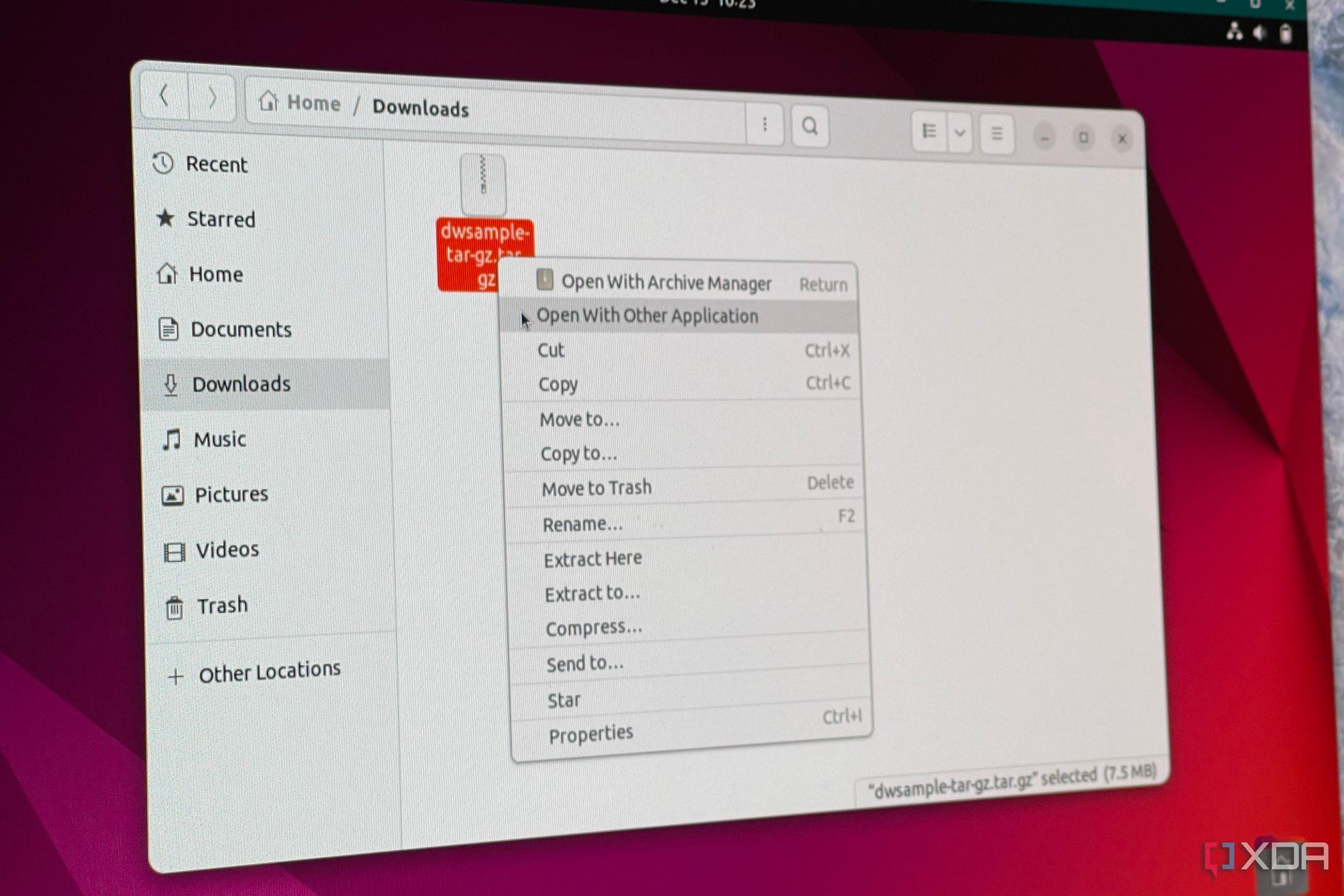
If you are using the default Ubuntu Desktop environment, you likely use the Nautilus file manager. This method is intuitive for managing documents, scripts, or configuration files that do not require elevated privileges.
- Open the File Manager: Locate the "Files" icon in your dock or app launcher.
- Navigate to the Directory: Browse to the folder where you wish to create your new file.
- Context Menu: Right-click on any empty space within the window.
- Create New: Select the "New Document" option. Note that if this option is missing, you may need to place a template file in your
~/Templatesdirectory to enable it. - Name the File: Provide a descriptive name and extension (e.g.,
script.shornotes.md).
Comparing File Creation Methods
The following table highlights the strengths and typical applications of the most common file creation techniques in Ubuntu.
| Method | Interface | Complexity | Best For |
|---|---|---|---|
touch |
CLI | Very Low | Creating empty placeholders quickly |
Redirection (>) |
CLI | Low | Quick data logging and configuration |
| Nano Editor | CLI | Low | Interactive editing of text files |
| Vim Editor | CLI | High | Advanced text processing and scripting |
| File Manager | GUI | Very Low | Managing documents and user-level files |
Managing Permissions and Ownership
After creating a file, you may find that it belongs to the root user or has restricted permissions, particularly if you used sudo to create it. It is good practice to verify the file status using the ls -l command.
- Changing Ownership: Use
sudo chown username:groupname filenameto assign the file to your specific user account. - Changing Permissions: Use
chmodto define who can read, write, or execute the file. For example,chmod 644 filenamemakes the file readable by everyone but writable only by the owner.
Frequently Asked Questions (FAQ)
1. How do I create a file with sudo privileges?
If you are creating a file in a restricted system directory (like /etc/), you must use the sudo prefix. For example, sudo touch /etc/config_file.conf. This grants you temporary administrative authority to perform the action.
2. Can I create multiple files at once?
Yes. Using the CLI, you can pass multiple filenames to a command. For instance, touch file1.txt file2.txt file3.txt will create all three files simultaneously in the current working directory.
3. What should I do if I get a "Permission Denied" error?
This error typically occurs when you lack write access to the folder. Verify your location with pwd and check directory permissions with ls -ld. If you are in a system directory, prefix your command with sudo. If you are in your home directory, ensure you own the folder by running chown $USER:$USER.
4. How can I create a hidden file?
In Linux, a hidden file begins with a dot (.). You can create one by typing touch .hidden_file. These files are ignored by the standard ls command; use ls -a to view them in the terminal or Ctrl + H in the GUI.
5. Is there a way to create a file with specific contents in one line?
Yes, use the printf or echo command with redirection. For example, printf "Line 1\nLine 2" > myfile.txt will create a file named myfile.txt containing two distinct lines of text.
Professional Recommendations
When managing files on an Ubuntu system, maintain a clear organizational structure. Avoid creating files directly in the root or home directories; instead, group related files into subdirectories. For system-related configuration files, always maintain a backup copy before modifying them, using a command like cp config.file config.file.bak.
If you are automating file creation tasks within shell scripts, favor the touch or cat commands over GUI methods for reliability and error handling. Finally, remember that Linux is case-sensitive; File.txt and file.txt are two distinct objects in the Ubuntu file system. By mastering these terminal-based and graphical methods, you ensure a consistent and efficient workflow across all your Ubuntu environments.
Image Gallery