How to Use Google Pay Credit: A Comprehensive Guide to Spending Your Balance
To use Google Pay credit, you must select your available balance as the payment method during the checkout process. For digital purchases, choose "Google Play Balance" or "Google Pay Balance" in the Play Store or YouTube. For in-store...
To use Google Pay credit, you must select your available balance as the payment method during the checkout process. For digital purchases, choose "Google Play Balance" or "Google Pay Balance" in the Play Store or YouTube. For in-store or online retail, ensure your Google Wallet balance is set as the primary payment method or select it at the point of sale.
Contents
The landscape of digital payments has evolved significantly leading into 2026. What users often refer to as "Google Pay credit" can encompass several distinct types of stored value or financing options within the Google ecosystem. Understanding the nuances between Google Play credits, Google Pay balances, and promotional rewards is essential for maximizing your purchasing power. This guide provides a technical and practical deep dive into how to access, manage, and spend these funds across various platforms.
Disambiguating Google Pay Credit Types
Before attempting to spend your credit, you must identify which "bucket" your funds occupy. As of 2026, Google has streamlined its financial services, but distinctions remain based on how the credit was acquired.
Google Play Balance
This is the most common form of credit. It includes funds added via Google Play gift cards, credits earned through the Google Opinion Rewards app, and promotional credits provided by Google for digital content. Historically, these funds were restricted to digital items, but modern integrations allow for broader use in specific YouTube and Google One services.
Google Pay/Wallet Balance
This refers to actual currency stored within your Google Wallet. These funds typically come from peer-to-peer (P2P) transfers you have received or "cash-in" actions where you transferred money from a linked bank account. This balance functions similarly to a debit account and is widely accepted for both digital and physical transactions.
Google Store Financing and BNPL
In 2026, Google Pay integrates deeply with "Buy Now, Pay Later" (BNPL) providers and the Google Store Credit line. While not "credit" in the sense of a gift card, these are revolving credit lines or installment plans managed through the Google Pay interface. Using this requires a credit check and specific eligibility criteria.
Prerequisites for Using Your Credit
To utilize any form of Google Pay credit, your account must meet specific technical and regulatory requirements.
- Identity Verification (KYC): Due to global anti-money laundering (AML) and "Know Your Customer" (KYC) regulations, you cannot use a stored Google Pay balance for most transactions without verifying your identity. This typically requires providing your full legal name, social security number (or regional equivalent), and sometimes a photo of a government-issued ID.
- App Version and Region: Ensure you are using the latest version of the Google Wallet or Google Pay app. Availability of balance features varies by region; for instance, features available in the United States or India may differ from those in the European Union due to local banking directives like PSD2.
- Correct Account Login: Credits are non-transferable between Google accounts. You must be signed into the specific Gmail or Workspace account where the credit was issued or loaded.
How to Use Credit for Digital Purchases
The most seamless way to use your credit is within Google’s own ecosystem of apps and services. This includes the Google Play Store, YouTube, and Google One.
Spending in the Google Play Store
When purchasing an app, game, or movie, the Google Play Store will default to your primary payment method. To use your credit:
- Open the app or item you wish to purchase.
- Tap the price or the "Buy" button.
- Tap on the current payment method (usually a credit card or "GPay" icon) to open the selection menu.
- Select Google Play Balance or Google Pay Balance.
- If the balance is insufficient to cover the full amount, Google allows for "Split Payments" in many regions, where the balance is exhausted first, and the remainder is charged to a backup card.
Using Credit for YouTube and Subscriptions
You can use Google Pay credit for YouTube Premium, YouTube TV, and Channel Memberships. To do this, you must set your balance as the primary payment method within the Google Payments Center. Note that promotional credits sometimes cannot be used for recurring subscriptions; check the terms of your specific credit for expiration dates and limitations.
Using Google Pay Credit for In-Store and Online Retail
Spending your stored balance at physical retail locations or third-party websites requires a few additional steps compared to digital-only Play credits.
Contactless (NFC) Payments
If you have a Google Pay balance (money sent to you or added from a bank), you can use it for "Tap-to-Pay" at millions of merchants.
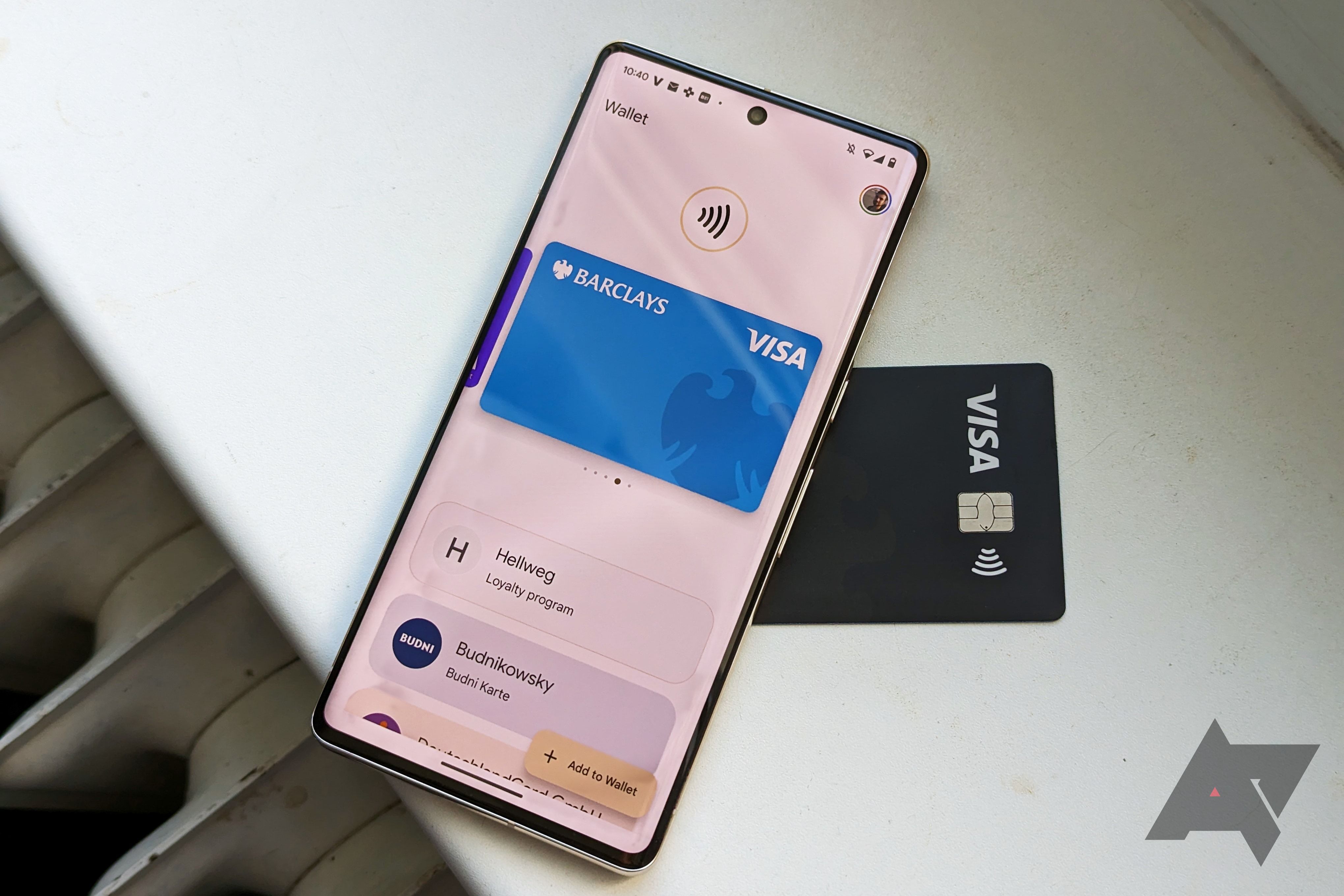
- Open the Google Wallet app.
- Find your Google Pay Balance card in the carousel.
- Ensure that the balance card is set to "Default for contactless."
- Unlock your phone and hold the back of the device near the contactless terminal at the store.
- The transaction will deduct directly from your stored balance.
Online Checkout via Third-Party Sites
When shopping on a website that features the "Buy with Google Pay" button, you can often select your balance. Upon clicking the Google Pay button, a pop-up window will appear showing your saved cards. You must manually select your balance if it is not the default.
Comparison of Google Credit Sources and Usage
| Credit Type | Acquisition Method | Best Use Case | Transferable to Bank? |
|---|---|---|---|
| Google Play Balance | Gift Cards, Rewards | Apps, Movies, Books | No |
| Google Pay Balance | P2P, Bank Transfer | In-store, Online, Rent | Yes (with verification) |
| Promotional Credit | Google Marketing | Specific items (e.g., Hardware) | No |
| Financing/BNPL | Credit Application | Large Hardware Purchases | N/A (Credit Line) |
Technical Troubleshooting: Why Can’t I Use My Credit?
Users often encounter friction when attempting to spend their balance. Here are the most common technical hurdles and how to resolve them.
Grayed-Out Payment Method
If "Google Play Balance" or "Google Pay Balance" appears grayed out during checkout, it is likely due to one of the following:
- Currency Mismatch: Your credit is in USD, but you are trying to purchase from a developer registered in a region that does not accept that currency.
- Ineligible Item: Some items, like hardware devices or certain physical gift cards, cannot be purchased using Play Store credit.
- Insufficient Funds: If you do not have a backup payment method linked, and the balance is even one cent short of the total (including tax), the option may be disabled.
Transaction Declined for Security
Google’s risk engine may block a transaction using credit if it detects a login from a new device or an unusual location. To fix this, ensure your Google Account Security settings are up to date and that you have completed two-factor authentication (2FA).
Vanishing Promotional Credit
Promotional credits (often given after purchasing a Pixel phone or joining a Google One plan) usually have an expiration date. You can check these dates in the Google Play Store under "Offers" or in the Google Pay app under "Insights." Once expired, these funds cannot be recovered.
Advanced Usage: Google Store Financing
For those using "credit" in the form of the Google Store Financing line, the process is slightly different. This is a revolving credit account issued by a partner bank (such as Synchrony Bank in the US). To use this:
- Navigate to the Google Store.
- Add items to your cart (typically hardware like Pixel 10 or Nest devices).
- During checkout, select "Google Store Financing" as your payment method.
- Log in to your Synchrony/Google financing portal if prompted to authorize the transaction.
Safety and Security Considerations
When using Google Pay credit, you are protected by the same security infrastructure that guards Google’s enterprise services.
- Tokenization: When you use your balance in-store, Google does not share your actual account details with the merchant. Instead, it uses a Virtual Account Number (Token) to process the payment.
- Encryption: All payment data is encrypted and stored on secure servers.
- Fraud Protection: Google provides 24/7 fraud monitoring. If you notice a transaction using your credit that you did not authorize, you can dispute it through the Google Pay Support portal.
Frequently Asked Questions
Can I transfer Google Play credit to my bank account? No. Google Play credit (from gift cards or rewards) is non-refundable and cannot be transferred to a bank account or a different Google account. Only a "Google Pay Balance" (cash) can be withdrawn to a linked bank account or debit card.
Does Google Pay credit expire? Funds added via gift cards or bank transfers typically do not expire. However, promotional credits and those earned via Google Opinion Rewards usually expire one year from the date of issuance. Always check the "Expiry" section in your payment settings.
Can I use Google Pay credit on an iPhone? You can use your Google Pay balance on an iPhone for P2P transfers and some online checkouts via the Google Pay iOS app. However, you cannot use it for "Tap-to-Pay" in physical stores on an iPhone, as Apple restricts NFC payments to Apple Pay.
How do I check my Google Pay credit balance? Open the Google Wallet or Google Pay app and look at the top of the screen or the "Money" tab. Alternatively, visit the Google Play Store, tap your profile icon, and select "Payments & subscriptions" > "Payment methods."
Can I use Google Pay credit to buy a gift card for another store? Generally, no. Google's terms of service prohibit using Play Store or Google Pay credit to purchase other prepaid gift cards (like Amazon or Sephora gift cards) to prevent fraud and money laundering.
Practical Recommendation
If you have a significant amount of Google Pay credit, the most efficient way to use it is to set it as your primary payment method for your most frequent digital expenses, such as YouTube Premium or Google One storage. This ensures the credit is used before it expires (in the case of rewards) and keeps your primary bank statement clean. For physical spending, always ensure your identity is verified in the app settings before you reach the checkout counter to avoid a declined transaction.
Image Gallery