How to Get Channels on TV Quickly: Step-by-Step Setup and Scanning Guide
To get television channels quickly, connect an indoor or outdoor HD digital antenna to your TV's coaxial ANT/CABLE IN port, open the TV's settings menu, select Channel Setup or Auto-Scan, choose Air or Antenna as your source, and run a...
To get television channels quickly, connect an indoor or outdoor HD digital antenna to your TV's coaxial ANT/CABLE IN port, open the TV's settings menu, select Channel Setup or Auto-Scan, choose Air or Antenna as your source, and run an automatic channel scan. If your TV connects to Wi-Fi, you can also launch free streaming channel apps like Samsung TV Plus, LG Channels, Pluto TV, or Roku Channel immediately without scanning.
Contents
Choosing the Fastest Way to Get TV Channels
Getting channels on your television depends on whether you want free over-the-air (OTA) broadcast networks, immediate free internet streaming channels, or full cable channel packages. Modern televisions feature digital tuners (ATSC 1.0 and ATSC 3.0 NextGen TV standards) and smart operating systems that allow you to start watching live programming in under ten minutes.
Depending on your hardware and internet access, you have three primary options:
- Over-the-Air (OTA) Antenna Scan: Delivers uncompressed high-definition local broadcast networks (ABC, CBS, NBC, FOX, PBS, CW) for free. Requires a physical antenna plugged into the TV's coaxial port.
- Free Ad-Supported Streaming TV (FAST) Services: Built directly into modern Smart TV platforms (Samsung, LG, Roku, Google TV/Android TV, Vizio). Requires only an active internet connection without needing an antenna or account setup.
- Over-the-Top (OTT) Subscription Streaming: Services like YouTube TV, Sling TV, Hulu + Live TV, or Philo. Provides instant access to live cable channels over Wi-Fi after a short app download and activation process.
Method 1: Scan for Free Over-The-Air (OTA) Local Channels
Scanning for broadcast channels using a digital antenna provides instant access to local news, weather, sports, and network programming without monthly subscriptions or internet reliance.
Prerequisites for OTA Scanning
- An indoor or outdoor TV antenna with an integrated coaxial connection (RG-6 or RG-59 cable).
- A TV manufactured after 2007, which contains a built-in ATSC digital tuner.
- Clear line of sight toward local broadcast towers (placing the antenna near a window facing broadcast origins improves channel yield).
[Antenna] ---> (Coaxial RG-6 Cable) ---> [TV ANT/CABLE IN Port] ---> [TV Settings: Auto-Scan]
Step-by-Step Antenna Channel Scan
- Connect the Antenna: Screw the threaded F-connector of your antenna's coaxial cable tightly into the ANT/CABLE IN port on the back or side of your television.
- Power on the TV: Switch the input source on your TV remote control to TV, Live TV, or Antenna.
- Access the Setup Menu: Press the Home or Settings gear icon on your remote control to open the system menu.
- Locate Channel Settings: Navigate to Channels, Broadcasting, Tuner, or Channel Setup (terminology varies by TV manufacturer).
- Select Signal Type: Choose Air, Antenna, or Over-The-Air as the input source rather than Cable.
- Execute Auto-Scan: Select Auto Scan, Auto Program, or Channel Scan. The TV will search through digital broadcast frequencies (VHF and UHF bands).
- Wait for Completion: Scanning takes between 3 and 10 minutes. Do not power off the TV while the frequency scan counter is running. Once completed, your TV saves all detected digital subchannels automatically.
Brand-Specific Auto-Scan Instructions
Because menu layouts differ across smart TV platforms, use these manufacturer-specific navigational paths to trigger a channel scan rapidly:
Samsung Smart TVs (Tizen OS)
- Press the Home button on your Samsung remote and navigate to Settings.
- Select All Settings > Broadcasting.
- Choose Auto Program and select Start.
- Select Air as your channel source type and click Scan.
- Once complete, select Close to begin watching local channels.
LG Smart TVs (webOS)
- Press the Settings gear on the LG Magic Remote and select All Settings.
- Scroll down to General or Channels (depending on webOS version).
- Select Channel Tuning > Auto Tuning.
- Select Antenna as your input source.
- Click Start to run the scan.
Sony & Google TV / Android TV
- Press the Settings button on your remote.
- Select Channels & Inputs > Channels > Channel Setup.
- Select Auto Program or Digital Tuning.
- Choose Antenna when prompted for your signal source.
- Allow the system to complete the digital channel search.
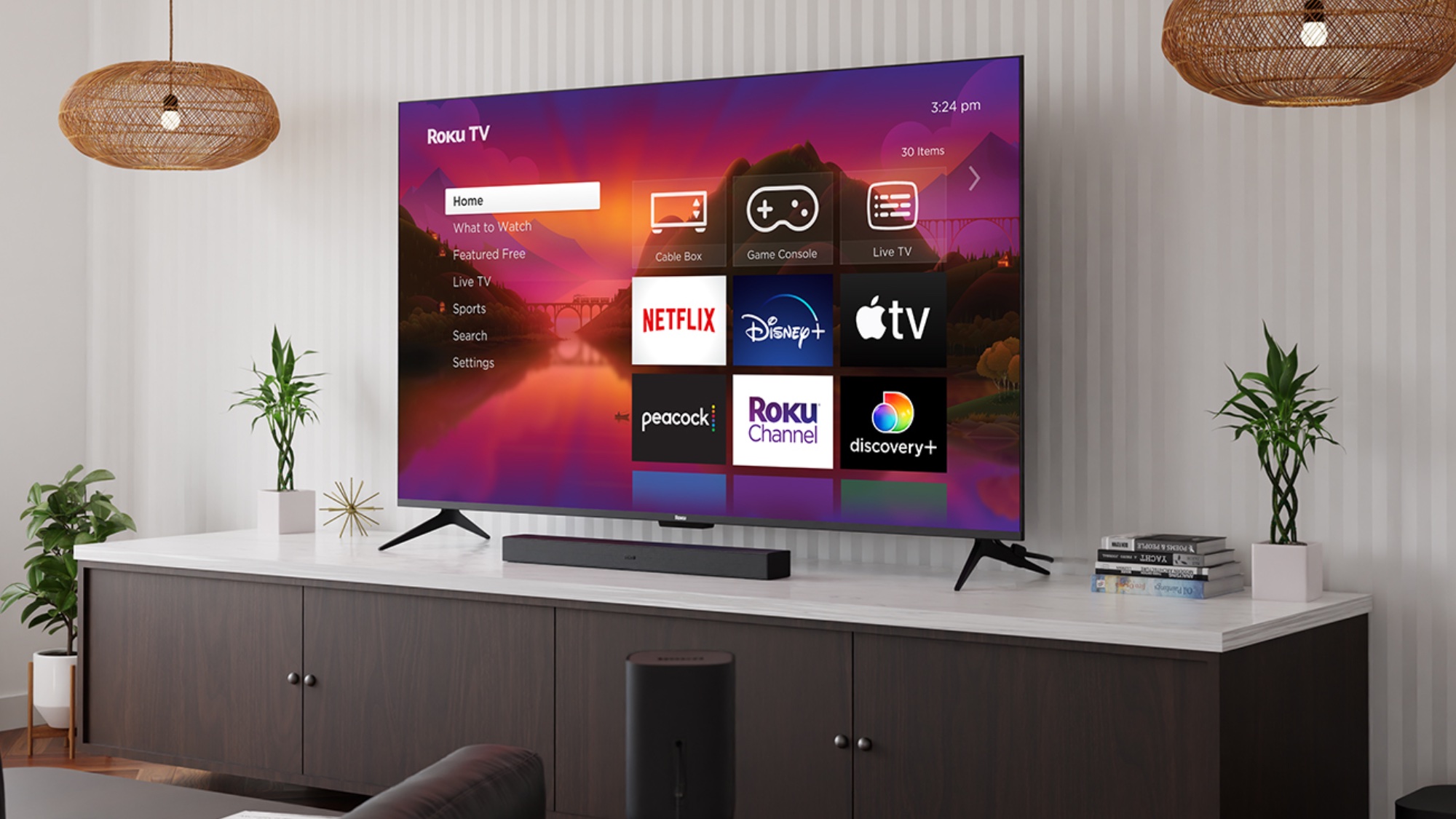
Roku TVs (TCL, Hisense, Sharp, Philips Roku Models)
- Go to the Home Screen and select Live TV (or Antenna TV tile).
- If the tile is not present, navigate to Settings > TV Inputs > Live TV > Set Up Input.
- Follow the on-screen prompts and select Scan for channels.
- Choose your local zip code if prompted to update your Electronic Program Guide (EPG).
Vizio Smart TVs (SmartCast / ViON)
- Press the Input button on your remote and set the TV to TV or Antenna.
- Press Menu or Settings on your remote.
- Select Channels > Find Channels or Auto Channel Scan.
- Select Begin Scan and wait for the digital tuner to locate available signals.
Method 2: Instant Channel Access via Built-In FAST Streaming Apps
If you lack an antenna or coaxial port connection, you can get hundreds of free live channels instantly over Wi-Fi. Free Ad-Supported Streaming TV (FAST) platforms aggregate linear cable-style channels, movies, news networks, and lifestyle programming directly within your smart TV interface without requiring hardware setup or monthly fees.
Built-in Manufacturer Channels (Pre-installed)
- Samsung TV Plus: Available automatically on 2016 and newer Samsung Smart TVs. Simply click the Samsung TV Plus app icon on the home bar to access over 250+ live channels immediately.
- LG Channels: Integrated into LG webOS. Navigate to the LG Channels tile on your launcher bar or press the dedicated live channel button on your remote.
- Vizio WatchFree+: Built directly into Vizio operating systems. Select WatchFree+ from the launcher or press the dedicated key on your Vizio remote control.
- Roku Channel Live TV Guide: On any Roku device or Roku TV, launch The Roku Channel and press left on the directional pad to open the Live TV Channel Guide for 300+ free linear streaming channels.
Free Standalone Channel Apps (Downloadable)
If your TV does not have integrated FAST services pre-configured, install these free apps from your TV's app store:
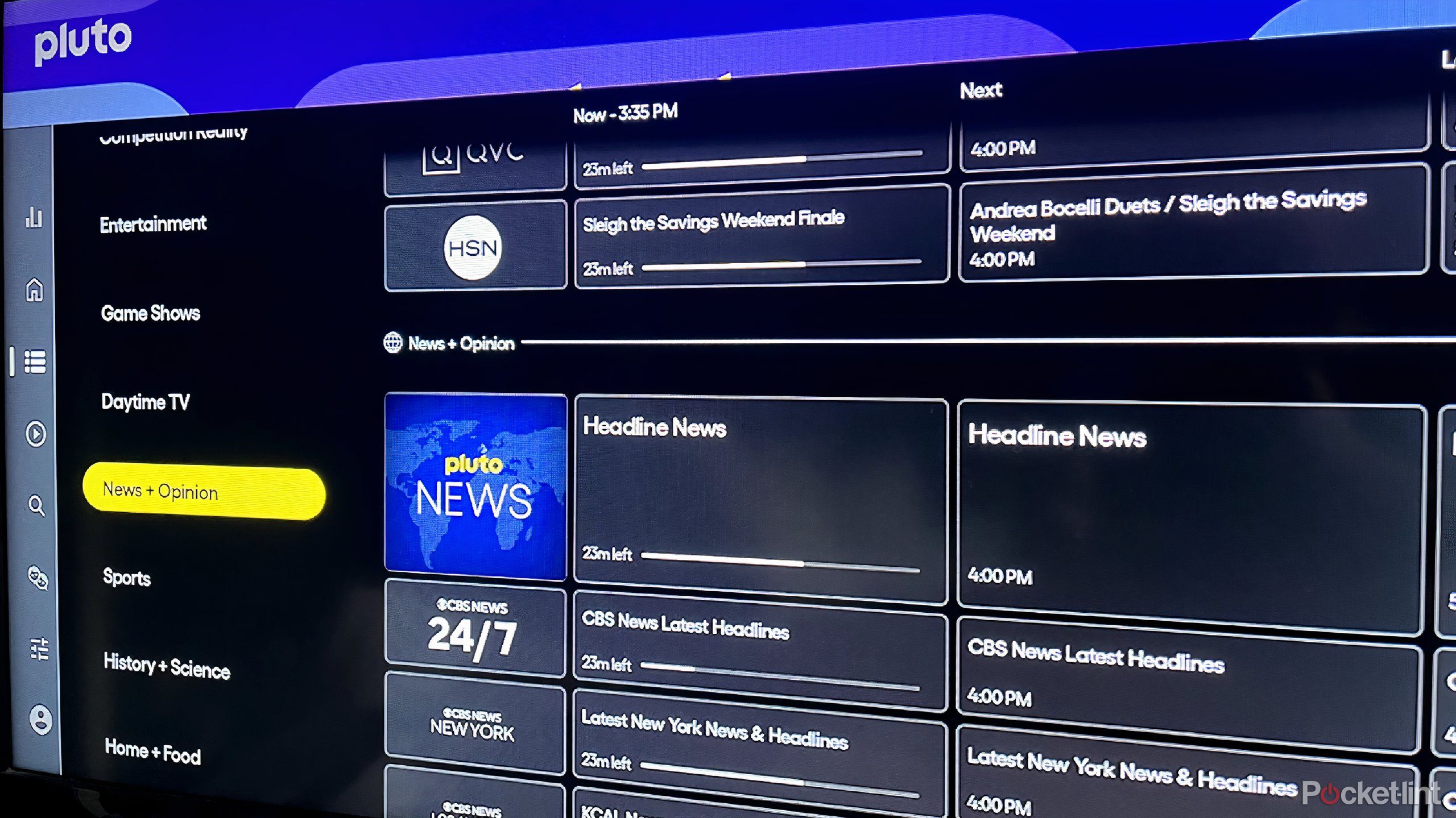
- Pluto TV: Offers over 250 organized channel grids spanning news (CBS News, CNN Replay), classic series, sports, and movies. No account registration is required to start playback.
- Tubi: Features live news feeds and structured channel streams along with a large on-demand library.
- Plex: Includes 300+ free live channels accessible directly through the main navigation menu under "Live TV."
- Freevee: Amazon's free streaming platform featuring curated live streams and theme-based channel guides.
Method 3: Instant Cable Replacement via Live TV Streaming Services
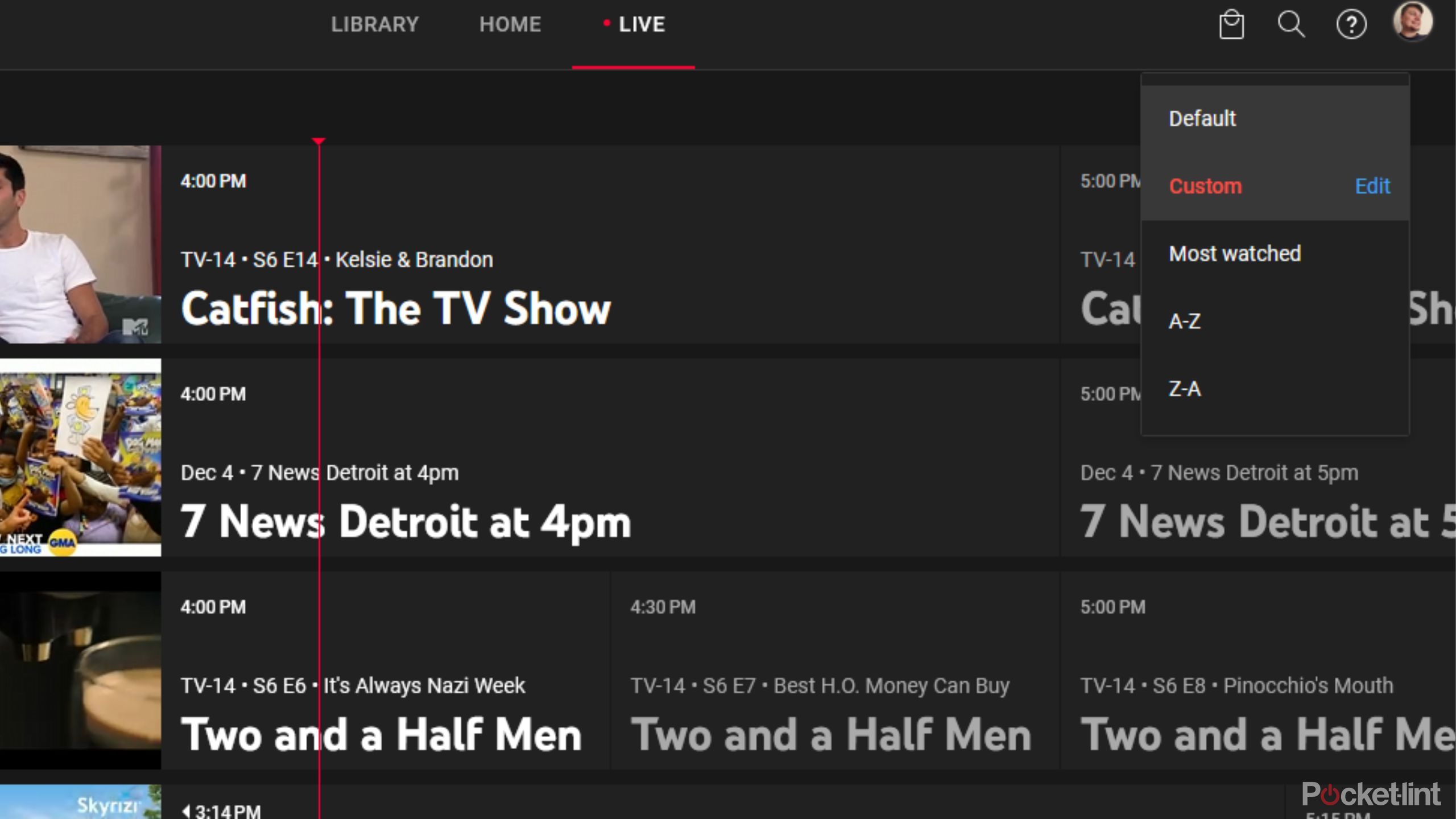
To access premium cable channels (such as ESPN, CNN, HGTV, Bravo, and regional sports networks) instantly without waiting for traditional cable box installation, sign up for an Over-The-Top (OTT) streaming subscription.
Quick Setup Steps for Subscription Live TV
- Using your smartphone or computer, subscribe to a service like YouTube TV, Sling TV, Hulu + Live TV, or Philo.
- Turn on your Smart TV or streaming media player (Apple TV, Fire TV, Roku, Google TV).
- Open your TV’s app store, search for the service app, and select Install.
- Launch the application and enter the activation web address displayed on your TV screen into your mobile browser.
- Confirm authentication. The TV app will log in automatically, bringing up the live program guide.
Comparing TV Channel Setup Methods
| Channel Method | Requirements | Setup Time | Total Cost | Typical Channel Count | Picture Quality |
|---|---|---|---|---|---|
| Over-the-Air Antenna | TV Antenna + Coaxial Cable | 5–10 minutes | One-time antenna cost ($15–$50) | 15–70+ local subchannels | Uncompressed HD / 4K ATSC 3.0 |
| FAST Streaming Apps | Smart TV + Broadband Wi-Fi | 1–3 minutes | 100% Free | 100–300+ thematic channels | 720p / 1080p Compressed |
| Live Subscription OTT | Smart TV + Broadband Wi-Fi | 3–5 minutes | Monthly Subscription ($25–$80+) | 40–100+ premium channels | 1080p / 60fps HD |
| Traditional Cable/Sat | Set-top box + Technician visit | 1–3 days | Monthly fee + hardware rental | 100–500+ traditional channels | 720p / 1080i Compressed |
Troubleshooting Channel Scanning and Signal Acquisition Failures
If your channel scan yields zero channels, drops key network broadcasts, or gets stuck during the execution process, apply these standard hardware and software fixes:
1. Zero Channels Found During Antenna Scan
- Check the Signal Source: Confirm that you selected Air or Antenna in the channel menu. If the TV was set to Cable, the tuner scans different frequency offsets and will fail to detect broadcast signals.
- Verify Antenna Power: If using an amplified indoor antenna, make sure the USB or AC power adapter is connected and functioning. Unpowered amplified antennas physically block incoming radio signals.
- Inspect Cable Termination: Ensure the coaxial connector is screwed tightly onto the TV’s ANT/CABLE IN port. A loose outer ring breaks the ground path required for clean signal transmission.
2. Missing Specific Local Channels (Signal Loss)
- Re-position the Antenna Higher: Radio frequency signals struggle to penetrate brick walls, foil insulation, and metal siding. Move your antenna to an elevated position near a window facing local transmission towers. Tools like the FCC DTV Reception Maps provide precise tower headings based on your address.
- Perform a Rescan: Broadcast stations occasionally move frequencies or upgrade to ATSC 3.0 NextGen TV signals. Running a fresh channel auto-scan clears old frequency maps and populates newly assigned channels.
- Switch from VHF to UHF Capability: Some local stations broadcast on VHF frequencies (channels 2–13) while others use UHF (channels 14–36). Ensure your antenna includes foldable dipoles ("rabbit ears") for VHF alongside a flat panel or loop for UHF reception.
3. Channel Auto-Scan Process Freezes or Loops
- Power Cycle the TV: Unplug your television from the electrical outlet for 60 seconds to clear residual cache memory in the tuner circuit, then plug it back in and restart the auto-program routine.
- Update System Firmware: Ensure your smart TV operating system is updated to the latest software release, as corrupted system firmware can freeze the tuner stack during scan procedures.
Frequently Asked Questions
Why is my TV not finding channels with an antenna?
Your TV might be set to Cable instead of Air/Antenna in the setup menu. Ensure the coaxial cable is securely connected to the ANT/CABLE IN port, verify that amplified antennas have power, move the antenna closer to a window, and run the Auto-Scan routine again.
Do smart TVs need an antenna to get channels?
No. Smart TVs can access hundreds of live linear channels over an active Wi-Fi connection using built-in platforms like Samsung TV Plus, LG Channels, and Vizio WatchFree+, or downloadable apps like Pluto TV and YouTube TV. However, an antenna is required if you want uncompressed local over-the-air broadcast networks without paying for internet or streaming subscriptions.
What is the difference between ATSC 1.0 and ATSC 3.0 NextGen TV?
ATSC 1.0 is the legacy digital TV standard used in North America, transmitting signals up to 1080i resolution. ATSC 3.0 (NextGen TV) is an advanced broadcast standard delivering up to 4K Ultra HD video, High Dynamic Range (HDR), advanced audio features, and improved signal reception using IP-based data streams alongside traditional broadcast signals.
Can I get cable channels on my TV for free?
You cannot legally get premium subscription cable channels (such as ESPN, HBO, or HGTV) for free. However, you can access hundreds of free live ad-supported channels (FAST platforms) that mirror cable style programming—including 24/7 news feeds, movies, and thematic entertainment channels—through apps like Pluto TV, Tubi, and Roku Channel.
How often should I rescan for TV channels?
It is best practice to re-scan your TV channels every few months, or whenever you notice a channel dropping out. Local broadcasters periodically adjust channel frequencies, launch new subchannels, or transition broadcast signals to NextGen TV standards.
Recommended Next Steps
To get your TV channels up and running immediately:
- For zero-cost broadcast channels: Plug an indoor HD antenna into your TV's coaxial port, set the tuner source to Air, and launch an Auto Scan in your system settings.
- For immediate internet channels: Connect your TV to Wi-Fi and click your platform's built-in channel guide (Samsung TV Plus, LG Channels, Roku Live TV) or download Pluto TV for instant viewing without registration.
- For comprehensive live cable replacement: Sign up for a free trial of a Live TV streaming app (like YouTube TV or Sling TV) directly from your TV's application store.
EDITORIAL CATEGORY METADATA:
Image Gallery