Essential Strategies to Make Your Computer Run Faster
Optimizing a computer to run faster involves a systematic approach to identifying resource bottlenecks, including clearing storage space, managing background processes, updating drivers, and considering targeted hardware upgrades. By f...
Optimizing a computer to run faster involves a systematic approach to identifying resource bottlenecks, including clearing storage space, managing background processes, updating drivers, and considering targeted hardware upgrades. By focusing on both software efficiency and physical components, you can restore system responsiveness and improve overall computational performance for your specific daily tasks.
Contents
Understanding System Performance Bottlenecks
Before attempting to speed up a computer, it is necessary to identify what is actually causing the slowdown. Modern operating systems, including Windows 11 and various Linux distributions, rely on four primary pillars of performance: the Processor (CPU), System Memory (RAM), Storage Drive (HDD/SSD), and the Graphics Processing Unit (GPU).
A system feels slow when one of these components reaches 100% utilization while you are attempting to perform a task. For example, if you have dozens of browser tabs open, your system may run out of RAM, forcing the operating system to move data to your hard drive—a process known as "paging" or "swapping"—which is significantly slower than using physical RAM. Alternatively, if your hard drive is nearly full, the operating system struggles to find contiguous space to write temporary files, leading to fragmentation and sluggish file access.
Software Optimization and Housekeeping
The most immediate improvements often come from software maintenance. Over time, applications accumulate temporary files, cache data, and background services that persist even when the software is not actively being used.
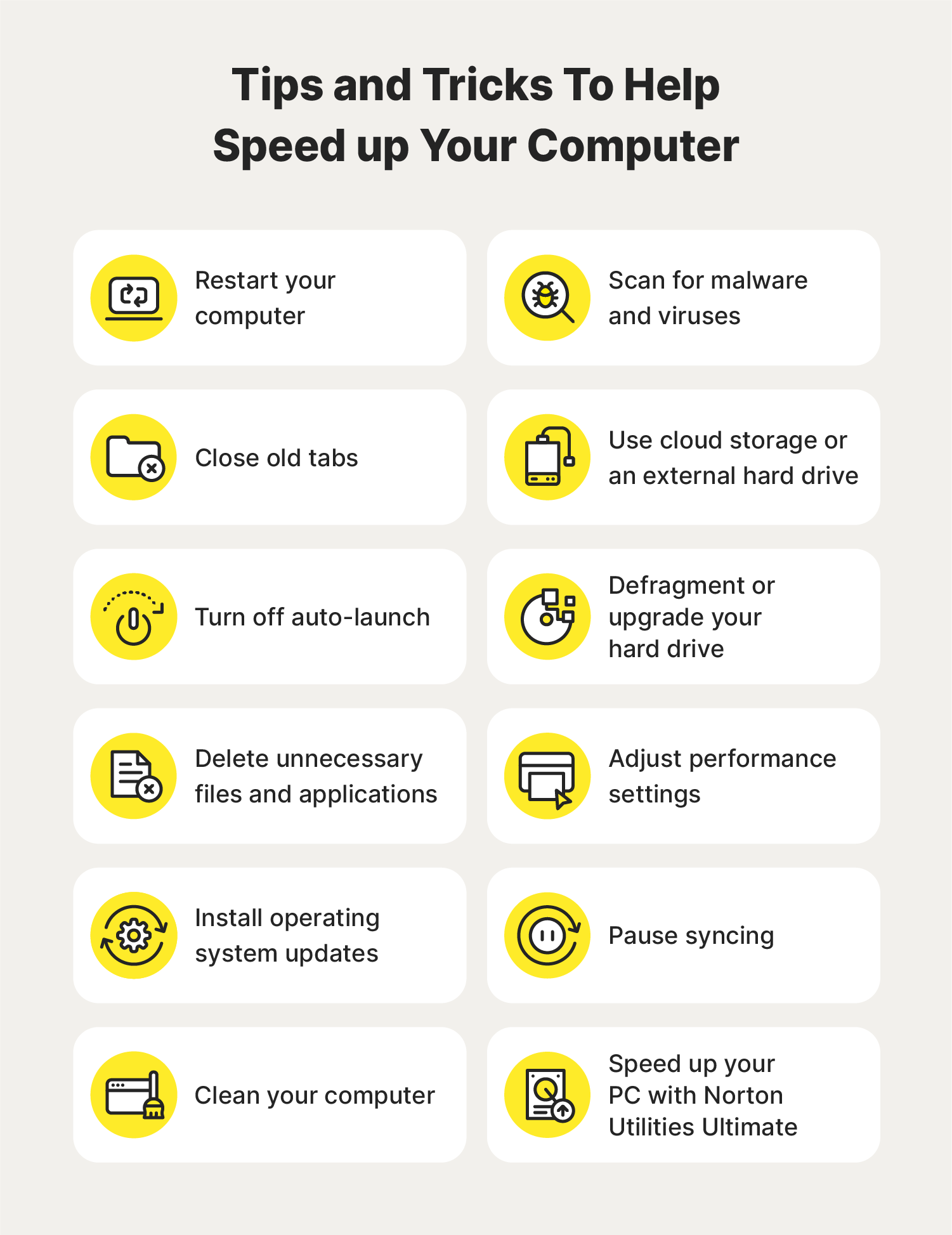
- Manage Startup Programs: Many applications set themselves to launch automatically when you boot your computer. This increases boot times and consumes memory before you even begin working. In Windows, you can use the Task Manager (Ctrl + Shift + Esc) to view the "Startup apps" tab and disable unnecessary programs.
- Clear Temporary Files: Operating systems generate temporary files for updates, logs, and installation buffers. Using built-in tools like Disk Cleanup (Windows) or the storage management settings allows you to safely delete these files without harming your system data.
- Update Drivers and Firmware: Outdated drivers, particularly for the chipset, storage controller, and GPU, can cause compatibility issues or inefficient power management. Visit the manufacturer’s support website for your specific motherboard or laptop model to ensure you are running the latest stable versions.
- Review Background Services: Some software includes "telemetry" or "update checkers" that run constantly. Review your installed programs and uninstall any bloatware—software that came pre-installed on your computer—that you do not use.
The Impact of Storage Technology
If you are currently using a mechanical Hard Disk Drive (HDD) as your primary system drive, upgrading to a Solid State Drive (SSD) is the single most impactful hardware change you can make. HDDs use spinning platters and moving heads to locate data, which is physically limited by mechanical latency. SSDs use flash memory, providing near-instant access to data.
Even if you already use an SSD, ensure it is not nearing full capacity. SSDs require "free space" to perform background maintenance tasks known as "garbage collection" and "wear leveling." If an SSD is filled beyond 85-90% of its total capacity, you may observe a sharp decline in write speeds. Moving large multimedia files to an external drive or cloud storage can immediately restore optimal performance.
Comparing Common Performance Upgrades
The following table compares typical interventions based on their relative impact and cost-effectiveness for a mid-range computer in 2026.
| Upgrade/Action | Performance Impact | Cost | Difficulty |
|---|---|---|---|
| SSD Migration | Transformative | Moderate | High |
| RAM Expansion | High (for multitasking) | Low/Moderate | Moderate |
| Debloating OS | Moderate | Free | Low |
| Driver Updates | Low to Moderate | Free | Low |
| OS Reinstallation | High | Free | High |
Memory Management and Capacity
Random Access Memory (RAM) acts as the short-term storage for active applications. If your tasks consistently exceed your installed RAM capacity, your computer will lose significant speed. For the average user in 2026, 16GB of RAM is generally considered the baseline for comfortable multitasking. If you are a professional using video editing software, 3D modeling tools, or complex virtualization, 32GB or higher may be required to prevent the system from slowing down during heavy workloads.
To verify if RAM is your bottleneck, keep your performance monitor open while performing your typical daily tasks. If the "Memory" usage percentage remains consistently above 85-90%, upgrading your physical RAM modules is the most effective solution. Ensure you purchase RAM that matches the specifications of your motherboard (DDR4 vs. DDR5) and respects the maximum capacity limit supported by your processor.
Troubleshooting Persistent Slowness
If you have performed the above optimizations and your computer remains slow, you may be dealing with more complex underlying issues:
- Thermal Throttling: If your computer’s cooling system is clogged with dust, or if the thermal paste on your CPU has degraded, the system will intentionally lower its clock speed to prevent overheating. Regularly cleaning air vents with compressed air and ensuring proper airflow can solve this.
- Malware and Background Threats: Malicious software can hide in background processes, consuming CPU cycles for unauthorized tasks. Ensure your security software is active and run a full system scan to identify potential threats.
- File System Errors: Hard drives and SSDs can develop logical errors over time. Use built-in utilities like "chkdsk" (Windows) or "First Aid" (macOS) to verify and repair the integrity of your file system.
- Operating System Corruption: In extreme cases, the operating system installation itself may become bloated or corrupted beyond the reach of manual cleaning. Performing a clean installation of the OS will reset your system to a factory state, often restoring "out-of-the-box" speed. Always ensure you have a verified backup of your data before proceeding with this step.
Frequently Asked Questions
Does clearing my browser cache make my computer faster? Clearing your browser cache primarily improves the performance of the web browser itself and resolves issues with outdated web page rendering. It does not significantly affect the speed of the underlying operating system, though it does free up a small amount of disk space.
Is it safe to use "PC Optimizer" or "Registry Cleaner" software? Generally, these tools are not recommended. Modern operating systems are designed to manage their own registries and temporary files. Many third-party "cleaners" provide marginal benefits and, in some cases, can cause system instability by deleting necessary configuration files.
Will overclocking my CPU make my computer faster? Overclocking can increase performance in specific compute-heavy tasks, but it also increases heat output and power consumption. It can decrease system stability and potentially shorten the lifespan of your components. It is rarely the recommended solution for general performance issues.
What is the minimum amount of free storage space I should keep? It is a good practice to keep at least 15-20% of your total storage drive capacity free. This provides enough overhead for the operating system to perform background tasks, manage swap files, and install necessary updates without triggering performance penalties.
How often should I restart my computer? Restarting your computer at least once every few days is beneficial. It clears the RAM, terminates "zombie" processes that may have hung in the background, and ensures that pending updates are applied correctly, which contributes to a more stable and responsive user experience.
Next Steps for System Optimization
Start by cleaning up your startup applications and checking your drive capacity. If those steps do not provide the desired results, use your system’s diagnostic tools to identify if your CPU, RAM, or Disk usage is hitting 100% during your normal workflow. Once the specific bottleneck is identified, prioritize the most cost-effective solution—whether that is uninstalling unused software, increasing RAM, or upgrading to an SSD—to achieve a noticeable, lasting improvement in your computer's performance.
Image Gallery